Showing posts with label login. Show all posts
Showing posts with label login. Show all posts
Sunday, October 23, 2016
How to Change a Wordpress Logo in Login Page
How to Change a Wordpress Logo in Login Page

How to Change a Wordpress Logo in Login Page - I want to share a trick for wordpress. this trick is How to Change a Wordpress Logo in Login Page which can make your wordpress become more interesting.
You can to Change Wordpress logo, you can to put your photo or other picture in wordpress login page.. You want to try this??
This is the secret, First open the functions.php file, and copy this code:
function custom_loginlogo() {
echo ‘<style type=”text/css”>
h1 a {background-image: url(‘.get_bloginfo(‘template_directory’).’/images/login_logo.png) !important; }
</style>’;
}
add_action(‘login_head’, ‘custom_loginlogo’);
dont forget to copy logo file to image folder at your theme, and adjust the logo file name.. for example the name login_logo.png.
Ok, I hope you become more cool with the new logo..
Go to link Download

Saturday, October 22, 2016
How to Login to Windows 10 with Your Finger
How to Login to Windows 10 with Your Finger
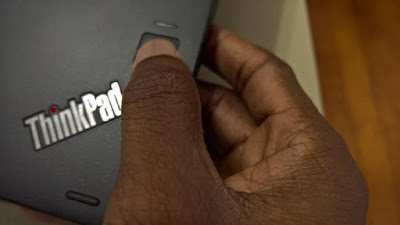
Microsoft’s Windows 10 operating system included a ton of new features.and almost none of them required users to purchase a
Windows Hello lets Windows 10 users configure their notebook, desktop, tablet or 2-in-1 to skip their password. Instead of doing the log in with a long password, users bypass their password and login with their fingerprint or their eyes. It sounds rather basic given that Apple devices have offered Touch ID for years, but it’s a huge leap forward for Windows. For context, it wasn’t until Windows 8 device owners gained the ability to also use a passcode on their device.
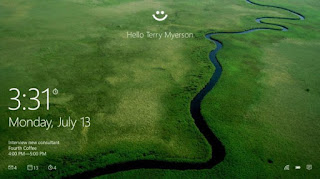
Here’s how to login to Windows 10 with your finger.
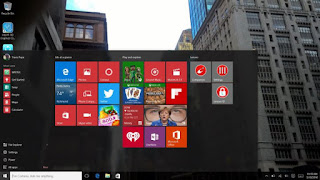
Start by pressing the Windows Key on your keyboard or tapping on the Windows button in the Taskbar. This will open the Start Menu or Start Screen depending on whether you’re in Tablet Mode or not.

Tap or click on the option for Settings. In the Start Menu, it’s in the bottom-left corner. The touch-friendly Start Screen requires users to tap the menu icon in the top-left corner of their screen before they see the Settings button
Welcome to the Settings app. Tap or click on Accounts. It’s the option in the top row on the far right.
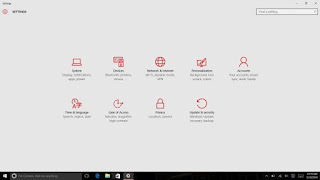
In the Accounts area of the settings app you can create a Microsoft Account, add a Microsoft Account and modify your existing Microsoft Account. Click on the Sign-in Options menu item on the left side of the Settings app.
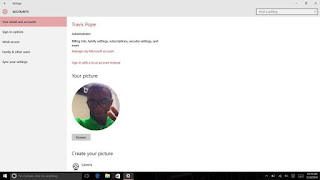
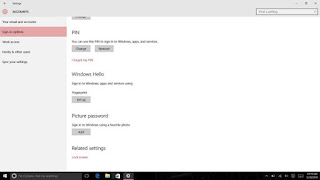
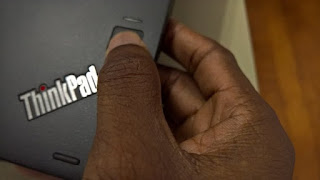
Inside the Sign-In Options area, scroll down until you see an option for Windows Hello. Note that the option should only surface if you have a capable fingerprint reader or camera connected to your device. If you don’t see the option, your fingerprint reader or camera isn’t compatible with the feature for whatever reason. Tap or click on Set up underneath Fingerprint.
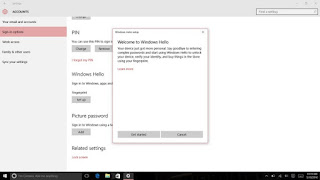
Tap or click on Get Started
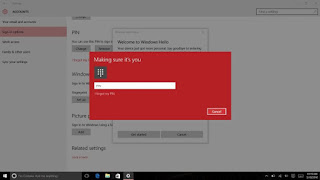
Enter your Pincode now. If you don’t have one created yet, you’ll be prompted to do so now.
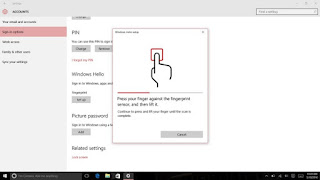
For Windows Hello to learn your fingerprint, you’ll need to repeatedly press your finger on your fingerprint reader.
As you do so, watch the meter on your screen to make sure that you’re teaching it your finger correctly and making progress.
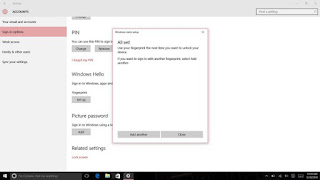
Windows Hello requires that you teach it one fingerprint, but you can add more than one if your fingerprint reader supports it. If yours does, tap or click on the Add another button after you’ve enter your first finger.
For the best experience, it’s a good idea to go with the index finger on whatever your dominant hand is. Left-handed people should use the fingers on their left hand, for example. Right handed users should use their right hand.
Microsoft says that the fingerprint information that you provide to your device is secure and not provided to its servers or synced with your Microsoft Accounts. As such, you’ll need to setup Windows Hello again on any PC that has the necessary hardware.
Besides skipping your lock screen, Windows 10 uses Windows Hello to eliminate passwords whenever possible. The Windows Store will ask you to authorize your account with your fingerprint if you’ve set up Windows Hello. Unfortunately, apps downloaded through the Windows Store don’t support the feature yet.
Go to link Download
Monday, September 19, 2016
How to Create LINE Login ID Account Free Download LINE App www line me
How to Create LINE Login ID Account Free Download LINE App www line me
 | |
| CASCITY.BLOGSPOT.COM |
Line is social media application which allows its users to share texts, audio, images and videos to other LINE users. Its users can also enjoy free VoIP conversations and as well video conferences. It an which was developed by members of NHN Koreans Internet search giant Naver subsidiary who numbered 15.
LINE was officially released and launched in 2011 in Japan. Initially, developed as an application for more devices Android and iOS smartphones but now available for Blackberry, Nokia Asha, Windows phone, Firefox OS, iOS tablets, Chrome Browser Application, and Mac OS powered devices.
UNIQUE FEATURES OF LINE
- LINE supports creating of messages using smartphone app or PC admin page and share them to various customers and friends which you have as friend in your account. Messages can be delayed to certain of sending it in advance.
- With LINE you can send many free messages from one person to another or to groups of friends at anywhere or anytime without hindrance.
- LINE also features free Voice and Video calls.
- It also allows sharing of voice messages , photos, videos, contacts and as well location information.
- On LINE there are many awesome stickers which are available for your use to spice up your chats and express your feelings easily. There are many free stickers and emoticons however to discover original characters of favorite celebrity you would have to visit the Sticker Shop.
- LINE offers you the ability to be updated with latest information about popular artist and various brands of your admiration by allowing you to follow their official LINE accounts.
- With the LINE timeline you can share stories with your close friends via texts, photos, videos, stickers and emoticons.
- LINE has a feature known as Keep which allows LINE users to save their favorite messages, photos and videos.
- With the shake it feature in LINE you can just find friends by just shaking.
- You can also add you friends through QR code or a LINE ID.
How to Create LINE Login ID Account And Download LINE App:
- You are required to download and install the app from the official website www.line.me.
- Launch the app after installing and select "New Users"
- Enter your country and phone number in the new screen that appeared and click on the Next button.
- A screen showing terms of agreement will appear, before a prompt will appear asking for your number verification click on the OK button. Choose "Agree with Terms and Verify".
- You will be sent SMS to your number which will automatically be registered but if does not work you can manually fill in the code window that would appear and then continue to the nex stage.
- You can automatically allow LINE app to add contacts based on the contacts phone number and email address that is stored in your contacts. You can also choose for others to automatically find you or not and then click on the OK button after making our choice.
- Now you will be required to fill in your display name which should not be more than 20 characters. After that upload your profile image, you can choose to snap a new photo or choose from your device in whichever can if the image is too large you would have to crop it to fit in, select and Click on "Register".
- Then you can now do your email Registration by entering the needed information and click on "Register now" if you want to or you can do that later, just click on "Register later"
- Your LINE account will now load, normally it takes just awhile to however the speed at which it will be completed depends on the device you are using.
- Now you LINE app account is ready, you can start chatting with your family, colleagues and increase the population of you contacts lists.

We would like to get your comments and contributions at the comment box as regards How to Create LINE Login ID Account Free And Download LINE App - www.line.me we will definitely attend to you immediately.
Go to link Download
Thursday, September 15, 2016
How to Delete Window Login Password
How to Delete Window Login Password
here are many people who want to delete windows password and bypass Windows login. It happens many times that we want to access friend’s Windows computer anonymously. Sometimes, we even forgot Windows login password. If you are searching for a solution to one of these problems, you are at the right place. Today, I am posting the best way to bypass windows login in this article. So, let us begin.
- USB drive
- Download this file: Files to Bypass Windows Login.
Password: techotips.com
Make sure you have the above files before moving to the procedure.
Got those files? Great! So, let us get into the steps to delete Windows password.
2. Unzip your downloaded folder and from “Grub” folder, run grubinst_gui.exe as Administrator. For this, right click on file and hit on “Run As Administrator”.
Note: Do not run this file in Sandbox. The trick will not work.
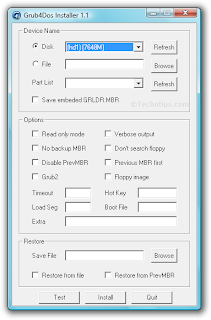
3. Click on “Disk” radio button and from dropdown box, select your USB drive.
Note: Make sure you select your USB drive and not any other drive. You can select it correctly by looking at size mentioned in the options.
4. Hit on Install and you will be shown message regarding successful installation in command prompt.
Update: If you are getting some error like: Bad partition table or so, copy this code:
5. Now, copy these 3 files in your USB root:
- grldr from “grub4dos” folder
- menu.lst and
- KON.IMG
The 3 files are present in the downloaded folder. Make sure you copy these files in USB root and not in any folder.
That’s it. You are done with the basic configuration of USB drive.
Now, when you restart your computer in a normal way (without booting from USB), you will be asked to enter a valid password. So, if you want to access friend’s computer anonymously, without his knowledge, you can do it easily using this beautiful trick.
Whenever you want to remove Windows password, simply boot using this USB drive and enjoy anonymous access to any Windows computer. I hope you will now be able to bypass Windows password using the above trick.
Recommended: You might be interested in our article: SMS Bomber to send unlimited messages to friends.
This was a short tutorial on how to bypass Windows login using USB drive. If you have any queries on how to delete Windows password, please let us know in comments.
How to Bypass Windows Login:
This Windows trick works for all Windows versions and the procedure is same for all the versions. After configuration, the only thing you have to do is to boot using your usb drive and you can easily delete Windows password. Please note that this trick will not reset Windows password. It will erase Windows password only when you boot from USB. The next time you boot computer without USB, you will be required to enter the actual password.
Requirements:
- A computer.- USB drive
- Download this file: Files to Bypass Windows Login.
Password: techotips.com
Make sure you have the above files before moving to the procedure.
Got those files? Great! So, let us get into the steps to delete Windows password.
Steps for Deleting Windows Password:
1. First of all, you have to format your USB drive. You can do that easily by right click -> Format. Also, while formatting make sure that you have selected FAT32 as File System. This is necessary for proper working of this trick.2. Unzip your downloaded folder and from “Grub” folder, run grubinst_gui.exe as Administrator. For this, right click on file and hit on “Run As Administrator”.
Note: Do not run this file in Sandbox. The trick will not work.
3. Click on “Disk” radio button and from dropdown box, select your USB drive.
Note: Make sure you select your USB drive and not any other drive. You can select it correctly by looking at size mentioned in the options.
4. Hit on Install and you will be shown message regarding successful installation in command prompt.
Update: If you are getting some error like: Bad partition table or so, copy this code:
--skip-mbr-test into Extra textbox and hit on Install. Thanks to vihari for the feedback. 5. Now, copy these 3 files in your USB root:
- grldr from “grub4dos” folder
- menu.lst and
- KON.IMG
The 3 files are present in the downloaded folder. Make sure you copy these files in USB root and not in any folder.
That’s it. You are done with the basic configuration of USB drive.
Boot from USB:
Restart your system and boot using the USB drive you just configured. On next screen, hit Enter once. Windows will start normally and you will be shown Windows login page. Don’t worry! You don’t have to enter any password. Just hit on Enter and you will be able to bypass Windows password. Cheers!Now, when you restart your computer in a normal way (without booting from USB), you will be asked to enter a valid password. So, if you want to access friend’s computer anonymously, without his knowledge, you can do it easily using this beautiful trick.
Whenever you want to remove Windows password, simply boot using this USB drive and enjoy anonymous access to any Windows computer. I hope you will now be able to bypass Windows password using the above trick.
Recommended: You might be interested in our article: SMS Bomber to send unlimited messages to friends.
This was a short tutorial on how to bypass Windows login using USB drive. If you have any queries on how to delete Windows password, please let us know in comments.
Go to link Download
Subscribe to:
Posts (Atom)