Showing posts with label memory. Show all posts
Showing posts with label memory. Show all posts
Thursday, October 20, 2016
How to fix “Text Message Memory Full” error in Android device
How to fix “Text Message Memory Full” error in Android device
As we all know most of the middle end Smartphone has limited internal memory. Whether it is an audio, videos, contact as well as messages are stored in phone memory. You need not worry about media files and contact which can be movable to expandable memory. But even after changing the storage settings in storage space to external device.
 |
| Text Message Memory Full |
Most of the middle end Smartphone users facing “text message memory full” error. Message storage is set to phone memory where apps and contacts are saved.
Add/remove Applications:
 |
| Uninstall unwanted apps |
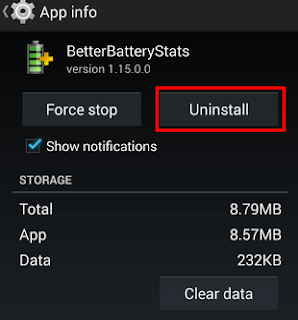
Uninstall unwanted apps or games from Smartphone in app manager under settings. To do so, access settings>application manager>uninstall applications or move to external storage. By removing some apps will free up space for message storage.
Apps to SD card:
 |
| move apps to SD |
Some mobile application allow changing their storage such as UC browser, power Cam, Xender etc. To do so, access setting>application manager>app info>move to SD (transfers all application data to SD card) on other hand we can also use application to move apps from phone memory to external storage. We recommend the best application is App2SD on Google play store.
Delete image/videos:
 |
| remove media files |
Remove unwanted image and videos from gallery. Also check whether any unwanted multimedia message stored in message applications. You can remove by tap and hold media files (which you want to delete) to disclose delete options.
recommended post: 10 mobile apps which earn you real cash
This is easy guide to fix “text message full” error in Smartphone/tablet. Do you have any better ideas, share us through comment.
[Via]
[Via]
Go to link Download

Friday, October 7, 2016
How To Manage Your Blackberry 10 Memory
How To Manage Your Blackberry 10 Memory


Overview
Performing regular maintenance on Blackberry devices ensures that the device will continue working as designed. Managing your memory can help avoid issues with your device
Resolution Steps
Perform the following steps as regular maintenance:
Restart the device regularly
You should restart the phone at least once a day by removing and reinserting the battery.
Clear memory regularly
Clear the memory at least once a week:
Note: Refer to Help & How Tos or your user manual for instructions.
- Delete the call logs.
- Clear the browser cache, cookies, or history.
- Clear search history.
- Manage applications. See section below.
- Store data on SD cards.
- Remove contacts that are not needed.
Determine What Is Using Memory
To see what databases in the Blackberry are using the most memory, See: Help & How Tos > Device Hardware > Memory
Manage applications
To remove applications from the BlackBerry smartphone, See: Help & How Tos > Downloads & apps > Applications on BlackBerry World
Change default memory location
To change the default memory location for the camera applications, See: Help & How Tos > Device Hardware > Memory
Original Post From : HERE
Go to link Download
Wednesday, August 31, 2016
HOW TO INCREASE YOUR MEMORY CARD FLASH DRIVE SPACE TO 4GB
HOW TO INCREASE YOUR MEMORY CARD FLASH DRIVE SPACE TO 4GB
Now, You can Convert all you Small Size Storage Device e.g Memory Card, Flash Drive of any Size to 4GB for Free without any Hidden Using a Simple Application.
HOW CAN I CONVERT MY SMALL SIZE MEMORY CARD & FLASH DRIVE TO 4GB? Just Follow the Below Steps accordingly & I bet you will enjoy this Tutorial to the Fullest and Can even make yourself Cool Money!
1. Download the Driver Increaser Software for your PC HERE , Open the Zip File using Winzip and Press Ctrl + All to Highlight all the Files at Once, then click on Extract and Choose your desire directly, Just choose Desktop.
2. Now after Unzipping, Now Insert your Memory Card to your PC using Card Reader or Plug in your Flash to your USB Port.
3. Open the Driver Increaser Folder and Locate the File "Drive Increaser 2", Just Double click on it to Run it.

4. Leave it Open, Then Go to My Computer >> Right Click on your Memory Card or Flash Drive >> Properties >> Give it or change the Existing Name to a Short Name and Ok it.
5. Now, Go back to the Driver Increaser Software and Type the Name you Give to your Memory Card or Flash Drive, Press Enter.
6. Now, You will be Ask to Put the Drive Letter, Go back to your My Computer, You should see it like this (G:) or (H:) or anything, If its (G:), Just Type G in the Software and Press Enter, It will ask you to Enter it Again, Do just that and Press Enter Again.
7. If it shows some texts in red color it has worked, But if it didnt show just Retry again >> Your Memory Card or Flash Drive should be 3.99GB now.
Thats All.
NOTE:- This software can convert any size of a storage device to 4GB, if you mistakenly changed an 8GB to 4GB, You can undo it by going to My Computer >> Right click on the drive, and Format it, this is the reverse of this tutorial. Do you Like it? Please Click on the Like Tutorial.
ThanX to koresma26 from naijaloaded
HOW CAN I CONVERT MY SMALL SIZE MEMORY CARD & FLASH DRIVE TO 4GB? Just Follow the Below Steps accordingly & I bet you will enjoy this Tutorial to the Fullest and Can even make yourself Cool Money!
1. Download the Driver Increaser Software for your PC HERE , Open the Zip File using Winzip and Press Ctrl + All to Highlight all the Files at Once, then click on Extract and Choose your desire directly, Just choose Desktop.
2. Now after Unzipping, Now Insert your Memory Card to your PC using Card Reader or Plug in your Flash to your USB Port.
3. Open the Driver Increaser Folder and Locate the File "Drive Increaser 2", Just Double click on it to Run it.
4. Leave it Open, Then Go to My Computer >> Right Click on your Memory Card or Flash Drive >> Properties >> Give it or change the Existing Name to a Short Name and Ok it.
5. Now, Go back to the Driver Increaser Software and Type the Name you Give to your Memory Card or Flash Drive, Press Enter.
6. Now, You will be Ask to Put the Drive Letter, Go back to your My Computer, You should see it like this (G:) or (H:) or anything, If its (G:), Just Type G in the Software and Press Enter, It will ask you to Enter it Again, Do just that and Press Enter Again.
7. If it shows some texts in red color it has worked, But if it didnt show just Retry again >> Your Memory Card or Flash Drive should be 3.99GB now.
Thats All.
NOTE:- This software can convert any size of a storage device to 4GB, if you mistakenly changed an 8GB to 4GB, You can undo it by going to My Computer >> Right click on the drive, and Format it, this is the reverse of this tutorial. Do you Like it? Please Click on the Like Tutorial.
ThanX to koresma26 from naijaloaded
Go to link Download
Monday, August 29, 2016
How to Download BlackBerry Apps to Memory Card
How to Download BlackBerry Apps to Memory Card

Share all of this †o ur friends!
Save device space by moving your BlackBerry apps to its microSD card.
BlackBerry phones have a large number of apps, or applications, that can be downloaded and used. However, these apps can take up a large amount of device memory, in turn slowing the BlackBerry down. One solution to this is to download, or archive, your apps to the microSD memory card. Doing so can improve your phone's functionality.
Things You'll Need:
BlackBerry App World version 1.1 or higher
Instructions
Update your BlackBerry App World to version 1.1 or higher. Any older versions will not allow you to archive or download the apps to the microSD memory card.
Download any app or apps that you plan on using in the BlackBerry App World. If you already have your apps downloaded, proceed to Step 3.
Choose "My World" from the main screen in order to view your downloaded apps.
Scroll to the app that you would like to archive or download to the microSD memory card. Select your "Menu" button and choose the "Archive" option. This will begin the download and archiving process. Your app will be uninstalled from the device memory and transferred to the SD card.
Reboot the BlackBerry if requested. Some apps will require this step, while others will not.
Restore the app that you saved to your microSD memory card. You should be able find your archived apps in the Downloads folder or on the home screen. The archived apps will have a green arrow on the icon indicating it was downloaded to the memory card. Select the app and then select "Restore."
Tips & Warnings
Store your music and pictures to a microSD card to free up even more memory.
Go to link Download
Subscribe to:
Posts (Atom)