Showing posts with label related. Show all posts
Showing posts with label related. Show all posts
Friday, October 28, 2016
How To Add Related Posts Widget For Blogger With Thumbnails
How To Add Related Posts Widget For Blogger With Thumbnails
Today topic is "How You Can Added Related Posts Widget For Blogger With Thumbnails". When you add this widget your blog looks beautiful. It helps your readers to go through the similar posts they were reading and so this widget helps to decrease your bounce rate by increasing blog page views.
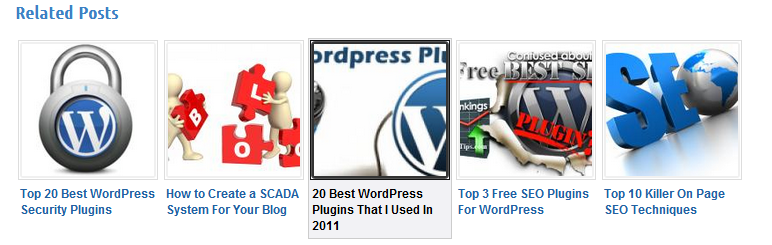 In this post we will go through the steps of adding the Related Posts Widget with thumbnails for Blogger. Ready to added it to your template? Go through the steps by steps below. Lets sarts.
How To Add Related Posts Widget For Blogger With Thumbnails
Now youve done all the proccess correct, congrat youve been added the related post widget successful into your blogger post.
Enjoy and dont forget to share this tutorial to your friends and other communities.
- How to Added Your blog Sitemap widget automatically
How To Add Related Posts Widget For Blogger With Thumbnails
- Firstly Go To Blogger Dashboard.
- Back up your existing Template before making any changes!
- Make sure to check the "Expand Widget Templates " box.
- Find </head> Using CTRL+F
- Copy the code below and paste it just after </head> tag.
<!--Related Posts with thumbnails Scripts and Styles Start --><b:if cond=data:blog.pageType == "item"><style type="text/css">#related- posts {float:center;text- transform:none;height:100 %;min-height:100% ;padding-top:5px;padding- left:5px;} #related-posts h2{font- size: 1.6em;font-weight: bold;color: black;font- family: Georgia, &# 8220;Times New Roman&# 8221;, Times, serif;margin- bottom: 0.75em;margin-top: 0em;padding-top: 0em;}# related-posts a{color:black;} #related-posts a:hover {color:black;} #related-posts a:hover {background-color:# d4eaf2;}</style><script type=text/javascript>var defaultnoimage=" http://1 . bp.blogspot.com/_ u4gySN2ZgqE/ SosvnavWq0I/ AAAAAAAAArk/ yL95WlyTqr0/s 400 / noimage.png";var maxresults=5;var splittercolor="#d4eaf2";var relatedpoststitle="Related Posts";</script><script src=http:// beautifulbloggerwidgets. googlecode.com/files/ related_posts_with_ thumbnails_min.js type=text/javascript/></ b:if><!--Related Posts with thumbnails Scripts and Styles End -->
- Now find the following code below:
<div class=post-body>
- If you cant find it, then search for this below one by using Ctrl+F.
<data:post.body/>
- Copy the code below and paste it just after <data:post.body/> tag and save your template.
<!-- Related Posts with Thumbnails Code Start --> <b:if cond=data:blog.pageType == "item"> <div id=related-posts> <b:loop values=data:post.labels var=label> <b:if cond=data:label.isLast != "true"> </b:if> <script expr_src="/ feeds/posts/default/-/ " + data:label.name + "?alt=json-in- script&callback=related _results_labels_ thumbs&max- results=6" type=text/ javascript/></b:loop> <script type=text/ javascript> removeRelatedDuplicates_ thumbs(); printRelatedLabels_ thumbs ("<data:post.url/ >"); </script> </div><div style=clear:both/> <!-- remove --></b:if> <b:if cond=data:blog.url == data:blog.homepageUrl>< b:if cond=data:post.isFirstPost> <a href=http:// beautifulbloggerwidgets. blogspot.com/ ><img style="border: 0" alt="Blogger Widgets" src=" http://2.bp.blogspot . com/-Hn8-zTJf3L0/ T9cqAcnrfJI/ AAAAAAAAAGM/5gBy5_ MPPBQ/s 1600 /blogger- widgets.png" /></a> </b:if></b:if> <!-- Related Posts with Thumbnails Code End -->Change the 6 value from max-results=6 with the number of posts you want to be displayed.
Now youve done all the proccess correct, congrat youve been added the related post widget successful into your blogger post.
Enjoy and dont forget to share this tutorial to your friends and other communities.
Go to link Download

Thursday, September 22, 2016
How to Add Related Posts Below Your Blog Posts Using nRelate Blogger
How to Add Related Posts Below Your Blog Posts Using nRelate Blogger

Adding related posts beneath your blogs post pages has been very effective for every blogger. This tutorial is on "How to add "nRelate" related posts widget to your blogs". "nRelate" related posts widget is very easy to customize according to your blogs color scheme. You can also decide whether to show thumbnails or simple links as your related posts. Follow the following steps to add "nRelate" related posts widget to your blogs.
Note: I recommend registering to nRelate in order to customize your widget.
How to add nRelate widget?
- Go to nRelate website and click Partner Login
- Now hover over Install button and click Blogger. A field would appear where you have to provide you blog link where you want to add nRelate widget. Then click submit.
- Now click Advance version (to be able to edit the plugin later)
- Next it would ask you whether you want to add it to your post pages only or on main blog page too, I recommend you add it to your post pages.
- Next it would open up a widget called Add page element. There are 2 sections. Click on the section that says Edit Content as shown below.
- You have to delete the code in Red as shown below.
<style type="text/css">@import url(http://static.nrelate.com/common_b/0.01.0/nrelate-panels-default.min.css);</style><div id=nrelate_related_placeholder/></div>Click Add Widget button and its all done. :) Hope that was easy to follow.
Go to link Download
Subscribe to:
Posts (Atom)