Sunday, November 20, 2016
How To Boot Your Device Or Tab Into Safe Mode For Troubleshooting
How To Boot Your Device Or Tab Into Safe Mode For Troubleshooting

There are times you install some applications on your android device and suddenly it begins to malfunction or refuse to boot up. Safe mode is a great tool that you can use to troubleshoot these issues. Safe mode boots your phone running only the apps that came with the phone - that means no third - party apps. From safe mode, you can uninstall any app if you want to.
Unfortunately, not all phones have the same method to enter safe mode. Most Jelly Bean devices use the first method below, but some devices with older versions of Android and some newer devices (like the Galaxy S 4 and HTC one) use the alternate method further down the page.
How To Boot Safe Mode
1. Hold down the physical power button on your device.
2. Long-press the power off option that appears

If it works for you, dont forget to comment here and remember to share with your friends and families/like us on facebook. You can also subscribe via-email and be sure to get regular updates day by day. Have fun.
Go to link Download

Saturday, October 15, 2016
How safe is Android – Vanguardia Liberal
How safe is Android – Vanguardia Liberal
Android joined the rewards program vulnerabilities Google, which rewards security researchers every time they find and report a ‘bug’.
One of the things that are more challenging to Android is its safety. Its broad application ecosystem can filter makes ‘apps’ unofficial, some not as safe as we think.
For the second consecutive year, Google is launching its latest annual report on security in Android. In this note we’ll look at how Google services protect the ecosystem of Android. According to Adrian Ludwig, head of Engineering, Android Security, efforts have focused on protection:
1. ‘Malware’ and other potentially harmful applications (PHA, for its acronym in English). They reviewed more than 6,000 million installed applications per day.
2. Network-based threats and computers, by scanning 400 million devices per day.
3. insecure websites to hundreds of millions of users of Chrome on Android, using secure browsing.
The company continues to make it more difficult to meet PHA in Google Play. Improvements last year reduced the likelihood of installing a potentially harmful application from the store by more than 40% compared to 2014. Within Google Play, the installation attempts for most categories of PHA decreased, including:
• data Collection Apps. It fell more than 40%, to 0.08% of the facilities.
• ‘Spyware’. He declined 60% to 0.02% of the facilities.
• hostile Downloader. It decreased by 50%, to 0.01% of the facilities.
In general, these applications are installed in less than 0.15% of devices that only downloading ‘apps’ Google Play.
it is also essential to protect users who install applications from sources other than Google Play. Service applications to verify that protects these users will have improved the effectiveness of the warnings from the application verification in more than 50%.
Rewards
Android joined the rewards program vulnerabilities Google, which rewards security researchers whenever they find and report any ‘ bug’. In this way, they have repaired more than 100 reported vulnerabilities and have paid them more than $ 200,000 to researchers for their findings.
In August, they released their public monthly program security update for the project Android open source, as well as periodic security updates for devices. Manufacturers have joined the cause and provided monthly security updates for hundreds of models of Android devices, but, despite this progress, many Android devices still do not receive monthly updates and are increasing their efforts to help partners to upgrade more devices in a timely manner.


Go to link Download
Tuesday, August 30, 2016
How to start a BlackBerry smartphone in safe mode
How to start a BlackBerry smartphone in safe mode
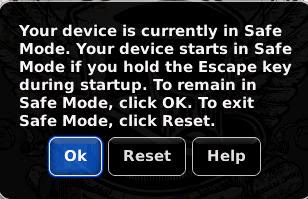
To turn on safe mode, complete the following steps:
1. Remove and reinsert the BlackBerry smartphone battery.
2. When the red light-emitting diode (LED) light goes out, press and hold the Escape key as the BlackBerry smartphone is loading. See KB05470 for the location of the Escape key.
3. When the dialog box appears, click OK.
Note:
Safe mode is indicated by a safe mode indicator in the BlackBerry smartphone status section of the Home screen.
To turn off safe mode, remove and reinsert the BlackBerry smartphone battery.
Go to link Download