Showing posts with label connect. Show all posts
Showing posts with label connect. Show all posts
Tuesday, November 15, 2016
How To Connect Mstar Cpu Mobile Phone With Volcano Box
How To Connect Mstar Cpu Mobile Phone With Volcano Box
How To Connect Mstar Cpu Mobile Phone With Volcano Box
If your phone show 0.05 then you phone should be 6600L or 6800h etc. and if your phone show 0.03 then your phone should be SPD6610/20 so please check boots. If you got any other problem just check our support area. When you connect any SPD phone 1st time then it will ask for drivers. Please Install Latest SPD drivers from (for 32bit system) C:Program Files Volcano TeamVolcanoBox
DriversPhone DriversSPD New Drivers 1.5.6.1x86driver (for 64bit system) C:Program FilesVolcano TeamVolcanoBoxDriversPhone DriversSPD New Drivers 1.5.6.1x64driver

Connect Jig to cable correct way as I show you above. Connect Power from main cable to Phone. Select Mstar tab from Volcano box software. Click on Read Flash/ Write Flash/Format etc. Press and hold Power Button from Phone keyboard. Click on Run. It will done.
When you connect Mstar phone 1st time it will install Drivers. If still failed to install drivers then give path from C: Program FilesVolcano Team VolcanoBoxDriversPhone DriversMstar 2
Download Volcano Box Usb Driver Here
Download Volcano Box Latest Setup Here
ANY PROBLEM CLICK HERE
SOURCE: http://free-mobile-solutions.blogspot.com
Go to link Download

Friday, November 11, 2016
How to connect Samsung S6 Galaxy Edge to TV
How to connect Samsung S6 Galaxy Edge to TV
You can easily access all phone files including videos, music as well as personal docs directly from TV. All you need to do is follow these simple steps.
 |
| Samsung Galaxy S6 Edge |
Miracast, which allows to mirror Smartphone display. If Miracast is unsupported for your smart TV, purchase Miracast adapter and connect with your TV HDMI port.
Read also: How To Move Or Rearrange IPhone Home Screen App Icons Anywhere-Without Jail Breaking?
If all above connectivity setup completed and ready to receive video from Samsung Galaxy S6 Edge. Now register TV with your device by taping down “quick connect>register TV” under notification bar. You don’t need to register again and again to connect device. Tap on

icon whenever you like to share device video in TV.
Alternative method to connect Samsung Galaxy S6 Edge to TV using chromecast:
Chromecast is another app which allows sharing display device video to TV. If Chromecast is unsupported to your Smart TV, then purchase chromecast adapter from here and connect to TV HDMI port. Make sure Samsung Galaxy S6 Edge and chromecast is connected to same Wi-Fi network. Download & install chromecast application in Smartphone from Google play store. Now complete all installation procedure to connect with your TV. Once done! Launch chromecast application, tap on

cast button.
Frequently asking question:
What is AllShare?
AllShare is replaced with Samsung link which allows sharing videos, music, personal docs and images on any paired device.
Feel to share and connect with us for more Samsung tips. And don’t forget to share this on social network.
Go to link Download
Monday, October 31, 2016
How to Connect USB Storage Devices to Your Android Phone
How to Connect USB Storage Devices to Your Android Phone
Your Android phone uses its microUSB port for charging and transferring files back and forth with your PC, but what if the files you need to email your boss are sitting on a Flash drive or a full-size SD card? Fortunately, with some free software and an inexpensive adapter cable, you can attach a USB key or card reader directly to your handset. Heres how to connect your Android phone to a USB storage device.
Not all Android phones support USB On-The-Go (OTG) functionality. If you dont have the correct guts in your phone youre not going to be hooking anything up with OTG. Luckily, to check if your phone is compatible requires just one app download. The Google Play Store has a great app called OTG? that you can download now on your phone. It scans your phone automatically and will let you know if youre one of the lucky ones. If you are, keep reading.
Download: OTG? (Free)
Connecting USB flash storage to your Android phone is easy and cheap. Heres what youll need:
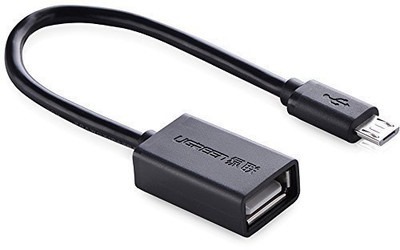
Some Android phones, like the Galaxy S7, come with a USB OTG cable in the box — but most dont. If your Android phone didnt come with an OTG cable, you can pick them up off Amazon for super cheap.
This cable is what allows you to hook up your phone to your flash storage device. Without it youre pooched. The one linked to here is made by Ugreen — its $5, it has a one year warranty, and it works great. The cable is six inches long, so youll be able to set your flash storage device and phone down any way youd like. Cant really beat that. See at Amazon
This one is largely up to you. Any storage with a USB connector will work as long as its formatted as FAT32. If you want a ton of storage youll probably want a solid state drive with a USB connector (but beware of the power draw — not all drives will work!). If youre OK with less storage, a thumb drive will do the trick.
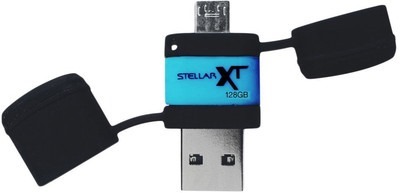
If you dont already have an OTG cable or a USB flash storage device, you can purchase an all-in-one flash drive and OTG connector. The one pictured here, made by Patriot, has 128GB of storage, has USB and micro-USB male connectors, and only costs about $40. You can plug it into your computer, transfer files onto it, then plug it into your phone and stream media without the need for a separate OTG cable. See at Amazon
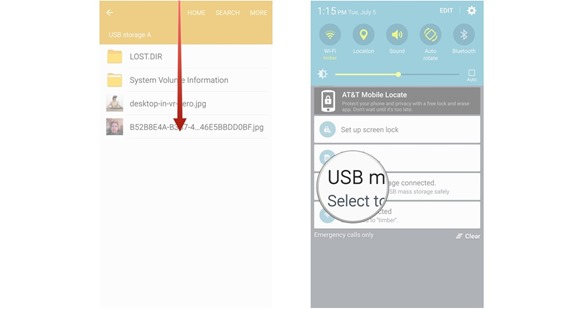
Simple as that. You can now safely unplug your flash storage device without risking corruption of any files.
How to check if your phone supports USB On-The-Go
Not all Android phones support USB On-The-Go (OTG) functionality. If you dont have the correct guts in your phone youre not going to be hooking anything up with OTG. Luckily, to check if your phone is compatible requires just one app download. The Google Play Store has a great app called OTG? that you can download now on your phone. It scans your phone automatically and will let you know if youre one of the lucky ones. If you are, keep reading.
Download: OTG? (Free)
Connecting USB flash storage to your Android phone is easy and cheap. Heres what youll need:
A USB OTG cable
Some Android phones, like the Galaxy S7, come with a USB OTG cable in the box — but most dont. If your Android phone didnt come with an OTG cable, you can pick them up off Amazon for super cheap.
This cable is what allows you to hook up your phone to your flash storage device. Without it youre pooched. The one linked to here is made by Ugreen — its $5, it has a one year warranty, and it works great. The cable is six inches long, so youll be able to set your flash storage device and phone down any way youd like. Cant really beat that. See at Amazon
A USB flash storage device
This one is largely up to you. Any storage with a USB connector will work as long as its formatted as FAT32. If you want a ton of storage youll probably want a solid state drive with a USB connector (but beware of the power draw — not all drives will work!). If youre OK with less storage, a thumb drive will do the trick.
If you dont already have an OTG cable or a USB flash storage device, you can purchase an all-in-one flash drive and OTG connector. The one pictured here, made by Patriot, has 128GB of storage, has USB and micro-USB male connectors, and only costs about $40. You can plug it into your computer, transfer files onto it, then plug it into your phone and stream media without the need for a separate OTG cable. See at Amazon
How to connect a USB flash storage device to your Android phone
- Plug your USB OTG cable into your Android phone.
- Plug your USB flash storage device into the female connector of your OTG cable. The file explorer on your phone should automatically pop up.
How to safely disconnect a USB flash storage device from your Android phone
- Swipe down from the top of your phones screen.
- Tap USB mass storage connected.
Simple as that. You can now safely unplug your flash storage device without risking corruption of any files.
Are you connected? Do you use OTG cables to connect flash storage to your Android phone? Do you use a different method? Let us know in the comments section below!
Go to link Download
Sunday, October 30, 2016
How To Connect Spreadtrum Mobile Phone With Volcano Box
How To Connect Spreadtrum Mobile Phone With Volcano Box
How To Connect Spreadtrum Mobile Phone With Volcano Box

HOW TO CONNECT SPD PHONES
Connect Jig to cable correct way as I show you above. Connect Power from main cable to Phone. Select SPD tab from software. Click on read flash/ Write flash/Format etc. Select Proper Boot according to you phone cpu. Don’t press and hold power button (Keep in mind SPD phones don’t need to press and hold power buttons) click on run

SPD6610/20. SPD6800H etc. so how to know which SPD phone have SPD6600L CPU or 6610/20 1st of all, Connect mobile with digital power supply and do not press power button If you see your supply taking .05 this mean your phone is 6600LX (6600L7/6600L3 etc) series If you see your supply taking .03 this mean your phone is 661X (6610/6620 etc) series
Download Volcano Box Usb Driver Here
Download Volcano Box Latest Setup Here
ANY PROBLEM CLICK HERE
SOURCE: http://free-mobile-solutions.blogspot.com
Go to link Download
Friday, October 21, 2016
How To Connect Mtk Mobile Phone With Volcano Box
How To Connect Mtk Mobile Phone With Volcano Box
How To Connect Mtk Mobile Phone With Volcano Box
RECOMMENDED WAY FOR CONNECTING PHONES WITH BOX

For best results always connect your phone by this way. If you connect your phones by this why you will avoid lot of problem
HOW TO CONNECT MTK PHONES

Connect Jig to cable correct way as I show you above. Connect Power from main cable to Phone. Select MTK tab from Volcano box software. Click on Read Flash/Write Flash/Format etc. Press and hold Power Button from Phone keyboard. Click on Run. It will done IF YOU GOT ANY ERROR OR PROBLEM PLEASE CHECK Volcano Box SUPPORT AREA
IF YOU GOT ANY ERROR OR PROBLEM PLEASE CHECK Volcano Box SUPPORT AREA
Download Volcano Box Usb Driver Here
Download Volcano Box Latest Setup Here
ANY PROBLEM CLICK HERE
SOURCE: http://free-mobile-solutions.blogspot.com
Go to link Download
Sunday, October 9, 2016
HOW TO CONNECT SAMSUNG GALAXY S7 TO TV
HOW TO CONNECT SAMSUNG GALAXY S7 TO TV

If you want to know how to connect a Samsung Galaxy S7 to a TV, the following guide will help you to connect your smartphone to a TV.
If you have right software you can easily connect your Smatphone to Tv.There are two ways to connect Samsung galaxy to TV, choose one which is feasible to you and follow those steps.The two ways of connecting Samsung Galaxy S7 to TV is ; hard-wired and wireless. When you connect Galaxy S7 to TV, you can see what’s on your smartphone to your HDTV.
Connecting Samsung Galaxy S7 To TV using Wireless Connection
To connect Samsung Galaxy S7 to TV with wireless connection, simply follow the 3-easy steps below.
1. Purchase a Samsung Allshare Hub; connect the Allshare Hub to your TV via a HDMI cable.
2. Connect the Galaxy S7 and Samsung AllShare Hub and TV to the same wireless network.
3. Access Settings > Screen Mirroring
If your using Samsung smart Tv, you don’t need to purchase Samsung Allshare hub to connect to Tv.
Connecting Samsung Galaxy S7 To TV using Hard-wired Connection
In following 5-easy steps you can successfully connect your Smartphone to your HDTV
1. Purchase a MHL adapter which is compatible with the Galaxy S7.
2. Connect your Galaxy S7 to the MHL adapter.
3. Plug the MHL adapter to a power source.
4. Use a standard HDMI cable to connect the adapter to the HDMI port on your television.
5. Set the TV to display video from the HDMI port you are using. Once done, the TV will mirror your phone.
Even try this before doing all those steps:
If you have old Sony ,Samsung or Panasonic Smart TV try ce onnecting the Phone with HDMI PORT and choose HDMI Option in the Tv using AVI button from the tv remote.
If the other two steps don’t work , surely the above Two steps will help you in connecting Samsung Galaxy S7 to Tv.
Go to link Download
Sunday, October 2, 2016
How to Connect BlackBerry PlayBook tablet
How to Connect BlackBerry PlayBook tablet

With a BlackBerry PlayBook tablet, you’ll of course be able to connect to Wi-Fi® networks where available, but with the innovative BlackBerry® Bridge™ application, you can also amplify your BlackBerry smartphone experience and access your messages, calendar, contacts, memopad, tasks and BlackBerry® Messenger (BBM™).
Plus, the Bridge Browser allows you to take advantage of your BlackBerry smartphone’s network connection when you’re out of Wi-Fi range! bX-ulf59e kode galat
Today, I’d like to provide an overview of the various ways you can connect your BlackBerry PlayBook tablet and where you can learn more about them.
Wi-Fi

The BlackBerry PlayBook tablet uses Wi-Fi technology to connect to the Internet or your organization’s intranet. You can connect through a personal network at home, or through a wireless network at your office, favorite coffee shop or other public venue (which is referred to as Wireless HotSpot).
With a Wi-Fi network connection, the BlackBerry PlayBook will also allow you to copy files such as music and videos wirelessly using Wi-Fi Sharing. In addition to browsing, a Wi-Fi network connection will also allow other apps on your BlackBerry PlayBook tablet to access the Internet or intranet.
To learn more about the Wi-Fi functionality of the BlackBerry PlayBook tablet, such as how to set up a Wi-Fi connection, click here for an interactive demonstration. I would also recommend checking out this post for an overview of how to copy files to and from a BlackBerry PlayBook tablet wirelessly using Wi-Fi Sharing.
BlackBerry Bridge

One of the reasons I love my BlackBerry PlayBook tablet is because I can connect my BlackBerry smartphone to my BlackBerry PlayBook tablet using the BlackBerry Bridge app over a secure Bluetooth® connection. When you set up the BlackBerry Bridge app, you’ll notice that you have a new view on your BlackBerry PlayBook tablet home screen called BlackBerry Bridge. Within this view, you’ll see several icons which will allow you to access messages, contacts, calendar, BBM, the BlackBerry Bridge Browser and more.

One of the great features with the BlackBerry® PlayBook™ tablet is the variety of connections you can use to browse the Internet, access your email and stay connected with friends and colleagues while on the go!
If your BlackBerry smartphone is activated on a BlackBerry® Enterprise Server and corporate intranet browsing has been enabled by your IT administrator, you can also browse your organization’s intranet.
NOTE: Bridge Browser functionality may require a BlackBerry service plan that includes tethering. Please contact your wireless service provider for more information.
To learn more about the BlackBerry Bridge app, including how to set it up, click here. If you’ve already set up BlackBerry Bridge, click here to take a look at some tips I put together
Internet Tethering

On top of being able to use a Wi-Fi connection and the BlackBerry Bridge app, you also have the option of tethering your BlackBerry PlayBook tablet with a BlackBerry smartphone or another Bluetooth® enabled phone. After doing this, you’ll be able to setup Internet Tethering, which will allow your BlackBerry PlayBook tablet to leverage the Internet connection offered by the wireless device that is paired.
To learn more about Internet Tethering and how to set it up, click here for a video tutorial.
Go to link Download
Read more »
Monday, September 5, 2016
How to connect two computers – Quick and Easy
How to connect two computers – Quick and Easy
Here are the steps to connect two computers in Windows XP. This will let you share files and folders, printers, play network games etc.
Things You Will Need
1. A Crossover cabe – This is a Cat5 Ethernet Cable that the wires have been switched around to allow two computers to talk to each other.
2. Ethernet adapter or in simple terms the port on the back of your pc where you are going to insert this cable.
Steps:
1. Connect the two computers with the crossover cable.
2. Set the IP address on both computers. Goto Start > Control Panel > Network Connections ( Choose switch to classic view if you cannot see network connections ).
3. Look for your Local Area Connection ethernet adapter, right click and choose properties.
4. Select Internet Protocol TCP/IP and choose properties.
5. Set the IP as 192.168.1.1 and the subnet mask of 255.255.255.0 on the first computer and 192.168.1.2 on the second with same subnet mask.
6. click OK and OK/Close again.
Tips:
1.To share your files, right click on any folder or drive and choose sharing to make them shared.
2.This can also be done with printers to be able to print from one computer while the printer is connected to the other.
For Windows 7- The steps are similar, you can find your Local Area Connection in Network and sharing centre.
Things You Will Need
1. A Crossover cabe – This is a Cat5 Ethernet Cable that the wires have been switched around to allow two computers to talk to each other.
2. Ethernet adapter or in simple terms the port on the back of your pc where you are going to insert this cable.
Steps:
1. Connect the two computers with the crossover cable.
2. Set the IP address on both computers. Goto Start > Control Panel > Network Connections ( Choose switch to classic view if you cannot see network connections ).
3. Look for your Local Area Connection ethernet adapter, right click and choose properties.
4. Select Internet Protocol TCP/IP and choose properties.
5. Set the IP as 192.168.1.1 and the subnet mask of 255.255.255.0 on the first computer and 192.168.1.2 on the second with same subnet mask.
6. click OK and OK/Close again.
Tips:
1.To share your files, right click on any folder or drive and choose sharing to make them shared.
2.This can also be done with printers to be able to print from one computer while the printer is connected to the other.
For Windows 7- The steps are similar, you can find your Local Area Connection in Network and sharing centre.
Go to link Download
Subscribe to:
Posts (Atom)