Showing posts with label storage. Show all posts
Showing posts with label storage. Show all posts
Monday, October 31, 2016
How to Connect USB Storage Devices to Your Android Phone
How to Connect USB Storage Devices to Your Android Phone
Your Android phone uses its microUSB port for charging and transferring files back and forth with your PC, but what if the files you need to email your boss are sitting on a Flash drive or a full-size SD card? Fortunately, with some free software and an inexpensive adapter cable, you can attach a USB key or card reader directly to your handset. Heres how to connect your Android phone to a USB storage device.
Not all Android phones support USB On-The-Go (OTG) functionality. If you dont have the correct guts in your phone youre not going to be hooking anything up with OTG. Luckily, to check if your phone is compatible requires just one app download. The Google Play Store has a great app called OTG? that you can download now on your phone. It scans your phone automatically and will let you know if youre one of the lucky ones. If you are, keep reading.
Download: OTG? (Free)
Connecting USB flash storage to your Android phone is easy and cheap. Heres what youll need:
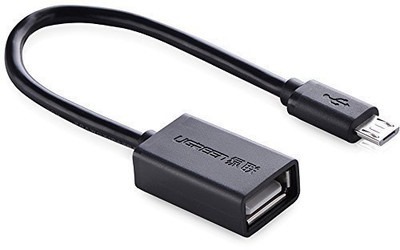
Some Android phones, like the Galaxy S7, come with a USB OTG cable in the box — but most dont. If your Android phone didnt come with an OTG cable, you can pick them up off Amazon for super cheap.
This cable is what allows you to hook up your phone to your flash storage device. Without it youre pooched. The one linked to here is made by Ugreen — its $5, it has a one year warranty, and it works great. The cable is six inches long, so youll be able to set your flash storage device and phone down any way youd like. Cant really beat that. See at Amazon
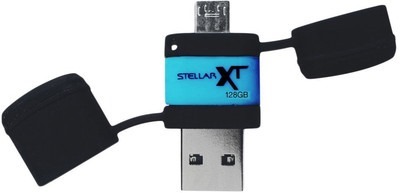
This one is largely up to you. Any storage with a USB connector will work as long as its formatted as FAT32. If you want a ton of storage youll probably want a solid state drive with a USB connector (but beware of the power draw — not all drives will work!). If youre OK with less storage, a thumb drive will do the trick.
If you dont already have an OTG cable or a USB flash storage device, you can purchase an all-in-one flash drive and OTG connector. The one pictured here, made by Patriot, has 128GB of storage, has USB and micro-USB male connectors, and only costs about $40. You can plug it into your computer, transfer files onto it, then plug it into your phone and stream media without the need for a separate OTG cable. See at Amazon
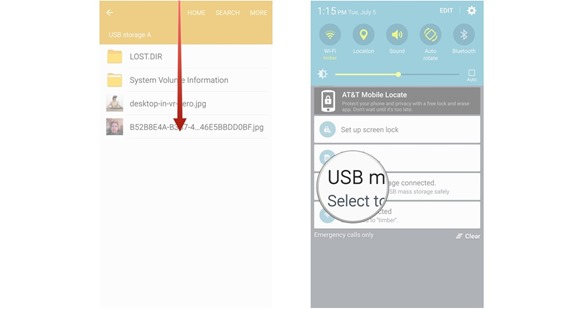
Simple as that. You can now safely unplug your flash storage device without risking corruption of any files.
How to check if your phone supports USB On-The-Go
Not all Android phones support USB On-The-Go (OTG) functionality. If you dont have the correct guts in your phone youre not going to be hooking anything up with OTG. Luckily, to check if your phone is compatible requires just one app download. The Google Play Store has a great app called OTG? that you can download now on your phone. It scans your phone automatically and will let you know if youre one of the lucky ones. If you are, keep reading.
Download: OTG? (Free)
Connecting USB flash storage to your Android phone is easy and cheap. Heres what youll need:
A USB OTG cable
Some Android phones, like the Galaxy S7, come with a USB OTG cable in the box — but most dont. If your Android phone didnt come with an OTG cable, you can pick them up off Amazon for super cheap.
This cable is what allows you to hook up your phone to your flash storage device. Without it youre pooched. The one linked to here is made by Ugreen — its $5, it has a one year warranty, and it works great. The cable is six inches long, so youll be able to set your flash storage device and phone down any way youd like. Cant really beat that. See at Amazon
A USB flash storage device
This one is largely up to you. Any storage with a USB connector will work as long as its formatted as FAT32. If you want a ton of storage youll probably want a solid state drive with a USB connector (but beware of the power draw — not all drives will work!). If youre OK with less storage, a thumb drive will do the trick.
If you dont already have an OTG cable or a USB flash storage device, you can purchase an all-in-one flash drive and OTG connector. The one pictured here, made by Patriot, has 128GB of storage, has USB and micro-USB male connectors, and only costs about $40. You can plug it into your computer, transfer files onto it, then plug it into your phone and stream media without the need for a separate OTG cable. See at Amazon
How to connect a USB flash storage device to your Android phone
- Plug your USB OTG cable into your Android phone.
- Plug your USB flash storage device into the female connector of your OTG cable. The file explorer on your phone should automatically pop up.
How to safely disconnect a USB flash storage device from your Android phone
- Swipe down from the top of your phones screen.
- Tap USB mass storage connected.
Simple as that. You can now safely unplug your flash storage device without risking corruption of any files.
Are you connected? Do you use OTG cables to connect flash storage to your Android phone? Do you use a different method? Let us know in the comments section below!
Go to link Download

Monday, October 3, 2016
How to save Windows Store apps to external storage in Windows 10
How to save Windows Store apps to external storage in Windows 10

Once the area of a registry hack in Windows 8, the Windows 10 November redesign at long last adds the local capacity to spare Windows Store applications to outside capacity as an inherent element. Any individual who wouldnt like to take up valuable inward storage room with Windows Store applications can now keep them on a thumb drive or a bigger outer hard drive left at home.
Outer application recoveries should take off amid the huge dispatch of Windows 10 in July, however Microsoft chose to keep down the element at just about the latest possible time.
That is the past, notwithstanding, and now the new component is accessible once you download and introduce the November upgrade. On the off chance that you havent got the redesign yet, you can introduce it physically by doing a set up introduce with the Windows 10 media creation apparatus.
In case youre as of now shaking the November upgrade, heres the means by which to spare your applications to outer stockpiling.
savetousborsdcard
Windows 10s November upgrade adds the capacity to spare Windows Store applications to outer stockpiling.
Before you do anything, unite your outside capacity to your PC. At that point go to Start > Settings > System > Storage. There youll see your joined stockpiling drives recorded. Under Save areas tap the drop down menu under "New applications will spare to" and select the outer stockpiling drive you need to utilize.
applications
Snap Apply to finish the procedure.
Next, snap Apply and youre finished.
Note: If you are on a PC and this component doesnt work with a SD card, have a go at utilizing a USB SD card peruser.
At the point when your favored outer stockpiling isnt joined with your PC, Windows 10 will naturally default back to inward stockpiling. When you reconnect your outside capacity, in any case, the working framework returns back to it for application spares.
Go to link Download
Subscribe to:
Posts (Atom)