Showing posts with label store. Show all posts
Showing posts with label store. Show all posts
Sunday, November 20, 2016
How to root Nokia X and get access to Play Store and Google Now
How to root Nokia X and get access to Play Store and Google Now

(Also see: Nokia X Dual SIM review)
The Nokia X is based on the Android Open Source Project (AOSP), and is powered by Microsoft and Nokia services. Nokia has used the AOSP version corresponding to Android 4.1 Jelly Bean as the baseline for its operating system. The highlight of the Nokia X is the highly customised version of Android, with Metro-inspired UI and access to Nokias own app store. While theres no access to Googles Play Store, Nokia is offering side-loading of Android apps from any third-party source: 1mobile market, SlideME market, Aptoide, and Yandex Store.
However, it is possible to install the Google Play store on the Nokia X through rooting. This means giving the user root permission on the phone. By rooting a device you can run apps that require access to certain system settings, and the ability to flash custom ROMs to the phone, which can actually add extra features. Before starting, note that unlocking the bootloader or rooting process voids the warranty of your device. And more importantly, the rooting process might brick the device if you make any mistakes, so be careful when following these steps.
Method 1-
Rooting the Nokia X:
In order to run Google apps, you will be required to root your Nokia X with the following steps-

-Users will be required to enable USB debugging on the Nokia X that can be found in Settings Developer option. You will have to tick the USB debugging box to successfully perform the rooting process.
To start, you will have to enable USB debugging. To do this, first go to your phones Settings > Developer and tick the USB debugging box.
-Next users have to download the Farmaroot.apk to the Nokia X or to a Windows PC (transfer it to the Nokia X). Use the automatic setup to install the root tool on the Nokia X phone.
To start, go to the Farmaroot.apk folder in your Nokia X > Click the .APK file and it will start the automatic installation of the app on to the phone, follow the instructions.
(If a file is transferred from PC to the Nokia X, users can search for the required file on the phone via the ASTRO File Manager, which comes pre-installed on the device.)

Once, the Farmaroot has installed on your Nokia X, choose the app icon in app drawer to install SuperSU. To install, open the SuperSU file and choose the Gandalf exploit, which is a dropdown option in the Farmaroot app.
When the installation is complete, there will be a success pop-up message on the screen. Now you just need to reboot your Nokia X for successful completion of the rooting process.
- The Farmaroot app on the Nokia X also gives an option to unroot the device, if you want to bring it back to normal.
Installing the Google Play store on the Nokia X:
-Download the Google services APKs from here on your Nokia X or a Windows PC and copy the APKs to the phone using a USB cable.
To start, go to this link install the Google services APKs to your phone or Windows PC. Transfer all the Google APKs to Nokia X using a USB cable.
-Now, you will be required to extract all the Google APKs. To do this, first download a root explorer app on your Nokia X, which is a file manager for root users.

Go to the folder where you saved the Google APKs and select all the files; next from the menu choose the option Extract all. The extracted APK files will be automatically stored on to microSD cards SpeedSoftware folder. At this stage, do not install the APKs.
-The extracted files then must be moved on to /system/apps folder of the Nokia X. (Use the root explorer app, and go to the SpeedSoftware folder on the microSD card. Select the files, and from the menu, choose Cut. Then, go to the /system/apps/ folder, and choose Paste from the menu.)
-Next, you will have to change the permission of all the extracted files in the /system/apps folder by selecting all the files that were extracted (Google APKs) and opening the Permission option in the menu for the all the apps. The Owner, Group and Other options should have Read Only checked in the popup that comes when you press Permission. Only Owner should have the Write option checked. Reboot your Nokia X once the permission has been changed for all the extracted Google APK files to make the device more stable.

-Now you will find the Google app icons for Hangouts, Gmail, and Google Play Store among others in the app drawer.
Enjoy, you have successfully installed the Google Play store and other Google services on your Nokia X. Now sign-in to your Google account to access Google services on your Nokia X and you can explore your favourite Android apps directly from the Play Store.
This method works with the earlier version of the Nokia X software, but once you move to version 11.1.1, new security features dont permit this technique. Theres a new method that can help if youve updated your phone though.
Method 2-
In case the above method does not work because of new security restrictions, heres what you can do:
-Install the Nokia composite ADB interface on your Windows PC, in addition to installing the Framaroot.apk on your Nokia X (following the steps detailed above).

The Nokia composite ADB interface folder installed on your PC should have two sub folders for KingoRoot_NokiaX_Mod and Nokia X USB drivers.
-Plug your Nokia X to the Windows PC with a USB cable, open the device manager and right click on the connected device. This gives the Update Driver option on your Windows PC, to install the ADB drivers.
You might be prompted to enter new drivers for your Nokia X, which can be found the Nokia composite ADB interface folder - Nokia X USB drivers. Just choose browse, go to the folder and select the driver.
-Now you need to open the KingoRoot.exe file on your Windows PC, which can be found in the Nokia composite ADB interface folder. Please note that you need to keep your Nokia X connected to the Windows PC during the complete process.

-Once you have started the KingoRoot app on the PC, it will appear on your Windows PC screen giving you an option to root the connected device. When the phone is not rooted, KingoRoot on the PC shows the status of the connected device as Not Rooted.
-Now users need to choose the Root button in the KingoRoot app on your PC to root the device. This will also install the SuperSU app on the connected Nokia X device automatically. This will take few minutes.
-Reboot the phone after the connected device (Nokia X) status in KingoRoot app shows Rooted on your PC. After the reboot, open the SuperSU app on the Nokia X, this will for the ask grant option on the app. Press grant and move ahead.
-After pressing grant, open KingoRoot on your PC again. This time the KingoRoot shows two options - Root again or Remove Root. To return your phone to normal, you can click on Remove Root.
-Now you can repeat the method of installing the Google Play store on the Nokia X (check Method 1) by extracting all the Google APKs using the root explorer.
Go to link Download

Monday, October 31, 2016
How to stop automatic updates in Google Play store
How to stop automatic updates in Google Play store
We bring this little mini tutorial to remove the automatic updates in Google Play, so annoying that can be. In general, all applications found in Google Play will be improving and updating. And our Android smartphone or tablet detect updates and start downloading fully automatically. Eventually cause discomfort to the user of the phone.

It is very important for the proper functioning and performance of your phone or tablet, simply dispongas your applications up to date, but do not worry about the updates off , the can be done manually. There is an easy way to disable automatic updates on your Android phone. If you are ready, follow these small steps:
It is very important for the proper functioning and performance of your phone or tablet, simply dispongas your applications up to date, but do not worry about the updates off , the can be done manually. There is an easy way to disable automatic updates on your Android phone. If you are ready, follow these small steps:
- Open the app Play Store
- Press the menu button and select option Settings .
- Then you will see different options, press on Update automatically and mark the No update applications automatically and finally we will have ready for our device does not receive automatic updates.
- Well, following this small tutorial we could eliminate the automatic updates of Google Play to their default all devices.
Go to link Download
How to run Mozilla Firefox Mobile OS on Computer With Apps and Store
How to run Mozilla Firefox Mobile OS on Computer With Apps and Store
How to Run FireFox OS Mobile on PC
Easy method for running FireFox OS on a PC
Things you should have is just a Firefox Browser, which you can get from the link below if you dont have:
Download Firefox Browser
After Downloading Firefox Browser from Official website and setting up the browser follow the link to download the add-on simulator for Firefox OS from the Mozilla Firefox browser:
Download Firefox OS add-on Simulator
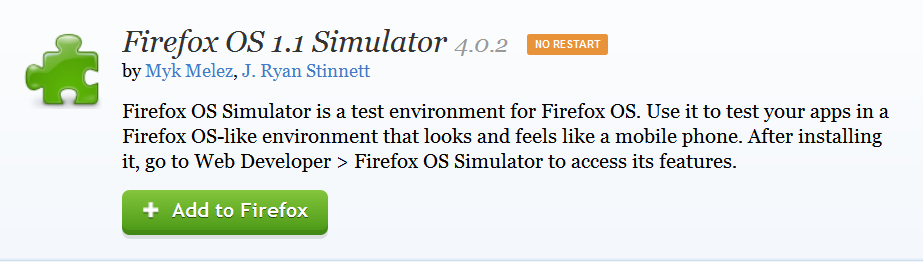
Press + Add to Firefox button and download. Now after downloading 45+ MB add-on from Firefox, there will be an option of Install in a new pop-up window. Click install now and wait for installation. After the installation is done there will be a new window like:
If page not found click here

Or there will be a black screen first showing info about daemon tools. Close that daemon tool window and Use above the window to turn on Simulator. See the option Simulator and in green Running.
You would see Stopped when OS is not running. Like that:

After enabling simulator you will see a new window like this:
Also See:
How to Run/Install Android on Computer (Easiest way):
Posted by Tech Notes on Saturday, 15 August 2015
 |
| App Store |
 |
| Home Screen |
 |
| Browser |
 |
| Mozilla Tech |
 |
| Status Bar |
 |
| Phone app |
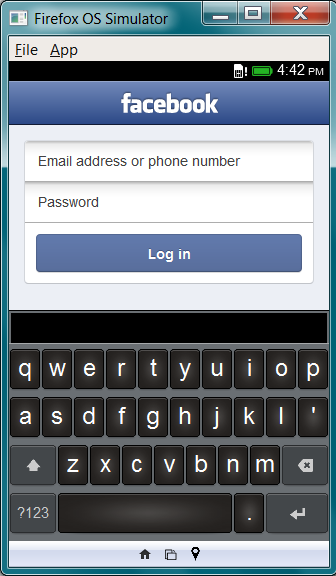 |
| Facebook app and Keyboard |
This is the Firefox OS window. You can download apps, run them and browse from the browser. You can also use this simulator to develop apps for Firefox OS if you are a developer.
If you like that please Hit likes, share on twitter and hit 1+ button for Google+. :) ;)
You can find me on Facebook:
TechGang on Facebook
On Google+:
TechGang Google+
Go to link Download
Sunday, October 23, 2016
How To Get Android Paid Apps From Google Play Store On BlackBerry 10
How To Get Android Paid Apps From Google Play Store On BlackBerry 10

BlackBerry OS 10.2.1 was recently released with the ability to install Android apps (APKs) straight from your BlackBerry device. There are also third party clients such as Snap which act as a Google Play Store client. Snap recently updated to v2.0 with the ability to download previously purchased Android apps, the tricky part is how to purchase these paid apps from the Google Play Store without an Android device and download them to your BlackBerry 10 device, this how-to will show you how to do just that.
In order to accomplish this you must have:
A BlackBerry 10 device running OS 10.2.1.1055 or above
- The latest Snap .BAR file, which can be obtained from the developer’s website here (if you need help sideloading this onto your BlackBerry 10 device follow this incredible guide)
- BlueStacks (App Player that lets you run mobile apps fast and fullscreen on Windows and Mac.) – Windows version could be downloaded here, Mac version here
- Google Account
Once you have Snap sideloaded to your BlackBerry 10 device and BlueStacks installed on your Mac or PC you will then startup the BlueStacks program. Will look something like this:

This is the Google Play Store client on my PC, next step is to search for a paid up. I will be purchasing an app then downloading it to my BlackBerry 10 device using Snap.
I searched for Tapatalk, I will buy purchasing Tapatalk Pro:

 To purchase click on the dollar amount as shown on the image above.
 After clicking on buy it will ask you to enter your Google Account information, along with payment info. Once purchase has completed open up Snap on your BlackBerry 10 device and search for the app you purchased, in this case I will search for Tapatalk Pro:

 There you have it you can now download your already purchased paid app onto your BlackBerry 10 device through Snap, if you try to download a paid app from Snap that you have not yet paid for using the above method through BlueStacks you will get hit with a message like this:
 If you have any questions feel free to drop a comment below and we would be glad to walk you through purchasing apps. You can always purchase directly from Google Play Store website and testing your luck then downloading your paid apps using Snap, but without an App Player like BlueStacks you may run into problems
Go to link Download
Monday, October 3, 2016
How to save Windows Store apps to external storage in Windows 10
How to save Windows Store apps to external storage in Windows 10

Once the area of a registry hack in Windows 8, the Windows 10 November redesign at long last adds the local capacity to spare Windows Store applications to outside capacity as an inherent element. Any individual who wouldnt like to take up valuable inward storage room with Windows Store applications can now keep them on a thumb drive or a bigger outer hard drive left at home.
Outer application recoveries should take off amid the huge dispatch of Windows 10 in July, however Microsoft chose to keep down the element at just about the latest possible time.
That is the past, notwithstanding, and now the new component is accessible once you download and introduce the November upgrade. On the off chance that you havent got the redesign yet, you can introduce it physically by doing a set up introduce with the Windows 10 media creation apparatus.
In case youre as of now shaking the November upgrade, heres the means by which to spare your applications to outer stockpiling.
savetousborsdcard
Windows 10s November upgrade adds the capacity to spare Windows Store applications to outer stockpiling.
Before you do anything, unite your outside capacity to your PC. At that point go to Start > Settings > System > Storage. There youll see your joined stockpiling drives recorded. Under Save areas tap the drop down menu under "New applications will spare to" and select the outer stockpiling drive you need to utilize.
applications
Snap Apply to finish the procedure.
Next, snap Apply and youre finished.
Note: If you are on a PC and this component doesnt work with a SD card, have a go at utilizing a USB SD card peruser.
At the point when your favored outer stockpiling isnt joined with your PC, Windows 10 will naturally default back to inward stockpiling. When you reconnect your outside capacity, in any case, the working framework returns back to it for application spares.
Go to link Download
Friday, September 30, 2016
How To Root And Get Access To Google Play Store On Nokia X2 Dual Sim RM 1013
How To Root And Get Access To Google Play Store On Nokia X2 Dual Sim RM 1013

I got Rooted for my Nokia X2 and successfully install the supersu. Everything is attached below. Cheers!
- Download & sideload the towelroot apk
- Run it and tap on "make it rain" to root
- Download & sideload the Supersu
- Run it > continue > Normal and reboot your device
CONGRATS! Now Your X2 is successfully rooted. Next Is To Get Google Play Store N Services
Step to install Play Store:
- Download and extract This File
- Copy the folder to your device / sdcard
- Install any Root Explorer app, we only need to use this to copy files
- Go to copied folder, copy all the files
- Go to /system/app and paste them there
- Reboot your device
- Enjoy!
OR U Can Use The Below App To Install Drivers,Root And Install Google Play>>>>
Download HERE
Go to link Download
Wednesday, September 14, 2016
How to Fix Google Play Store Error 498 –Using 5 Ways
How to Fix Google Play Store Error 498 –Using 5 Ways
I Tried again but the Same Error Again. After Few Tweaks i was finally able to download and Install Asphalt on my Phone. Because i Faced this error in Google Play store, i though there will be many other people facing the same error and so this Guide on how to Fix Error 498 in Gooogle Play store. Here on this Page i will be sharing few Methods that will help you to get rid of it. Though any one listed Method will not work for Everyone to Get rid of Google Play Error 498 because there are different reasons that are responsible to cause this error.
CAUSES OF ERROR 498 IN PLAY STORE
There are Few things that causes this Error on your Smartphone while you try to download any app from Google Play store.
The Most common issue is the Size of Device’s Cache Partition. You will get Error 498 in play store if you try to download apps that are larger in size then your Device’s Cache partition. For Eg: Your Cache partition is of 30M and you try to download an app with Size 35M then you might get this error. Usually Play store have issues when downloading apps that are large in size.

Another Reason is Google Servers from where you are trying to download the apps might be under maintenance. So if you are downloading an App and you get Play store erro 498 message then Server may be the issue. Just wait and try to download it again. So these were just Couple of Possible Reasons for a User to get this Error in Google Play store, Now let us see Some Possible Ways to Fix it.
5 WAYS TO FIX GOOGLE PLAY STORE ERROR 498
METHOD 1: CLEARING CACHE
Most Common Reason you might be facing this Error is because of Cache, so i will start the Methods list by Recommending you to Clearing the Cache.
To do So, Just navigate to Settings > Applications > Manage Applications > Select Google Play store > Clear Data & Clear Cache.
Now Try and download the App if Cache was the problem and clearing it solved the Issue for you. One more reason of listing this method on top is this worked for me and i was able to download the game easily after clearing the Cache. Though the Solution for all might not be the same so try below methods too.
METHOD 2: USE WIFI TO DOWNLOAD.
Many a times your Internet Service Provider(ISP) Creates this Problem of Error 498 and many other Errors. so Try and get access to Wifi somehow and try to download the app thats giving you the Error.
METHOD 3: ADDING NEW PLAY STORE ACCOUNT.
You will need to Add a new Play store account inorder to fix this Error. Go to Settings > Accounts > Add New Account > Click on Google > Next > Enter email > Done.
After setting up new Play store account try to download the same app and see if this have Solved your Problem.
· Read Also: How to Protect Your System Information :computer Security Tricks
· Read Also: 11 tricks to keep it healthy and glowing Skin
METHOD 4: CONNECTING WITH COMPUTER:
One of my Friend reported that he fixed Error 498 by installing apps from Computer to Smartphone. You just need to connect your Smartphone to Computer Using USB Cable. then goto Google Play Store using your Favourite Browser on your Computer. [post_ad]Then Search for the App which was getting error on your Smartphone. Click on the Preferred Result that you get, next On the App page you will see Install button. Click it to Download that app On your Smartphone. No it will not Install on your Computer. it will Install on your Smartphone. Just make sure your Smartphone is Connected or else you will not See Install Button.
· Read Also: Tech Zone News: Samsung Galaxy S7 Android update
· Read Also: How to Find your Smartphone using Android Device Manger
· Read Also: How to Convert any word document Webpage to PDF
METHOD 5: UNINSTALL & REINSTALL GOOGLE PLAY STORE:
If your Phone is Rooted then You might just want to Uninstall and Then Reinstall Google Play store so that to make sure that you actually get rid of Error 498 in Google Play Store. If any of the above Listed methods don’t work for you then go for this one and you will fix it for sure. I hope this helps you to get rid of this error and you can again download your favourite app from play store just like before.
If these Helps then please don’t forget to spend few seconds and Comment below which Method solved the Issue for you. Or If you have any other way to get rid of this error message in play store then feel free to share it in Comments below.
Don’t forget to Share it with your friends via Facebook & Google+ and Twitter, And if you like the article How to Fix Google Play Store Error 498 and you may even Subscribe for New post, to get directly in your mail inbox.
Go to link Download
Friday, September 9, 2016
How to fix Error 498 on Google Play Store Solutions
How to fix Error 498 on Google Play Store Solutions
Sometimes when we try to download apps from Google Play get unexpected errors that may have multiple causes.

One is the Error 498,which does not give many clues about its origin. Is summarized as " Error 498 has occurred while was communicating with the server." To resolve this error there are several ways, you have to keep trying until something works for you.
Find Google Play Store
Give back and now seeks Google Play Services
Reboot your phone and try again to download your application
Login to Settings >> Accounts >> Google
Try again to download your application
This is done as follows:
Login to Settings >> Backup and Restore
Expect Android do its work, the phone will reboot.
Return to start
If any of these three methods will be served (or some other method), leave it in the comments.
One is the Error 498,which does not give many clues about its origin. Is summarized as " Error 498 has occurred while was communicating with the server." To resolve this error there are several ways, you have to keep trying until something works for you.
Method 1: Removing temporary data
Go to Settings (or options) >> Applications- Select "All" tab
Find Google Play Store
- Remove Data
- Clear Cache
Give back and now seeks Google Play Services
- Remove Data
- Clear Cache
Reboot your phone and try again to download your application
Method 2: Removing Gmail account
Go to Settings >> Accounts >> Google- Delete your Google account
- Reboot your device
Login to Settings >> Accounts >> Google
- Make your account again
Try again to download your application
Method 3: Using the Factory Reset
If neither of the first 2 methods worked, you can try to make a Factory Reset .This is done as follows:
Login to Settings >> Backup and Restore
- Factory Reset
- Reset Device
Expect Android do its work, the phone will reboot.
Return to start
If any of these three methods will be served (or some other method), leave it in the comments.
Go to link Download
Saturday, September 3, 2016
How to Install and Download Latest Google play store free download
How to Install and Download Latest Google play store free download
How to Install and Download Latest Google play store

The latest Google play store 5.12-9 arrive with complete detail side, stuff Design, and it has more elements Application such as G mail and Google updates with the new stuff design.
There are just two ways for installation Google play store in your Device, or you can direct on your Phone ore with your Computer/Laptop.
This is the official free downloading link, you can just click the below download button, and install the latest version Google Play store.
Download Here
Go to link Download
Subscribe to:
Posts (Atom)