Showing posts with label 5s. Show all posts
Showing posts with label 5s. Show all posts
Wednesday, November 30, 2016
How To Jailbreak iPhone 4 4s 5 5s and 5c with iOS 7 Evasi0n7
How To Jailbreak iPhone 4 4s 5 5s and 5c with iOS 7 Evasi0n7
- Perform Jailbreak quickly and easily to your iPhone compatible with iOS 7.
- Evasi0n7 is the best tool to untethered jailbreak your iPhone.
 How to Jailbreak all iPhone models compatible with the new iOS 7 - Evasi0n
New Jailbreak for iOS 7 is here and thank the Evasi0n 7 tool ,to Jailbreak your iPhone is easier than ever. As we warned over yesterday, maybe most Cydia tweaks and features not presently optimized for iOS 7, but imagine that soon this problem will be solved.If you already have your iPhone on hand and eager to perform Jailbreak your device, we shall only get down to work.
What should I know before Jailbreak my iPhone?
It is untethered Jailbreak. Which means? Roughly the Jailbreak will not disappear when turned off or reboot the device, nor will need to connect it to your computer every time you turn on the iPhone. If you want to know more, we have a great section on Jailbreak .It is highly unlikely that our iPhone runs a real risk of breaking completely, but we can deal with data loss. Therefore, it is highly recommended to perform a backup on iTunes and iCloud.
Evasi0n7 is compatible with the following versions of iOS7 ,so make sure you have installed on your iPhone: 7.0, 7.0.1, 7.0.2, 7.0.3, 7.0.4 and beta 1 and 2 of iOS 7.1.Being a newly released Jailbreak, you may find many errors / inconsistencies .Before Jailbreak you should disable the access code if you have it enabled.
What iPhone are compatible with iOS Jailbreak 7?
- iPhone 4
- iPhone 4s
- iPhone 5
- iPhone 5c
- iPhone 5s
What do I need to Jailbreak my iPhone?
1. An iPhone compatible with iOS 7 and Evasi0n7 tool (You can view the list).2. A computer operating system Windows or OS X.
3. A data cable to connect it.
4. The Evasi0n7 tool. »For Windows »For Mac
Steps to untethered Jailbreak to your iPhone iOS 7
1 - The first thing to do download the Evasi0n7 tool links that i have left in the previous section. Try to choose the one that belongs to your operating system. Once downloaded, extract it.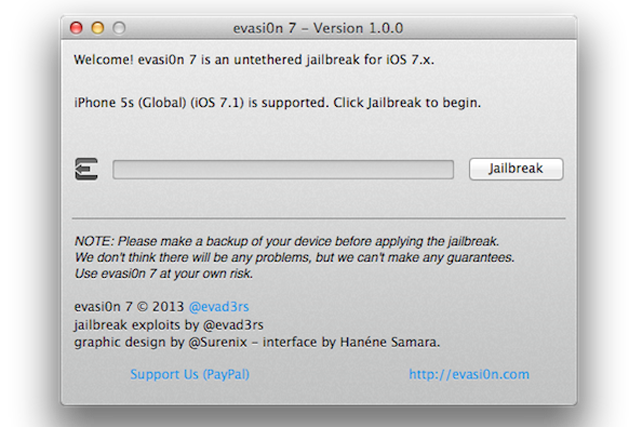
2 - The following is connect your iPhone via the data cable. Once Evasi0n7 detects the "Jailbreak" button will be activated and we will release it. We should not worry about putting it in DFU mode, the application will do it for us.
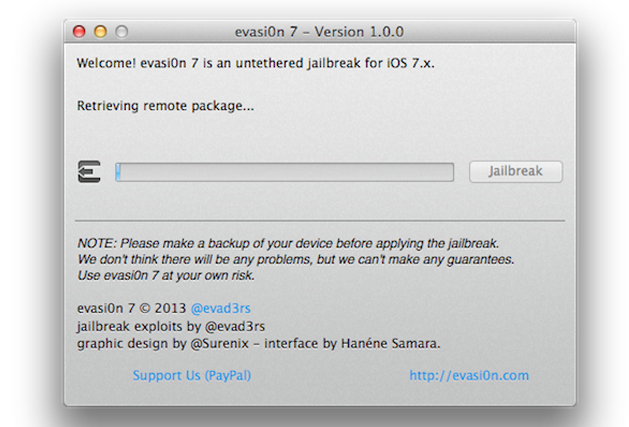
3 - After a few minutes, we see that our iPhone is restarted several times. This is very important not to touch or unlock your device in any course.
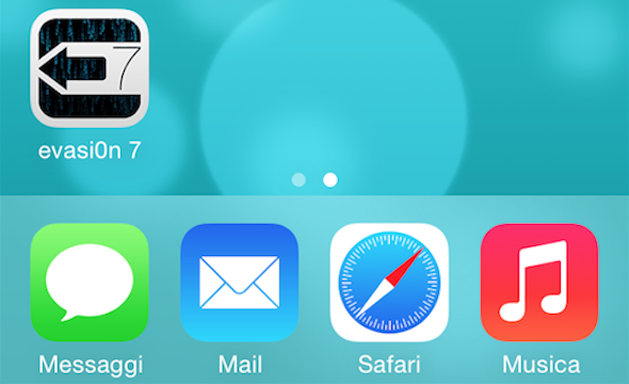
4 - After several reboots and once the transfer is successful, we will see a new application on our home screen. It is "Evasi0n" and we open it to finish to complete the process.
5 -. When the process is complete, we will see that the old application has disappeared and in its place we have . Cydia Were done!
As you have seen, the process is extremely simple and does not require more than a few minutes to have our unthetered our iPhone Jailbreak iOS 7
Go to link Download

Monday, October 31, 2016
How To Setup And Use iPhone 5s Touch ID Fingerprint Sensor video
How To Setup And Use iPhone 5s Touch ID Fingerprint Sensor video
Little over a week ago at their September media event, Apple announced the new iPhone 5s. Along with an impressive upgrade list to it’s predecessor, the iPhone 5, the 5s came with a feature many people had bookmarked as too outlandish for Apple to include. This feature is, of course, biometric fingerprint scanning integration, or as Apple call it: Touch ID. The premise of this new addition is simple, make unlocking and authorizing App Store & iTunes purchases as quick and easy as possible, which will result in a better experience for users. I happened to purchase the iPhone 5s earlier this morning, and I can honestly say I’m not disappointed at all with Touch ID.
I’ve been playing around with the new biometric implementation, and from what I can tell it’s fairly reliable and very secure. The software looks to be erring on the side of caution, and seems to block people if the print is slightly wrong, rather than allow people access if it’s somewhat correct. This is most definitely the right approach when we are talking about people’s data security.

When you first set up Touch ID, you’ll have to go through a rigorous setup procedure where you scan your chosen finger dozens of time to ensure the software has enough data on the finger you’re using (have no fear you can set up up to 5!). During this process, it’s important to make sure you cover every angle you think you’ll be unlocking your phone at, as it really is quite sensitive. If you’d like to see a full video walkthrough and demo of the process, one can be found below.
In the video below, you’ll have noticed that I was rejected by the Touch ID software a few times. I believe this was because when setting up the Touch ID fingerprint, I wasn’t diverse enough in the angles of my thumbprint that I supplied. After setting up the same thumbprint again, it seemed to work no problem. This particular form of security for a phone still felt slightly gimmicky to me, until I used it to authorize an application download. Now, where I used to have to continuously type out my 12-character password, I can simply scan my finger and save myself the time. It only seems like natural progression that we would get third party integration for a service like this. Just imagine being able to authorize a PayPal payment, or an NFC transaction, with simply a touch of your finger. Unfortunately Apple doesn’t play nice with the term ‘open APIs’, so we’ll have to see how far that gets.
Via
I’ve been playing around with the new biometric implementation, and from what I can tell it’s fairly reliable and very secure. The software looks to be erring on the side of caution, and seems to block people if the print is slightly wrong, rather than allow people access if it’s somewhat correct. This is most definitely the right approach when we are talking about people’s data security.
When you first set up Touch ID, you’ll have to go through a rigorous setup procedure where you scan your chosen finger dozens of time to ensure the software has enough data on the finger you’re using (have no fear you can set up up to 5!). During this process, it’s important to make sure you cover every angle you think you’ll be unlocking your phone at, as it really is quite sensitive. If you’d like to see a full video walkthrough and demo of the process, one can be found below.
In the video below, you’ll have noticed that I was rejected by the Touch ID software a few times. I believe this was because when setting up the Touch ID fingerprint, I wasn’t diverse enough in the angles of my thumbprint that I supplied. After setting up the same thumbprint again, it seemed to work no problem. This particular form of security for a phone still felt slightly gimmicky to me, until I used it to authorize an application download. Now, where I used to have to continuously type out my 12-character password, I can simply scan my finger and save myself the time. It only seems like natural progression that we would get third party integration for a service like this. Just imagine being able to authorize a PayPal payment, or an NFC transaction, with simply a touch of your finger. Unfortunately Apple doesn’t play nice with the term ‘open APIs’, so we’ll have to see how far that gets.
Via
Go to link Download
Monday, October 17, 2016
How to Jailbreak iPhone on iOS 5s 5c 5 4s 4 7 Using Evasi0n Mac
How to Jailbreak iPhone on iOS 5s 5c 5 4s 4 7 Using Evasi0n Mac
How to Jailbreak iPhone on iOS 5s/5c/5/4s/4 7 Using Evasi0n (Mac) - This tutorial is a step by step you can lakkan to jailbreak iPhone 5s, 5c iPhone, iPhone 5, iPhone 4s or iPhone 4 running iOS 7.0 to iOS 7.0.4 (including iOS 7.1 beta 1 and beta 2) using computer-assisted Evasi0n Mac. Before starting, make sure you turn off the passcode lock (can be re-enabled after the jailbreak process is complete). And if you were to update via OTA, make sure you do a full backup and restore again.
1.Connect iPhone to the computer and then do manual backups.
2. Create a folder with the name Pwnage then download evasi0n 7 , save it in the folder. We recommend you download the iOS 7.0.4 firmware and save it in the Pwnage folder. In addition evad3rs team also asks you to do a full restore before jailbreak. Download iOS firmware here .

3. Open Evasion by double-clicking Evasi0n dmg file from the Pwnage folder on the desktop.

4. Drag the application from the mounted dmg Evasi0n to the Pwnage folder on the desktop.


5. Run iTunes from the dock.

6. Make sure your iPhone is connected to a computer via a USB cable, and select the name of your iPhone from the left side bar or on the top right-corner of the iTunes window.

7. Press and hold the Option key and click the "Restore iPhone"

8. From the popup window that opens, select your iPhone firmware ipsws in the Pwnage folder you created earlier on the desktop. Click Open.

9. You will be asked to confirm the restore. Click the Restore .

10. If the restore goes right, right click (ctrl + click) Evasi0n app icon from the Pwnage folder, select Open and the contextual menu that appears. If prompted, click the Open once again.


11. Make sure there is no lockscreen passcode on your iPhone, click the button to start the jailbreak.

12. The process of retrieval of information from the iPhone will require time; generate the data jailbreak, jailbreak upload the data, inject evasi0n app 1, app 2 evasi0n inject, configuring the system 1, 2 configuring the system, then reboot.


13. You will be prompted to unlock your iPhone and tap the app icon evasi0n. Important note that you only tap 1x.Applications will be open and will close quickly.


14. Evasi0n iPhone will reboot once again, modify the rootfs, and ... done!


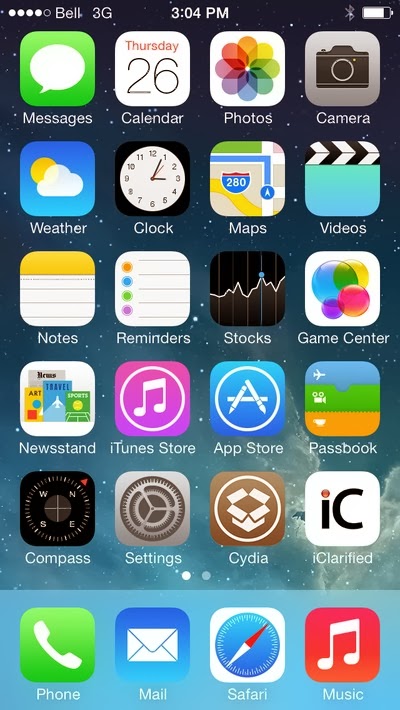
15. Your iPhone will now reboot with Cydia on the SpringBoard ready! Good luck! Source
Go to link Download
Subscribe to:
Posts (Atom)