Showing posts with label mozilla. Show all posts
Showing posts with label mozilla. Show all posts
Monday, October 31, 2016
How to run Mozilla Firefox Mobile OS on Computer With Apps and Store
How to run Mozilla Firefox Mobile OS on Computer With Apps and Store
How to Run FireFox OS Mobile on PC
Easy method for running FireFox OS on a PC

Things you should have is just a Firefox Browser, which you can get from the link below if you dont have:
Download Firefox Browser
After Downloading Firefox Browser from Official website and setting up the browser follow the link to download the add-on simulator for Firefox OS from the Mozilla Firefox browser:
Download Firefox OS add-on Simulator
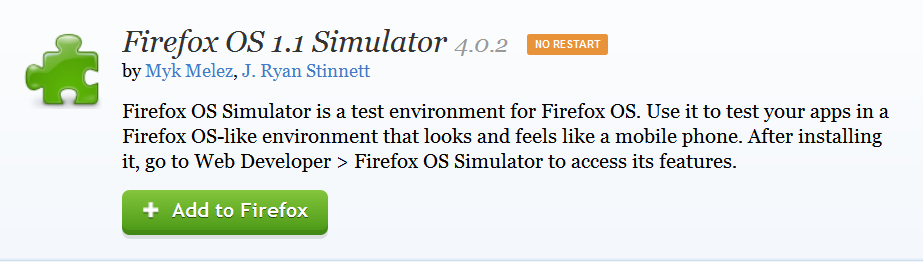
Press + Add to Firefox button and download. Now after downloading 45+ MB add-on from Firefox, there will be an option of Install in a new pop-up window. Click install now and wait for installation. After the installation is done there will be a new window like:
If page not found click here

Or there will be a black screen first showing info about daemon tools. Close that daemon tool window and Use above the window to turn on Simulator. See the option Simulator and in green Running.
You would see Stopped when OS is not running. Like that:

After enabling simulator you will see a new window like this:
Also See:
How to Run/Install Android on Computer (Easiest way):
Posted by Tech Notes on Saturday, 15 August 2015
 |
| App Store |
 |
| Home Screen |
 |
| Browser |
 |
| Mozilla Tech |
 |
| Status Bar |
 |
| Phone app |
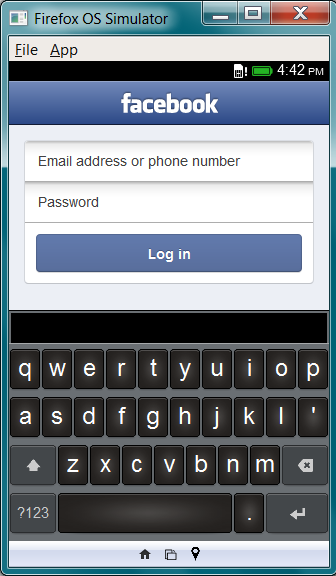 |
| Facebook app and Keyboard |
This is the Firefox OS window. You can download apps, run them and browse from the browser. You can also use this simulator to develop apps for Firefox OS if you are a developer.
If you like that please Hit likes, share on twitter and hit 1+ button for Google+. :) ;)
You can find me on Facebook:
TechGang on Facebook
On Google+:
TechGang Google+
Go to link Download

Monday, October 10, 2016
How to Enable Show Button Download IDM on Mozilla and Google Chrome
How to Enable Show Button Download IDM on Mozilla and Google Chrome
How to Enable Show Button Download IDM on Mozilla and Google Chrome - Internet Download Manager is software that is very helpful in downloading a file. Effort to satisfy the user IDM IDM IDM also always carried example several times issuing the new version after version of IDM issued verinya certainly accompanied with quality.

I always had to get a friend who complained that IDMnya TS can not be used or can not get to download a file automatically. Finally I thought, after a few days thinking I have also experienced the same events as friend TS, which can not be used or can not get to download a file automatically. I started tinkering with the browser ( Mozilla Firefox and Google Chrome ), as a result I can download a file with IDM automatically in the browser Mozilla Firefox and Google Chrome . Here I will try to describe the way I have done.
Showing Button Download IDM on Mozilla Fire fox:
I always had to get a friend who complained that IDMnya TS can not be used or can not get to download a file automatically. Finally I thought, after a few days thinking I have also experienced the same events as friend TS, which can not be used or can not get to download a file automatically. I started tinkering with the browser ( Mozilla Firefox and Google Chrome ), as a result I can download a file with IDM automatically in the browser Mozilla Firefox and Google Chrome . Here I will try to describe the way I have done.
Showing Button Download IDM on Mozilla Fire fox:
- Download IDM advance if not have, click here , once downloaded and installed . those who already have IDM step is skipped.
- Open Mozilla Firefox
- Select Tools => Add -ons
- Select E??xtensions
- Find IDM CC
- Click the Enable
- Completed
- Download IDM advance if not have, click here , once downloaded and installed . those who already have IDM step is skipped.
- Open Google Chrome
- See the Minimize, Restore Down , and Close .
- Click the button below buttons Minimize, Restore Down , and Close (see picture for more details)
- Select Settings
- Select Extensions
- Find IDM Integration
- Checklist IDM Integration
- Completed
Se agan corals are able to download all the f ile with IDM automatically. No need to be rkeluh k esal. If there was a time who did DAK can be solved on the technology or software let me know, if I can help then I help you, but if I can not then I will ba ntu as much as I know.
So sa ja I can say about the Displays button on the IDM Download Mozilla and Google Chrome . I hope that this article could help you that sedag difficulty of the problems I mentioned earlier is the paragraph before this. Closed with a final word, wasalam .
So sa ja I can say about the Displays button on the IDM Download Mozilla and Google Chrome . I hope that this article could help you that sedag difficulty of the problems I mentioned earlier is the paragraph before this. Closed with a final word, wasalam .
Go to link Download
Sunday, October 2, 2016
How to Eliminate Disturbing Video Ads on Chrome Safari Mozilla Firefox
How to Eliminate Disturbing Video Ads on Chrome Safari Mozilla Firefox
How to Eliminate Disturbing Video Ads on Chrome, Safari & Mozilla Firefox - You often struck by the advertisement pop ups or ads that usually appear suddenly when you visit a web page ? Can not be denied , advertising has become an important part between content providers and readers . But like autoplaying video ads that appear suddenly and loud audio playing is certainly very annoying .

There are several steps you can take to avoid interference ads that appear suddenly on a web page . Each browser , such as Chrome , Safari and Mozilla Firefox has its own way to block annoying ads on a web page . The following are easy steps .
Chrome
How to disable autoplaying videos that appear on the Chrome browser is much easier than other browsers . All you need to do is visit the chrome://chrome/settings/content , then in the " Plug - ins " fox of " Run Automatically" to " Click to Play " . That way you ve blocked most of the ads that appear suddenly .
Safari
Unlike Chrome , Safari does not offer a quick way to automatically disable plugins running . But how to block annoying ads in Safari browser is also not difficult . Safari users need ClickToPlugin and ClickToFlash which can be downloaded here . ClickToPlugin and ClickToFlash can put different ads within the content of its own like . If desired , you can still rotate ads on the content has been singled out .
Mozilla Firefox
Such as Safari , Mozilla Firefox also offers additional content called Flashblock , which can function for setting ads that appear suddenly . You can download Flashblock here . After you install Flashblock do not forget to restart the computer . Good luck !
There are several steps you can take to avoid interference ads that appear suddenly on a web page . Each browser , such as Chrome , Safari and Mozilla Firefox has its own way to block annoying ads on a web page . The following are easy steps .
Chrome
How to disable autoplaying videos that appear on the Chrome browser is much easier than other browsers . All you need to do is visit the chrome://chrome/settings/content , then in the " Plug - ins " fox of " Run Automatically" to " Click to Play " . That way you ve blocked most of the ads that appear suddenly .
Safari
Unlike Chrome , Safari does not offer a quick way to automatically disable plugins running . But how to block annoying ads in Safari browser is also not difficult . Safari users need ClickToPlugin and ClickToFlash which can be downloaded here . ClickToPlugin and ClickToFlash can put different ads within the content of its own like . If desired , you can still rotate ads on the content has been singled out .
Mozilla Firefox
Such as Safari , Mozilla Firefox also offers additional content called Flashblock , which can function for setting ads that appear suddenly . You can download Flashblock here . After you install Flashblock do not forget to restart the computer . Good luck !
Go to link Download
Subscribe to:
Posts (Atom)