Showing posts with label os. Show all posts
Showing posts with label os. Show all posts
Saturday, November 5, 2016
How To Pangu Jailbreak iOS 9 On Mac OS X
How To Pangu Jailbreak iOS 9 On Mac OS X

Pangu team has released the jailbreak tool to jailbreak iOS 9 - iOS 9.2 for Mac version. In this article you can get a simple step by step guide to know how to jailbreak iOS 9 on Mac. This is definitely gonna be a useful article. Come and take a look.
Go to link Download

Monday, October 31, 2016
How to run Mozilla Firefox Mobile OS on Computer With Apps and Store
How to run Mozilla Firefox Mobile OS on Computer With Apps and Store
How to Run FireFox OS Mobile on PC
Easy method for running FireFox OS on a PC
Things you should have is just a Firefox Browser, which you can get from the link below if you dont have:
Download Firefox Browser
After Downloading Firefox Browser from Official website and setting up the browser follow the link to download the add-on simulator for Firefox OS from the Mozilla Firefox browser:
Download Firefox OS add-on Simulator
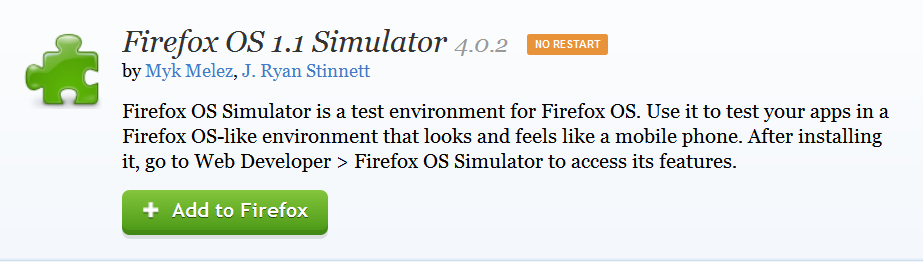
Press + Add to Firefox button and download. Now after downloading 45+ MB add-on from Firefox, there will be an option of Install in a new pop-up window. Click install now and wait for installation. After the installation is done there will be a new window like:
If page not found click here

Or there will be a black screen first showing info about daemon tools. Close that daemon tool window and Use above the window to turn on Simulator. See the option Simulator and in green Running.
You would see Stopped when OS is not running. Like that:

After enabling simulator you will see a new window like this:
Also See:
How to Run/Install Android on Computer (Easiest way):
Posted by Tech Notes on Saturday, 15 August 2015
 |
| App Store |
 |
| Home Screen |
 |
| Browser |
 |
| Mozilla Tech |
 |
| Status Bar |
 |
| Phone app |
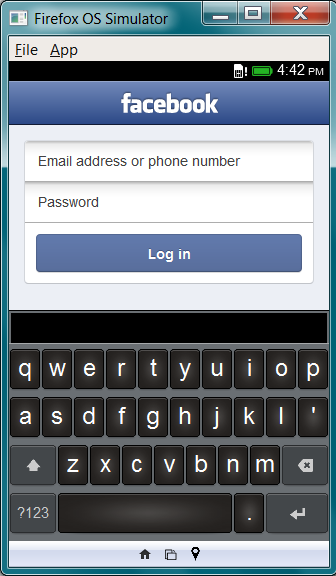 |
| Facebook app and Keyboard |
This is the Firefox OS window. You can download apps, run them and browse from the browser. You can also use this simulator to develop apps for Firefox OS if you are a developer.
If you like that please Hit likes, share on twitter and hit 1+ button for Google+. :) ;)
You can find me on Facebook:
TechGang on Facebook
On Google+:
TechGang Google+
Go to link Download
Tuesday, October 25, 2016
How to Run Install Android OS Kitkat Lollipop Marshmallow on Computer Easiest way
How to Run Install Android OS Kitkat Lollipop Marshmallow on Computer Easiest way
Install full Android OS on your PC or Laptop easy and simple: Android Lollipop: Android KitKat: Android Marshmallow:
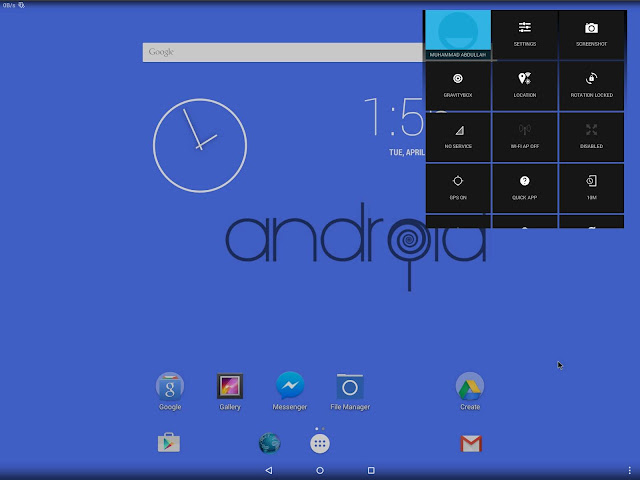
To make this happen you will need:
- Formatted USB of 4GB or Higher (depends upon Android version)
- A PC or a laptop that should meet the requirements of Installation
- An Internet connection to download files
- And this blog to help you out :)
Make sure that your USBs data is saved because its going to Format
Now download .iso format files from the link given below:
Always choose the latest and bug-free iso files.
Always choose the latest and bug-free iso files.
Android x86 (Google Code)
Other Android Versions
Android Lollipop ISO Files
Android 6.0 Marshmallow iso Files
Now you have to download USB Installer toolWhich you can get from the post below:
Download Universal USB Installer
Now follow the link to make your USB bootable to install or run Android:
How to make a Bootable USB
How to run Mozilla FireFox OS on PC Step by step guide:http://techgangfacebook.blogspot.com/2015/03/how-to-run-mozilla-firefox-os-on.html
Posted by Tech Notes on Thursday, 26 March 2015
Now after successfully making your USB bootable insert USB in PC and restart your PC or Laptop
After restarting your PC, you will see following screens.
Follow these screens step by step to Install or Run an OS.
Personally, I would recommend you to not install OS.
Simply run it directly from USB. This is because after installation both OS (Android and Windows) will run on your Computer or laptop and after a short time it will make your device slower and then you have to reinstall windows to remove Android.
Follow these screens step by step to Install or Run an OS.
Personally, I would recommend you to not install OS.
Simply run it directly from USB. This is because after installation both OS (Android and Windows) will run on your Computer or laptop and after a short time it will make your device slower and then you have to reinstall windows to remove Android.
You can see the first option in Step 1 to run Android with USB. This option will not Install Android on your PC. You can run android any time on your device.
 |
| Step 1 |
You can Install on any drive but it is recommended that if you want to remove OS after Installation chooses an Empty disk. Dont install on C where windows are installed.
 |
| Step 2 |
This is because GRUB allows you to boot any OS by prompting you to choose which OS you want to run.
 |
| Step 3 |
This is like giving internal storage to android. If you want to install too many apps then choose more internal storage. 2GB is the maximum option in this.
 |
| Step 4 |
 |
| Step 5 |
WELCOME TO THE WORLD OF ANDROID ON PC
Now choose which you want to do either you want to reboot or run android. A reboot will prompt you choosing between Windows and Android.
 |
| Step 6 |
Also See:
Download all One Plus 2 Stock HD Wallpapers
Posted by TechNotes on Wednesday, 5 August 2015
Cautions:
- There might be bugs in Android versions. So choose latest iso files
- All android apps will not be available to run. e.g those apps that use portrait screens.
It is like Android running on a tablet.
These versions of android are already rooted and you can customize them on PC too.
What you can do more?
- Install Xposed Installer on your android OS
- Install Gravity box
- You can install and run any Root app on this OS and you can customize it too.
If you have any suggestions about this blog or tutorial then comment below, I will appreciate your feedback :)
Link to Facebook and other social platforms are on the top action bar and on the bottom too.
Follow this blog for more and Tech updates.
#TechNotes #TechGang +Tech Notes #AndroidOnPC #BestTutorialForAndroidOnPCOrLaptop
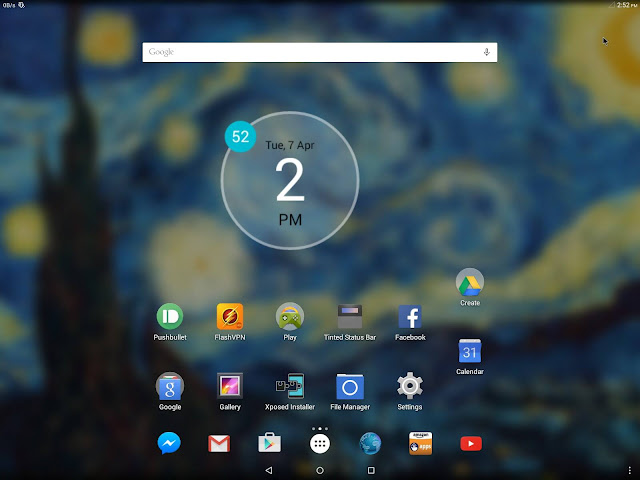
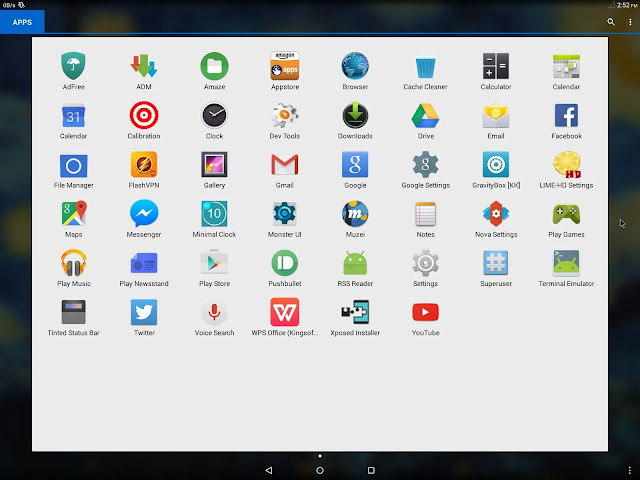
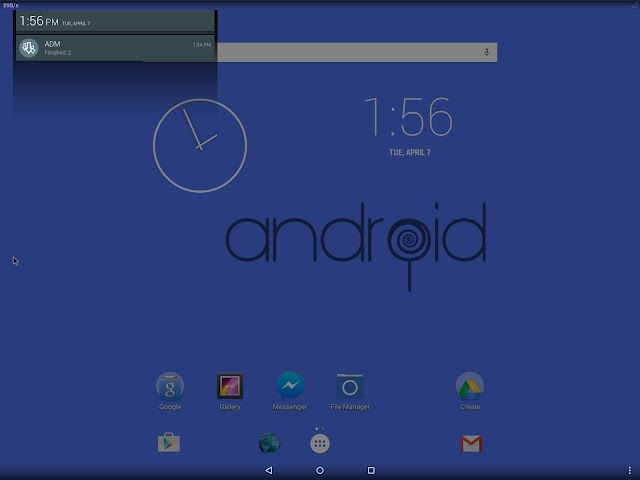
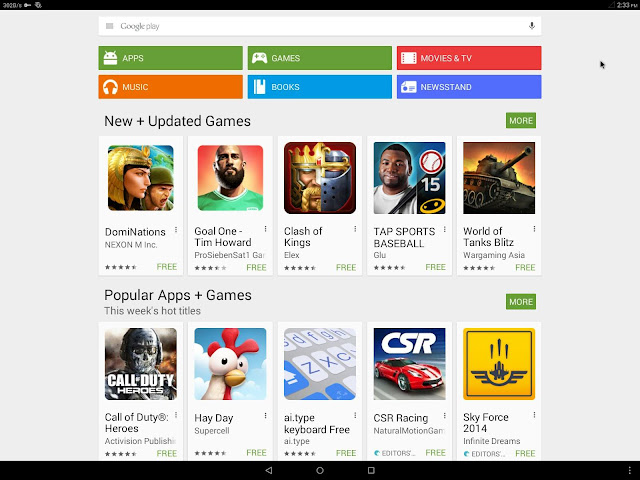
Android OS Gallery
Also See:
Download Microsofts Arrow launcher secret beta for Android
Posted by TechNotes on Monday, 10 August 2015
Go to link Download
Sunday, October 23, 2016
How to make a Bootable USB to install any OS See method Here
How to make a Bootable USB to install any OS See method Here
Make Bootable USB and install any Operating System:

In order to install an OS download the software from below link. You can use both USB bootable makers, but for installing Windows 10 i recommend to use Rufus USB installer.
Download Universal Bootable USB maker
Download Rufus Bootable USB maker
Caution:
In order to make your USB Bootable to install any Operating system on it such as Linux, Android, Windows, Ubuntu or any other OS with your USB you have to save your data if it is on USB. Because making a bootable USB needs to format the Flash storage/USB. First save your data.Now after downloading software from the link above insert a USB/Flash drive with your PC/Laptop. Make sure you have downloaded desired OS files you want to install should be present on your PC/Laptop. Now run the Software, actually, there is no need to install the software it will run when you double tap the downloaded application. Now locate the downloaded files of OS on the hard drive. Choose what is your OS type, mean which OS you want to install either it is Android or it is Windows or Linux. Now start the process and it will tell you to store your data because Flash drive has to be formatted. Now start the process. It will take some time to complete. Sit and relax until the process is complete. Now there will be a message of completion. Your USB is ready now to install new OS on your PC. You can now install any OS with that method. :)
 |
| 1 |
 |
| 2 |
 |
| 3 |
 |
| 4 |
 |
| 5 |
 |
| 6 |
 |
| 7 |
Go to link Download
Thursday, October 20, 2016
How to Easily Master Browser BlackBerry 10 OS
How to Easily Master Browser BlackBerry 10 OS
How to Easily Master Browser BlackBerry 10 OS - For those users who have brand-new BlackBerry phones running OS 10.2.1, there are some important tips that you can use to master browser. What is it? Please refer to the following tips.
Change the default search engine
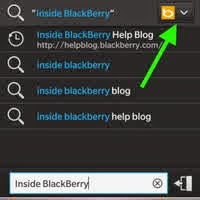
Depending on what youre looking for, it could be a while you have to change the default search engine in your browser . To do so on a BlackBerry smartphone , please lakungan two easy steps:
1. Open the browser on your BlackBerry and enter keywords of content you want to search .
2. Once an icon that represents the default search engin appear in the upper right - hand corner , tap the icon , then from the drop - down list , please click your desired search engine ( google , yahoo , bing , etc ) .
Adding a new search engine
If your favorite search Engin , such as Wikipedia , are not in the browser on the BlackBerry 10 , do not worry because you always have the option to add it . You do this as follows :
1. Go to a website that has a search feature
2. Perform a search using the search feature in the website is
3. Tap the icon 3- point , select Add Search
4. It will pop up a dialog box with the complete details of the search engine you want, tap Add .
Saving webpage
To read a website offline , you can perform the storage option in HTML format . You can also send it as an attachment
1. In an open webpage and want to save, tap the 3 dots icon , select the paper icon with a checkmark , Save Page
2. Select a location / folder to save the file webpage
At other times when you want to display a webpage offline and you have saved , open the file manager , find the folder where you saved it , and then tap an existing HTML file .
Enabling Desktop mode
Depending on the websites you visit , you can enable Desktop Mode so that the browser can display the same web but in the desktop version , not the mobile version .
1. Open the browser , tap the icon 3- point
2. Tap Settings , tap Developer Tools
3. Set Desktop Mode option to ON
Private browsing
As in the computer browser, Private Browsing feature you can use on BlackBerry phones to avoid cell phone store browsing information that you have done . With Private Mode , the history , cached files , cookies and the like will not be stored on your BlackBerry phone .
1. Open the browser , tap the icon 3- point , tap Settings
2. Tap Privacy and Security and set Private Browsing to the ON position .
Those are some important tips that you can practice on BlackBerry phones 10. By understanding the above tips , you are expected to master the BlackBerry browser 10 so browsing activities can be done easily and efficiently , as well as safe . Good luck :)
Change the default search engine
Depending on what youre looking for, it could be a while you have to change the default search engine in your browser . To do so on a BlackBerry smartphone , please lakungan two easy steps:
1. Open the browser on your BlackBerry and enter keywords of content you want to search .
2. Once an icon that represents the default search engin appear in the upper right - hand corner , tap the icon , then from the drop - down list , please click your desired search engine ( google , yahoo , bing , etc ) .
Adding a new search engine
If your favorite search Engin , such as Wikipedia , are not in the browser on the BlackBerry 10 , do not worry because you always have the option to add it . You do this as follows :
1. Go to a website that has a search feature
2. Perform a search using the search feature in the website is
3. Tap the icon 3- point , select Add Search
4. It will pop up a dialog box with the complete details of the search engine you want, tap Add .
Saving webpage
To read a website offline , you can perform the storage option in HTML format . You can also send it as an attachment
1. In an open webpage and want to save, tap the 3 dots icon , select the paper icon with a checkmark , Save Page
2. Select a location / folder to save the file webpage
At other times when you want to display a webpage offline and you have saved , open the file manager , find the folder where you saved it , and then tap an existing HTML file .
Enabling Desktop mode
Depending on the websites you visit , you can enable Desktop Mode so that the browser can display the same web but in the desktop version , not the mobile version .
1. Open the browser , tap the icon 3- point
2. Tap Settings , tap Developer Tools
3. Set Desktop Mode option to ON
Private browsing
As in the computer browser, Private Browsing feature you can use on BlackBerry phones to avoid cell phone store browsing information that you have done . With Private Mode , the history , cached files , cookies and the like will not be stored on your BlackBerry phone .
1. Open the browser , tap the icon 3- point , tap Settings
2. Tap Privacy and Security and set Private Browsing to the ON position .
Those are some important tips that you can practice on BlackBerry phones 10. By understanding the above tips , you are expected to master the BlackBerry browser 10 so browsing activities can be done easily and efficiently , as well as safe . Good luck :)
Go to link Download
Wednesday, September 28, 2016
How to Recover Deleted Files from Mac OS X with DiskDrill
How to Recover Deleted Files from Mac OS X with DiskDrill
 |
| How to Recover Deleted Files from Mac OS X with DiskDrill |
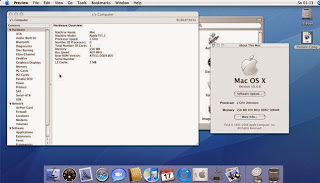
if you need to retrieve your files and folders without having a backup or you have them deleted from you’re the backup, DiskDrill is literally your hoarder and the great report is that it’s absolutely free, so why not give it a try! It will easily scan your driver to see if it can retrieve the document that have been taken, although if you desire to retrieve the documents, then you might desire to improvement into the pro type in order to get your documents back.
First you need to download DiskDrill, and then attach it to your Mac. Launch the program and then choose Scan In order to start scanning the device for deleted files. After the program is done with the scanning, you need to locate the documents that you desire to retrieve and then set the recovery position, although when you choose the retrieve choice you will be inquired to buy the upgraded pro version. Now DiskDrill will retrieve your documents and your documents will be refurbished where you chose to have them.
Go to link Download
Wednesday, August 31, 2016
How To Install OS 6 On Your BlackBerry Device
How To Install OS 6 On Your BlackBerry Device

Here is step by step guide to install OS 6 on your BlackBerry device:
> Backup Data
Use Blackberry Desktop Manager to back up your data. Connect your BlackBerry device to your computer using the USB sync cable. If you have a password enabled, enter it. Click Yes when your phone asking if you want to enable mass storage mode.
Open BlackBerry Desktop Manager, enter your password (if you have), wait until the desktop software recoqnizes your devive, and then you can simply access the backup options by clicking the “Back up now” icon. A dialogue box will appear with the Backup type options: Full, Quick, or Custom. Click on Full (all device data and settings). To begin, click on Back up and a progress bar will track the process.

> Backup Third Party Application
Use Blackberry Desktop Manager to back up your third party application. Click on Device (at the upper left corner), scroll through the drop down menu and click on Switch Devices. When the next dialogue box appears, click on the picture of your device. On the next dialogue box, uncheck Device Data, leaving only Third Party Applications checked. Click Next and Desktop Manager will start reading and saving the information on your device. When it’s finished reading the information on your blackberry, click Cancel. Continue these instructions:
- Search your computer in hidden and system files / folders for a folder named with your pin (click on Start menu, search and type in %temp% to find your temp folder with the folder named as your pin). Or you can locate the pin folder by following this path: C:Users[name]AppDataLocal SettingsTemp.
- When you find it copy and paste the folder to another location (you can paste it to a backup folder you created specifically for blackberry information). Now you can exit desktop manager.
> Install OS 6 On Your Computer
Uninstall any old Blackberry OS builds from your computer if you have them (go to Control Panel > Uninstall Programs and select BlackBerry Device Software).
Download and install OS 6 to your computer (double click on the OS .exe file and let Windows install it). After the OS installed, go to:
- C:Program FilesCommon FilesResearch In MotionApploader *Then you should find and delete the Vendor.XML file.
> Wipe Device Using BBSAK
When BBSAK has installed on your computer, plug in your device, open the program. It will ask for a password, if you have a password enabled, enter it (otherwise leave it blank) click OK. Click Wipe device, A dialogue box will appear, click yes. Your device will reboot and giving you a 507 error. Don’t be alarmed. You have wiped the device clean and there is no OS on the device at all.
> Installing OS 6 On Your BlackBerry Device
Go to C:Program FilesCommon FilesResearch In MotionApploader double-click the “loader.exe” file.

The App Loader will then start and your device “PIN” should show up in the drop down menu. Click “NEXT” and follow the prompts. The App Loader will go through the process of loading the OS 6.

 The phone will then boot for the first time (take up to 8 minutes), wait for the boot completely before disconnecting. Do a battery pull afterwards and letting it reboot (take up to 2 minutes), to double check that there are no problems after the initial boot.
> Re-installing Third Party Application
Plug in your device, load up DM, click on Application > Import files, browse your third party application backup file. Select the option that allows you to choose what items you would like to re-install. Wait about 10-20 minutes for the process to complete and your phone to reboot completely. Continue with the next step.
The App Loader will then start and your device “PIN” should show up in the drop down menu. Click “NEXT” and follow the prompts. The App Loader will go through the process of loading the OS 6.
> Re-installing Third Party Application
Plug in your device, load up DM, click on Application > Import files, browse your third party application backup file. Select the option that allows you to choose what items you would like to re-install. Wait about 10-20 minutes for the process to complete and your phone to reboot completely. Continue with the next step.

> Restoring Data
Click on Device > Restore, to which then you will be prompted with an option to choose your backup file. Select the most recent, and then select All device data and settings, click on Restore. Wait for the process to complete and your phone to reboot completely before disconnecting. Do a battery pull. Try to do another battery pull in the next hour as well...just for good measure.

Enjoy the latest OS6 on your BlackBerry !
Go to link Download
Subscribe to:
Posts (Atom)