Showing posts with label firefox. Show all posts
Showing posts with label firefox. Show all posts
Monday, November 28, 2016
How to Make Firefox Load Pages Faster
How to Make Firefox Load Pages Faster
- Type "about:config" into the address bar and hit return.

- Look for “network.http.keep-alive”. If it’s false, double-click that line and to change it to true.
- Make sure “network.http.version” is set to “1.1?.
- Look for “network.http.pipelining”. If it’s false, double-click that line and change it to true.
- Set "network.http.proxy.pipelining" to true by double-clicking it.
- Set "network.http.pipelining.maxrequests" to 8 by double-clicking it. This means it will make 8 requests at once. There is no point setting it higher then 8 as it is capped at 8 max. The default value for this setting is 4.
- Optional: Right-click anywhere and select New-> Integer. Name it "nglayout.initialpaint.delay" and set its value to "0". This value is the amount of time the browser waits before it shows you the information it receives. This is particularly helpful on pages with search bars, however, it doesnt actually make the page load faster.


Alternate Method for Broadband Users
- Type “about:config” into the address bar and hit return. Scroll down and look for the following entries:
- network.http.pipelining network.http.proxy.pipelining network.http.pipelining.maxrequests
- Normally the browser will make one request to a web page at a time. When you enable pipelining it will make several at once, which really speeds up page loading.
- network.http.pipelining network.http.proxy.pipelining network.http.pipelining.maxrequests
- Alter the entries as follows:
- Set “network.http.pipelining” to “true”
- Set “network.http.proxy.pipelining” to “true”
- Set “network.http.pipelining.maxrequests” to some number like 100. This means it will make 100 requests at once.
- Set “network.http.pipelining” to “true”
- Lastly right-click anywhere and select New-> Integer. Name it “nglayout.initialpaint.delay” and set its value to “0?. This value is the amount of time the browser waits before it acts on information it receives.


- If you’re using a broadband connection you’ll load pages MUCH faster now!

- Using the “Filter:” search box can make it easier to find the settings youre looking for.
- If you have problems like slow down, pages not loading or images loading weird, just undo the tweaks in about:config
- Firefoxs slow loading could be due to the auto update. Disabling the auto-update feature could lead to improved loading time. For disabling update go to Tools--> options -->advanced --> Update and uncheck all the selections and click OK. (Make sure that you update manually at least once a week).
- Here’s something for broadband people that will really speed Firefox up:
- Avoid keeping and using too many toolbars, as they, too, can slow down your internet browser.
Take note that doing this can actually make certain pages run slower. However, it has potential to make much more pages load faster.
Go to link Download

Wednesday, November 23, 2016
How to auto save passwords in Firefox without confirmation
How to auto save passwords in Firefox without confirmation
It would be a lot of fun if you are able to auto save passwords in Firefox. Consider a situation: One of your friends uses your computer for checking his Facebook. He enters his login email and password on Facebook login page. After hitting on Enter, Firefox does not show him any password saving confirmation prompt. Instead, his email and password is automatically saved by Firefox! Interesting, isn’t it? Yeah, you guessed it right. Today, we will learn how to auto save passwords in Firefox without any confirmation prompt. So, let us give it a go!
Let us get into the procedure of saving passwords in Firefox.
1. Download PowerArchiver and install it on your computer. This is used to open and edit Firefox files. Make sure that Firefox is not running while following the further procedure. Exit Firefox, if running and move to next step.
2. Go to C:Program FilesMozilla Firefox and look for omni.ja file.
Note: Before moving to next step, make sure you have a backup of omni.ja file. If you want to restore your original Firefox settings, you need this default omni.ja file.
3. Open this file using PowerArchiver. You will see all the files present inside omni.ja. Go to jsloader esourcesgrecomponents and delete nsLoginManagerPrompter.js file.

4. Go back to the root folder of omni.ja file and navigate to components folder. In that folder, open nsLoginManagerPrompter.js file using Notepad++. In Notepad++, search for _showSaveLoginNotification function. Now, you have to edit this function as shown in the screenshot below:

Replace all the function contents with this:
Save the file and allow PowerArchiver to overwrite the file in omni.ja.
5. That’s it! Your Firefox is completely configured to auto save passwords without confirmation.
Run your Firefox and login to any online account. Firefox will save passsword without asking any for permission. To view saved passwords in Firefox, go to Tools -> Options and hit on Security tab. Then click on Saved Passwords button. In the prompt, click on Show Passwords and you will be able to see saved passwords like this:

If you are not comfortable with editing files, here is the edited omni.ja file. Download it and copy(overwrite) it in your C:Program FilesMozilla Firefox folder.
I hope now you are able to automatically save passwords in Firefox using the above trick. You can easily capture your friends’ passwords using this beautiful Firefox trick. Cheers!
Auto Save passwords in Firefox:
You have to edit core files of Firefox for auto saving passwords. Please note that this article is for educational purpose only. I am not responsible for any act done by you.Let us get into the procedure of saving passwords in Firefox.
1. Download PowerArchiver and install it on your computer. This is used to open and edit Firefox files. Make sure that Firefox is not running while following the further procedure. Exit Firefox, if running and move to next step.
2. Go to C:Program FilesMozilla Firefox and look for omni.ja file.
Note: Before moving to next step, make sure you have a backup of omni.ja file. If you want to restore your original Firefox settings, you need this default omni.ja file.
3. Open this file using PowerArchiver. You will see all the files present inside omni.ja. Go to jsloader esourcesgrecomponents and delete nsLoginManagerPrompter.js file.
4. Go back to the root folder of omni.ja file and navigate to components folder. In that folder, open nsLoginManagerPrompter.js file using Notepad++. In Notepad++, search for _showSaveLoginNotification function. Now, you have to edit this function as shown in the screenshot below:
Replace all the function contents with this:
var pwmgr = this._pwmgr;
pwmgr.addLogin(aLogin);
Save the file and allow PowerArchiver to overwrite the file in omni.ja.
5. That’s it! Your Firefox is completely configured to auto save passwords without confirmation.
Run your Firefox and login to any online account. Firefox will save passsword without asking any for permission. To view saved passwords in Firefox, go to Tools -> Options and hit on Security tab. Then click on Saved Passwords button. In the prompt, click on Show Passwords and you will be able to see saved passwords like this:
If you are not comfortable with editing files, here is the edited omni.ja file. Download it and copy(overwrite) it in your C:Program FilesMozilla Firefox folder.
How to restore original Firefox settings:
If you want to restore your original Firefox settings, first of all, exit Firefox. Then, simply delete your current edited omni.ja files and copy the backup copy of omni.ja in C:Program FilesMozilla Firefox.I hope now you are able to automatically save passwords in Firefox using the above trick. You can easily capture your friends’ passwords using this beautiful Firefox trick. Cheers!
Go to link Download
Monday, October 31, 2016
How to run Mozilla Firefox Mobile OS on Computer With Apps and Store
How to run Mozilla Firefox Mobile OS on Computer With Apps and Store
How to Run FireFox OS Mobile on PC
Easy method for running FireFox OS on a PC

Things you should have is just a Firefox Browser, which you can get from the link below if you dont have:
Download Firefox Browser
After Downloading Firefox Browser from Official website and setting up the browser follow the link to download the add-on simulator for Firefox OS from the Mozilla Firefox browser:
Download Firefox OS add-on Simulator
Press + Add to Firefox button and download. Now after downloading 45+ MB add-on from Firefox, there will be an option of Install in a new pop-up window. Click install now and wait for installation. After the installation is done there will be a new window like:
If page not found click here

Or there will be a black screen first showing info about daemon tools. Close that daemon tool window and Use above the window to turn on Simulator. See the option Simulator and in green Running.
You would see Stopped when OS is not running. Like that:

After enabling simulator you will see a new window like this:
Also See:
How to Run/Install Android on Computer (Easiest way):
Posted by Tech Notes on Saturday, 15 August 2015
 |
| App Store |
 |
| Home Screen |
 |
| Browser |
 |
| Mozilla Tech |
 |
| Status Bar |
 |
| Phone app |
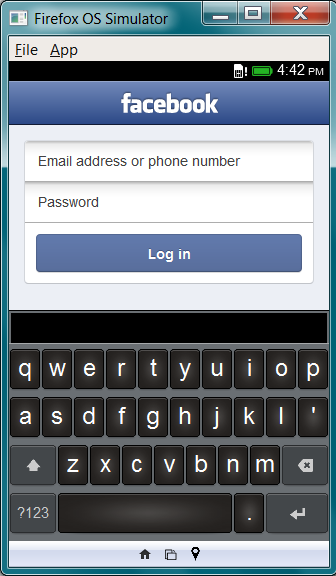 |
| Facebook app and Keyboard |
This is the Firefox OS window. You can download apps, run them and browse from the browser. You can also use this simulator to develop apps for Firefox OS if you are a developer.
If you like that please Hit likes, share on twitter and hit 1+ button for Google+. :) ;)
You can find me on Facebook:
TechGang on Facebook
On Google+:
TechGang Google+
Go to link Download
Saturday, October 22, 2016
How To Disable Pocket In Firefox 38 And Above
How To Disable Pocket In Firefox 38 And Above
Firefox has lately been integrating other services in the browser. For a while it was just its own data syncing service and then the Hello feature that was introduced later on but Mozilla isn’t content with just developing and integrating its own products. As of Firefox 38 and above, the browser now comes with Pocket integration. Pocket is a read it later type app/servce that lets you save links for reading later. It’s a lot like the reading list that you can maintain in Firefox or in Safari except that it’s an online service. If you aren’t a fan of the service and simply hiding the Pocket button isn’t enough for you, here’s how you can disable it altogether in Firefox.
Open Firefox and go to about:config. Look for the following preference and set it’s value (double click it) to False.
browser.pocket.enabled
That’s all it takes. Setting the preference’s value to False will remove the Pocket button from the toolbar as well as the Customization menu.
![[IMG]](https://lh3.googleusercontent.com/blogger_img_proxy/AEn0k_v9l1pAIzdv7taiahK7CIGsn2GrvqAEzxad5h5gfoXQ9-4p0mamCeshMnAB-o6nGYwSMmJfT9UkfI43gb_4-j8ykHqKgEnjlAN9v5wuu3nwaFyfwGRT2xFDFDnJxW2F_BwX9gY3zDpWYH0Bvrd8Y8xNzho=s0-d)
Mozilla’s decision to include Pocket in Firefox is questionable. It’s a fact that browsers will often partner with search providers in a bid to make them more popular or that some search providers will pay to be included as default search providers in a browser but Pocket is not a search provider. It is in fact a rival to Firefox’s own reading list feature that was introduced only a short while ago.
It’s unrealistic to imagine anyone thinking to switch to Firefox simply because it has native Pocket support but perhaps it’s offered as a reasonable alternative while the the default reading list feature is refined and gains more popularity.
Open Firefox and go to about:config. Look for the following preference and set it’s value (double click it) to False.
browser.pocket.enabled
That’s all it takes. Setting the preference’s value to False will remove the Pocket button from the toolbar as well as the Customization menu.
Mozilla’s decision to include Pocket in Firefox is questionable. It’s a fact that browsers will often partner with search providers in a bid to make them more popular or that some search providers will pay to be included as default search providers in a browser but Pocket is not a search provider. It is in fact a rival to Firefox’s own reading list feature that was introduced only a short while ago.
It’s unrealistic to imagine anyone thinking to switch to Firefox simply because it has native Pocket support but perhaps it’s offered as a reasonable alternative while the the default reading list feature is refined and gains more popularity.
Go to link Download
Sunday, October 2, 2016
How to Eliminate Disturbing Video Ads on Chrome Safari Mozilla Firefox
How to Eliminate Disturbing Video Ads on Chrome Safari Mozilla Firefox
How to Eliminate Disturbing Video Ads on Chrome, Safari & Mozilla Firefox - You often struck by the advertisement pop ups or ads that usually appear suddenly when you visit a web page ? Can not be denied , advertising has become an important part between content providers and readers . But like autoplaying video ads that appear suddenly and loud audio playing is certainly very annoying .

There are several steps you can take to avoid interference ads that appear suddenly on a web page . Each browser , such as Chrome , Safari and Mozilla Firefox has its own way to block annoying ads on a web page . The following are easy steps .
Chrome
How to disable autoplaying videos that appear on the Chrome browser is much easier than other browsers . All you need to do is visit the chrome://chrome/settings/content , then in the " Plug - ins " fox of " Run Automatically" to " Click to Play " . That way you ve blocked most of the ads that appear suddenly .
Safari
Unlike Chrome , Safari does not offer a quick way to automatically disable plugins running . But how to block annoying ads in Safari browser is also not difficult . Safari users need ClickToPlugin and ClickToFlash which can be downloaded here . ClickToPlugin and ClickToFlash can put different ads within the content of its own like . If desired , you can still rotate ads on the content has been singled out .
Mozilla Firefox
Such as Safari , Mozilla Firefox also offers additional content called Flashblock , which can function for setting ads that appear suddenly . You can download Flashblock here . After you install Flashblock do not forget to restart the computer . Good luck !
There are several steps you can take to avoid interference ads that appear suddenly on a web page . Each browser , such as Chrome , Safari and Mozilla Firefox has its own way to block annoying ads on a web page . The following are easy steps .
Chrome
How to disable autoplaying videos that appear on the Chrome browser is much easier than other browsers . All you need to do is visit the chrome://chrome/settings/content , then in the " Plug - ins " fox of " Run Automatically" to " Click to Play " . That way you ve blocked most of the ads that appear suddenly .
Safari
Unlike Chrome , Safari does not offer a quick way to automatically disable plugins running . But how to block annoying ads in Safari browser is also not difficult . Safari users need ClickToPlugin and ClickToFlash which can be downloaded here . ClickToPlugin and ClickToFlash can put different ads within the content of its own like . If desired , you can still rotate ads on the content has been singled out .
Mozilla Firefox
Such as Safari , Mozilla Firefox also offers additional content called Flashblock , which can function for setting ads that appear suddenly . You can download Flashblock here . After you install Flashblock do not forget to restart the computer . Good luck !
Go to link Download
Saturday, October 1, 2016
How To Download Youtube Video To Firefox Google Chrome Without Addon
How To Download Youtube Video To Firefox Google Chrome Without Addon

The Trick
To download youtube videos, click this link while the video is playing. Or to make it easier, drag the link below to your bookmark.
Download youtube video – Drag to bookmarklet to your bookmark toolbar.
When you want to download a youtube video while it’s playing, just click the bookmark link to start. The video will be downloaded as MP4. Available only on Firefox and Google Chrome. If this post has helped you, please take 5 seconds to share it below. We at Tripozia are committed in giving the best of our service.
Go to link Download
Tuesday, August 30, 2016
How to Enable Whatsapp Web on Moxilla FireFox
How to Enable Whatsapp Web on Moxilla FireFox
Whatsapp web was launched this earlier Jan. 2015 but then you have to scan your whatsapp with Google Chrome Browser but today, you scan it with your Moxilla Firefox.
All you have to do is to follow the below tutorial, it is short, it is simple and it is enlightening. And please, your phone must be on when you are scanning until you chat finish.
The below step will help you to use whatsapp
Go to link Download
Subscribe to:
Posts (Atom)