Showing posts with label updates. Show all posts
Showing posts with label updates. Show all posts
Monday, October 31, 2016
How to stop automatic updates in Google Play store
How to stop automatic updates in Google Play store
We bring this little mini tutorial to remove the automatic updates in Google Play, so annoying that can be. In general, all applications found in Google Play will be improving and updating. And our Android smartphone or tablet detect updates and start downloading fully automatically. Eventually cause discomfort to the user of the phone.

It is very important for the proper functioning and performance of your phone or tablet, simply dispongas your applications up to date, but do not worry about the updates off , the can be done manually. There is an easy way to disable automatic updates on your Android phone. If you are ready, follow these small steps:
It is very important for the proper functioning and performance of your phone or tablet, simply dispongas your applications up to date, but do not worry about the updates off , the can be done manually. There is an easy way to disable automatic updates on your Android phone. If you are ready, follow these small steps:
- Open the app Play Store
- Press the menu button and select option Settings .
- Then you will see different options, press on Update automatically and mark the No update applications automatically and finally we will have ready for our device does not receive automatic updates.
- Well, following this small tutorial we could eliminate the automatic updates of Google Play to their default all devices.
Go to link Download

Saturday, October 29, 2016
How To Schedule Tweets and Facebook Updates Using Hootsuite
How To Schedule Tweets and Facebook Updates Using Hootsuite
Few days back, +Akpene Jacob shared a tutorial on how to post blog posts automatically to Facebook using hootsuite. In the post, he explained how to add your Facebook account to your hootsuite account and how to integrate your blog feed so that hootsuite can be posting your latest blog updates to Facebook automatically.
Well, you can do more with hootsuite. The social media management tool helps you find balance between work time and free time. You can use it to grow your blog traffic with a continual presence online and enjoy the free time you deserve as a blogger.
Hootsuite allows you to schedule social media updates in advance and target your audience on the social channels you choose. Believe me, if you schedule Tweets and Facebook Updates, it will free up a lot of social media time.
There are many situations where being able to schedule Twitter messages comes in handy: you could have too many Tweets to handle at once, you may be out of town on vacation, or just out of office for a quick bite. Scheduling also comes handy for paid online campaigns.
Hootsuite supports manual scheduling and autoscheduling. The manual option lets you select date and time your update will be posted to your social media channels while the Auto-schedule claims to choose the best time slots to post your desired number of social network updates within your specified time interval.
Well, you can do more with hootsuite. The social media management tool helps you find balance between work time and free time. You can use it to grow your blog traffic with a continual presence online and enjoy the free time you deserve as a blogger.
Hootsuite allows you to schedule social media updates in advance and target your audience on the social channels you choose. Believe me, if you schedule Tweets and Facebook Updates, it will free up a lot of social media time.
There are many situations where being able to schedule Twitter messages comes in handy: you could have too many Tweets to handle at once, you may be out of town on vacation, or just out of office for a quick bite. Scheduling also comes handy for paid online campaigns.
Hootsuite supports manual scheduling and autoscheduling. The manual option lets you select date and time your update will be posted to your social media channels while the Auto-schedule claims to choose the best time slots to post your desired number of social network updates within your specified time interval.
How To Schedule Updates Using Hootsuite
I assume youve added your social networks as explained here.
==> Sign in to www.hootsuite.com or launch the hootsuite app on your mobile device
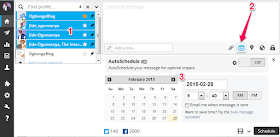
==> Choose the social profiles you wish to send your messages to using the Social Network Selector.
==> Type your message in the compose message tool.
==> Click the calendar icon in the bottom of the compose message tool.
==> Set the date and time you want your message to send, and select if you want to receive a sent e-mail confirmation.
==> Click the "Schedule" button. Thats all!
You will receive email notification once the scheduled message is published on the selected social media channel.
NOTE: If you use the hootsuite URL shortner, you will be able to track the stats of traffic you get from your hootsuite posts via the hootsuite reports. It’s also important not to overwhelm your audience with too much content.
Want to edit your scheduled post?
==> Click the publisher icon on the left-hand side of the dashboard

==> Click the "Scheduled" tab
==> Edit any scheduled message by hoovering over it and clicking the edit icon.
==> Make your changes and Save.
If you dont want to be entering the date and time everytime you schedule a post, you can use the auto-schedule option. I use this option alot. With it, I can auto-schedule posts for one week within 15 minutes. So, when am at work during the week, my posts keep flying all across my social media channels :)
You can read how hootsuite auto schedule works here.
Do you use Hootsuite to schedule your tweets and Facebook updates?
Go to link Download
Thursday, September 8, 2016
How to Disable Auto Updates on Android Smartphone
How to Disable Auto Updates on Android Smartphone
How to Disable Auto Updates on Android Smartphone - Often, the auto update ? Many or few applications that you use on Android smartphones , but you may want to choose which application you want to update rather than let auto update do its work . Of course, disable auto update on Android smartphones can be done easily , but for a beginner it may still not know how take it.

How to disable auto update on Android smartphones can be done via Google Play Store application . The following are the steps you need to do if you want to disable the auto update on Android smartphones :
- Open Play Store application .
- Open the menu on the top left corner . You can also access the Play Store menu by sliding from the left side of the screen to the right .
- Open the Settings tab , then select Auto - update apps .
- After you press the Auto - update apps , and will display a pop - up windows .
- Select " Do not auto - update apps " .
Easy , is not it? If you want to update the application , then you can go back to the previous settings . These tips KitKat tested on Android 4.4.4 , but the Android version ever before also has a similar way to disable auto - update apps .
Go to link Download
Subscribe to:
Posts (Atom)