Showing posts with label stop. Show all posts

Sunday, November 20, 2016

How To Stop People From Disturbing you

How To Stop People From Disturbing you


 Sometimes you might be in a meeting or may be sleeping and you dont want to be disturbed all you have to do is just simple.
just dial *35*0000# yes/ok. If you want to cancel dial #35*0000# send.

Go to link Download

Read more »

Thursday, November 10, 2016

How to Stop cyber cafe time with Process Suspender

How to Stop cyber cafe time with Process Suspender


How to Stop cyber cafe time with Process Suspender


Sometimes your are on a system in a cafe browsing, but the network is very poor and you know your time will definitely not be running slow, what will you do?
. You have just finished reading your mails, and you want to log out and there is no time for that, what will you do? You are about to read an important page and there is no time for that, what will you do? There are so many things you want to do when browsing that your cafe time client keep reminding you 5 minutes remaining or times up. but today after reading this topic, i promise you that time will never be a hindrance to you when browsing in a cafe. you can pause your time and finish whatever you are doing totally using this stunning software called process suspender.

This method works at cafe that uses only users name and password.

1. Buy your cafe time, and put it in the box provided.

2. Before you click the enter button just hold the (ctrl) and press the enter button at the same time

3. You will be logged in as suppose but with a special trick.
note you can get any amount of minutes you like.

4. Finally after the time you got is finished dont be scared just go and log in with the same user name and press only the enter key and you will be logged in with the same amount as the first time.
Note you can log in with the same details as many times as you can within 3days after 3days the card will expire

This method works at cafe where task manager is enabled

After you have logged in with your normal time just do this trick, hold ctrl + alt + del at the same time after that a window will appear with some other sub window. Among the toolbar at the top right core of the window you will see every programs running on the system then with it, you can pause or stop the time but i ll advice you to always pause in other not to make it suspicious.

What if the windows task manager is disabled?

If task manager is disabled, Download process suspender or process freezer through Google search, unzip and open the software, it function like a task manager, locate your time eg. cafe client, cyber clock, timer, time out cafe etc right click and then click pause. thats all. but know that you are on your own, doing this at your own peril.


I hope this info helps? feel free to share this post with your friends using the like/share buttons. you can also subscribe to my blog below this post for more tips delivered to your inbox. or simply ask any question by using the comment box below.

Go to link Download

Read more »

Monday, November 7, 2016

How To Automatically Stop Seeding in UTorrent

How To Automatically Stop Seeding in UTorrent


How To Automatically Stop Seeding in UTorrent

Stop Seeding in UTorrent
 UTorrent is best source to download videos.UTorrent  allows you download files in short time with high quality videos. Like Bit torrent, U torrent  seeds files to  download. When you have finish a certain file to download , uTorrent turn  into seeding mode, uploading pieces of the file to other users. Use the seeding goal feature in uTorrent to automatically stop seeding files after a specified period of time or a minimum ratio. A ratio  depends on the downloaded file.

For example: If the file you downloaded is 1GB in size and you set the seeding goal to 200, uTorrent will upload 2GB before it stops seeding the file.Seeding mode disturb your download,so need to stop it. In this article you will learn How To Automatically Stop Seeding in UTorrent.Just you need to follow simple and easy steps which are given below.


Automatically Stop Seeding in uTorrent:

1). Go to "Options" in uTorrent and select Preferences.

2). Click on  "Queueing category" at the left side of the preferences.


3). Type a minimum ratio into the Minimum Ratio (%) text box to stop seeding.Lowest ration you can set is 1%.


4). Type a minimum time in minutes into the Minimum Seeding Time text box to stop seeding after that time.


How To Automatically Stop Seeding in UTorrent

5). Click the Limit the Upload Rate to (kB/s): [0: Stop] 


6). Check box under When uTorrent Reaches the Seeding Goal and type 0 into the text box to the right of the check box.

7). Click the OK button.

Go to link Download

Read more »

Monday, October 31, 2016

How to stop automatic updates in Google Play store

How to stop automatic updates in Google Play store


We bring this little mini tutorial to remove the automatic updates in Google Play, so annoying that can be. In general, all applications found in Google Play will be improving and updating. And our Android smartphone or tablet detect updates and start downloading fully automatically. Eventually cause discomfort to the user of the phone.


It is very important for the proper functioning and performance of your phone or tablet, simply dispongas your applications up to date, but do not worry about the updates off , the can be done manually. There is an easy way to  disable automatic updates  on your Android phone. If you are ready, follow these small steps:

  • Open the app Play Store
  • Press the menu button and select option Settings .
  • Then you will see different options, press on Update automatically and mark the No update applications automatically and finally we will have ready for our device does not receive automatic updates.
  • Well, following this small tutorial we could eliminate the automatic updates of Google Play  to their default all devices.


Go to link Download

Read more »

Tuesday, October 25, 2016

How to Remove the “Get Windows 10” Icon from Your System Tray and Stop Those Upgrade Notifications

How to Remove the “Get Windows 10” Icon from Your System Tray and Stop Those Upgrade Notifications


Ever since Windows 10 came out, Windows 7 and 8 users have been bombarded with upgrade notifications, thanks to a little Windows icon in their system trays called GWX (“Get Windows 10”). Here is how to remove that icon and avoid the pushy notifications.
get_windows_10_1
This article was originally published in June 2015. Since then, a new tool has come out that does a more straightforward job of preventing unwanted Windows 10 updates, so we’ve updated the article with information about it.
We’re all aware of Windows 10 here at How-to Geek, and in truth, we actually like it–it finally fixes most of Windows 8’s ills, and brings some handy new features. But we can’t go a day without hearing about Microsoft pushing the upgrade just a little too hard. If you don’t want to upgrade to Windows 10 right now, and you’re sick of the nagging, here’s how to fix it.

The Problem: An Icon You Can’t Get Rid of, and Constant Nagging for Updates

The “Get Windows 10” (GWX) upgrade is an icon and dialog that resides in user’s system trays, which has alarmed quite a few people, who aren’t sure if it is some kind of trick or malware. Let us say with no uncertainty, it is not, but it is a little underhanded and annoying on Microsoft’s part.
The “Get Windows 10” icon opens a dialog that hypes the upcoming Windows upgrade and determines your availability to receive it for free.
When you click this icon, a dialog will appear, which will determine if your PC is Windows 10 ready, if you’re eligible to upgrade for free and, of course, regale you with all the wonderful things Windows 10 will mean to you.
This new icon and its resulting dialog are actually part of an application that appeared in late April 2015 as a recommended Windows update (KB3035583), and which has undergone several revisions to facilitate the upgrade process as well as skirt efforts to remove it.
You will see this update in one of two ways, if you have the “Give me recommended updates the same way I receive important updates” box checked in Windows Update, you will see KB3035583 as an optional update. If you have “Give me recommended updates the same way I receive important updates” unchecked, you will see KB3035583 as an unchecked but italicized update.
If you read Microsoft’s description on the update’s support page, it’s apparent that this is optional:
This update installs the Get Windows 10 app that helps users understand their Windows 10 upgrade options and device readiness. For more information about Windows 10, see Windows 10.
Further, in the most recent iteration of KB3035583, if you have it hidden, it will now be unhidden. The long story short KB3035583 is annoying and it’s unreasonably difficult to easily make it go away.

What Is KB3035583?

Basically, KB3035583 simply lets Windows Update pester you about upgrading to Windows 10. KB3035583, otherwise known as GWX, is an executable that starts with your system via the Task Scheduler.
GWX.exe is the system tray icon. When you click the system tray icon, it spawns the application “GWXUX.exe”, which is the upgrade dialog discussed earlier.
To make this icon and its notifications go away, Microsoft unhelpfully recommends hiding them.
This works for the current session, but restart your system (which happens from time to time), and it reappears. You can’t right-click on the icon and tell it not to bug you anymore, and while you could remove its entry from the Task Scheduler, that doesn’t actually remove the GWX application from your system.
More importantly: Just because it’s hidden doesn’t mean it won’t pester you about upgrading.
If you don’t want this item on your system, we recommend removing the update altogether. We don’t feel it is critical to upgrading to Windows 10, and even if it is, you can always go back into Windows Update and reinstall KB3035583, or you can use the following method and forgo all this rigamarole altogether.

Never10: The Best and Easiest Way to Prevent Windows 10

In the 11 months since we first published this article, the Get Windows 10 (GWX) system has annoyed countless Windows 7 and 8.1 users, and in that time, Microsoft has maneuvered time and time again to get 10 installed on as many machines as possible. Often it has done this despite these users plainly not wanting this update, period.
So, what follows is what currently appears to be the absolute best way to do so, by using a small (81KB) freeware tool called Never10.
Never10 was developed by well-respected security researcher Steve Gibson, which means it’s trustworthy and contains no adware, viruses, or other assorted malware nastiness up its sleeve. Basically, it acts as a frontend for Microsoft’s hidden settings that prevent the Windows 10 upgrade.
Let’s dig in briefly and show you how Never10 operates. Firstly, here’s the infamous GWX icon in the system tray, which when right-clicked will give you various options to educate yourself about or simply upgrade to Windows 10.
This icon will occasionally bug you with reminders that Microsoft thinks it would be a great idea to upgrade your PC to Windows 10. We want this behavior to stop, so we’ll use Never10 to do that.
First we cruise on over to the Never10 homepage, and scroll down to download the Never10 executable. Alternatively, you can actually go directly the Never10 freeware page.
Never10 doesn’t require installation; it runs as a standalone executable. So just double-click it to start it up.
Never10 will tell you whether the Windows 10 upgrade is enabled on your system. If it is, click the “Disable Win10 Upgrade” button.
Upon clicking that button, you’ll be presented with the following confirmation and you shouldn’t be bothered by GWX again, unless Microsoft once again attempts to circumvent this.
Keep in mind that the GWX system tray icon may not immediately disappear from your system tray, instead continuing to reside there and even offering to help you with the upgrade if you click on it. We discovered however that it did indeed go away after a simple restart.
You can also click the “Remove Win10 Files” button to remove the upgrade files from your system, which should free up some hard drive space. However, according to Gibson, Windows will remove these files automatically eventually anyway, so it doesn’t really matter if you remove them now or let Windows do it later.
There are a couple of instances where you might see a different outcome. If you try to run Never10 on a system other than Windows 7 or Windows 8.1, it will inform you that it is intended only for those two systems since they are the targets of Microsoft’s upgrade path.
Also, if you try to run Never10 on a system that doesn’t have the latest GWX files, Never10 won’t work, but will offer to download those files so it can properly do its job. This seems counterintuitive, but due to the way Never10 works, it makes sense. It doesn’t actually remove GWX completely: it just prevents it from ever running, using Microsoft’s built-in hidden settings for doing so.
There is another program, called GWX Control Panel, that performs a similar function–and we recommended it when we originally wrote this article. If you really hate GWX and want to remove every trace of it from your system, GWX Control Panel will allow you to do so. It’s a bit more complex than Never10, and its extra features aren’t necessary for most users. However, if you’re tech savvy, and you want full control over the entire process, GWX Control Panel is another option.
screenshot.1
For the vast majority of users, however, Never10 is all you need.

Before we wind things up, we need to reiterate that we do believe that if you’re using any recent version of Windows (7 or 8.1), or you’ve held off and are still using Vista or even XP, that this is the time to finally take the plunge. Windows 10 is a worthy upgrade and probably an unqualified success at retaining the spirit of Windows 7 while correcting the ills of Windows 8.1.
That said, installing a separate application as a recommended update is a sneaky way to go about ensuring user adoption. Add to that the fact that there’s no simple way to disable the GWX.exe application other than removing its autostart line from the Task Scheduler or uninstalling it through Windows Update, and we’re further puzzled at Microsoft’s reasoning and lack of transparency.
In the end, whether you feel this update process is helpful or whether you can make your way to upgrading to Windows 10 all by yourself will simply depend on how you’re used to doing things.
Others may choose to do a clean install and for that, updating through an existing Windows install won’t even apply.

Go to link Download

Read more »

Friday, October 21, 2016

How to Stop Facebook Scams

How to Stop Facebook Scams


Online scams are ever increasing. Almost in every phase of the online world, you will come across scams. Social networks are no exception for such malicious activity. Recently, millions of accounts from LinkedIn and eHarmony were compromised. Facebook (www.facebook.com) seeing danger has updated its security and is advising its users regarding various scams and how to fight them back.

See: Cool Facebook Status Update
How to Stop Facebook Scams

"Please send money scam"

An unknown account sends a message stating that he/she has been mugged. Descriptions of events seem accurate including real names and places. Finally, the sender requests a certain sum, which will enable him/her to return home safely.
Facebook has attributed such scams as Please send money scam. The senders account is either fake or has been taken over by cyber criminals.
On receiving please send money scam messages, Facebook advices to report/block the account.

Phishing

Phishing is a common way to to hack account(s). Phishing links are sent within messages or through chats.
Phishing links through messages:

A message, which has scrambled words with funny fonts, is the first indication of a Phishing attack. Typo errors and misspelled words are other significant signs to look for. Such messages will be themed around offering gifts such as coins, jewels or any other artifacts. Finally, you will be asked to click on a link placed at the bottom of the message. Immediately report accounts who send such messages.
Recommended:
  • How to stop fabooks friends from posting on your wall

Phishing links in chats:

If any strange links appear while chatting, then beware. The account through which phished links appeared while chatting is probably compromised.

Report the link immediately. 

However, doing so will not affect the account. Only the link will be considered for review by Facebooks security team.

What to do if I had clicked on Phishing link accidentally?

If accidentally, a phishing link is clicked, go to password settings in your profile and change your password immediately. This will eliminate any Phishing threat. It is important to ensure that your new password is hard to crack.

Malicious Script Scam

Often you will come across Facebook applications requesting to copy a certain script and paste it in your browser. Such scripts are malicious in nature. For instance, some applications will provide a list of your profile visitors when the script is pasted in your browser. Apart from showing recent visitors, these applications send events and messages to your friend list. These applications and scripts should be avoided.

Suspicious emails:

Occasionally, some emails will request to reset your password, give a warning or will be about notifications. These mails are so convincing that they appear to be from Facebook. A request to click at the link provided at the bottom of the message should alert you. To check the validity of the link,
right click and copy it. Later paste it on a separate tab and make sure that the URL starts as www.facebook.com.
Note : Facebook will never request your password through emails.

Suspicious Notifications:


Never click on links within suspicious notifications. For instance, you will receive a notification stating that you had requested a password reset albeit you never had requested. Other suspicious notifications include the ones notifying you of registration of a new Facebook account. With the help of your email provider, mark these mails as spam.

Go to link Download

Read more »

Thursday, September 15, 2016

How to Stop Auto Downloading and Saving of Photos

How to Stop Auto Downloading and Saving of Photos


WhatsApp is the worlds most popular messaging app, with over 600 million active users. One of the most common annoyances with the app is that it automatically downloads media files (photos and audio) by default. WhatsApp says this is optimised for best performance, but when friends decide to send a dozen pictures of their dinner to everyone they know, it is optimised for maximum annoyance instead. Heres how you can stop WhatsApp from automatically saving photos and audio on your phone.

How to Stop Auto Downloading and Saving of Photos


WhatsApp-How-to-Stop-Auto-Downloading-and-Saving-of-Photos

How to Stop Auto Downloading and Saving of Photos :Android


WhatsApp for Android has a switch that lets you stop images and videos from downloading. Heres how you can do it:

1. Open WhatsApp, make sure you are seeing the main window - where all your chats are displayed. Tap the three vertical dots on the top right > Settings.

2. Now tap Chat settings > Media auto-download. Youll see three options: When using cellular data, When connected on Wi-Fi and When roaming. Tap each one and disable auto-downloads by unchecking all three options - Images, Audio and Video.

To view photos, you will have to download them. When you do, WhatsApp saves them in a folder, and you can get inundated with stupid memes and other unwanted content, which is visible to anyone who opens your phones Gallery App. However, it is possible to stop these photos from appearing in the Gallery app. Heres how:

1. Download Quickpic and open the app.

2. Navigate to the WhatsApp media folders. The location of the WhatsApp folder varies across devices but it should typically be the following: Internal Storage (sometimes labelled sdcard0) > WhatsApp > Media > WhatsApp Images, > WhatsApp > Media > WhatsApp Audio, and WhatsApp > Media > WhatsApp Videos.

3. Long-press the WhatsApp Images folder and make sure that it is selected. Do the same with the WhatsApp Video and WhatsApp Audio folders.

4. After selecting the three folders, tap the three dots icon on the top-right > Hide. This will ensure that the Gallery app doesnt show them. You can still view these images and videos within WhatsApp and through any apps that let you view hidden folders. But if you pass your phone to someone, you no longer need worry about them seeing the WhatsApp photos and videos through the Gallery app.

WhatsApp-How-to-Stop-Auto-Downloading-and-Saving-of-Photos


How to Stop Auto Downloading and Saving of Photos :iPhone


WhatsApp for iPhone has an easy way to stop automatically saving photos to the Camera Roll. Heres what you can do:

1. Open WhatsApp and tap the Settings button at the bottom-right.

2. Go to Chat settings > Save incoming media > Off.

This stops the pictures people are sending from showing up in the camera roll, and taking over your synced Photo Stream. Unfortunately, theres no way to stop WhatsApp from auto-downloading photos on your iPhone. It will ask you whether you want to download videos, but photos are saved automatically.

WhatsApp-How-to-Stop-Auto-Downloading-and-Saving-of-Photos


How to Stop Auto Downloading and Saving of Photos :BlackBerry


Whether you are using BlackBerry 7 or BlackBerry 10, disabling auto-downloads needs to be done through the Settings app. Follow these steps if you are using WhatsApp on any BlackBerry device:

1. Head to Settings > Media settings > Media auto-download.

2. Now select When using cellular data and uncheck all three options - Images, Audio and Video. Go back and follow the same steps with "When connected on Wi-Fi" and "When roaming".

3. In Media Settings, you can also tap "Save media on" to decide if the media is saved on your phones internal memory, or on your microSD card (if present).

How to Stop Auto Downloading and Saving of Photos :Windows Phone


Windows Phone users need to follow these steps:

1. Open WhatsApp and tap the three horizontal dots at the bottom of the main window (recent chats). Now tap settings > chat settings > media auto-download.

2. Now tap Images and select Never. Do the same for Video and Audio. Other options include auto-download on WiFi, cellular and roaming. But if you select Never, you will be able to download media only when you want to.

How to Stop Auto Downloading and Saving of Photos :Nokia S40 and S60


If you use WhatsApp on Nokia S40 feature phones, you can enable or disable media downloads through this setting:

1. Open Options > Settings > Network > Auto-download images. Here you can disable auto-downloads.

It is almost exactly the same on Nokia S60 phones as well:

1. Open Options > Settings > Network > Media auto-download. Now select Cellular and disable auto-downloads for media. Do the same with WiFi and Roaming.
 [post_ad]
Not saving images automatically has its advantages, but it also means that you will have to download each photo manually. If you end up downloading each and every image anyway, then its probably best to leave this feature active. Let us know if this tutorial helped you via the comments.

Don’t forget to Share it with your friends via Facebook & Google+ and Twitter, And if you like the article How to Stop Auto Downloading and Saving of Photos  and you may even Subscribe for New post, to get directly in your mail inbox.

Go to link Download

Read more »

Friday, September 9, 2016

How to Stop Android Apps Running in Background

How to Stop Android Apps Running in Background


At times some apps running in background are not cool as it always results in high batter drainage,high data consumption and occassional lagging while playing games.

If you want to know which apps are running excessive background processes or want to stop apps running in the background entirely.


I have come up with a fix for this with this little guide using Greenify
Greenify

Greenify is an app hibernation app, that lets you put apps to sleep when youre not using them. Its basically an automated version of force closing or disabling apps every time you stop using them and then turning them back on when you need them. But doing that manually is a pain. Hence Greenify is one of the best app management apps around.


Download Greenify


To get the full benefits of Greenify you need root access.

Non-rooted users, for example, wont be able to automatically hibernate apps, but can simply flick a widget switch to put your apps to sleep (not a bad fix if you dont want to root your device). If youre serious about managing your background processes, Greenify is the tool you need.

Do you monitor your app processes? What tools do you use? Tell us about them in the comment box Below.

Go to link Download

Read more »

Wednesday, September 7, 2016

How to Stop Flash crashing in Google Chrome

How to Stop Flash crashing in Google Chrome


Google Chrome, not at all like different programs, has its own particular variant of Adobe Flash Player constructed in. When you upgrade Chrome, it likewise overhauls the variant of Flash.
Already, the arrangement was to debilitate any additional Flash plugins, however as has been pointed out in the remarks underneath, the most recent variant of Chrome shows one and only Flash plugin. As indicated by Adobe, there was a known bug in more established forms of Chrome which "fundamentally affected Flash execution". This has been altered - to the extent Adobe is concerned - in the present form of Chrome.

This means, in case despite everything youre encountering terrible Flash execution or the plugin slamming, you ought to check in the event that you are without a doubt running the most recent variant of Chrome. In the event that a redesign is accessible you ought to introduce it. To check, click on the three even bars close to the upper right corner and snap Help and about.

Another tab will open and Chrome will check for redesigns and start downloading one if pertinent. When this is done, you will see a Relaunch Chrome buttton, which you have to snap to finish the redesign.

How to stop Flash crashing in Chrome

On the off chance that despite everything you have issues after that, the reason is doubtlessly obsolete drivers, so first check you have the most recent illustrations card drivers introduced. It can likewise be created by what Adobe alludes to as "wasteful substance", so the poor execution or slamming could be brought on by the blaze content itself. On the off chance that that is the situation, theres nothing you can do to settle it - its down to the substance supplier.

Here takes after whatever remains of our unique article which may help anybody running an old form of Chrome:

To check Google Chromes arrangement, sort about:plugins into the location bar and press Enter. This will raise a page of data about all the modules as of now arranged inside of Google Chrome.

Search for any sections in the rundown, for example, Adobe Flash Player, or Shockwave Flash. In the event that you can see two or more, you have more than one Flash module introduced.

At the upper right of the modules page youll see Subtle elements. Click this connection to uncover more data about every expansion.

The filename of every module will be recorded beside Location. Take a gander at this data, and youll see that one is put away under [Your User Folder]AppDataLocalGoogleChrome. This is Chromes coordinated module. The other will start with "C:Windows.." . The way names change contingent upon your rendition of Windows. In case youre utilizing Windows 8, for instance the way for the coordinated module is something like C:Program Files (x86)GoogleChromeApplication36.0.1985.125PepperFlashpepflashplayer.dll (the adaptation number may be distinctive).

On the off chance that both these documents offer a Disable connection, both are dynamic and liable to be the reason for your program crashes.

Shockwave Flash crashing in Google Chrome
You can now pick which player you need to hold, by clicking Disable on the other one. Chrome will now utilize whichever variant is empowered on your PC.

In the event that you choose to utilize the installable module instead of the coordinated one, its fitting to ensure you have the most recent variant introduced. Click here to get the most recent form of Adobe Flash Player.

In the event that the smashing conduct proceeds with, have a go at backpedaling to about:plugins and selecting to utilize the other Flash player.

Go to link Download

Read more »

Tuesday, August 30, 2016

How to stop Android apps running in the background

How to stop Android apps running in the background


Many apps that run in the background are doing so for good reason: syncing, providing location data or otherwise doing what they were designed to do. But not always. If you want to know which apps are running excessive background processes or want to stop apps running in the background entirely, read on to find out How stop Android apps running in the background. Apps are great, but they need to be kept on a tight leash.

Process stats and battery usage


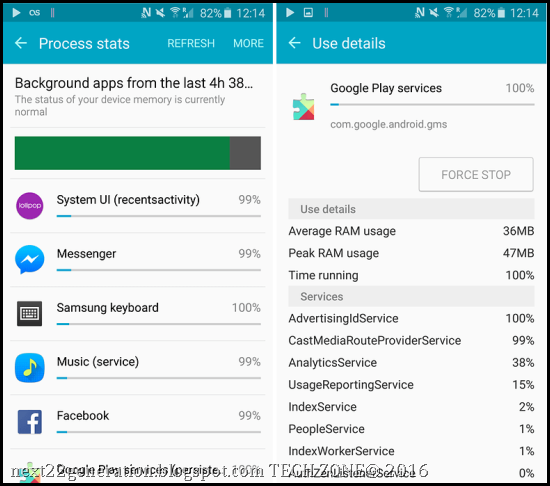
If you want to know which apps are running background processes and how power hungry they are, both in terms of processing and battery, Android has the following built-in monitoring options:


> Enable Developer Options by going to Settings > About Device and tapping the Build number until you are notified that


> Developer Options have been enabled.


> Go to Settings > Developer options > Process stats to see how much of the time your key apps are running. Tap any app to see how much RAM its using.


> Go to Settings > Battery then tap the individual apps to see how much battery theyre using.


stop-background-apps-1- Process Stats lets you know which apps are running all the time.


Which apps should I stop running in the background?


Two big culprits of background memory and battery use are games youre not playing, and music players youre not using. If you cant see a logical reason for an app you know well to be running in the background, then you should probably close it.

As a general rule, you should leave most apps or services that start with the word Google running. Really essential services wont let you force stop them anyway, but you also shouldnt stop the following apps:


Google Search, Google Play services, Google Contacts Sync, Google Keyboard, Google Play Store

The Process stats list should give you a pretty good idea of which apps you want to leave running in the background based on how much you use them.

  stop-background-apps-2-

You can see which apps are keeping your device awake in the battery settings.


How to disable, stop and uninstall background apps


If you have an app that you think is using an unreasonable amount of processor power or seems to be running in the background way more than it should, then you can either:


Disable it in your App Manager by going to Settings > Applications > Application manager, tapping the app, then tapping Disable. 


Since the Lollipop update, you can close recent apps easily by tapping the Recent Apps navigation button on your phone (to the right of the home button), then swiping left or right to close apps you ran recently.


Delete it from your phone by going to Settings > Applications > Application manager, tapping the app, then tapping Uninstall.


Or Force Stop it by going to Settings > Applications > Application manager, swiping right to the Running tab, tapping the app, then tapping Force Stop.


If you have no idea what an app or service is, then you probably shouldnt stop it, unless its really using up a lot of RAM or battery, and you dont mind risking your phone crashing.

 
stop-background-apps-3-
Less crucial apps (left) can be uninstalled. Crucial system services (right) cant.

Greenify


Greenify is an app hibernation app, that lets you put apps to sleep when youre not using them. Its basically an automated version of force closing or disabling apps every time you stop using them and then turning them back on when you need them. But doing that manually is a pain. Hence Greenify is one of the best app management apps around. [post_ad]
 
stop-background-apps-greenify-Greenify makes app management a breeze. Greenify

To get the full benefits of Greenify you need root access, and we have guides on how to root your Nexus 5, HTC One M8and Galaxy S5, among other phones. Just search Wide Integrated for your device name and factory reset. 

Non-rooted users, for example, wont be able to automatically hibernate apps, but can simply flick a widget switch to put your apps to sleep (not a bad fix if you dont want to root your device). If youre serious about managing your background processes, Greenify is the tool you need.

Don’t forget to Share it with your friends via Facebook & Google+ and Twitter, And if you like the article How to stop Android apps running in the background and you may even Subscribe for New post, to get directly in your mail inbox.


Go to link Download

Read more »