Thursday, November 10, 2016
How To Play YouTube Video in Background On Your Smartphone
How To Play YouTube Video in Background On Your Smartphone

People using YouTube love to hear music even if they turn off the screen or in the background on your smartphone. At present YouTube hasn’t released such feature to it’s app in Android or iOS.
In this tutorial we will teach you how to play YouTube video in the background on your smartphone or off screen, follow the steps given below.
Android User
- Download and install Mozilla browser on your Android device.
- Open YouTube website in Mozilla browser.
- Go to settings page and click “Desktop”. You will be redirected to desktop site of YouTube.
- Now you can play any video and use other apps or turn off the screen, the music will be playing.
iOS User
- Open YouTube website in “Safari”.
- Enter the music you wanna listen, open the video in full screen.
- Next press “Home” button.
- Now at bottom swipe up and bring the control panel and tap the play button.
Go to link Download

Saturday, October 15, 2016
How to Play a YouTube Audio in the Background iOS 7 1
How to Play a YouTube Audio in the Background iOS 7 1
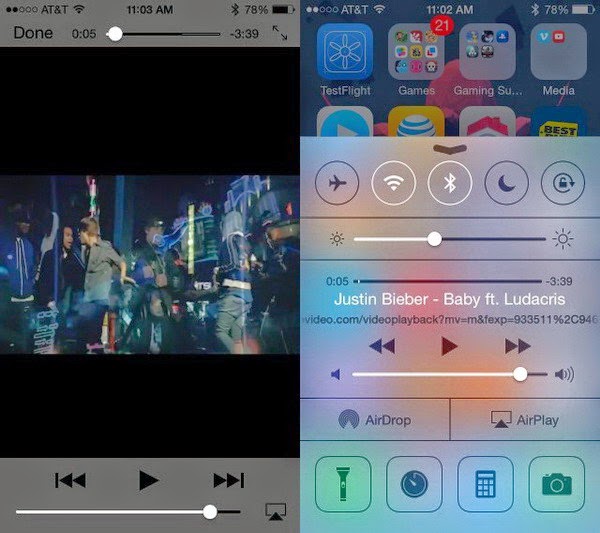
Firstly, you need to download an application called Jassmine . This application is available at the App Store (free) and function play Youtube videos. The second way is still to use Safari to open the site Youtube.com. Nah, when the video was played, please press the Home button on the iPhone. This will automatically close Safari or Jasmine, and songs you play will stop. Subsequently, swipe up to bring up the Control Center. Tap the triangular Play button in the middle. The way to play existing audio in the playlist. In this case your playlist contains a Youtube video that you have previously cut, either in Safari or Jasmine. Try to swipe down the Control Center then you are used to the audio will still be heard until the end of the song. Unfortunately this method can not be used to play the entire playlist but only per song. If you want to play audio from YouTube videos, please turn more videos you want in Safari or Jasmine.
Go to link Download
Friday, September 9, 2016
How to Stop Android Apps Running in Background
How to Stop Android Apps Running in Background

If you want to know which apps are running excessive background processes or want to stop apps running in the background entirely.
I have come up with a fix for this with this little guide using Greenify
Greenify
Greenify is an app hibernation app, that lets you put apps to sleep when youre not using them. Its basically an automated version of force closing or disabling apps every time you stop using them and then turning them back on when you need them. But doing that manually is a pain. Hence Greenify is one of the best app management apps around.

Download Greenify
To get the full benefits of Greenify you need root access.
Non-rooted users, for example, wont be able to automatically hibernate apps, but can simply flick a widget switch to put your apps to sleep (not a bad fix if you dont want to root your device). If youre serious about managing your background processes, Greenify is the tool you need.
Do you monitor your app processes? What tools do you use? Tell us about them in the comment box Below.
Go to link Download
Tuesday, August 30, 2016
How to stop Android apps running in the background
How to stop Android apps running in the background
Process stats and battery usage
If you want to know which apps are running background processes and how power hungry they are, both in terms of processing and battery, Android has the following built-in monitoring options:
> Enable Developer Options by going to Settings > About Device and tapping the Build number until you are notified that
> Developer Options have been enabled.
> Go to Settings > Developer options > Process stats to see how much of the time your key apps are running. Tap any app to see how much RAM its using.
> Go to Settings > Battery then tap the individual apps to see how much battery theyre using.
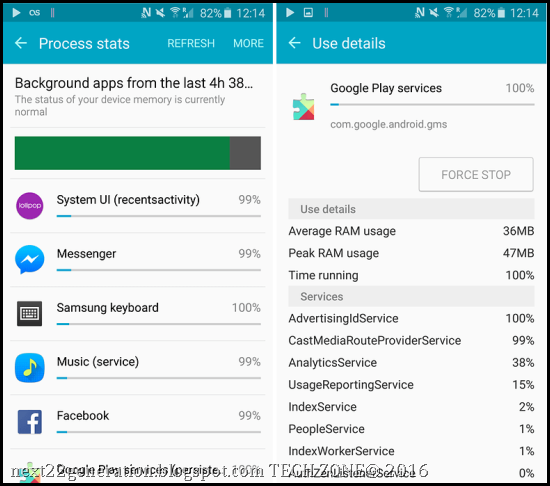 Process Stats lets you know which apps are running all the time.
 Which apps should I stop running in the background?
Two big culprits of background memory and battery use are games youre not playing, and music players youre not using. If you cant see a logical reason for an app you know well to be running in the background, then you should probably close it.
As a general rule, you should leave most apps or services that start with the word Google running. Really essential services wont let you force stop them anyway, but you also shouldnt stop the following apps:
Google Search, Google Play services, Google Contacts Sync, Google Keyboard, Google Play Store
The Process stats list should give you a pretty good idea of which apps you want to leave running in the background based on how much you use them.

You can see which apps are keeping your device awake in the battery settings.
How to disable, stop and uninstall background apps
If you have an app that you think is using an unreasonable amount of processor power or seems to be running in the background way more than it should, then you can either:
Disable it in your App Manager by going to Settings > Applications > Application manager, tapping the app, then tapping Disable.
Since the Lollipop update, you can close recent apps easily by tapping the Recent Apps navigation button on your phone (to the right of the home button), then swiping left or right to close apps you ran recently.
Delete it from your phone by going to Settings > Applications > Application manager, tapping the app, then tapping Uninstall.
Or Force Stop it by going to Settings > Applications > Application manager, swiping right to the Running tab, tapping the app, then tapping Force Stop.
If you have no idea what an app or service is, then you probably shouldnt stop it, unless its really using up a lot of RAM or battery, and you dont mind risking your phone crashing.

Greenify
Greenify is an app hibernation app, that lets you put apps to sleep when youre not using them. Its basically an automated version of force closing or disabling apps every time you stop using them and then turning them back on when you need them. But doing that manually is a pain. Hence Greenify is one of the best app management apps around. [post_ad]
 Greenify makes app management a breeze. Greenify
 Non-rooted users, for example, wont be able to automatically hibernate apps, but can simply flick a widget switch to put your apps to sleep (not a bad fix if you dont want to root your device). If youre serious about managing your background processes, Greenify is the tool you need.
Don’t forget to Share it with your friends via Facebook & Google+ and Twitter, And if you like the article How to stop Android apps running in the background and you may even Subscribe for New post, to get directly in your mail inbox.
Go to link Download