Showing posts with label youtube. Show all posts
Showing posts with label youtube. Show all posts
Friday, November 25, 2016
How to download YouTube videos in Ubuntu
How to download YouTube videos in Ubuntu
How to download YouTube videos in Ubuntu is probably among the first things a newbie Ubuntu user will ask for.
There are simply a number of application to do the same, but there is an even better way. Downloading YouTube videos is Ubuntu is not the right keyword, you can actually copy-paste the YouTube video. As simple as that. Lets see how.
While watching YouTube videos in Ubuntu (in any browser), let the video to buffer/load completely. Afterwards in your file browser, do not close the YouTube tab and browse to the /tmp directory.
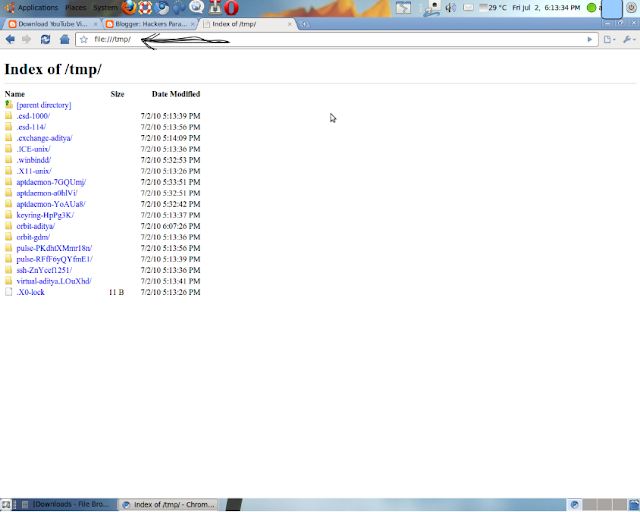
Simply copy paste the file to some other place other than the /tmp directory, say Desktop, for example. Remember, you will have to copy-paste the file before closing the browser tab that contain the YouTube video.
Thats it. Wasnt that easy. Have fun.
Go to link Download

Monday, November 14, 2016
How to Download YouTube videos free with YouTube Red
How to Download YouTube videos free with YouTube Red
There are many reasons why you would want to download YouTube videos, as anybody whos going to be in a poor coverage area, who has a capped mobile broadband data plan or who wont be able to stream high-quality video will appreciate the ability to download YouTube videos for offline use. Its also handy if you suspect that the video is about to disappear for sinister reasons too; downloading videos from YouTube couldnt be simpler, although the methods you employ will depend on the device youre using. and YouTube Red – a completely new option for YouTube users is finally blurring upon the horizons. It has got cool features and it seems to be a really useful service.
YouTube Red is finally here, offering paying subscribers (only in the US, for now) some pretty nifty features, including ad-free video, background play and the ability to save videos offline for US$9.99 per month. It includes a subscription to Google Play Music and they even have a free trial for 30 days if you are still on the fence. · Read Also: How to Play Youtube Video Directly In VLC Player.
Here, we are going to teach you how to download, then watch, YouTube videos for offline viewing with the YouTube and YouTube Gaming Android apps.
Step 1: Begin watching any video on the YouTube or YouTube Gaming app.
Step 2: Tap the gray ‘Add to Offline’ button below the video player (as seen in the image below).

Step 3: Select the video quality you wish to download.
Step 4: Once the download the is complete, the icon will change to a blue ‘Available Offline’ button.
Step 5: Go to your Account tab in the YouTube or YouTube Gaming app, then tap the ‘Saved Videos’ block to start watching your saved videos (as seen below).

Click on your account to view “My Videos”.
To delete your saved offline videos, tap the ‘Available Offline’ button, then select Remove. You can also access the Settings page to set the quality of your offline videos and change whether to download over Wi-Fi only.
A few more things to consider: you can only watch your offline videos if you are logged into your YouTube Red account, you cannot like or comment on a video while offline and you can watch your offline videos for up to 30 days after saving them.
Now that you know how to save your favorite YouTube videos for later, hopefully those long commuter trips will be a lot more bearable, without the possibility of exceeding your mobile data allowance.
Let us know what your first thoughts and impressions are of YouTube Red. Is this service something worth paying for if you’re not already paying for Google Play Music? Drop us a line below.
YouTube Red is finally here, offering paying subscribers (only in the US, for now) some pretty nifty features, including ad-free video, background play and the ability to save videos offline for US$9.99 per month. It includes a subscription to Google Play Music and they even have a free trial for 30 days if you are still on the fence. · Read Also: How to Play Youtube Video Directly In VLC Player.
Here, we are going to teach you how to download, then watch, YouTube videos for offline viewing with the YouTube and YouTube Gaming Android apps.
Step 1: Begin watching any video on the YouTube or YouTube Gaming app.
Step 2: Tap the gray ‘Add to Offline’ button below the video player (as seen in the image below).
Step 3: Select the video quality you wish to download.
Step 4: Once the download the is complete, the icon will change to a blue ‘Available Offline’ button.
Step 5: Go to your Account tab in the YouTube or YouTube Gaming app, then tap the ‘Saved Videos’ block to start watching your saved videos (as seen below).
Click on your account to view “My Videos”.
To delete your saved offline videos, tap the ‘Available Offline’ button, then select Remove. You can also access the Settings page to set the quality of your offline videos and change whether to download over Wi-Fi only.
A few more things to consider: you can only watch your offline videos if you are logged into your YouTube Red account, you cannot like or comment on a video while offline and you can watch your offline videos for up to 30 days after saving them.
Now that you know how to save your favorite YouTube videos for later, hopefully those long commuter trips will be a lot more bearable, without the possibility of exceeding your mobile data allowance.
Let us know what your first thoughts and impressions are of YouTube Red. Is this service something worth paying for if you’re not already paying for Google Play Music? Drop us a line below.
Go to link Download
Thursday, November 10, 2016
How To Play YouTube Video in Background On Your Smartphone
How To Play YouTube Video in Background On Your Smartphone

People using YouTube love to hear music even if they turn off the screen or in the background on your smartphone. At present YouTube hasn’t released such feature to it’s app in Android or iOS.
In this tutorial we will teach you how to play YouTube video in the background on your smartphone or off screen, follow the steps given below.
Android User
- Download and install Mozilla browser on your Android device.
- Open YouTube website in Mozilla browser.
- Go to settings page and click “Desktop”. You will be redirected to desktop site of YouTube.
- Now you can play any video and use other apps or turn off the screen, the music will be playing.
iOS User
- Open YouTube website in “Safari”.
- Enter the music you wanna listen, open the video in full screen.
- Next press “Home” button.
- Now at bottom swipe up and bring the control panel and tap the play button.
Using this method you don’t need to download any external app to run your favorite music from YouTube
Hope it works? Kindly drop your experience below.
Go to link Download
Wednesday, November 2, 2016
How to Convert YouTube Videos to GIF Animation
How to Convert YouTube Videos to GIF Animation
How to Convert YouTube Videos to GIF Animation - If you are a new user on internet forums, you may be curious to see How Your colleagues in a thread can keep post animated GIF from a variety of television shows, movies, or video clip youve ever watched on YouTube. If youre curious and want to enliven the posting, now theres an easy way to create an animated GIF from clip on YouTube, directly from the web browser that you are using.

You can visit his website Gifyoutube.com to, and entering the URL of the video you want to use as an animated GIF. After that, you will be taken to a new page where you are asked to determine the moment of beginning and duration of the animated GIF you will use.
All you have to do is find a video with a clip youd like to make a GIF of, put "gif" into the URL right before YouTube and youll be taken to a new page which lets you decide the start time and the duration of the GIF. An easier way is to go to the URL of the YouTube video clip that you want, and add the word gif in front of the URL for the Youtube video. (such as http://www.youtube.com/watch?v=Mkt29K4Gf1o changed to http://www.gifyoutube.com/watch?v=Mkt29K4Gf1o). And heres the result.
It should be noted that this service is not an official extension for YouTube, so its not impossible if Google shut it down in the future. But considering its been circulating for many YouTube downloader application which still operate smoothly, so this service is apparently still be safe in the near future. Gifyoutube also are still in the early stages of development, so you may need to experiment a few times before you can make an animated GIF to your liking. Good luck!
You can visit his website Gifyoutube.com to, and entering the URL of the video you want to use as an animated GIF. After that, you will be taken to a new page where you are asked to determine the moment of beginning and duration of the animated GIF you will use.
All you have to do is find a video with a clip youd like to make a GIF of, put "gif" into the URL right before YouTube and youll be taken to a new page which lets you decide the start time and the duration of the GIF. An easier way is to go to the URL of the YouTube video clip that you want, and add the word gif in front of the URL for the Youtube video. (such as http://www.youtube.com/watch?v=Mkt29K4Gf1o changed to http://www.gifyoutube.com/watch?v=Mkt29K4Gf1o). And heres the result.
It should be noted that this service is not an official extension for YouTube, so its not impossible if Google shut it down in the future. But considering its been circulating for many YouTube downloader application which still operate smoothly, so this service is apparently still be safe in the near future. Gifyoutube also are still in the early stages of development, so you may need to experiment a few times before you can make an animated GIF to your liking. Good luck!
Go to link Download
Friday, October 21, 2016
How to Can Play Youtube Videos Automatically Twice with iYoutubeReplay
How to Can Play Youtube Videos Automatically Twice with iYoutubeReplay
How to Can Play Youtube Videos Automatically Twice with iYoutubeReplay - For iPhone or iPad users who are looking for ways in order to repeat the Youtube app video when it ends, then you are lucky. Because it has come a jailbreak tweak called iYoutubeReplay, available for free in Cydia, which offers the ability to play back video you have seen.
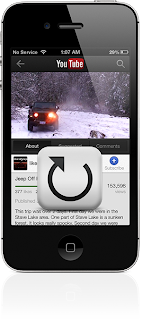
After you install this jailbreak tweak, then when you have finished watching a video on Youtube a free Google application, then the video will be played back (on my birthday). You can exit (exit) of the video that was repeated by just doing a tap on the back button, or simply close the application.
This tweak the concept is very clear, and useful for you who want to watch a funny video you found for the second time. It is also good if you feel the need to look back at the video there is a scene where you want to believe. Whats more to music videos, music lovers would want more than one listen to his music without the need to press the play button again repeatedly.
After this tweak is installed, then you will get a preferences panel on the application settings that you can enable or disable this tweak.
This tweak updated version is being drafted as I write this post, which allows you to enable or disable this tweak directly from Youtube application without the need to get out of it and use the Settings application.
If you want to try to keasikan iYoutubeReplay watch Youtube videos, so you can meet this tweak in Cydia under BigBoss closet. And this is the detail of tweaks iYoutubeReplay.
After you install this jailbreak tweak, then when you have finished watching a video on Youtube a free Google application, then the video will be played back (on my birthday). You can exit (exit) of the video that was repeated by just doing a tap on the back button, or simply close the application.
This tweak the concept is very clear, and useful for you who want to watch a funny video you found for the second time. It is also good if you feel the need to look back at the video there is a scene where you want to believe. Whats more to music videos, music lovers would want more than one listen to his music without the need to press the play button again repeatedly.
After this tweak is installed, then you will get a preferences panel on the application settings that you can enable or disable this tweak.
This tweak updated version is being drafted as I write this post, which allows you to enable or disable this tweak directly from Youtube application without the need to get out of it and use the Settings application.
If you want to try to keasikan iYoutubeReplay watch Youtube videos, so you can meet this tweak in Cydia under BigBoss closet. And this is the detail of tweaks iYoutubeReplay.
- Price: Free.
- Version: 1.0-1.
- Requirements for use: Googles YouTube application.
- Repository: BigBoss.
- Developers: Osama Mohammed.
Go to link Download
Sunday, October 16, 2016
how to download video from youtube
how to download video from youtube
how to download video from youtube ?
Want to download videos from YouTube on your Android smartphone, without having to save on your PC first? No problem. Just use one of the many applications suitable for this purpose and you can store all your favorite videos on your smartphones memory (or the microSD you have installed inside).I assure you that we do not want to use special techniques to succeed. To find out how to download videos from YouTube with Android you have to do is to install one of the apps Im going to alert you, to connect to YouTube under it and press on the movie to be taken. Thats all!
Before you get started, though, make sure you have enough free space on the memory of the phone and not be connected to the cellular data network, otherwise you stay within in no time the monthly consumption of your data plan. Provide also to enable the installation of applications from unknown sources (ie from external sites to the Play Store).
If you do not know how to enable the installation of apps from outside sources than Google Play, went to the panel of the Android Settings and select the item that appears in the Security screen. Then put a check mark next to unknown and presses Origins on OK button to complete the operation. And now to the action!
TubeMate
 |
| Tubemate YouTube Android |
The download is complete, expand the menu of notifications of Android and presses youtube-tubemate.xx.apk icon to launch the application installation. In the screen that opens, presses Next, Install and Open to complete the installation process and launch TubeMate.
Then accept the conditions of use of the app by pressing the button I agree and follow the brief initial setup procedure that you are offered by first pressing on Next twice in a row and then Close.
Now, you have to do is search for YouTube videos to download on your mobile (use the button with the magnifying glass placed at the top right), start playing it and select the icon of green arrow appears in the upper right. Then choose size and resolution of your movie to be taken (eg. 1920 × 1080 426 × 240 MP4 or FLV) and presses the Download button to start downloading.
The first download will be asked to also download MP3 Video Converter, a free app needed for the proper functioning of TubeMate. Then presses the Install button, choose to open the link to the Play Store and press Accept and Install to complete the installation process.
Once finished downloading video with TubeMate, you will find the videos taken from YouTube Videos folder of your smartphone or tablet. Files can also be transferred to a PC by connecting the phone to the computer (via USB cable): there is no need for extra steps or ad hoc applications. Pretty cool, huh?
YouTube Downloader
 |
Download YouTube videos Android |
A completed downloading, expand the of Android notifications menu and open the file dentex.youtube.downloader.apk. In the screen that appears, press first and then Install Open to complete the installation process and launch YouTube Downloader. Therefore accept the conditions of use of the app, pressing the button Accept, and press OK to access its main screen.
Now do not you have left to look for the YouTube video to download (using the search bar located at the top of the screen) and press the pages thumbnail. Then choose the file format and resolution in which download (eg. FLV MP4 480p or 240p), confirm the download by clicking Download here and youre done.
The first download will be asked to install the free plugin FFMPEG necessary for the proper functioning of YouTube Downloader. Accept by pressing on Download, then click OK: the rest of us automatically think your smartphone / tablet, which then will initiate the download of the selected video.
After the download, you can view and play back movies downloaded from YouTube in the Dashboard tab YouTube Downloader or, in case you want to copy files on your PC, in the Downloads folder on your Android device (or the microSD card installed inside ).
Should you wish to change the default folder to save the downloaded videos from YouTube, went into the app by pressing the options on the menu button located at the top right (the one with the three dots) and presses on the item Choose standard folder. Easy and fast.
Go to link Download
Saturday, October 15, 2016
How to Play a YouTube Audio in the Background iOS 7 1
How to Play a YouTube Audio in the Background iOS 7 1
How to Play a YouTube Audio in the Background (iOS 7.1) - YouTube became one of Googles services most frequently accessed smartphone users. Both in Android and iOS, you can easily play videos on Youtube, through the application or the browser, turn on the background so you can still do other activities on the phone while listening to your favorite song via Youtube.
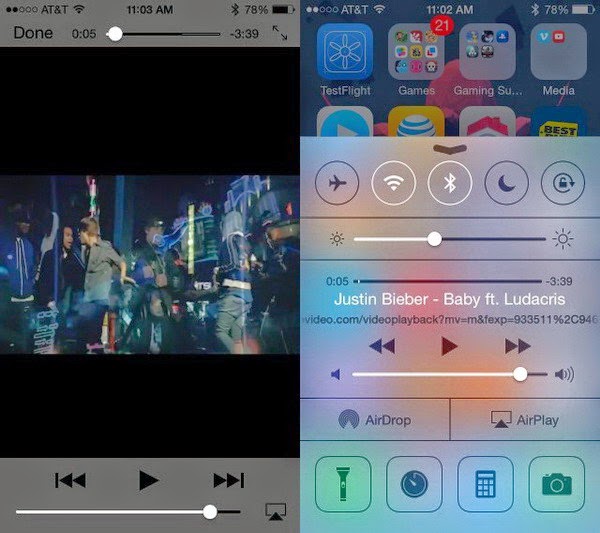 However for users of iOS devices, you probably have see some important changes in iOS 7.1. When you switch from Youtube app or Safari browser was playing Youtube videos to other applications, then the video will stop. But do not worry because there are ways to overcome them.
Firstly, you need to download an application called Jassmine . This application is available at the App Store (free) and function play Youtube videos. The second way is still to use Safari to open the site Youtube.com. Nah, when the video was played, please press the Home button on the iPhone. This will automatically close Safari or Jasmine, and songs you play will stop. Subsequently, swipe up to bring up the Control Center. Tap the triangular Play button in the middle. The way to play existing audio in the playlist. In this case your playlist contains a Youtube video that you have previously cut, either in Safari or Jasmine. Try to swipe down the Control Center then you are used to the audio will still be heard until the end of the song. Unfortunately this method can not be used to play the entire playlist but only per song. If you want to play audio from YouTube videos, please turn more videos you want in Safari or Jasmine.
Firstly, you need to download an application called Jassmine . This application is available at the App Store (free) and function play Youtube videos. The second way is still to use Safari to open the site Youtube.com. Nah, when the video was played, please press the Home button on the iPhone. This will automatically close Safari or Jasmine, and songs you play will stop. Subsequently, swipe up to bring up the Control Center. Tap the triangular Play button in the middle. The way to play existing audio in the playlist. In this case your playlist contains a Youtube video that you have previously cut, either in Safari or Jasmine. Try to swipe down the Control Center then you are used to the audio will still be heard until the end of the song. Unfortunately this method can not be used to play the entire playlist but only per song. If you want to play audio from YouTube videos, please turn more videos you want in Safari or Jasmine.
Go to link Download
Monday, October 10, 2016
How to Delete Gmail Facebook Twitter Google YouTube or LinkedIn Account
How to Delete Gmail Facebook Twitter Google YouTube or LinkedIn Account

If youre not ready for that yet, you can always check out our guide to cleaning your social media accounts instead. If youve made up your mind though, heres a step-by-step guide to help you delete all your social media accounts.
Please note that while some services may let you reactivate your account where left off should you have second thoughts, at most all your data is gone once you click on that delete button - so make sure you know what you are doing before proceeding.
How to Delete Gmail Account
These days, almost everyone uses a Gmail account. In case youve decided to move on to another service though - or just want to delete an old account you no longer use - here are the steps you need to follow:
1) Head to this Google accounts page and log in.
2) Here you will see three links, one to remove Gmail without deleting your Google account, a second to remove Google Books and a third to close your Google account and delete all services. If youre sure about removing your Gmail account, click the first link. Youll see a warning page right away.
3) Now you will see a confirmation page. Click the check-box saying "Yes I would like to delete", enter a new primary email address you will use for other Google services, enter your Gmail password in the dialogue box,and click Remove Gmail. This will delete your Gmail account. Just to reiterate Googles warning, theres no coming back from this step, and all your mail will be gone forever.

How to Delete Facebook Account
Facebook makes it very difficult to delete your account. You wont find the option to delete your account permanently simply by looking through the settings. To find that page, you can either to go to Facebooks help center or you can follow these steps:
1) If youre not sure whether you want to permanently remove your Facebook account, you can deactivate it. This way, you can rejoin within 30 days without losing your data. To do that, head to Facebooks security settings page.
2) Now click Deactivate your account. This link is buried beneath "When youre logged in" and you are unlikely to see it unless youre looking for it.
[post_ad]
3) Facebook will now try to emotionally blackmail you into reversing your decision. If you ignore the photos of the people who "will miss you", you can select any reason and click Confirm
.
4) If choose to delete your account permanently, go to Facebooks account deletion page and click Delete My Account.
5) Youll see a pop-up, where youll have to enter your password and characters shown in an image (captcha). Click Okay and then click Okay again in a second pop-up. Facebook gives you a chance to change your mind - if you log in anytime in the next two weeks, Facebook will reactivate your account.

How to Delete Twitter Account
If youd rather stay away from the constant stream of tweets on this website, follow these steps to remove your account:
1) Head to Twitter settings and scroll to the bottom.
2) Now click Deactivate my account, which is a link below the Save changes button.
3) Twitter will give you a warning about what this means. If youre sure, you need to click on the Deactivate button. This will deactivate your Twitter account. If you change your mind and choose to return to the social network, you will have to log in within 30 days. After 30 days, Twitter will permanently remove your account.

How to Delete Google+ & YouTube Account
Did you accidentally sign-up for Google+ from your Gmail account? It is extremely easy to delete your Google+ profile but it can have some unwanted consequences. First, your YouTube account will be removed too. Yes, all your YouTube comments will be removed and if you have a channel, it will be disabled. Secondly, you will not be able to leave reviews on Google Play store. This is because Google has integrated all three services together. If you still want to take this step, this is what you need to do
1) Go to the Google+ Downgrade page and sign in with your Google account.
2) Now scroll down all the way to the bottom and click the check-box next to "Required: Yes I understand that...
3) Click Remove selected services. This will delete your Google+ and YouTube accounts.

How to Delete LinkedIn Account
The worlds most popular career database, LinkedIn, can be quite annoying with its constant notification emails and updates that land in your inbox. Luckily, theyve made it pretty easy to delete your account. Heres how:
1) Open LinkedIns Privacy & Settings page and sign in.
2) Click the Account tab next to the shield icon near the bottom-left of the page.
3) Under the Helpful Links section, select Close your account.
We hope this article helped you close accounts on various websites. If youd like to read more tutorials like this one, In case you have any queries or opinions regarding this tutorial, feel free to reach out using the comments section below.
Don’t forget to Share it with your friends via Facebook & Google+ and Twitter, And if you like the article How to Delete Gmail Facebook Twitter Google+ YouTube or LinkedIn and you may even Subscribe for New post, to get directly in your mail inbox.
Go to link Download
Sunday, October 2, 2016
How to Download Youtube Videos
How to Download Youtube Videos


Dont Forget to Watch the Video Below
Youtube is the best site for watching videos worldwide as its one of the best and the most used site in the world. A lot of people wish to download youtube videos but this facility is not given by youtube as it is their policy not to allow users to download the videos. But now you can download youtube videos online using different methods.
One of those methods which I think is the best one for people living in Pakistan as youtube is banned in Pakistan. They need proxy softwares or websites to access youtube. So it is one of the best method to watch and download youtube videos. Just Logon to VIMOW and have fun.
Watch the Video Below
I hope you would like the video. Kindly share it with your friends and you can also send your requests for tutorial and let me know what do you like.
Go to link Download
Saturday, October 1, 2016
How To Download Youtube Video To Firefox Google Chrome Without Addon
How To Download Youtube Video To Firefox Google Chrome Without Addon

The Trick
To download youtube videos, click this link while the video is playing. Or to make it easier, drag the link below to your bookmark.
Download youtube video – Drag to bookmarklet to your bookmark toolbar.
When you want to download a youtube video while it’s playing, just click the bookmark link to start. The video will be downloaded as MP4. Available only on Firefox and Google Chrome. If this post has helped you, please take 5 seconds to share it below. We at Tripozia are committed in giving the best of our service.
Go to link Download
Wednesday, September 14, 2016
How do I download or save a YouTube video to my computer
How do I download or save a YouTube video to my computer
How do I download or save a YouTube video to my computer?
 YouTube has been designed to only allow users to watch and view videos on their website. Many users want to save their favorite videos to their computer so they can watch them without being connected to the Internet or so they can watch them on other devices. Below are the steps required for downloading and watching YouTube videos on your computer for free.
Note: These steps are for saving a YouTube video and not saving only the audio of a YouTube video to an MP3 file.
Saving YouTube video as a video file on your computer
Today, there are many websites that allow you to enter the URL of the video you want to save to your computer and get a link to download the file. Below is a simple three-step process to download any YouTube video.
Note: If you are at a school or job that is blocking YouTube, these steps may not work.
1. First, go to the YouTube pagecontaining the video you want to save. When youve found the page, pressCtrl + L on your keyboard to highlight the text in the address bar, and thenCtrl + C to copy the Internet address.
2. Once this address has been copied,paste that URL into the text field below by clicking inside the box and pressingCtrl + V on your keyboard. Then, click the Download Video button.
3. If done properly, a new window will appear displaying a preview of the video, (as shown below) along with the Download links. For most users, we suggest downloading the MP4 format. Other available formats may include FLV, 3GP, and WebM. Once you have selected your format, click the appropriate download link.
Go to link Download
Thursday, September 1, 2016
How to Download Videos From YouTube
How to Download Videos From YouTube

How to Download Videos From YouTube: Android Iphone Window Web
Please note that YouTubes terms of services say, "You shall not download any Content unless you see a "download" or similar link displayed by YouTube on the Service for that Content." So if you see the download button, you can legally download this video easily without the need of a third-party app.
The terms further add, "You shall not copy, reproduce, make available online or electronically transmit, publish, adapt, distribute, transmit, broadcast, display, sell, license, or otherwise exploit any Content for any other purposes without the prior written consent of YouTube or the respective licensors of the Content." So if the video does not have a download button, be sure to get that consent before you proceed.
We tried different methods of downloading a YouTube video across different platforms, but this is not an exhaustive list, just the ones we liked the most. These are our favourite choices to download YouTube videos for offline use, on each platform.
One thing youll have to do in almost all these methods is decide what quality and format of video you want to download. If you are looking for something small that will play on most mobile devices, you should choose one of the 3GP options - 144p will be smaller and might have artifacts, while a 720p MP4 is really overkill if you just want to look at it on a small phone. A 360p MP4 looks fine on most mobile screens, without eating up too much of your data plan either.
Download videos from youtube Web
Keepvid is one of the simplest ways to download videos from the web, and all you need is the URL - the address of the web page that shows up in the bar where you type in a sites name - to download files. To use Keepvid, you need to follow these steps:
1. Open the video you want to save in YouTube. Click on the address bar, then select the full address and copy it.
2. Next, go to the Keepvid website.
3. On the website, you see a form where you can enter the link of the video you want to download. Paste the URL you copied earlier in this bar, and then click the Download button on the right. Youll immediately get a list of links, mentioning different formats and sizes.
4. Choose the file you want from the list of formats and sizes, and then right click on that particular link. To save the file, select Save link as... and you will be asked where you want to save the file on your computer.
Download videos from youtube Browser extension
In case you dont want to go through the hassle of copy pasting the details every time, browser extensions are a great shortcut. Our favourite one is SaveFrom.net, which works with Opera, Firefox and Chrome. To use this, first you need to install the extension.
Click the link to download the extension for your browser. Opera, Firefox or Chrome.
Once youve installed the extension, a SaveFrom.net button appears in the top right corner of your browser.
To download a video, do the following:
1. Go to the video page, and then click on the extension button.
2. A drop down menu appears comprising a number of options. Click on the Download from current page option.
3. Doing so takes you to the SaveFrom.net official page, where the url of the video is already processing.
4. You will see general information about the video like title (name of the video), duration and source. You can choose to download the video in any of the formats like (FLV 240p, MP4 720p, 3GP 240p) which appear below the download links.
5. Right click on the format you want, and select Save link as... to download the file.
Internet Explorer does not support SaveFrom.net addon, so we decided to go with FastestTube which is as good as any other extension. Here are the steps: [post_ad]
1. Visit the page to download the extension.
2. Click on the Internet Explorer icon.
3. FastestTube setup gets downloaded. Follow the download steps to install the extension.
4. Open the YouTube video you want to download.
5. A Download button appears below the video.
6. Click on the Download button and a drop down menu comes showing various formats in which the video can be downloaded.
7. You the video format and the download will start.
2. A drop down menu appears comprising a number of options. Click on the Download from current page option.
3. Doing so takes you to the SaveFrom.net official page, where the url of the video is already processing.
4. You will see general information about the video like title (name of the video), duration and source. You can choose to download the video in any of the formats like (FLV 240p, MP4 720p, 3GP 240p) which appear below the download links.
5. Right click on the format you want, and select Save link as... to download the file.
Internet Explorer does not support SaveFrom.net addon, so we decided to go with FastestTube which is as good as any other extension. Here are the steps: [post_ad]
1. Visit the page to download the extension.
2. Click on the Internet Explorer icon.
3. FastestTube setup gets downloaded. Follow the download steps to install the extension.
4. Open the YouTube video you want to download.
5. A Download button appears below the video.
6. Click on the Download button and a drop down menu comes showing various formats in which the video can be downloaded.
7. You the video format and the download will start.
Download videos from youtube Windows/ OS X
If you dont want to use a website or a browser extension but a standalone program on your computer, YouTubeDownloader (YTD) has you covered.
1. Go to YTD video converter page.
2. Click on the Free Download button.
3. YouTube downloader gets downloaded in the default download folder on your system.
4. Double click on the setup file to install the YTD Video Downloader.
5. Once the download is complete, open YouTube and copy the url of the video you want to download.
6. Open YTD and click on Paste URL button.
7. You can select the video quality by clicking on the Download quality dropdown and selecting any one of the options which appear in the drop down menu.
8. Now just click on the Download button at the bottom right corner.
9. You can pause or stop the download by clicking on the video and selecting the pause or the stop button above it.
10. To view the downloaded video click on the folder icon right above the video box and it will open the location where the video has been downloaded.
1. Go to YTD video converter page.
2. Click on the Free Download button.
3. YouTube downloader gets downloaded in the default download folder on your system.
4. Double click on the setup file to install the YTD Video Downloader.
5. Once the download is complete, open YouTube and copy the url of the video you want to download.
6. Open YTD and click on Paste URL button.
7. You can select the video quality by clicking on the Download quality dropdown and selecting any one of the options which appear in the drop down menu.
8. Now just click on the Download button at the bottom right corner.
9. You can pause or stop the download by clicking on the video and selecting the pause or the stop button above it.
10. To view the downloaded video click on the folder icon right above the video box and it will open the location where the video has been downloaded.
Download videos from youtube Windows Phone
There are plenty of apps to download YouTube videos available on the Windows Store, some are paid while the others are free. We have selected Tube Pro, because it is extremely simple to use, with not too many options before downloading the video - simply search and download.
To download, videos first download the app. Launch the app, and you will see the Menu screen with various options like Hot videos, Favorites, Offline playlist, My playlist and My download. There is a Top Rated menu also comprising most popular music, sports and movie videos.
Then follow these steps:
1. Tap on the Search icon at the bottom and enter the name of the video you want to download. Right below the search bar there is HD check box which you can select if you want the search to return only HD videos.
2. Tap on the video you want from the results, choose the quality setting from LQ, HQ and HD boxes - stands for Low, High and HD quality respectively - then tap the Download button to start downloading.
3. After youve downloaded a video, you can play it from the app itself, by going to the My Download section.
To download, videos first download the app. Launch the app, and you will see the Menu screen with various options like Hot videos, Favorites, Offline playlist, My playlist and My download. There is a Top Rated menu also comprising most popular music, sports and movie videos.
Then follow these steps:
1. Tap on the Search icon at the bottom and enter the name of the video you want to download. Right below the search bar there is HD check box which you can select if you want the search to return only HD videos.
2. Tap on the video you want from the results, choose the quality setting from LQ, HQ and HD boxes - stands for Low, High and HD quality respectively - then tap the Download button to start downloading.
3. After youve downloaded a video, you can play it from the app itself, by going to the My Download section.
Download videos from youtube Android
Our favourite Android app in this category is TubeMate. The free app is not available on Google Play though, and you need to install the Amazon Appstore for Android to get it.
Installing Appstore for Android
1. On your phone, first open Settings and then go to Applications and find the Unknown Sources option. In case it isnt there (this varies across devices), then, in Settings, go to Security. Tick the Unknown Sources box, and tap OK on the confirmation popup.
2. Next, visit the Appstore link and download the APK file.
3. In the file explorer, find AmazonApps-release.apk and tap it. Tap Install and once the installation is done, tap Open to launch the app.
Next, you can install TubeMate and download videos.
1. Search for TubeMate YouTube Downloader and tap the Install button.
2. Once the installation finishes, tap on the app icon to launch the app.
3. In the app, tap on the search icon and type the name of the video.
4. Wait till all the videos are loaded and then tap on the one you want to download.
5. Tap on the green coloured arrow at the top right corner which is the download icon, to download the YouTube video which is being currently played.
6. You can download multiple videos and it also lets you play only the audio from the video.
7. A pop up window appears saying Parsing video information. This basically means that the video information is being processed.
8. Right after that, a list of various video formats will appear and you can select any one out of them.
9. Just tap on the download button at the bottom to download the YouTube video on your Android phone.
10. If you want to check where the video is downloaded just tap the semi-circle icon and you will enter the download section which shows downloads in progress.
11. If by any chance you have to pause the video then the TubeMate app lets you resume the download from the same point where you had left it.
2. Next, visit the Appstore link and download the APK file.
3. In the file explorer, find AmazonApps-release.apk and tap it. Tap Install and once the installation is done, tap Open to launch the app.
Next, you can install TubeMate and download videos.
1. Search for TubeMate YouTube Downloader and tap the Install button.
2. Once the installation finishes, tap on the app icon to launch the app.
3. In the app, tap on the search icon and type the name of the video.
4. Wait till all the videos are loaded and then tap on the one you want to download.
5. Tap on the green coloured arrow at the top right corner which is the download icon, to download the YouTube video which is being currently played.
6. You can download multiple videos and it also lets you play only the audio from the video.
7. A pop up window appears saying Parsing video information. This basically means that the video information is being processed.
8. Right after that, a list of various video formats will appear and you can select any one out of them.
9. Just tap on the download button at the bottom to download the YouTube video on your Android phone.
10. If you want to check where the video is downloaded just tap the semi-circle icon and you will enter the download section which shows downloads in progress.
11. If by any chance you have to pause the video then the TubeMate app lets you resume the download from the same point where you had left it.
Download videos from youtube iPhone
On the iPhone, we found Video Download & Player, which lets you download YouTube videos to your device. Heres what you need to do:
1. Install the Video Download & Player app from the App Store.
2. Launch the app, and click on the search bar.
3. Search the video you want to download.
4. Select the video and click on Cache Video to Memory. Your video starts downloading.
5. You can check the downloaded files in the Videos section at the bottom.
6. The app also lets you watch the videos offline.
2. Launch the app, and click on the search bar.
3. Search the video you want to download.
4. Select the video and click on Cache Video to Memory. Your video starts downloading.
5. You can check the downloaded files in the Videos section at the bottom.
6. The app also lets you watch the videos offline.
Don’t forget to Share it with your friends via Facebook & Google+ and Twitter, And if you like the article How to Download Videos From YouTube and you may even Subscribe for New post, to get directly in your mail inbox.
Go to link Download
Subscribe to:
Posts (Atom)