Showing posts with label hide. Show all posts
Showing posts with label hide. Show all posts
Monday, November 28, 2016
HOW TO HIDE A FILE OR A DOCUMENT WITHOUT USING ANY APP IN AN ANDROID SMARTPHONE
HOW TO HIDE A FILE OR A DOCUMENT WITHOUT USING ANY APP IN AN ANDROID SMARTPHONE
1. CREATE A FOLDER USING YOUR DEFAULT FILE EXPLORER
Create a folder with a name youd like, and add "." before other characters along the file name and save.
example
file name is Document, then itd now become .Document
Your smartphone should notify you that the folder will be hidden
2. CLICK OPTION TO HIDE OR UNHIDE THE FOLDER
;
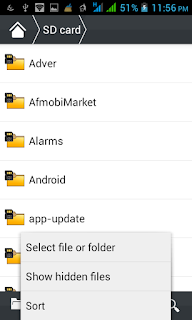
3.COPY THE FILES TO THE FOLDER YOUR CREATED
Copy the files youd want to hide to the folder you created and it will be hidden, take for instance pictures or videos you wouldnt like to be displayed in your gallery once they are moved to this folder you created it wont display there again
4. GO BACK TO STEP THREE IN ORDER NOT TO ALLOW PEOPLE ACCESS THOSE FILES FROM YOUR FILE EXPLORER
THATS ALL!!!!!!!!!!!!!!!!!!
Create a folder with a name youd like, and add "." before other characters along the file name and save.
example
file name is Document, then itd now become .Document
Your smartphone should notify you that the folder will be hidden
2. CLICK OPTION TO HIDE OR UNHIDE THE FOLDER
;
3.COPY THE FILES TO THE FOLDER YOUR CREATED
Copy the files youd want to hide to the folder you created and it will be hidden, take for instance pictures or videos you wouldnt like to be displayed in your gallery once they are moved to this folder you created it wont display there again
4. GO BACK TO STEP THREE IN ORDER NOT TO ALLOW PEOPLE ACCESS THOSE FILES FROM YOUR FILE EXPLORER
THATS ALL!!!!!!!!!!!!!!!!!!
Go to link Download

Thursday, November 3, 2016
How to hide your Caller ID on your Smartphone Android
How to hide your Caller ID on your Smartphone Android
How to hide your Caller ID on your Smartphone Android - Want to call friends but dont want your identity known? If you recently switched to Android maybe you still havent learned how to hide Caller ID when calling using the Android smartphone. Basically hide your Caller ID is pretty easy to do using the Android smartphone.

Whatever the reason youre doing it, you can hide your Caller ID when calling using the Android smartphone. The following are the steps that you must do if you want to hide your Caller ID when calling using the Android smartphone.
1. open the Settings in Android smartphone
2. open the Call menu Settings
3. open the Additional settings
4. open the Caller ID
5. switch to Hide number
Easy, isnt it? By following these steps then Caller ID will not be visible when you make a phone call. Good luck:)
Whatever the reason youre doing it, you can hide your Caller ID when calling using the Android smartphone. The following are the steps that you must do if you want to hide your Caller ID when calling using the Android smartphone.
1. open the Settings in Android smartphone
2. open the Call menu Settings
3. open the Additional settings
4. open the Caller ID
5. switch to Hide number
Easy, isnt it? By following these steps then Caller ID will not be visible when you make a phone call. Good luck:)
Go to link Download
Monday, October 31, 2016
How to Hide Unhide icon from blackberry
How to Hide Unhide icon from blackberry
To Hide--:
Select icon> menu Key> Select Hide
To Unhide> menu key> Select Show All> Now, select the icon> menu Key> again use hide
Select icon> menu Key> Select Hide
To Unhide> menu key> Select Show All> Now, select the icon> menu Key> again use hide
Go to link Download
Tuesday, October 18, 2016
How To Hide WhatsApp Images Videos Photos From Your Gallery
How To Hide WhatsApp Images Videos Photos From Your Gallery
Undoubtedly, Whatsapp has stood its ground in the social chatting media world. Well some will say, whatsapp is the best Messenger Application, yes you cant just argue that. The Whatsapp messenger has got lots of features, among which is the ability to share files, sharing and receiving videos, images and a few file extensions.
Some personal photos or videos might have being sent to you, and probably, you don’t want to share it with any person. As though, you cant keep your phone away from others or perhaps dont like passwording stuffs. But course, there are intimate friends that you’ll always let to have access to your phones at any time.

What can be done to hide Whatsapp video’s and photos from such people?
Here is a tutorial on how you’ll be able to keep those files private on both your Android and iPhone so only you will be able to access them.
Android Users: Hiding Whatsapp Images and Videos from Android Gallery
Below is a guide to hide your Whatsapp videos and images on your Android device, if you are an android user you can quickly follow the below steps, and take advantage of this.
Firstly, download and install any File Manager app on your Android phone, if you already have one, don’t worry it will still be of use, but if you don’t have, you can downloadES File Explorer.
Lunch and locateSD Card under Home section and then click on Whatsapp>Media.
Look for Whatsapp Imagesfolder, when you find it, simply tap/hold on the folder for few seconds and then an option screen will pop-up, tap on rename and put ( . ) in front of that folder’s name.
This is what your folder should then look like “.Whatsapp Images”
Now, go back to your gallery and search for those photos and videos in that folder, you’ll notice that they are no more there. If you wish to retrieve or revert this, simply remove that( . ) and it will be reverted.
Now other people can’t see your images and videos of WhatsApp.
iPhone Users: Hide Whatsapp Images from iPhone Gallery
Below is a guide to hide your Whatsapp videos and images on your iPhone device, if you are an iPhone user you can quickly follow the below steps, and take advantage of this.
See Tips To Buy A Good Fairly Used iPhone
Firstly, go to Settingsand select Privacy
Now tap on Photosand then you will get all sources of Photos which you are using on your iPhone. Search for Whatsapp, when found, toggle it off.
You are done, it’s as easy as that, no one will be able to see your WhatsApp photos from your gallery any longer.
There might just be some other methods you may know on this, you can share it here. Thanks!
Some personal photos or videos might have being sent to you, and probably, you don’t want to share it with any person. As though, you cant keep your phone away from others or perhaps dont like passwording stuffs. But course, there are intimate friends that you’ll always let to have access to your phones at any time.
What can be done to hide Whatsapp video’s and photos from such people?
Here is a tutorial on how you’ll be able to keep those files private on both your Android and iPhone so only you will be able to access them.
Android Users: Hiding Whatsapp Images and Videos from Android Gallery
Below is a guide to hide your Whatsapp videos and images on your Android device, if you are an android user you can quickly follow the below steps, and take advantage of this.
Firstly, download and install any File Manager app on your Android phone, if you already have one, don’t worry it will still be of use, but if you don’t have, you can downloadES File Explorer.
Lunch and locateSD Card under Home section and then click on Whatsapp>Media.
Look for Whatsapp Imagesfolder, when you find it, simply tap/hold on the folder for few seconds and then an option screen will pop-up, tap on rename and put ( . ) in front of that folder’s name.
This is what your folder should then look like “.Whatsapp Images”
Now, go back to your gallery and search for those photos and videos in that folder, you’ll notice that they are no more there. If you wish to retrieve or revert this, simply remove that( . ) and it will be reverted.
Now other people can’t see your images and videos of WhatsApp.
iPhone Users: Hide Whatsapp Images from iPhone Gallery
Below is a guide to hide your Whatsapp videos and images on your iPhone device, if you are an iPhone user you can quickly follow the below steps, and take advantage of this.
See Tips To Buy A Good Fairly Used iPhone
Firstly, go to Settingsand select Privacy
Now tap on Photosand then you will get all sources of Photos which you are using on your iPhone. Search for Whatsapp, when found, toggle it off.
You are done, it’s as easy as that, no one will be able to see your WhatsApp photos from your gallery any longer.
There might just be some other methods you may know on this, you can share it here. Thanks!
Go to link Download
Saturday, October 1, 2016
How to hide iPhone Dock No JB Required
How to hide iPhone Dock No JB Required
Have you ever wanted to hide the dock that appears at the bottom of your iPhones home screen ? The trick is so simple and doesnt need from you to have a jailbroken iOS device. The trick takes advantage of a wallpaper rendering bug in various versions of iOS — including iOS 9.3 — and here’s how you use it.
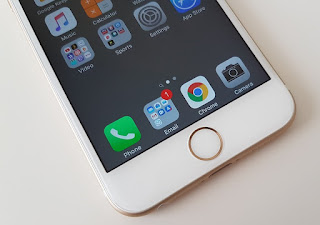 The trick is available on all versions of iOS 9.3, according to RedmondPie, and some older firmwares, too — such as iOS 9.1 — but not all have been tested. Here are the steps you need to follow:
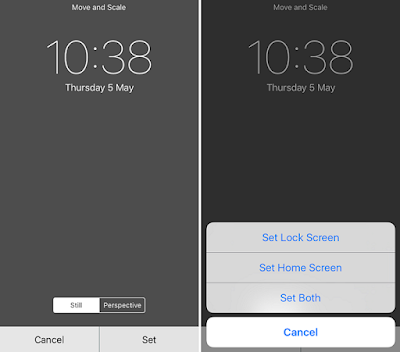
6. Choose “Set Home Screen” and note that you can use any wallpaper for your lock screen
7. Return to the home screen.
- Visit the following URL to find the wallpaper you need to make this possible: 98.246.187.61:47224/hide_the_dock.html
- Tap and hold on the wallpaper, then select “Save Image”
- Go into the Photos app, find the wallpaper you just saved, then tap the share button
- Tap “Use as Wallpaper”
- Tap “Still,” then tap “Set”
6. Choose “Set Home Screen” and note that you can use any wallpaper for your lock screen
7. Return to the home screen.
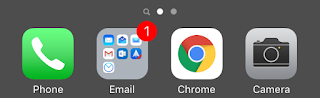
When your home screen reappears, the dock should have vanished — like in the photos above and below — leaving you with a cleaner look. To bring the dock back, simply select another wallpaper.
So did the trick works with you or not ? Share your thoughts in our comment section below.
Go to link Download
Sunday, September 11, 2016
HOW TO HIDE FILES AND FOLDERS ON A BLACKBERRY DEVICE
HOW TO HIDE FILES AND FOLDERS ON A BLACKBERRY DEVICE
To hide files on a blackberry is not a big deal. But people go extra miles, spend time, cause unnecessary problems like mistakenly locking up apps. To hide files is very easy and you dont need apps to do it. Ill take this in 2 ways, follow these simple steps :
METHOD 1 (Hiding from being visible in the media app):
1- Open media
2- Press menu and scroll to explore. Select
3- On the desired file, press menu and scroll to rename
4- Rename the file extension e.g jpg to anything you like. You can use jpgZ
This way the phone asks you if youre sure of your action as it may render your file unusable. Just choose ok. By doing this, your files will not be visible in the media player.
METHOD 1 (Hiding from being visible in the media app):
1- Open media
2- Press menu and scroll to explore. Select
3- On the desired file, press menu and scroll to rename
4- Rename the file extension e.g jpg to anything you like. You can use jpgZ
This way the phone asks you if youre sure of your action as it may render your file unusable. Just choose ok. By doing this, your files will not be visible in the media player.

METHOD 2 (Hiding from being visible in the file explorer):
To hide files and folders
1- Go to media
2- Scroll to the desired file or folder
3- Press menu, scroll to properties and click
4- Scroll down and tick Hidden
5- Close.
This method hides your files and folders from even the inbuilt explorer.
NOTE: Try to backup your file before trying this.
Go to link Download
Friday, September 9, 2016
How to hide videos Photo in android Phone
How to hide videos Photo in android Phone
Its necessery to know how to hide your personal documents photos and videos from others eye. So many android apk in the market but which one is best for you. Yes thats the fact. Today i will share with you about the most user friendly and most secured Android privacy protecting application which will you get absolutely free of cost.
If you have photos and videos you don’t want just anyone to see, you might want to consider using KeepSafe Vault to hide videos and pictures.

Hide Pictures – KeepSafe Vault is an app that will keep those private pictures nice and safe. When you first launch the app it will ask you if you want to create an account or sign in with a particular email address. It will also ask you to create a pin (that you’re obviously not supposed to give out) to keep your videos and pictures safe.
Once you’re inside the app you will notice that the app has already set up a few albums for you such as Main Album, Documents, Health and Fitness, Cards and IDs. Once you have uploaded a few pics or videos, it will automatically add a trash folder. It is good to see that it added the folder on its own, just in case you ever regret deleting anything. If you want to create a folder, tap on the blue circle with the white cross and select Add album

In the Documents folder you can safely add pictures of sensitive documents whose information you always need access to. In the Health and Fitness folder you can keep track of your progress of that flat tummy you’ve always wanted (I gave up a long time ago, but I’m almost there), and in Cards and IDs you can keep pictures of things such as credit cards, IDs, insurance, and passports.
Each folder will also tell you how many pictures and videos you have. You can see the exact number at the very top.

Adding photos and videos to a particular folder is very easy. Just tap on the blue circle, and you will see two options: import from gallery and take a photo. Since you are importing that image, whoever tried to take an unauthorized look at your gallery won’t be able to see those images.
KeepSafe is full of useful features such as being able to send temporary pictures right from the app in a secure way. When I say temporary, I mean that the person receiving the picture has twenty seconds to see the picture. Something like the SnapChat feature is built into the app.
KeepSafe has a very simple and easy to use interface that is great for beginners. It also features picture rotation and zoom, allows you to send encrypted pictures and videos, and works great on phones and tablets. The list of features doesn’t end there since it also lets you zoom in on your pictures, personally name all your albums and also has a slideshow function.
It was so easy tutorial that may help you to make your android privacy more strong by using two smart free android application KeepSafe Vault free and GO sms pro. You can see my another post about best photo editor android application. Have you still any question suggestion about the article or about the blog please feel free to contact us.
If you have photos and videos you don’t want just anyone to see, you might want to consider using KeepSafe Vault to hide videos and pictures.
Hide Pictures – KeepSafe Vault is an app that will keep those private pictures nice and safe. When you first launch the app it will ask you if you want to create an account or sign in with a particular email address. It will also ask you to create a pin (that you’re obviously not supposed to give out) to keep your videos and pictures safe.
KeepSafe Folders
Once you’re inside the app you will notice that the app has already set up a few albums for you such as Main Album, Documents, Health and Fitness, Cards and IDs. Once you have uploaded a few pics or videos, it will automatically add a trash folder. It is good to see that it added the folder on its own, just in case you ever regret deleting anything. If you want to create a folder, tap on the blue circle with the white cross and select Add album
In the Documents folder you can safely add pictures of sensitive documents whose information you always need access to. In the Health and Fitness folder you can keep track of your progress of that flat tummy you’ve always wanted (I gave up a long time ago, but I’m almost there), and in Cards and IDs you can keep pictures of things such as credit cards, IDs, insurance, and passports.
Each folder will also tell you how many pictures and videos you have. You can see the exact number at the very top.
How to Hide Certain Pictures and Videos
Adding photos and videos to a particular folder is very easy. Just tap on the blue circle, and you will see two options: import from gallery and take a photo. Since you are importing that image, whoever tried to take an unauthorized look at your gallery won’t be able to see those images.
Other Great KeepSafe Features
KeepSafe is full of useful features such as being able to send temporary pictures right from the app in a secure way. When I say temporary, I mean that the person receiving the picture has twenty seconds to see the picture. Something like the SnapChat feature is built into the app.
KeepSafe has a very simple and easy to use interface that is great for beginners. It also features picture rotation and zoom, allows you to send encrypted pictures and videos, and works great on phones and tablets. The list of features doesn’t end there since it also lets you zoom in on your pictures, personally name all your albums and also has a slideshow function.
It was so easy tutorial that may help you to make your android privacy more strong by using two smart free android application KeepSafe Vault free and GO sms pro. You can see my another post about best photo editor android application. Have you still any question suggestion about the article or about the blog please feel free to contact us.
Go to link Download
Sunday, September 4, 2016
How to hide drives for your security privacy
How to hide drives for your security privacy
Hide Drives for security & Privacy This is a great trick you can play on your friends.
To disable the display of local or networked drives when you click My Computer.
1.Go to start->run.Type regedit.Now go to: HKEY_CURRENT_USERSoftwareMicrosoftWindowsCurrentVersionPoliciesExplorer
Now in the right pane create a new DWORD item and name it NoDrives (it is case sensitive).
Now modify it’s value and set it to 3FFFFFF (Hexadecimal) .
Now restart your computer. So, now when you click on My Computer, no drives will be shown(all gone…).
To enable display of drives in My Computer, simply delete this DWORD item that you created.
Again restart your computer.You can now see all the drives again.
To disable the display of local or networked drives when you click My Computer.
1.Go to start->run.Type regedit.Now go to: HKEY_CURRENT_USERSoftwareMicrosoftWindowsCurrentVersionPoliciesExplorer
Now in the right pane create a new DWORD item and name it NoDrives (it is case sensitive).
Now modify it’s value and set it to 3FFFFFF (Hexadecimal) .
Now restart your computer. So, now when you click on My Computer, no drives will be shown(all gone…).
To enable display of drives in My Computer, simply delete this DWORD item that you created.
Again restart your computer.You can now see all the drives again.
Go to link Download
Sunday, August 28, 2016
HOW TO HIDE DISK DRIVE IN WINDOWS
HOW TO HIDE DISK DRIVE IN WINDOWS

HOW TO HIDE DISK DRIVE IN WINDOWS
1. Run CMD!
2. In CMD, type disk part and hit Enter.3. Then type list volume and hit Enter.Now it will display the list of all your computer drives details.
4. Then type the Drive Letter which you want to hide. If you want to hide volume E, type select
volume E and hit Enter.
5. After that, type remove letter E and hit an Enter.That’s all, you have done. Now restart your
computer once to see changes.How to get back Hidden Drive again in My Computer.Do the procedure which i have mentioned in step 1,2,3 and 4 again.Click Start –> Run –> cmd –> Then type diskpart – list volume – select volume E After that type assign letter E and hit Enter.That’s all !! You have got back the hidden local drive.Once again restart your PC, now you will be able to
see hidden local drive in My Computer.
Go to link Download
Subscribe to:
Posts (Atom)