Showing posts with label videos. Show all posts
Showing posts with label videos. Show all posts
Friday, November 25, 2016
How to download YouTube videos in Ubuntu
How to download YouTube videos in Ubuntu
How to download YouTube videos in Ubuntu is probably among the first things a newbie Ubuntu user will ask for.
There are simply a number of application to do the same, but there is an even better way. Downloading YouTube videos is Ubuntu is not the right keyword, you can actually copy-paste the YouTube video. As simple as that. Lets see how.
While watching YouTube videos in Ubuntu (in any browser), let the video to buffer/load completely. Afterwards in your file browser, do not close the YouTube tab and browse to the /tmp directory.
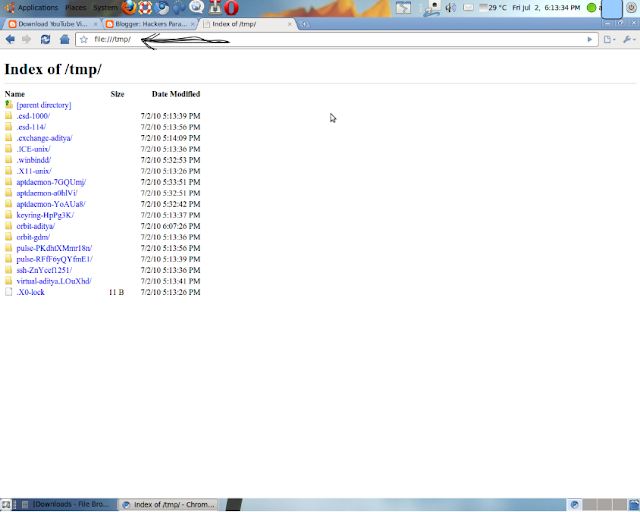
Simply copy paste the file to some other place other than the /tmp directory, say Desktop, for example. Remember, you will have to copy-paste the file before closing the browser tab that contain the YouTube video.
Thats it. Wasnt that easy. Have fun.
Go to link Download

Monday, November 14, 2016
How to Download YouTube videos free with YouTube Red
How to Download YouTube videos free with YouTube Red
There are many reasons why you would want to download YouTube videos, as anybody whos going to be in a poor coverage area, who has a capped mobile broadband data plan or who wont be able to stream high-quality video will appreciate the ability to download YouTube videos for offline use. Its also handy if you suspect that the video is about to disappear for sinister reasons too; downloading videos from YouTube couldnt be simpler, although the methods you employ will depend on the device youre using. and YouTube Red – a completely new option for YouTube users is finally blurring upon the horizons. It has got cool features and it seems to be a really useful service.
YouTube Red is finally here, offering paying subscribers (only in the US, for now) some pretty nifty features, including ad-free video, background play and the ability to save videos offline for US$9.99 per month. It includes a subscription to Google Play Music and they even have a free trial for 30 days if you are still on the fence. · Read Also: How to Play Youtube Video Directly In VLC Player.
Here, we are going to teach you how to download, then watch, YouTube videos for offline viewing with the YouTube and YouTube Gaming Android apps.
Step 1: Begin watching any video on the YouTube or YouTube Gaming app.
Step 2: Tap the gray ‘Add to Offline’ button below the video player (as seen in the image below).

Step 3: Select the video quality you wish to download.
Step 4: Once the download the is complete, the icon will change to a blue ‘Available Offline’ button.
Step 5: Go to your Account tab in the YouTube or YouTube Gaming app, then tap the ‘Saved Videos’ block to start watching your saved videos (as seen below).

Click on your account to view “My Videos”.
To delete your saved offline videos, tap the ‘Available Offline’ button, then select Remove. You can also access the Settings page to set the quality of your offline videos and change whether to download over Wi-Fi only.
A few more things to consider: you can only watch your offline videos if you are logged into your YouTube Red account, you cannot like or comment on a video while offline and you can watch your offline videos for up to 30 days after saving them.
Now that you know how to save your favorite YouTube videos for later, hopefully those long commuter trips will be a lot more bearable, without the possibility of exceeding your mobile data allowance.
Let us know what your first thoughts and impressions are of YouTube Red. Is this service something worth paying for if you’re not already paying for Google Play Music? Drop us a line below.
YouTube Red is finally here, offering paying subscribers (only in the US, for now) some pretty nifty features, including ad-free video, background play and the ability to save videos offline for US$9.99 per month. It includes a subscription to Google Play Music and they even have a free trial for 30 days if you are still on the fence. · Read Also: How to Play Youtube Video Directly In VLC Player.
Here, we are going to teach you how to download, then watch, YouTube videos for offline viewing with the YouTube and YouTube Gaming Android apps.
Step 1: Begin watching any video on the YouTube or YouTube Gaming app.
Step 2: Tap the gray ‘Add to Offline’ button below the video player (as seen in the image below).
Step 3: Select the video quality you wish to download.
Step 4: Once the download the is complete, the icon will change to a blue ‘Available Offline’ button.
Step 5: Go to your Account tab in the YouTube or YouTube Gaming app, then tap the ‘Saved Videos’ block to start watching your saved videos (as seen below).
Click on your account to view “My Videos”.
To delete your saved offline videos, tap the ‘Available Offline’ button, then select Remove. You can also access the Settings page to set the quality of your offline videos and change whether to download over Wi-Fi only.
A few more things to consider: you can only watch your offline videos if you are logged into your YouTube Red account, you cannot like or comment on a video while offline and you can watch your offline videos for up to 30 days after saving them.
Now that you know how to save your favorite YouTube videos for later, hopefully those long commuter trips will be a lot more bearable, without the possibility of exceeding your mobile data allowance.
Let us know what your first thoughts and impressions are of YouTube Red. Is this service something worth paying for if you’re not already paying for Google Play Music? Drop us a line below.
Go to link Download
Wednesday, November 2, 2016
How to Convert YouTube Videos to GIF Animation
How to Convert YouTube Videos to GIF Animation
How to Convert YouTube Videos to GIF Animation - If you are a new user on internet forums, you may be curious to see How Your colleagues in a thread can keep post animated GIF from a variety of television shows, movies, or video clip youve ever watched on YouTube. If youre curious and want to enliven the posting, now theres an easy way to create an animated GIF from clip on YouTube, directly from the web browser that you are using.

You can visit his website Gifyoutube.com to, and entering the URL of the video you want to use as an animated GIF. After that, you will be taken to a new page where you are asked to determine the moment of beginning and duration of the animated GIF you will use.
All you have to do is find a video with a clip youd like to make a GIF of, put "gif" into the URL right before YouTube and youll be taken to a new page which lets you decide the start time and the duration of the GIF. An easier way is to go to the URL of the YouTube video clip that you want, and add the word gif in front of the URL for the Youtube video. (such as http://www.youtube.com/watch?v=Mkt29K4Gf1o changed to http://www.gifyoutube.com/watch?v=Mkt29K4Gf1o). And heres the result.
It should be noted that this service is not an official extension for YouTube, so its not impossible if Google shut it down in the future. But considering its been circulating for many YouTube downloader application which still operate smoothly, so this service is apparently still be safe in the near future. Gifyoutube also are still in the early stages of development, so you may need to experiment a few times before you can make an animated GIF to your liking. Good luck!
You can visit his website Gifyoutube.com to, and entering the URL of the video you want to use as an animated GIF. After that, you will be taken to a new page where you are asked to determine the moment of beginning and duration of the animated GIF you will use.
All you have to do is find a video with a clip youd like to make a GIF of, put "gif" into the URL right before YouTube and youll be taken to a new page which lets you decide the start time and the duration of the GIF. An easier way is to go to the URL of the YouTube video clip that you want, and add the word gif in front of the URL for the Youtube video. (such as http://www.youtube.com/watch?v=Mkt29K4Gf1o changed to http://www.gifyoutube.com/watch?v=Mkt29K4Gf1o). And heres the result.
It should be noted that this service is not an official extension for YouTube, so its not impossible if Google shut it down in the future. But considering its been circulating for many YouTube downloader application which still operate smoothly, so this service is apparently still be safe in the near future. Gifyoutube also are still in the early stages of development, so you may need to experiment a few times before you can make an animated GIF to your liking. Good luck!
Go to link Download
Thursday, October 27, 2016
How To Download Facebook Videos For Free
How To Download Facebook Videos For Free
the next time you come across any video you like you don’t have to be worried the person who posted it may remove it before you get a chance to watch it. I will teach you just how to download and save it in your PC.


Do you know of other means of downloading Facebook videos? If you have any questions or contributions, please use the comment section below.
tutorials from http://netmediatech.blog
Steps to download videos from Facebook.
- Click here to visit “Downfacebookvideos.com“.
- Then enter your Facebook video link. Let say we want to download this funny video I found on Facebook.
- Click on the Facebook video you want to watch to start it to play, then copy the URL on the browser such as this https://www.facebook.com/video.php?v=828756443810639&set=vb.100000288735949&type=2&theater
- Then remove the “&set=vb.100000288735949&type=2&theater” part of the URL so you can have something like this “https://www.facebook.com/video.php?v=828756443810639“
- Then paste the link on the space provided for it on DownFacebookVideo and click the “Download” Button.
- Then right click on the link 1 or 2 and click on Save Link as or Save target as to save as high definition or normal quality respectively.
Do you know of other means of downloading Facebook videos? If you have any questions or contributions, please use the comment section below.
tutorials from http://netmediatech.blog
Go to link Download
Monday, October 24, 2016
How to Restore Deleted Photos and Videos on Android Smartphone Using Dumpster
How to Restore Deleted Photos and Videos on Android Smartphone Using Dumpster
How to Restore Deleted Photos and Videos on Android Smartphone Using Dumpster - Not accidentally delete important files on Android smartphone ? No need to upset , you can restore lost files on Android smartphone . There are several ways that you can do to restore lost or deleted files on Android smartphones , one of which is by using an application called Dumpster .

By using a Dumpster application , you do not need to root the Android smartphone using applications like DiskGigger . Interestingly, Dumpster application does not require internet connection . Dumpster similar way the application works like the Recycle Bin in Windows computer , where you can just select the file and click restore to restore the data to its original folder .
Dumpster application can be used to restore deleted files , either in the form of pdf , mp3 , doc , avi , mp4 , jpg , png , txt and many more . If you have deleted important files and want to return , then you can try to restore it using the application Dumpster . Dumpster application is available for free on Google Play Store .
By using a Dumpster application , you do not need to root the Android smartphone using applications like DiskGigger . Interestingly, Dumpster application does not require internet connection . Dumpster similar way the application works like the Recycle Bin in Windows computer , where you can just select the file and click restore to restore the data to its original folder .
Dumpster application can be used to restore deleted files , either in the form of pdf , mp3 , doc , avi , mp4 , jpg , png , txt and many more . If you have deleted important files and want to return , then you can try to restore it using the application Dumpster . Dumpster application is available for free on Google Play Store .
Go to link Download
Friday, October 21, 2016
How to Can Play Youtube Videos Automatically Twice with iYoutubeReplay
How to Can Play Youtube Videos Automatically Twice with iYoutubeReplay
How to Can Play Youtube Videos Automatically Twice with iYoutubeReplay - For iPhone or iPad users who are looking for ways in order to repeat the Youtube app video when it ends, then you are lucky. Because it has come a jailbreak tweak called iYoutubeReplay, available for free in Cydia, which offers the ability to play back video you have seen.
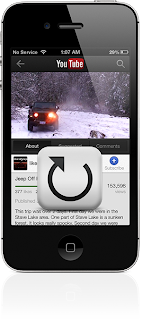
After you install this jailbreak tweak, then when you have finished watching a video on Youtube a free Google application, then the video will be played back (on my birthday). You can exit (exit) of the video that was repeated by just doing a tap on the back button, or simply close the application.
This tweak the concept is very clear, and useful for you who want to watch a funny video you found for the second time. It is also good if you feel the need to look back at the video there is a scene where you want to believe. Whats more to music videos, music lovers would want more than one listen to his music without the need to press the play button again repeatedly.
After this tweak is installed, then you will get a preferences panel on the application settings that you can enable or disable this tweak.
This tweak updated version is being drafted as I write this post, which allows you to enable or disable this tweak directly from Youtube application without the need to get out of it and use the Settings application.
If you want to try to keasikan iYoutubeReplay watch Youtube videos, so you can meet this tweak in Cydia under BigBoss closet. And this is the detail of tweaks iYoutubeReplay.
After you install this jailbreak tweak, then when you have finished watching a video on Youtube a free Google application, then the video will be played back (on my birthday). You can exit (exit) of the video that was repeated by just doing a tap on the back button, or simply close the application.
This tweak the concept is very clear, and useful for you who want to watch a funny video you found for the second time. It is also good if you feel the need to look back at the video there is a scene where you want to believe. Whats more to music videos, music lovers would want more than one listen to his music without the need to press the play button again repeatedly.
After this tweak is installed, then you will get a preferences panel on the application settings that you can enable or disable this tweak.
This tweak updated version is being drafted as I write this post, which allows you to enable or disable this tweak directly from Youtube application without the need to get out of it and use the Settings application.
If you want to try to keasikan iYoutubeReplay watch Youtube videos, so you can meet this tweak in Cydia under BigBoss closet. And this is the detail of tweaks iYoutubeReplay.
- Price: Free.
- Version: 1.0-1.
- Requirements for use: Googles YouTube application.
- Repository: BigBoss.
- Developers: Osama Mohammed.
Go to link Download
Tuesday, October 18, 2016
How To Hide WhatsApp Images Videos Photos From Your Gallery
How To Hide WhatsApp Images Videos Photos From Your Gallery
Undoubtedly, Whatsapp has stood its ground in the social chatting media world. Well some will say, whatsapp is the best Messenger Application, yes you cant just argue that. The Whatsapp messenger has got lots of features, among which is the ability to share files, sharing and receiving videos, images and a few file extensions.
Some personal photos or videos might have being sent to you, and probably, you don’t want to share it with any person. As though, you cant keep your phone away from others or perhaps dont like passwording stuffs. But course, there are intimate friends that you’ll always let to have access to your phones at any time.

What can be done to hide Whatsapp video’s and photos from such people?
Here is a tutorial on how you’ll be able to keep those files private on both your Android and iPhone so only you will be able to access them.
Android Users: Hiding Whatsapp Images and Videos from Android Gallery
Below is a guide to hide your Whatsapp videos and images on your Android device, if you are an android user you can quickly follow the below steps, and take advantage of this.
Firstly, download and install any File Manager app on your Android phone, if you already have one, don’t worry it will still be of use, but if you don’t have, you can downloadES File Explorer.
Lunch and locateSD Card under Home section and then click on Whatsapp>Media.
Look for Whatsapp Imagesfolder, when you find it, simply tap/hold on the folder for few seconds and then an option screen will pop-up, tap on rename and put ( . ) in front of that folder’s name.
This is what your folder should then look like “.Whatsapp Images”
Now, go back to your gallery and search for those photos and videos in that folder, you’ll notice that they are no more there. If you wish to retrieve or revert this, simply remove that( . ) and it will be reverted.
Now other people can’t see your images and videos of WhatsApp.
iPhone Users: Hide Whatsapp Images from iPhone Gallery
Below is a guide to hide your Whatsapp videos and images on your iPhone device, if you are an iPhone user you can quickly follow the below steps, and take advantage of this.
See Tips To Buy A Good Fairly Used iPhone
Firstly, go to Settingsand select Privacy
Now tap on Photosand then you will get all sources of Photos which you are using on your iPhone. Search for Whatsapp, when found, toggle it off.
You are done, it’s as easy as that, no one will be able to see your WhatsApp photos from your gallery any longer.
There might just be some other methods you may know on this, you can share it here. Thanks!
Some personal photos or videos might have being sent to you, and probably, you don’t want to share it with any person. As though, you cant keep your phone away from others or perhaps dont like passwording stuffs. But course, there are intimate friends that you’ll always let to have access to your phones at any time.
What can be done to hide Whatsapp video’s and photos from such people?
Here is a tutorial on how you’ll be able to keep those files private on both your Android and iPhone so only you will be able to access them.
Android Users: Hiding Whatsapp Images and Videos from Android Gallery
Below is a guide to hide your Whatsapp videos and images on your Android device, if you are an android user you can quickly follow the below steps, and take advantage of this.
Firstly, download and install any File Manager app on your Android phone, if you already have one, don’t worry it will still be of use, but if you don’t have, you can downloadES File Explorer.
Lunch and locateSD Card under Home section and then click on Whatsapp>Media.
Look for Whatsapp Imagesfolder, when you find it, simply tap/hold on the folder for few seconds and then an option screen will pop-up, tap on rename and put ( . ) in front of that folder’s name.
This is what your folder should then look like “.Whatsapp Images”
Now, go back to your gallery and search for those photos and videos in that folder, you’ll notice that they are no more there. If you wish to retrieve or revert this, simply remove that( . ) and it will be reverted.
Now other people can’t see your images and videos of WhatsApp.
iPhone Users: Hide Whatsapp Images from iPhone Gallery
Below is a guide to hide your Whatsapp videos and images on your iPhone device, if you are an iPhone user you can quickly follow the below steps, and take advantage of this.
See Tips To Buy A Good Fairly Used iPhone
Firstly, go to Settingsand select Privacy
Now tap on Photosand then you will get all sources of Photos which you are using on your iPhone. Search for Whatsapp, when found, toggle it off.
You are done, it’s as easy as that, no one will be able to see your WhatsApp photos from your gallery any longer.
There might just be some other methods you may know on this, you can share it here. Thanks!
Go to link Download
Wednesday, October 12, 2016
How to download instagram videos and photos 2016
How to download instagram videos and photos 2016
Instagram doesn’t have a straight download link for any pictures or videos shared on their app just like YouTube but there’s a fast and easy way on downloading them straight to your device.
Using Instwogram![[IMG]](https://lh3.googleusercontent.com/blogger_img_proxy/AEn0k_vHIAvt4sKKrVD-K8My7f7oZq5hrD-WJZbddtVlKNO44ybTprEhe79Zuo1SzZ3d88srQHwb8dECd2sWkQTduZjJg4xQpWBbltmYjyEI5NoNDZMxoWxPHIwRVz6CNK7Ip5oy2TW3Kpg7nqwCzZRq91oZ3HMqCQNWVNjQJtsmNChkwWkMK8qb1g=s0-d)
Instwogram is like a replica to the Instagram app,the only difference is that you can download videos and photos at just a click,lol. Well,you might not like the app because it’s an outdated version of Instagram but youll still enjoy it though.
You can download Instwogram HERE
Using Savedeo
Savedeo is a website with which you can download YouTube, DailyMotion, Vimeo, Instagram videos by just pasting the url of the video on their website and a download option will be available quickly. To download Instagram videos or photos,just press the ‘three dotted icon’ beside the video or photo and select Copy Share Url. Now go to Savedeo.com and paste the copied url in the download box then click download.
Using third party apps
There are several third party application on the playstore that are not in anyway affiliated with Instagram. Just go the playstore and search ‘Instagram Downloader’ ,just pick anyone that suits and see how they work. I’m pretty sure most of them work the same way savedeo.com is used.
Using Instwogram
Instwogram is like a replica to the Instagram app,the only difference is that you can download videos and photos at just a click,lol. Well,you might not like the app because it’s an outdated version of Instagram but youll still enjoy it though.
You can download Instwogram HERE
Using Savedeo
Savedeo is a website with which you can download YouTube, DailyMotion, Vimeo, Instagram videos by just pasting the url of the video on their website and a download option will be available quickly. To download Instagram videos or photos,just press the ‘three dotted icon’ beside the video or photo and select Copy Share Url. Now go to Savedeo.com and paste the copied url in the download box then click download.
Using third party apps
There are several third party application on the playstore that are not in anyway affiliated with Instagram. Just go the playstore and search ‘Instagram Downloader’ ,just pick anyone that suits and see how they work. I’m pretty sure most of them work the same way savedeo.com is used.
Go to link Download
Sunday, October 2, 2016
How to Download Youtube Videos
How to Download Youtube Videos


Dont Forget to Watch the Video Below
Youtube is the best site for watching videos worldwide as its one of the best and the most used site in the world. A lot of people wish to download youtube videos but this facility is not given by youtube as it is their policy not to allow users to download the videos. But now you can download youtube videos online using different methods.
One of those methods which I think is the best one for people living in Pakistan as youtube is banned in Pakistan. They need proxy softwares or websites to access youtube. So it is one of the best method to watch and download youtube videos. Just Logon to VIMOW and have fun.
Watch the Video Below
I hope you would like the video. Kindly share it with your friends and you can also send your requests for tutorial and let me know what do you like.
Go to link Download
Wednesday, September 21, 2016
How to put videos on your iPad without an internet connection
How to put videos on your iPad without an internet connection
Ill disclose here how to duplicate video records from your Windows PC or portable PC to your iPad, and they dont should be changed over into an extraordinary arrangement which the iPad can play. Well likewise demonstrat to you how you can download recordings without utilizing a PC by any stretch of the imagination, so you can watch them at whatever point you need, wherever you are - regardless of the fact that you have no web association.

Step by step instructions to put movies on an iPad: Videos application or an outsider application
On the off chance that you match up motion pictures or TV shows put away in your iTunes library, theyll show up in the local Videos application on your iPad. This is a consummately decent method for doing things, however in the event that your video isnt in an arrangement that iTunes can play, you cant add it to the library, nor sync it with your iPad. Likewise, you can just utilize one PC to adjust your iPad. On the off chance that you attempt to match up recordings from another PC running iTunes, youll get a notice that all your media will be erased first.The uplifting news is that there are heaps of applications accessible in the App Store on your iPad which can play recordings and permit you to "import" documents from any PC running iTunes. Most dont oblige you to first change over the video into a configuration the iPad can play locally (i.e. MP4). Rather, you can play basically anything you like, including AVI, DIVX, MKV and thats only the tip of the iceberg.
For instance, CineXPlayer HD costs two or three pounds yet will play most arrangements. It likewise backings separate subtitle records, which is helpful in case youre viewing a remote film that doesnt have subtitles implanted into the video itself.
There are different applications, including the free VLC player. Tragically, numerous such applications have needed to evacuate codecs taking after lawful solicitations and didnt really bolster encompass sound (AC-3 and others). This implies a video document with this sound configuration will play noiselessly: you would need to change over your video in a suitable application to downmix the encompass soudn to a stereo soundtrack first.
One free application which has astounding audits right now is PlayerXtreme Media Player by PentaLoop. This gives you a chance to exchange recordings by Wi-Fi, however for velocity and dependability well be utilizing a USB link for this aide. Clearly, introduce whichever application youre going to use before taking after the aide underneath.
Step 1. Interface your iPad to a PC with a late form of iTunes (attempt to utilize the most recent rendition if conceivable). iTunes ought to dispatch consequently and your iPad will appear on the left-hand side

Step 2. Click on the symbol speaking to your iPad and afterward tap on Apps in the menu on the left. Look down until you see the File Sharing area.

Step 3. Look down the rundown if vital and click on the suitable video application, for this situation well pick PlayerXtreme. On the privilege is a rundown of the records: its right now clear as we havent yet duplicated any recordings.

Step 4. Click the Add File... catch and explore to the video you need to put on your iPad. Select one or more and snap Open at the base of the dialog box. Bear in mind to choose any subtitle records which run with the recordings.

The movies will begin replicating to your iPad – an advancement bar is appeared in the sheet at the highest point of iTunes.
Once theyre exchanged, you can disengage your iPad, dispatch PlayerXtreme (or whichever video playback application youre utilizing) and the recordings will be there, prepared to watch.
Remember that playing video designs which arent locally bolstered by iOS will go through the battery speedier unless the application can utilize equipment increasing speed (which PlayerXtreme can).
Step by step instructions to put movies on an iPad: Use a video downloader application
On the off chance that you would prefer not to need to associate your iPad to a PC running iTunes, there are different approaches to get movies onto your iPad. One is to introduce a video downloader application, for example, Video Downloader Lite. Utilizing the applications constructed as a part of web program you can make a beeline for YouTube or another video spilling website and discover a video you need to watch.
When it begins playing, a pop-up window ought to seem giving you the choice to download or spare the video. You may need to sort in a name for it, or it may naturally take the name from the site page.
We have a different instructional exercise on downloading YouTube recordings to an iPad with orderly directions.
The most effective method to put movies on an iPad: get up to speed TV
BBC iPlayer and the All 4 application (Chanel 4) both permit you to download TV appears (counting movies) to your iPad. iPlayer now gives you 30 days to watch stuff you download, while with All 4 it relies on upon when the show was telecast in respect to what extent you have before the download lapses. Neither ITV Player nor Demand 5 permit you to download appears.
The most effective method to put movies on an iPad: Buy or lease from iTunes, Google Play Movies and TV or another administration
On the off chance that you dispatch the iTunes store on your iPad, then tap on Films at the base, youll locate an incredible choice of the most recent motion pictures accessible to lease or purchase. Leasing another film costs £3.49 in standard definition or £4.49 in HD. Fantastic movies are a pound less expensive. Purchasing one to observe more than once at whatever point you need costs £9.99 or £13.99 relying upon the motion picture.
Despite the fact that you can stream the movies promptly, a purchased or leased film will likewise be downloaded to your iPad so you can watch it without a web association.
At long last, on the off chance that you want to stay with the inherent Videos application and need to put movies from your PC onto your iPad, youll have to utilize the PC you use to match up and reinforcement your iPad.
At the point when your iPad shows up at the highest point of iTunes (in the wake of associating it with a USB link or utilizing Wi-Fi sync), click on the Films tab and you will see a rundown of the considerable number of movies youve imported into your iTunes library. Remember that they may show up in the TV Programs tab on the off chance that theyve been mistakenly labeled. This is likewise valid for TV Shows which are wrongly labeled as Films.
Tick the Sync Films box, then tick the movies you need to add to your iPad from the rundown. Then again, tick the crate alongside "Consequently incorporate all movies", and utilize the drop-down menu to pick an alternative from the rundown, for example, all unwatched.
You can introduce the Google Play Movies and TV application on the off chance that you favor and purchase or lease recordings that way. Lamentably, Netflix and Amazons gushing video administrations dont give you a chance to download substance to watch disconnected from the net..
Go to link Download
Saturday, September 10, 2016
How to download facebook videos on android phone
How to download facebook videos on android phone
Facebook does not offer a direct link for you to download a video, but you can download the Facebook videos on your Android phone using a third-party app called My Video Downloader, which is available for free on Google play store. let us see How to download facebook videos on android directly
My Video Downloader for Facebook is the leading app to download videos from your Facebook to your Android device. It is very easy to use. With My Video Downloader, you can download any kind of videos from Facebook. Videos like tagged, shared and uploaded by you or your friends can be downloaded using this app. It is also allows you to download videos from the pages and groups you liked.
How to Use My Video Downloader for Facebook
Once installed, launch the app and log in to your Facebook account.
Swipe in to the right to access the menu. In the menu, select ‘News Feed’ to search for the video you want to download.
 Once you have found a video you like, tap on the little tick icon beside the video you would like to download, and hit the download icon located on the top-right corner of the screen.
Your downloaded video will be saved to you phone’s SD card by default, but you can choose to save videos to your phone SD card from the Setting’s menu. [post_ad]
You can also check Related Article
How to Block Game Requests On Facebook – 2016
How to Delete Gmail Facebook Twitter Google+ YouTube or LinkedIn Account -New!
How to Delete Gmail Facebook Twitter Google+ YouTube or LinkedIn Account -New!
Don’t forget to Share it with your friends via Facebook & Google+ and Twitter, And if you like the article How to download facebook videos on android phone and you may even Subscribe for New post, to get directly in your mail inbox.
Go to link Download
Friday, September 9, 2016
How to hide videos Photo in android Phone
How to hide videos Photo in android Phone
Its necessery to know how to hide your personal documents photos and videos from others eye. So many android apk in the market but which one is best for you. Yes thats the fact. Today i will share with you about the most user friendly and most secured Android privacy protecting application which will you get absolutely free of cost.
If you have photos and videos you don’t want just anyone to see, you might want to consider using KeepSafe Vault to hide videos and pictures.

Hide Pictures – KeepSafe Vault is an app that will keep those private pictures nice and safe. When you first launch the app it will ask you if you want to create an account or sign in with a particular email address. It will also ask you to create a pin (that you’re obviously not supposed to give out) to keep your videos and pictures safe.
Once you’re inside the app you will notice that the app has already set up a few albums for you such as Main Album, Documents, Health and Fitness, Cards and IDs. Once you have uploaded a few pics or videos, it will automatically add a trash folder. It is good to see that it added the folder on its own, just in case you ever regret deleting anything. If you want to create a folder, tap on the blue circle with the white cross and select Add album

In the Documents folder you can safely add pictures of sensitive documents whose information you always need access to. In the Health and Fitness folder you can keep track of your progress of that flat tummy you’ve always wanted (I gave up a long time ago, but I’m almost there), and in Cards and IDs you can keep pictures of things such as credit cards, IDs, insurance, and passports.
Each folder will also tell you how many pictures and videos you have. You can see the exact number at the very top.

Adding photos and videos to a particular folder is very easy. Just tap on the blue circle, and you will see two options: import from gallery and take a photo. Since you are importing that image, whoever tried to take an unauthorized look at your gallery won’t be able to see those images.
KeepSafe is full of useful features such as being able to send temporary pictures right from the app in a secure way. When I say temporary, I mean that the person receiving the picture has twenty seconds to see the picture. Something like the SnapChat feature is built into the app.
KeepSafe has a very simple and easy to use interface that is great for beginners. It also features picture rotation and zoom, allows you to send encrypted pictures and videos, and works great on phones and tablets. The list of features doesn’t end there since it also lets you zoom in on your pictures, personally name all your albums and also has a slideshow function.
It was so easy tutorial that may help you to make your android privacy more strong by using two smart free android application KeepSafe Vault free and GO sms pro. You can see my another post about best photo editor android application. Have you still any question suggestion about the article or about the blog please feel free to contact us.
If you have photos and videos you don’t want just anyone to see, you might want to consider using KeepSafe Vault to hide videos and pictures.
Hide Pictures – KeepSafe Vault is an app that will keep those private pictures nice and safe. When you first launch the app it will ask you if you want to create an account or sign in with a particular email address. It will also ask you to create a pin (that you’re obviously not supposed to give out) to keep your videos and pictures safe.
KeepSafe Folders
Once you’re inside the app you will notice that the app has already set up a few albums for you such as Main Album, Documents, Health and Fitness, Cards and IDs. Once you have uploaded a few pics or videos, it will automatically add a trash folder. It is good to see that it added the folder on its own, just in case you ever regret deleting anything. If you want to create a folder, tap on the blue circle with the white cross and select Add album
In the Documents folder you can safely add pictures of sensitive documents whose information you always need access to. In the Health and Fitness folder you can keep track of your progress of that flat tummy you’ve always wanted (I gave up a long time ago, but I’m almost there), and in Cards and IDs you can keep pictures of things such as credit cards, IDs, insurance, and passports.
Each folder will also tell you how many pictures and videos you have. You can see the exact number at the very top.
How to Hide Certain Pictures and Videos
Adding photos and videos to a particular folder is very easy. Just tap on the blue circle, and you will see two options: import from gallery and take a photo. Since you are importing that image, whoever tried to take an unauthorized look at your gallery won’t be able to see those images.
Other Great KeepSafe Features
KeepSafe is full of useful features such as being able to send temporary pictures right from the app in a secure way. When I say temporary, I mean that the person receiving the picture has twenty seconds to see the picture. Something like the SnapChat feature is built into the app.
KeepSafe has a very simple and easy to use interface that is great for beginners. It also features picture rotation and zoom, allows you to send encrypted pictures and videos, and works great on phones and tablets. The list of features doesn’t end there since it also lets you zoom in on your pictures, personally name all your albums and also has a slideshow function.
It was so easy tutorial that may help you to make your android privacy more strong by using two smart free android application KeepSafe Vault free and GO sms pro. You can see my another post about best photo editor android application. Have you still any question suggestion about the article or about the blog please feel free to contact us.
Go to link Download
Thursday, September 1, 2016
How to Download Videos From YouTube
How to Download Videos From YouTube

How to Download Videos From YouTube: Android Iphone Window Web
Please note that YouTubes terms of services say, "You shall not download any Content unless you see a "download" or similar link displayed by YouTube on the Service for that Content." So if you see the download button, you can legally download this video easily without the need of a third-party app.
The terms further add, "You shall not copy, reproduce, make available online or electronically transmit, publish, adapt, distribute, transmit, broadcast, display, sell, license, or otherwise exploit any Content for any other purposes without the prior written consent of YouTube or the respective licensors of the Content." So if the video does not have a download button, be sure to get that consent before you proceed.
We tried different methods of downloading a YouTube video across different platforms, but this is not an exhaustive list, just the ones we liked the most. These are our favourite choices to download YouTube videos for offline use, on each platform.
One thing youll have to do in almost all these methods is decide what quality and format of video you want to download. If you are looking for something small that will play on most mobile devices, you should choose one of the 3GP options - 144p will be smaller and might have artifacts, while a 720p MP4 is really overkill if you just want to look at it on a small phone. A 360p MP4 looks fine on most mobile screens, without eating up too much of your data plan either.
Download videos from youtube Web
Keepvid is one of the simplest ways to download videos from the web, and all you need is the URL - the address of the web page that shows up in the bar where you type in a sites name - to download files. To use Keepvid, you need to follow these steps:
1. Open the video you want to save in YouTube. Click on the address bar, then select the full address and copy it.
2. Next, go to the Keepvid website.
3. On the website, you see a form where you can enter the link of the video you want to download. Paste the URL you copied earlier in this bar, and then click the Download button on the right. Youll immediately get a list of links, mentioning different formats and sizes.
4. Choose the file you want from the list of formats and sizes, and then right click on that particular link. To save the file, select Save link as... and you will be asked where you want to save the file on your computer.
Download videos from youtube Browser extension
In case you dont want to go through the hassle of copy pasting the details every time, browser extensions are a great shortcut. Our favourite one is SaveFrom.net, which works with Opera, Firefox and Chrome. To use this, first you need to install the extension.
Click the link to download the extension for your browser. Opera, Firefox or Chrome.
Once youve installed the extension, a SaveFrom.net button appears in the top right corner of your browser.
To download a video, do the following:
1. Go to the video page, and then click on the extension button.
2. A drop down menu appears comprising a number of options. Click on the Download from current page option.
3. Doing so takes you to the SaveFrom.net official page, where the url of the video is already processing.
4. You will see general information about the video like title (name of the video), duration and source. You can choose to download the video in any of the formats like (FLV 240p, MP4 720p, 3GP 240p) which appear below the download links.
5. Right click on the format you want, and select Save link as... to download the file.
Internet Explorer does not support SaveFrom.net addon, so we decided to go with FastestTube which is as good as any other extension. Here are the steps: [post_ad]
1. Visit the page to download the extension.
2. Click on the Internet Explorer icon.
3. FastestTube setup gets downloaded. Follow the download steps to install the extension.
4. Open the YouTube video you want to download.
5. A Download button appears below the video.
6. Click on the Download button and a drop down menu comes showing various formats in which the video can be downloaded.
7. You the video format and the download will start.
2. A drop down menu appears comprising a number of options. Click on the Download from current page option.
3. Doing so takes you to the SaveFrom.net official page, where the url of the video is already processing.
4. You will see general information about the video like title (name of the video), duration and source. You can choose to download the video in any of the formats like (FLV 240p, MP4 720p, 3GP 240p) which appear below the download links.
5. Right click on the format you want, and select Save link as... to download the file.
Internet Explorer does not support SaveFrom.net addon, so we decided to go with FastestTube which is as good as any other extension. Here are the steps: [post_ad]
1. Visit the page to download the extension.
2. Click on the Internet Explorer icon.
3. FastestTube setup gets downloaded. Follow the download steps to install the extension.
4. Open the YouTube video you want to download.
5. A Download button appears below the video.
6. Click on the Download button and a drop down menu comes showing various formats in which the video can be downloaded.
7. You the video format and the download will start.
Download videos from youtube Windows/ OS X
If you dont want to use a website or a browser extension but a standalone program on your computer, YouTubeDownloader (YTD) has you covered.
1. Go to YTD video converter page.
2. Click on the Free Download button.
3. YouTube downloader gets downloaded in the default download folder on your system.
4. Double click on the setup file to install the YTD Video Downloader.
5. Once the download is complete, open YouTube and copy the url of the video you want to download.
6. Open YTD and click on Paste URL button.
7. You can select the video quality by clicking on the Download quality dropdown and selecting any one of the options which appear in the drop down menu.
8. Now just click on the Download button at the bottom right corner.
9. You can pause or stop the download by clicking on the video and selecting the pause or the stop button above it.
10. To view the downloaded video click on the folder icon right above the video box and it will open the location where the video has been downloaded.
1. Go to YTD video converter page.
2. Click on the Free Download button.
3. YouTube downloader gets downloaded in the default download folder on your system.
4. Double click on the setup file to install the YTD Video Downloader.
5. Once the download is complete, open YouTube and copy the url of the video you want to download.
6. Open YTD and click on Paste URL button.
7. You can select the video quality by clicking on the Download quality dropdown and selecting any one of the options which appear in the drop down menu.
8. Now just click on the Download button at the bottom right corner.
9. You can pause or stop the download by clicking on the video and selecting the pause or the stop button above it.
10. To view the downloaded video click on the folder icon right above the video box and it will open the location where the video has been downloaded.
Download videos from youtube Windows Phone
There are plenty of apps to download YouTube videos available on the Windows Store, some are paid while the others are free. We have selected Tube Pro, because it is extremely simple to use, with not too many options before downloading the video - simply search and download.
To download, videos first download the app. Launch the app, and you will see the Menu screen with various options like Hot videos, Favorites, Offline playlist, My playlist and My download. There is a Top Rated menu also comprising most popular music, sports and movie videos.
Then follow these steps:
1. Tap on the Search icon at the bottom and enter the name of the video you want to download. Right below the search bar there is HD check box which you can select if you want the search to return only HD videos.
2. Tap on the video you want from the results, choose the quality setting from LQ, HQ and HD boxes - stands for Low, High and HD quality respectively - then tap the Download button to start downloading.
3. After youve downloaded a video, you can play it from the app itself, by going to the My Download section.
To download, videos first download the app. Launch the app, and you will see the Menu screen with various options like Hot videos, Favorites, Offline playlist, My playlist and My download. There is a Top Rated menu also comprising most popular music, sports and movie videos.
Then follow these steps:
1. Tap on the Search icon at the bottom and enter the name of the video you want to download. Right below the search bar there is HD check box which you can select if you want the search to return only HD videos.
2. Tap on the video you want from the results, choose the quality setting from LQ, HQ and HD boxes - stands for Low, High and HD quality respectively - then tap the Download button to start downloading.
3. After youve downloaded a video, you can play it from the app itself, by going to the My Download section.
Download videos from youtube Android
Our favourite Android app in this category is TubeMate. The free app is not available on Google Play though, and you need to install the Amazon Appstore for Android to get it.
Installing Appstore for Android
1. On your phone, first open Settings and then go to Applications and find the Unknown Sources option. In case it isnt there (this varies across devices), then, in Settings, go to Security. Tick the Unknown Sources box, and tap OK on the confirmation popup.
2. Next, visit the Appstore link and download the APK file.
3. In the file explorer, find AmazonApps-release.apk and tap it. Tap Install and once the installation is done, tap Open to launch the app.
Next, you can install TubeMate and download videos.
1. Search for TubeMate YouTube Downloader and tap the Install button.
2. Once the installation finishes, tap on the app icon to launch the app.
3. In the app, tap on the search icon and type the name of the video.
4. Wait till all the videos are loaded and then tap on the one you want to download.
5. Tap on the green coloured arrow at the top right corner which is the download icon, to download the YouTube video which is being currently played.
6. You can download multiple videos and it also lets you play only the audio from the video.
7. A pop up window appears saying Parsing video information. This basically means that the video information is being processed.
8. Right after that, a list of various video formats will appear and you can select any one out of them.
9. Just tap on the download button at the bottom to download the YouTube video on your Android phone.
10. If you want to check where the video is downloaded just tap the semi-circle icon and you will enter the download section which shows downloads in progress.
11. If by any chance you have to pause the video then the TubeMate app lets you resume the download from the same point where you had left it.
2. Next, visit the Appstore link and download the APK file.
3. In the file explorer, find AmazonApps-release.apk and tap it. Tap Install and once the installation is done, tap Open to launch the app.
Next, you can install TubeMate and download videos.
1. Search for TubeMate YouTube Downloader and tap the Install button.
2. Once the installation finishes, tap on the app icon to launch the app.
3. In the app, tap on the search icon and type the name of the video.
4. Wait till all the videos are loaded and then tap on the one you want to download.
5. Tap on the green coloured arrow at the top right corner which is the download icon, to download the YouTube video which is being currently played.
6. You can download multiple videos and it also lets you play only the audio from the video.
7. A pop up window appears saying Parsing video information. This basically means that the video information is being processed.
8. Right after that, a list of various video formats will appear and you can select any one out of them.
9. Just tap on the download button at the bottom to download the YouTube video on your Android phone.
10. If you want to check where the video is downloaded just tap the semi-circle icon and you will enter the download section which shows downloads in progress.
11. If by any chance you have to pause the video then the TubeMate app lets you resume the download from the same point where you had left it.
Download videos from youtube iPhone
On the iPhone, we found Video Download & Player, which lets you download YouTube videos to your device. Heres what you need to do:
1. Install the Video Download & Player app from the App Store.
2. Launch the app, and click on the search bar.
3. Search the video you want to download.
4. Select the video and click on Cache Video to Memory. Your video starts downloading.
5. You can check the downloaded files in the Videos section at the bottom.
6. The app also lets you watch the videos offline.
2. Launch the app, and click on the search bar.
3. Search the video you want to download.
4. Select the video and click on Cache Video to Memory. Your video starts downloading.
5. You can check the downloaded files in the Videos section at the bottom.
6. The app also lets you watch the videos offline.
Don’t forget to Share it with your friends via Facebook & Google+ and Twitter, And if you like the article How to Download Videos From YouTube and you may even Subscribe for New post, to get directly in your mail inbox.
Go to link Download
Subscribe to:
Posts (Atom)