Showing posts with label clean. Show all posts
Showing posts with label clean. Show all posts
Saturday, October 22, 2016
How can i clean up my gmail inbox
How can i clean up my gmail inbox
Most people have a Gmail account these days, and at least some of you might have realised - with an unpleasant shock - that the space in your inbox is getting filled up. Gmail has a pretty huge 15GB limit, but over the years, mail tends to build up, and many of us are probably reaching those limits now.
Luckily cleaning up your Gmail inbox isnt a challenge, thanks to some Gmails own tools and some third party apps as well. Weve found a few reliable ways to quickly clean your Gmail inbox. Start now and we promise it wont take more than half an hour.
How to clean up your gmail inbox fast
Gmail search filters
Gmail doesnt have the option to sort files - you cant get the inbox to display mails alphabetically, or according to the date received, or size. This might sound like a problem, but as is to be expected from a Google company, Gmail has a superb search function, which can be used to solve the problem easily. Follow these steps to clear up the emails you dont need:
1. Sign in to Gmail > go to the big search bar at the top.
2. First, lets clear out the emails taking up the most space. Type Larger:10M in the search bar > hit enter or click the magnifying glass icon.
3. This will find emails taking up more than 10MB. Now select the mails you dont want > delete (trash can icon).
4. You can experiment with different file sizes, depending on how much you need to delete.
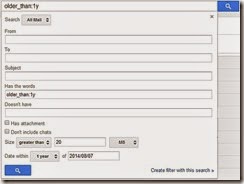
5. The obvious next step is to clear out emails from the long ago. You can use Before:YYYY/MM/DD to specify a cutoff date, or older_than:years if you want to search for mails that are one, two or more years old. For example, if you want mails that are older than one year, you can type older_than:1y > press enter to see the list, and then select mails > delete to make space.
6. You can use combinations of commands, so if, for example, you want to delete old mails with attachments that are more than 1MB in size, then type the following into search: has:attachment larger:1M older_than:1y > press enter, then see the list, and select items > delete mails.
7. In case youre starting to worry about remembering all these operators, then you will be happy to know that Google has you covered. Click on the downward pointing arrow at the right corner of the search bar, and you will see the advanced search, which lets you apply all these filters in a simple menu.
Find Big Mail
Find Big Mail was the only way to - well - find big emails in Gmail, until Gmail added the filters we mentioned already. The app is still pretty useful because it automates the process of finding mails that should be deleted and also creates labels so you can find them again later without any difficulty.
Follow these steps to clean up that messy inbox:
1. Head to the Find Big Mail website > enter your Gmail address in the big form > click Find Big Mail.
2. Now Google will ask you to authorise this service. Enter your password (if you havent logged in already) > click Allow access.
3. The service will now begin scanning your inbox. It claims that it only sees the size of your emails and not the content. Once scanning is complete, you will get an email alert. Ignore the email. [post_ad]
4. On the left side, under the links for inbox, sent mail, etc., you will see new labels. If you dont see this, expand the labels menu. You will see four labels: FindBigMail - Top, FindBigMail > 1MB, FindBigMail > 5MB, FindBigMail > 10MB. Click any of these > select the emails you dont need > delete.
5. The advantage of this method is that you dont need to repeat the search later to find the worst offenders, if youre running out of space again.

Mailstrom
If youre willing to use a paid service, then we really liked Mailstrom. The app works great and you can delete up to 660 emails for free, to get an idea of how it works. Unfortunately, using it beyond this limit involves a payment of around Rs. 300 per month.
With that said, Mailstroms feature set is fairly advanced. It sorts emails by sender, lets you unsubscribe from newsletters quickly and bundles related emails so that you can delete several at once. Follow these steps:
1. Open the Mailstrom website > enter your Gmail address in the form > click Start Free Trial > click Authorize With Google > enter email and password > Sign in.
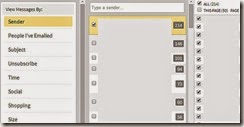
2. Now you will see your inbox through Mailstrom. It will take some time to sort all your emails. Once done, you will see all emails grouped by sender. We found surprisingly large numbers of emails from people we hadnt spoken to in years. We started by deleting these.
3. You can quickly clear emails using the left sidebar, which lets you view emails by size, time, emails from social networks and has a handy Unsubscribe link to help clear the clutter.
We recommend Mailstrom for those who are facing a serious email overload and have abandoned all hope of ever cleaning up their inboxes. We managed to clear over 200 emails within a minute using Mailstrom. For the average user though, the free methods we already described are probably the better choice.
These are our favourite methods for cleaning the Gmail inbox. What are yours? Tell us via the comments.
Don’t forget to Share it with your friends via Facebook & Google+ and Twitter, And if you like the article How can i clean up my gmail inbox and you may even Subscribe for New post, to get directly in your mail inbox.
Go to link Download

Saturday, October 8, 2016
How to Clean Your Mobile RAM Manually in Android Device
How to Clean Your Mobile RAM Manually in Android Device
The most common problem smart phone users face is shortage of space. This article is about how do you clean your ram and make some space free so that your mobile runs without interruption.

1) Touch the left touch panel, you will be given few options
2) Scroll and select manage apps
3) Go to all apps
4) Just wait for 10 seconds
5) Again touch1 the left touch panel
6) Sort by size
7) Now you will see apps with sizes in a descending order(higher size to lower size)
8) Don’t select any Google apps, select any other app like facebook, whatsapp, linkedin etc
9) Now you have two options, you can either move them to SD card or you can clear data
10) If you have cleared data, now close that window.
11) Go to that particular app from your menu which data is cleared just now.
12) Touch that app
13) Put your credentials
14) Get started again
15) Repeat the process once you face the problem again (you can continue doing it with facebook, likedin, whatsapp etc)[post_ad]
Don’t forget to Share it with your friends via Facebook & Google+ and Twitter, And if you like the article How to Clean Your Mobile RAM Manually in Android Phone and you may even Subscribe for New post, to get directly in your mail inbox.
1) Touch the left touch panel, you will be given few options
2) Scroll and select manage apps
3) Go to all apps
4) Just wait for 10 seconds
5) Again touch1 the left touch panel
6) Sort by size
7) Now you will see apps with sizes in a descending order(higher size to lower size)
8) Don’t select any Google apps, select any other app like facebook, whatsapp, linkedin etc
9) Now you have two options, you can either move them to SD card or you can clear data
10) If you have cleared data, now close that window.
11) Go to that particular app from your menu which data is cleared just now.
12) Touch that app
13) Put your credentials
14) Get started again
15) Repeat the process once you face the problem again (you can continue doing it with facebook, likedin, whatsapp etc)[post_ad]
Don’t forget to Share it with your friends via Facebook & Google+ and Twitter, And if you like the article How to Clean Your Mobile RAM Manually in Android Phone and you may even Subscribe for New post, to get directly in your mail inbox.
Go to link Download
Friday, September 30, 2016
How to Clean Up Your Digital Music Collection
How to Clean Up Your Digital Music Collection

Music is such an important part of most peoples lives, and the advent of the Internet and iTunes has really changed the way we interact with our music. Whether we’re in the car, at the gym, or relaxing after a hard day of work, music can work magic.
Today, it’s not uncommon to have thousands of songs on your music playlist. In fact, many people have so much music that it’s literally out of control!
Today’s digital players offer a wealth of ways to store and organize music, but if you’re not careful, it can quickly become a nightmare. Ask yourself: How many duplicate songs do you have in your collection? How many songs are listed as "track unknown” or are missing cover art that lets you identify them quickly?
If this describes you, then you may be interested in a great new plug-in service called TuneUp that’s coming to the rescue of millions of music lovers. In fact, TuneUp is now the #1 plug-in for iTunes, though it’s also compatible with Windows Media Player.
TuneUp was created in 2007 by a music lover who was fed up with his own disorderly music library. Once he created a few plug-in tools to organize and enhance his playlist, he wanted to share it with all music lovers, so everyone could enjoy their music experience to the fullest.
The app is incredibly easy to use, with one-click access to simple tools that get the job done.
How it Works
The first step is to CLEAN up your tracks that contain unknown artists, misspellings, and other irregularities with your album. CLEAN uses acoustic fingerprint technology to quickly fix inaccurate data by matching its fingerprint to Gracenote’s MusicID™ database. This database contains over 90 million indexed tracks, and is the largest collection of music metadata in the world.
--> Next, TuneUp’s DeDuper tool will locate all the duplicates in your music collection. It will display them in bulk for easy removal with a single click of the mouse, or you can review them individually by the original file location.
Finally, don’t settle for missing album covers replaced by ugly gray music notes. TuneUp’s Cover Art scans and identifies all your albums with missing or incorrect cover art. You’ll be offered multiple cover arts to choose from, in case you prefer an import cover or a domestic release. In no time, you’ll have brand new cover art to enjoy and identify your songs by.
How many times have you kicked yourself when you found out that one of your favorite bands was in town and you missed the show? Perhaps the best feature of TuneUp is its concert feature. It can make sure you’ll always be the first to know when your favorite band is coming to play in near you. It combs through your entire music collection, and if it sees you own a song by an artist performing at an upcoming concert, it will provide you with full details and even offer you a chance to purchase tickets quickly and easily.
And, more than just upcoming concert info, TuneUp also brings you music-related content from all over the Web about your favorite artists. For every song you download, you’ll be able to view videos, artist bios, news, brand merchandise, and buy concert tickets to upcoming shows.
TuneUp offers a free trial of the TuneUp Bundle; download it now and start cleaning up your messy music collection today.
Click here to get your free trial.
Go to link Download
Monday, September 19, 2016
How To Clean Up All Kinds Of Android Cache In The Samsung Android Phone
How To Clean Up All Kinds Of Android Cache In The Samsung Android Phone
A lot application cache in the phone not only take phone memory space but also affect the performance of the phone. It can get slowly when you open an application to have fun; it may need a little more space to put your film successfully in the phone card. Well, you need to clean up your phone now.

First, you have to root your phone. For guys who have cleanliness habit, you can’t stand any garbage into your guys. One more,request, you have to install the RE browser.
After open the RE browser, you can find the second file folder which collects cache. What you need to is delete all of them.And back to the home page of RE browser, and find the data folder, and pull down after enter it. Delete the all the files in “log” folder after you find it. Sometimes there is system errors existing for your phone, which can produce error files of about 1.4 M.
Next, move to the exciting moments. Find the data folder in the RE’home page and pull down to find the “dalvik-cache”. You will find a lot files which end with “dex”. Why do you need to clear this kind of dex files? Dex files will exit gradually after installing apps and games. You can use the RE browser to how much space they take. Is that amazing?

The next step is to click the virtual function keys on the most lower-left corner, Click on the "multi-select mode", then "Select All", click "Delete" button. Then you have to exit the RE browser quickly to power your phone off. Or it will exit system errors.
Check the dex files. Yes, they exit again! But the deleted dex files disappear forever. It can save a lot space by cleaning these useless garbage files.
Go to link Download
Subscribe to:
Posts (Atom)