Showing posts with label music. Show all posts
Showing posts with label music. Show all posts
Monday, October 24, 2016
How to Add Music to Blog
How to Add Music to Blog
www.amalul.info - How to Add Music to Blog - welcome to my Blog, today I want to Share a tutorial for blogspot, and I give it for you. This article will help you to add music player to Blogger blog.it is very simple, this is the tutorial:
1. First, you need to go to Muzicons to get a music gadget. Select icon you like and search music you want to play on your blog. this is the picture:
 |
| How to Add Music to Blog |
2. Select look and color for your music gadget. this is the picture:
 |
| How to Add Music to Blog |
3. It is preview music player, now you can copy the HTML code. This is the picture:
 |
| How to Add Music to Blog |
4. Go back to your Blogger blog and click Layout tab, then add a gadget on it. this is the picture:
 |
| How to Add Music to Blog |
5. Find HTML/JavaScript and click the plus sign. this is the picture:
 |
| How to Add Music to Blog |
6. Now paste the html code we copied in step three. Then click SAVE. this is the picture:
 |
| How to Add Music to Blog |
7. Have a look at your blog, the music player is there.
 |
| How to Add Music to Blog |
ok, now you have been add music to your blog, and you can listen your music in blog, many people also can listen the music when visit your blog.
Go to link Download

Thursday, October 13, 2016
How To Download Music From Sound Cloud With Your Android Devices
How To Download Music From Sound Cloud With Your Android Devices
Permit me to work you through how to download premium music on SoundCloud using your Android device
Steps
•Download the soundcloud app.
•Download the SoundCloud Loader app
• Now open the the SoundCloud App and tap on any music you want to download
and tap on the share button

• Some Share options will pop, Tap on the SoundCloud loader
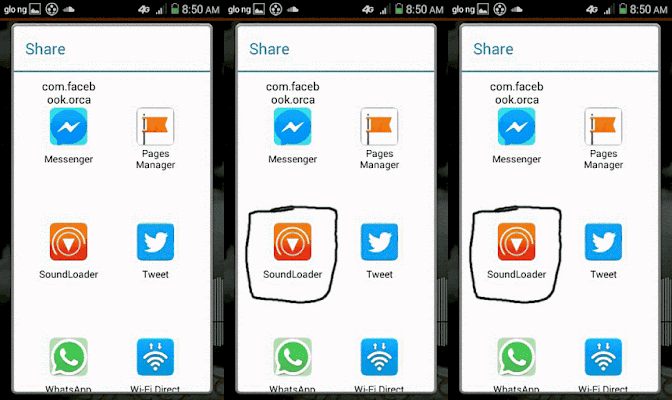
In No time Your Music Download Will begin.•Download the soundcloud app.
•Download the SoundCloud Loader app
• Now open the the SoundCloud App and tap on any music you want to download
and tap on the share button
• Some Share options will pop, Tap on the SoundCloud loader
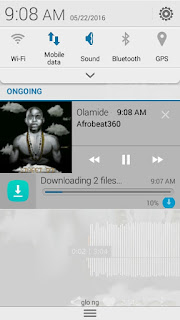
Hope you enjoy this Tutorial? Kindly appreciate by commenting below.
Go to link Download
Saturday, October 8, 2016
How To Download Music Video On Your iPhone iPod iPad
How To Download Music Video On Your iPhone iPod iPad
Downloading to your iPhone, iPod touch or iPad should be as easy as it is on your computer. That is why iDownloader App was Created.
Now you don’t have to go to your Computer to Update your Music Library whenever you need a new Music or Video, You can just connect to the Internet and Download like every other Device owner does using iDownloader on your Apple device.
Now you can easily download anything from the web to your i-Device and then view/play the downloaded files or transfer them to your computer.
iDownloader Pro Key Features:-
Web Browser
– Built in Browser, This App come with a Browser that allow you Download to your iPhone, iPad & iPod [The Only browser in the World that can Download on Apple Devices]
– Ability to Download easily.
– Password Management Features
Download Manager
– Ultra fast downloading speed
– Up to 50 simultaneous downloads
– Download in background mode (10 min max due to iOS restrictions)
– Supports resumption of interrupted downloads
– Download Files over 3G

Music and Video Player Features
– Music playback of mp3, wav and m4a formats
– Repeat and shuffle songs
– Background / Lock Screen playing mode
– Save the Audio play position. [You can Resume Songs or Continue from where you stop]
– Album covers
– Lyrics
– Background Video Playback
– Video playback of mp4, m4v, mov, 3gp & m3u8 videos
– Thumbnails view
– Export videos to Camera Roll
– AirPlay support (iOS 4.2 or above)
– Video Playlists
– Save the Video play position [You can Resume Songs or Continue from where you stop]
File Manager
– AUTOMATICALLY rename downloaded songs by Artist and Song Title.
– Move, rename and delete files
– Sorting by name, type, size, date
– Extract zip & rar archives
– USB & Wi-Fi Transfer to/from PC
Download iDownloader From iTunes Here
Now you don’t have to go to your Computer to Update your Music Library whenever you need a new Music or Video, You can just connect to the Internet and Download like every other Device owner does using iDownloader on your Apple device.
Now you can easily download anything from the web to your i-Device and then view/play the downloaded files or transfer them to your computer.
iDownloader Pro Key Features:-
Web Browser
– Built in Browser, This App come with a Browser that allow you Download to your iPhone, iPad & iPod [The Only browser in the World that can Download on Apple Devices]
– Ability to Download easily.
– Password Management Features
Download Manager
– Ultra fast downloading speed
– Up to 50 simultaneous downloads
– Download in background mode (10 min max due to iOS restrictions)
– Supports resumption of interrupted downloads
– Download Files over 3G
Music and Video Player Features
– Music playback of mp3, wav and m4a formats
– Repeat and shuffle songs
– Background / Lock Screen playing mode
– Save the Audio play position. [You can Resume Songs or Continue from where you stop]
– Album covers
– Lyrics
– Background Video Playback
– Video playback of mp4, m4v, mov, 3gp & m3u8 videos
– Thumbnails view
– Export videos to Camera Roll
– AirPlay support (iOS 4.2 or above)
– Video Playlists
– Save the Video play position [You can Resume Songs or Continue from where you stop]
File Manager
– AUTOMATICALLY rename downloaded songs by Artist and Song Title.
– Move, rename and delete files
– Sorting by name, type, size, date
– Extract zip & rar archives
– USB & Wi-Fi Transfer to/from PC
Download iDownloader From iTunes Here
Dont Forget To Add your View, Comments on this Post.00
Always Like and Share Posts, You can Make use of the Share Buttons below.....
Always Like and Share Posts, You can Make use of the Share Buttons below.....
Go to link Download
Friday, September 30, 2016
How to Clean Up Your Digital Music Collection
How to Clean Up Your Digital Music Collection

Music is such an important part of most peoples lives, and the advent of the Internet and iTunes has really changed the way we interact with our music. Whether we’re in the car, at the gym, or relaxing after a hard day of work, music can work magic.
Today, it’s not uncommon to have thousands of songs on your music playlist. In fact, many people have so much music that it’s literally out of control!
Today’s digital players offer a wealth of ways to store and organize music, but if you’re not careful, it can quickly become a nightmare. Ask yourself: How many duplicate songs do you have in your collection? How many songs are listed as "track unknown” or are missing cover art that lets you identify them quickly?
If this describes you, then you may be interested in a great new plug-in service called TuneUp that’s coming to the rescue of millions of music lovers. In fact, TuneUp is now the #1 plug-in for iTunes, though it’s also compatible with Windows Media Player.
TuneUp was created in 2007 by a music lover who was fed up with his own disorderly music library. Once he created a few plug-in tools to organize and enhance his playlist, he wanted to share it with all music lovers, so everyone could enjoy their music experience to the fullest.
The app is incredibly easy to use, with one-click access to simple tools that get the job done.
How it Works
The first step is to CLEAN up your tracks that contain unknown artists, misspellings, and other irregularities with your album. CLEAN uses acoustic fingerprint technology to quickly fix inaccurate data by matching its fingerprint to Gracenote’s MusicID™ database. This database contains over 90 million indexed tracks, and is the largest collection of music metadata in the world.
--> Next, TuneUp’s DeDuper tool will locate all the duplicates in your music collection. It will display them in bulk for easy removal with a single click of the mouse, or you can review them individually by the original file location.
Finally, don’t settle for missing album covers replaced by ugly gray music notes. TuneUp’s Cover Art scans and identifies all your albums with missing or incorrect cover art. You’ll be offered multiple cover arts to choose from, in case you prefer an import cover or a domestic release. In no time, you’ll have brand new cover art to enjoy and identify your songs by.
How many times have you kicked yourself when you found out that one of your favorite bands was in town and you missed the show? Perhaps the best feature of TuneUp is its concert feature. It can make sure you’ll always be the first to know when your favorite band is coming to play in near you. It combs through your entire music collection, and if it sees you own a song by an artist performing at an upcoming concert, it will provide you with full details and even offer you a chance to purchase tickets quickly and easily.
And, more than just upcoming concert info, TuneUp also brings you music-related content from all over the Web about your favorite artists. For every song you download, you’ll be able to view videos, artist bios, news, brand merchandise, and buy concert tickets to upcoming shows.
TuneUp offers a free trial of the TuneUp Bundle; download it now and start cleaning up your messy music collection today.
Click here to get your free trial.
Go to link Download
Wednesday, August 31, 2016
How to clear recommendation history in Google Play Music
How to clear recommendation history in Google Play Music
If you head into the settings page of the desktop Google Play Music site then you’ll see a new option that rolled out today called “delete recommendation history” that will do just that and allows you to remove the history used to give you recommendations and customise radio. It’s worth noting that this will not remove ratings and play counts on individual tracks.
If you head into the settings page of the desktop Google Play Music site then you’ll see a new option that rolled out today called “delete recommendation history” that will do just that and allows you to remove the history used to give you recommendations and customise radio. It’s worth noting that this will not remove ratings and play counts on individual tracks.
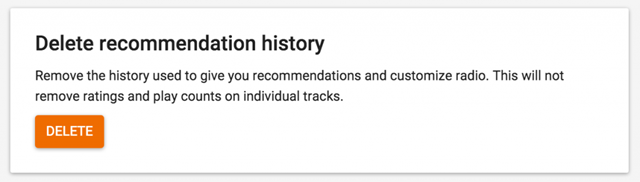
Head on to the Google Play Music settings page
Scroll down to the bottom of the page
Hit delete and confirm the deletion on the warning screen that pops up.
This will clear your recommendation history used to suggest tracks you might like based on your listening history, perfect for if you’ve been sharing an account and someone has been listening to Taylor Swift and you’re recommendations are all messed up!
Don’t forget to Share it with your friends via Facebook & Google+ and Twitter, And if you like the article How to clear recommendation history in Google Play Music and you may even Subscribe for New post, to get directly in your mail inbox.[post_ad]
If you head into the settings page of the desktop Google Play Music site then you’ll see a new option that rolled out today called “delete recommendation history” that will do just that and allows you to remove the history used to give you recommendations and customise radio. It’s worth noting that this will not remove ratings and play counts on individual tracks.
How to delete recommendation history -
Scroll down to the bottom of the page
Hit delete and confirm the deletion on the warning screen that pops up.
This will clear your recommendation history used to suggest tracks you might like based on your listening history, perfect for if you’ve been sharing an account and someone has been listening to Taylor Swift and you’re recommendations are all messed up!
Don’t forget to Share it with your friends via Facebook & Google+ and Twitter, And if you like the article How to clear recommendation history in Google Play Music and you may even Subscribe for New post, to get directly in your mail inbox.[post_ad]
Go to link Download
Subscribe to:
Posts (Atom)