Showing posts with label can. Show all posts
Showing posts with label can. Show all posts
Monday, October 31, 2016
How To Can Unlock Any Modem
How To Can Unlock Any Modem

Are you interested in the Huawei Unlocking Softwares, if yes is the case,you are welcome to my blog.
If you are using 3G modem that has been locked and you will like to be using it with other SIM card of other network, such as MTN, GLO, ETISALAT etc.Well, you can easily unlock it and turn it to a Universal 3G modem.
Most 3G modems including MTN Fastlink, Glo 3G Dongle, Zain Data Card are all locked to the network of their providers.If for example you are using MTN Fastlink modem and there is network problem, You will not be able
to access the internet at all because you will not be able to use any other SIM card with your modem.
to access the internet at all because you will not be able to use any other SIM card with your modem.
There are many software out there, you can use to unlock your 3G modem and turn it to universal modem.This will help you a lot, in the sense that it will enable you to use the modem with any network you want.It will
also help you to spend less by buying modems of other network providers separate by separate.
also help you to spend less by buying modems of other network providers separate by separate.
ALERT: You can now unlock the modems with these software.
If you really want to start making money unlocking phones and modem for others, then, you can buy any of the two but if you just want to unlock your own modem, it won’t make sense because of the price tags.
How Do I Unlock Modems?
To unlock your modem, the unlocker will required the IMEI number of your modem.Your IMEI number is at the paper pack of your modem, if you bought it new or if you bought it as second hand use and don’t know the IMEI number, the software can “AUTODETECT “ if the modem is connected to the unlocking box.
Once you supply the IMEI number to the unlocking box or you connect your modem to it,it will generate your unlocking code for you.Once you have your unlocking code at hand, please kindly save it or write it down somewhere.
After that,insert Another Sim Card of the other network you will surprise for what you will see and it will provide service for you,once you have already unlock your modem and turn it to universal modem. you will also prompted with a bar to fill in the Unlocked code .Just input the Unlock code and that is it.
Please remember that software will give 10 chances to input the unlock code and if you put wrong codes within 10 times attempt, the modem will lock forever, so try to put the right code and you will successful and okay.
Thereafter, you can be inserting any SIM card of any network you want to use. All you have to do is to create a new profile and input the setting for the network and connect to internet.
There is no side effect at all, so don’t afraid of trying new things, just go ahead and you have nothing to loss but to grab more knowledge and wisdom.
If you have Huawei modem that you will like to unlock,get the IMEI number and paste it in the comment form on my blog, then I will calculate the unlock code for you and reply you using the comment form too but if
you do not use the comment form on my blog (www.just4bloggers.blogspot.com), I might keep still .So, kndly adhere to the instruction.
you do not use the comment form on my blog (www.just4bloggers.blogspot.com), I might keep still .So, kndly adhere to the instruction.
UPDATE: If you are in need of QUICK SERVICE to unlock your modem for you, just TEXT ME your IMEI number to 08091996286/07066807379 along the line with N400 airtime preferable MTN Voucher and I will reply you with your code but if you think you can’t afford the airtime, just paste it on my blog and I will reply to you at my convenient time.
Dear my follow Friends and well wishers, this is an opportunity to start making more money in your street or anywhere you are around the country.many people out there are in need of these services and will be ready to pay you to do it for them.
Please Friends, if you need the software or you want “DO IT YOURSELF KIT”. I can only charge you just N1000 only and send you the download link,so you can download, read it and digest it.Please do not hesitate to contact me,
arrangement can be made just HIT Me On 08091996286.
arrangement can be made just HIT Me On 08091996286.
How To Create Profiles For MTN, Glo, Zain and Etisalat?
After unlocking your modem, you will need to create new profiles for other networks you want to connect to via the unlocked modem..
To do this, click on “Tools” then “Options” under which you will now select “Profile Management”.
Under “Profile Management“, click on ‘New” and fill in the following for each network you want to setup as shown in the picture below
For MTN
Profile Name: MTN
APN: web.gprs.mtnnigeria.net
Username : web
Password : web
Profile Name: MTN
APN: web.gprs.mtnnigeria.net
Username : web
Password : web
For Globacom
Profile Name: Glo
APN: gloflat
Username : :flat
Password : flat
Profile Name: Glo
APN: gloflat
Username : :flat
Password : flat
For Zain
Profile Name: Zain
APN: internet.ng.zain.com
Username : internet
Password : internet
Profile Name: Zain
APN: internet.ng.zain.com
Username : internet
Password : internet
For Etisalat
Profile Name: Etisalat
APN: etisalat
Username :web (you can also leave it blank)
Password : web (you can also leave it blank)
Profile Name: Etisalat
APN: etisalat
Username :web (you can also leave it blank)
Password : web (you can also leave it blank)
Once you’re done creating the profile, click Save to save the settings, then New if you want to set up another network.
When you’re through setting up the networks, go back to the Connection page, select the network you want to browse with, from the drop down box, then click connect.
If everything was setup properly without any mistake, you should be able to get connected to the Internet unless the network is messing up at that point in time.
Hope You Find the Info Useful….
Go to link Download

Saturday, October 22, 2016
How can i clean up my gmail inbox
How can i clean up my gmail inbox
Most people have a Gmail account these days, and at least some of you might have realised - with an unpleasant shock - that the space in your inbox is getting filled up. Gmail has a pretty huge 15GB limit, but over the years, mail tends to build up, and many of us are probably reaching those limits now.
Luckily cleaning up your Gmail inbox isnt a challenge, thanks to some Gmails own tools and some third party apps as well. Weve found a few reliable ways to quickly clean your Gmail inbox. Start now and we promise it wont take more than half an hour.
How to clean up your gmail inbox fast
Gmail search filters
Gmail doesnt have the option to sort files - you cant get the inbox to display mails alphabetically, or according to the date received, or size. This might sound like a problem, but as is to be expected from a Google company, Gmail has a superb search function, which can be used to solve the problem easily. Follow these steps to clear up the emails you dont need:
1. Sign in to Gmail > go to the big search bar at the top.
2. First, lets clear out the emails taking up the most space. Type Larger:10M in the search bar > hit enter or click the magnifying glass icon.
3. This will find emails taking up more than 10MB. Now select the mails you dont want > delete (trash can icon).
4. You can experiment with different file sizes, depending on how much you need to delete.
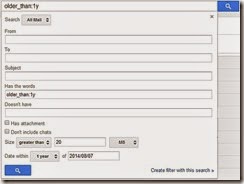
5. The obvious next step is to clear out emails from the long ago. You can use Before:YYYY/MM/DD to specify a cutoff date, or older_than:years if you want to search for mails that are one, two or more years old. For example, if you want mails that are older than one year, you can type older_than:1y > press enter to see the list, and then select mails > delete to make space.
6. You can use combinations of commands, so if, for example, you want to delete old mails with attachments that are more than 1MB in size, then type the following into search: has:attachment larger:1M older_than:1y > press enter, then see the list, and select items > delete mails.
7. In case youre starting to worry about remembering all these operators, then you will be happy to know that Google has you covered. Click on the downward pointing arrow at the right corner of the search bar, and you will see the advanced search, which lets you apply all these filters in a simple menu.
Find Big Mail
Find Big Mail was the only way to - well - find big emails in Gmail, until Gmail added the filters we mentioned already. The app is still pretty useful because it automates the process of finding mails that should be deleted and also creates labels so you can find them again later without any difficulty.
Follow these steps to clean up that messy inbox:
1. Head to the Find Big Mail website > enter your Gmail address in the big form > click Find Big Mail.
2. Now Google will ask you to authorise this service. Enter your password (if you havent logged in already) > click Allow access.
3. The service will now begin scanning your inbox. It claims that it only sees the size of your emails and not the content. Once scanning is complete, you will get an email alert. Ignore the email. [post_ad]
4. On the left side, under the links for inbox, sent mail, etc., you will see new labels. If you dont see this, expand the labels menu. You will see four labels: FindBigMail - Top, FindBigMail > 1MB, FindBigMail > 5MB, FindBigMail > 10MB. Click any of these > select the emails you dont need > delete.
5. The advantage of this method is that you dont need to repeat the search later to find the worst offenders, if youre running out of space again.

Mailstrom
If youre willing to use a paid service, then we really liked Mailstrom. The app works great and you can delete up to 660 emails for free, to get an idea of how it works. Unfortunately, using it beyond this limit involves a payment of around Rs. 300 per month.
With that said, Mailstroms feature set is fairly advanced. It sorts emails by sender, lets you unsubscribe from newsletters quickly and bundles related emails so that you can delete several at once. Follow these steps:
1. Open the Mailstrom website > enter your Gmail address in the form > click Start Free Trial > click Authorize With Google > enter email and password > Sign in.
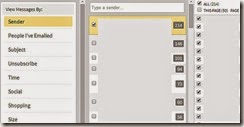
2. Now you will see your inbox through Mailstrom. It will take some time to sort all your emails. Once done, you will see all emails grouped by sender. We found surprisingly large numbers of emails from people we hadnt spoken to in years. We started by deleting these.
3. You can quickly clear emails using the left sidebar, which lets you view emails by size, time, emails from social networks and has a handy Unsubscribe link to help clear the clutter.
We recommend Mailstrom for those who are facing a serious email overload and have abandoned all hope of ever cleaning up their inboxes. We managed to clear over 200 emails within a minute using Mailstrom. For the average user though, the free methods we already described are probably the better choice.
These are our favourite methods for cleaning the Gmail inbox. What are yours? Tell us via the comments.
Don’t forget to Share it with your friends via Facebook & Google+ and Twitter, And if you like the article How can i clean up my gmail inbox and you may even Subscribe for New post, to get directly in your mail inbox.
Go to link Download
Friday, October 21, 2016
How to Can Play Youtube Videos Automatically Twice with iYoutubeReplay
How to Can Play Youtube Videos Automatically Twice with iYoutubeReplay
How to Can Play Youtube Videos Automatically Twice with iYoutubeReplay - For iPhone or iPad users who are looking for ways in order to repeat the Youtube app video when it ends, then you are lucky. Because it has come a jailbreak tweak called iYoutubeReplay, available for free in Cydia, which offers the ability to play back video you have seen.
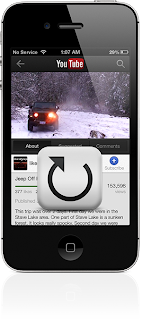
After you install this jailbreak tweak, then when you have finished watching a video on Youtube a free Google application, then the video will be played back (on my birthday). You can exit (exit) of the video that was repeated by just doing a tap on the back button, or simply close the application.
This tweak the concept is very clear, and useful for you who want to watch a funny video you found for the second time. It is also good if you feel the need to look back at the video there is a scene where you want to believe. Whats more to music videos, music lovers would want more than one listen to his music without the need to press the play button again repeatedly.
After this tweak is installed, then you will get a preferences panel on the application settings that you can enable or disable this tweak.
This tweak updated version is being drafted as I write this post, which allows you to enable or disable this tweak directly from Youtube application without the need to get out of it and use the Settings application.
If you want to try to keasikan iYoutubeReplay watch Youtube videos, so you can meet this tweak in Cydia under BigBoss closet. And this is the detail of tweaks iYoutubeReplay.
After you install this jailbreak tweak, then when you have finished watching a video on Youtube a free Google application, then the video will be played back (on my birthday). You can exit (exit) of the video that was repeated by just doing a tap on the back button, or simply close the application.
This tweak the concept is very clear, and useful for you who want to watch a funny video you found for the second time. It is also good if you feel the need to look back at the video there is a scene where you want to believe. Whats more to music videos, music lovers would want more than one listen to his music without the need to press the play button again repeatedly.
After this tweak is installed, then you will get a preferences panel on the application settings that you can enable or disable this tweak.
This tweak updated version is being drafted as I write this post, which allows you to enable or disable this tweak directly from Youtube application without the need to get out of it and use the Settings application.
If you want to try to keasikan iYoutubeReplay watch Youtube videos, so you can meet this tweak in Cydia under BigBoss closet. And this is the detail of tweaks iYoutubeReplay.
- Price: Free.
- Version: 1.0-1.
- Requirements for use: Googles YouTube application.
- Repository: BigBoss.
- Developers: Osama Mohammed.
Go to link Download
Sunday, October 9, 2016
How can I unlock my iPhone if I forgot the passcode
How can I unlock my iPhone if I forgot the passcode
How can I unlock my iPhone if I forgot the passcode?
Apple explains how to unlock the iPhone if you have forgotten the passcode or password in the manual for each model. For the iPhone 5c, for example, it is provided on page 155 as well as on the company support site. However, as this is a very frequently asked question, the official answers and additional help are below for your convenience. 
Image Credit: EveryiPhone.com (iPhone Passcode Screens - iOS 6, Left; iOS 7, Right)
About iPhone Passcodes
The exact behavior of the iPhone depends on its configuration when one forgets the passcode. By default, there is not a passcode at all. However, Apple notes the following regarding forgotten passcodes:If you repeatedly enter the wrong passcode, your iPhone will be disabled for longer intervals before you can try again. After too many unsuccessful attempts, you wont be able to try again until you connect it to the computer with which you last synced it [if it has been synced to a computer].
Note: You can configure your device to erase itself after ten consecutive incorrect password attempts. This setting is off by default. It can be turned on by tapping Settings > General > Passcode Lock.
If you cannot remember the passcode, you will need to restore your device using the computer with which you last synced it [or iCloud]. This allows you to reset your passcode and resync the data from the device (or restore from a backup). If you restore on a different computer that was never synced with the device, you will be able to unlock the device for use and remove the passcode, but your data will not be present.Please also note that Apple representatives cant unlock an iPhone for you without restoring the iPhone, either. The restore process will erase everything on it.
How to Unlock iPhone Passcodes
If you have forgotten the passcode on your iPhone, you will have to restore the device. To restore your iPhone -- which, again, deletes all of your data (songs, photos, videos, apps, and so on) on the iPhone use the following directions. Be absolutely sure that you have backed up the content on your iPhone before restoring it.
iPhone Previously Synchronized with a Mac or PC
If you have previously synchronized your iPhone with iTunes on a Mac or Windows computer, you typically still can backup recent additions to your iPhone by connecting it to the same computer you have used before without having to enter the passcode.After the backup, you just need to "restore" your iPhone and have the backup copied onto the iPhone with iTunes.
Apples official instructions to restore an iPhone with iTunes are:
- Connect your iPhone to your computer [that you have previously used to sync the device].
- In iTunes, select the iPhone in the "Devices" list, then "Summary" at the top of the screen.
- If iTunes doesnt automatically synchronize your iPhone, do so manually [and confirm that the sync and backup were successful.]
- Click “Check for Update.” iTunes tells you if there is a newer version of the iPhone software available.
- Click Restore. Follow the onscreen instructions to complete the restore process. When restoring, it is recommended that you [again] backup the iPhone when prompted.
- When iOS Setup Assistant asks to set up your iPhone, choose "Restore from iTunes backup."
- Select your device in iTunes and choose the most recent backup of your iPhone.
iPhone Previously Backed Up with iCloud
Apple explains that "if you have Find My iPhone enabled, you can use Remote Wipe to erase the contents of your device." Likewise, "if you have been using iCloud to backup, you may be able to restore the most recent backup to reset the passcode after the device has been erased."Apple separately explains the simple iCloud process to erase an iPhone. This is mostly intended for an iPhone that has been lost or stolen, but the portion relevant for a forgotten password is:
- Sign in to iCloud with your Apple ID (the one you use with iCloud [rather than your iPhone passcode that you do not remember]), then click "Find My iPhone."
- Click "All Devices," then select the iPhone you want to erase.
- In the Info window, click "Erase iPhone."
- Enter your Apple ID password [for confirmation]. If the device youre erasing has iOS 7 or later, enter a phone number and message. [This is intended to be displayed to anyone who may have found your iPhone if it is lost or stolen. To just erase the iPhone, it is not necessary.]
- [Now] you can restore the information on the device using iCloud Backup (if backup was turned on before you erased it).
iPhone Never Synchronized or Backed Up
If you never synchronized your iPhone with iTunes on a computer or backed up using iCloud, the only option is to restore the iPhone as new, which will delete all of your personal information. A passcode that can be bypassed by anyone would not be of much use, so this is as intended for security purposes.If you find yourself in this situation try not to panic. Take a deep breath. Leave your iPhone behind, go for a walk, and try not to think about the passcode per se. Separating yourself from the frustration may help jog your subconscious to release the information you have forgotten.
If you still do not remember your passcode when you return, hold the iPhone in your hand and ideally sit or stand somewhere where you know you have entered your passcode before.
If that is not an option, try to face a direction that you were facing when you successfully entered your passcode previously. Relax. Close your eyes. Open your eyes again. Enter the passcode without a conscious effort to remember the numbers or letters but instead "feel" it. You may be able to essentially trigger "muscle memory" of the motion pattern you have used before to enter the code.
If none of that works, sadly, you will have to start over as if you just got a new iPhone. If you have only had the iPhone for a few days (which is when people tend to forget the passcode the most, perhaps it is not a major problem).
If you recently set a passcode on an iPhone with a lot of personal information that is not synchronized using iTunes or backed up using iCloud and this information is really important to you, you could consider buying a new iPhone without restoring the old one. The hope would be that you might remember the passcode at some point in the future. Perhaps buying an expensive new phone will allow you to remember the passcode the next day. Doh!
Nevertheless, next time, either (1) do not use a passcode, (2) use the fingerprint enabled Touch ID on the iPhone 5s instead, or (3) be sure to sync your lesser iPhone with iTunes and/or iCloud.
Go to link Download
Tuesday, September 6, 2016
How can Make easy Facebook Sign up with simple steps
How can Make easy Facebook Sign up with simple steps
Facebook one off the famous and top social networking sites but after its easy use lot of youth unable to create own accounts on it . Thats Why today i m updating all the info about Facbook sign up .How we can Register here on Facebook account , How we can Use facebook account , How to create account on Facebook. That all common ques coming to your Mind whenever any new one try to use facebook . But Now it is easy to access Facebook account with Simple steps.

- First Step You HAve To open www.facebook.com
- When You open it here you can watch in The image
- You have to fill all the info and click on sign up option.
After doing all the step next Page is open the image uploaded also that page here you can find you friends and add your profile info and Ste you profile pic.Enjoy The facebook account after that..................Hurrryyyyyyyyy

Go to link Download
Subscribe to:
Posts (Atom)