Showing posts with label clear. Show all posts
Showing posts with label clear. Show all posts
Thursday, October 27, 2016
How to clear all chats on whatsapp
How to clear all chats on whatsapp
WhatsApp groups are a good means of quick communication amongst friends and family members and nearly every WhatsApp user is a member of one or more groups created by family, friends, employer, school or somebody else. Issues may start arising when group chat becomes long and unmaintained causing the memory usage of WhatsApp to expand constantly. This article discusses the ways to clear WhatsApp group chats without leaving the group. Do note that this will not delete the chats from the phones of other group members (unless they do this as well).
1. Go to the chat you want to keep
2. Touch and hold on the chat
3. Keep touching as many as you want on that specific group or personal chat
4. On the top you should see a starred sign, touch on that
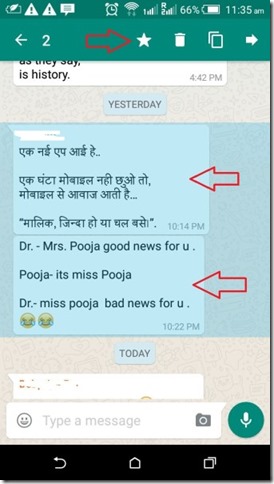
5. If you want to clear chat for your entire whatsapp, follow the same process for all groups and individual chats. If you want to clear chat only for this group/person you are done.
6. Now there are two ways of clearing chats depending you want to clear your entire whatsapp or just for some specific groups or individual chats. You can also check How to Backup Your WhatsApp Messages
1. Go to settings> Chats> Chat History> Clear all chats
2. Check Keep starred messages and clear
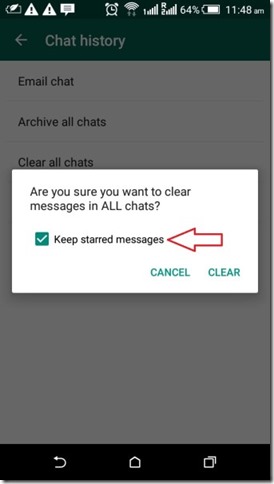
1. Go to that specific chat
2. Now touch on that 3 vertical dots on the top right corner
3. Touch on more
4. Clear Chat
5. Check Keep starred messages and clear
6. Follow the same process for other groups/individuals[post_ad]
Don’t forget to Share it with your friends via Facebook & Google+ and Twitter, And if you like the article How to clear all chats on whatsapp and you may even Subscribe for New post, to get directly in your mail inbox.
1. Go to the chat you want to keep
2. Touch and hold on the chat
3. Keep touching as many as you want on that specific group or personal chat
4. On the top you should see a starred sign, touch on that
5. If you want to clear chat for your entire whatsapp, follow the same process for all groups and individual chats. If you want to clear chat only for this group/person you are done.
6. Now there are two ways of clearing chats depending you want to clear your entire whatsapp or just for some specific groups or individual chats. You can also check How to Backup Your WhatsApp Messages
For entire whatsapp clearance
1. Go to settings> Chats> Chat History> Clear all chats
2. Check Keep starred messages and clear
For specific groups, individual chats
1. Go to that specific chat
2. Now touch on that 3 vertical dots on the top right corner
3. Touch on more
4. Clear Chat
5. Check Keep starred messages and clear
6. Follow the same process for other groups/individuals[post_ad]
Don’t forget to Share it with your friends via Facebook & Google+ and Twitter, And if you like the article How to clear all chats on whatsapp and you may even Subscribe for New post, to get directly in your mail inbox.
Go to link Download

Wednesday, October 12, 2016
How to clear browsing history android chrome
How to clear browsing history android chrome
Do you want to hide all search history from others and make some privacy in browsing?
Google browser save past search results, pages as well as password which are named as browsing cache. For some privacy reason, if you really don’t want to keep search records, passwords or any kind of data in Chrome. We have easy steps to Clear Google Chrome browsing cache.
 |
| image credit Android central |
Clear browsing cache on Android:
First of all find history option under overflow button on top right corner. By scroll down at the end tap on clear browsing data option, which pop out what you want to clear? Select auto fill data, saved password, cookies, browsing history, site data then tap on clear. All done!
Similarly we can all do this on Apple iOS operating system chrome as well as in PC. But there is another way to avoid auto save browsing cache in chrome. Google also offers incognito mode for in PC browser, which doesn’t store browsing history. To launch incognito mode>hold CTRL+SHIFT+N.
Feel free to get connect through socially and like us on Facebook!
Go to link Download
Friday, September 16, 2016
HOW TO REMOVE AND CLEAR GOOGLE PLAY HISTORY IN LG V10
HOW TO REMOVE AND CLEAR GOOGLE PLAY HISTORY IN LG V10
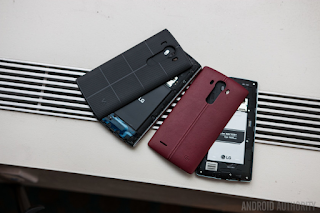
How to take away & clear history in Google Play Store on LG V10:
Turn on your LG V10
Go to the Google Play Store
Wipe from the left to the center of the screen
Press the menu item “Settings”
Then choose on the ”Clear native Search History” choice
Select on Menu item and every one your past search history can become deleted.
After you follow the steps on top of, all of your search history within the Google Play Store are deleted on your LG V10.
Go to link Download
Wednesday, August 31, 2016
How to clear recommendation history in Google Play Music
How to clear recommendation history in Google Play Music
If you head into the settings page of the desktop Google Play Music site then you’ll see a new option that rolled out today called “delete recommendation history” that will do just that and allows you to remove the history used to give you recommendations and customise radio. It’s worth noting that this will not remove ratings and play counts on individual tracks.

If you head into the settings page of the desktop Google Play Music site then you’ll see a new option that rolled out today called “delete recommendation history” that will do just that and allows you to remove the history used to give you recommendations and customise radio. It’s worth noting that this will not remove ratings and play counts on individual tracks.
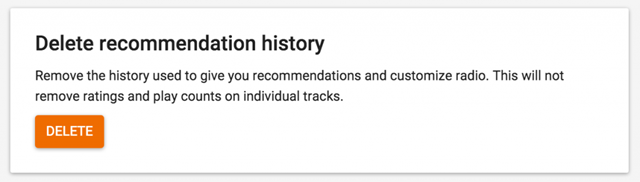
Head on to the Google Play Music settings page
Scroll down to the bottom of the page
Hit delete and confirm the deletion on the warning screen that pops up.
This will clear your recommendation history used to suggest tracks you might like based on your listening history, perfect for if you’ve been sharing an account and someone has been listening to Taylor Swift and you’re recommendations are all messed up!
Don’t forget to Share it with your friends via Facebook & Google+ and Twitter, And if you like the article How to clear recommendation history in Google Play Music and you may even Subscribe for New post, to get directly in your mail inbox.[post_ad]
If you head into the settings page of the desktop Google Play Music site then you’ll see a new option that rolled out today called “delete recommendation history” that will do just that and allows you to remove the history used to give you recommendations and customise radio. It’s worth noting that this will not remove ratings and play counts on individual tracks.
How to delete recommendation history -
Scroll down to the bottom of the page
Hit delete and confirm the deletion on the warning screen that pops up.
This will clear your recommendation history used to suggest tracks you might like based on your listening history, perfect for if you’ve been sharing an account and someone has been listening to Taylor Swift and you’re recommendations are all messed up!
Don’t forget to Share it with your friends via Facebook & Google+ and Twitter, And if you like the article How to clear recommendation history in Google Play Music and you may even Subscribe for New post, to get directly in your mail inbox.[post_ad]
Go to link Download
Subscribe to:
Posts (Atom)