Showing posts with label remove. Show all posts

Tuesday, November 22, 2016

How To Remove The Powered By Blogger Attribution From Your Blog

How To Remove The Powered By Blogger Attribution From Your Blog


The Footer Design series will cover all the latest and old redesigns that can be done on the blogger Footer of any blogger blog.
This post contains the first tutorials which shows you how to simply remove the Powered By Blogger attribution at the end of your blog (youd have to scroll down to see it.)
The Attribution gadget is the gadget in the footer that contains the "Powered by Blogger" icon below every blogger blog - and of course, this tutorial will be centered on how we can remove it.
 On a normal ground, it’s impossible to remove the Attribution gadget that shows the “Powered by Blogger” because it’s locked into your blog’s template.
To remove it, youd have to unlock it first before you may be able to remove it.

To remove it, you’d have to unlock it first before you may be able to remove it.
seo basics

Follow this simple tutorial below on how to easily remove the Attribution widget/Powered by Blogger from a blogger blog.

Firstly, login to your Dashboard; click on Template, then on Edit HTML


Secondly, click on the "Format Template" button (it’s has the same function just like the former “Expand widget box”)
blogger tips

Thirdly, click on the text area (shown above as the 1st stepto take above) and search for this code snippet below using CTRL F: 
<b:widget id=Attribution1 locked=true title= type=Attribution>
 (Tip: press down CTRL and F at once on your keyboard to make the search box appear. Do this after clicking on the text area)
If you didnt see the code above in your blogger template, then search for Attribution1
website seo

I found my own code when I searched for Attribution1 only. The image below is showing me exactly where my own Attribution1is located. I marked it with an “X” as you can clearly see below (that’s exactly how your own would look like). 

guest blogging

Fourthly- Once you have found the code, proceed to replace or change the true in  locked:‘true’ with false. This will be the new code after replacing the ‘true’ with ‘false’ -
From . . . 
  
<b:widget id=Attribution1 locked=true title= type=Attribution>
To. . .
  
<b:widget id=Attribution1 locked=false title= type=Attribution>

After doing that, you may now click on Save.
Basically, what we have just done is to free the widget from being locked; having done that, we can easily remove it from our blogger template widget.
Note: If the locked function in your attribution is like this as default -  

  
<b:widget id=Attribution1 locked=false title= type=Attribution>

Just replace the red ‘false’ with ‘true’ and click on Save. After saving, search for the Attribution1again and change the ‘true’ back to ‘false’, then click onSave, it will surely work.
The Attribution gadget is now unlocked and can be easily removed at once.
To do that, head straight to Layout, scroll down, locate and Edit the Attribution Gadget.

blogging tips

Now, as you can see, there is a new button titled “Remove” (see picture below). Click on it to remove the Powered by Blogger attribution gadget. 

blogging tips
And that it!
Dont forget to subscribe t my tutorial and seo tips using the red gadget subscribe at the beginning of this blog.
In case you have any problem removing the attribution gadget carrying Powered by Blogger, please dont hesitate to tell me in the comment section below.
Thanks for reading, dont forget to share!

Go to link Download

Read more »

Tuesday, November 15, 2016

How to Install Or Remove Third Party Keyboard in iOS 8

How to Install Or Remove Third Party Keyboard in iOS 8


As we know that iOS 8 is out , it includes features like widgets and third party keyboard. There is noting wrong with the keyboard which you were using all this while , but if you are the one who likes experiment  whats out there, you might actually like the third -partykeyboard over your cherished iOS 8 keyboard. The only way to find out, install it (like switftkey) and check it for yourself.

So heres  some easy the tips how to install third-party keyboards on iOS 8.

You would get some for free,but some are paid some are incredibly at their best, though their prices are not worth to their performance, swift key and swype happens to be peoples favorites, but its better if you select your own over a period of time.


Coming back to the installation process its simple , you just have to go to the app store and search "keyboard", then pick one which you like and install it the same way you install any other app. Same way if you would like to uninstall the keyboard, just remove the app as you would do to any other app.


  • The next step is to enable the keyboard and this is as simple as installing it.Go to the setting app.Under General > keyboard > Keyboards, you will see a separate section listing any and all Third-Party Keyboards you may have downloaded. click on it and it gets activated.
           

  • And keep also this in your mind that each custom keyboard will have its own settings that you will have to configure in the app itself. Once its activated, launch any app that needs keyboard and press the globe next to the spacebar until it switches to the new keyboard .then your new keyboard gets installed and you are ready to use it.
  • And if you like to go back to the previous original keyboard, tap on that globe again which takes you back to your previous keyboard. But if you have installed more than one keyboard then you have to go through all the keyboard before coming to the one you want. Some keyboard needs added permissions, which informs you in that case.


This is how simple it is. 
Enjoy you new keyboard and if you have any queries just leave your comments below.  

Go to link Download

Read more »

Thursday, November 3, 2016

How to detect and remove MAC OSX Flashback Trojan

How to detect and remove MAC OSX Flashback Trojan


Until now apple company products are the secured ones, which are free from viruses, worms etc. But now a Trojan called Flashback/Flashfake has targeted MAC OS platforms and infected nearly 700,000 mac PCs. Which is combined with botnet and capable of stealing personal information.

While surfing the net if it displays wrong search results or asking to install an update then know that you are infected and the program passess the victims ip address and UUID to the author of that trojan.

“The Flashback Trojan is a wake-up call for everyone who’s online – no matter what platform or device they use,” said Norton Internet Safety Advocate Marian Merritt.

How to Detect:

Through the kasperskys flashbackcheck database, copy and paste your Hardware UUID and know that you are infected or not.To find your UUID, select the menu item "About this Mac" in Finder and choose "More info …" Find "Hardwire UUID" in the window that opens, and copy its value to the clipboard.


How to remove:

Norton offers a detection and removal tool for this Flashback Trojan or use Bitdefenders tool, get it through APP Store.


Go to link Download

Read more »

Tuesday, October 25, 2016

How to Remove the “Get Windows 10” Icon from Your System Tray and Stop Those Upgrade Notifications

How to Remove the “Get Windows 10” Icon from Your System Tray and Stop Those Upgrade Notifications


Ever since Windows 10 came out, Windows 7 and 8 users have been bombarded with upgrade notifications, thanks to a little Windows icon in their system trays called GWX (“Get Windows 10”). Here is how to remove that icon and avoid the pushy notifications.
get_windows_10_1
This article was originally published in June 2015. Since then, a new tool has come out that does a more straightforward job of preventing unwanted Windows 10 updates, so we’ve updated the article with information about it.
We’re all aware of Windows 10 here at How-to Geek, and in truth, we actually like it–it finally fixes most of Windows 8’s ills, and brings some handy new features. But we can’t go a day without hearing about Microsoft pushing the upgrade just a little too hard. If you don’t want to upgrade to Windows 10 right now, and you’re sick of the nagging, here’s how to fix it.

The Problem: An Icon You Can’t Get Rid of, and Constant Nagging for Updates

The “Get Windows 10” (GWX) upgrade is an icon and dialog that resides in user’s system trays, which has alarmed quite a few people, who aren’t sure if it is some kind of trick or malware. Let us say with no uncertainty, it is not, but it is a little underhanded and annoying on Microsoft’s part.
The “Get Windows 10” icon opens a dialog that hypes the upcoming Windows upgrade and determines your availability to receive it for free.
When you click this icon, a dialog will appear, which will determine if your PC is Windows 10 ready, if you’re eligible to upgrade for free and, of course, regale you with all the wonderful things Windows 10 will mean to you.
This new icon and its resulting dialog are actually part of an application that appeared in late April 2015 as a recommended Windows update (KB3035583), and which has undergone several revisions to facilitate the upgrade process as well as skirt efforts to remove it.
You will see this update in one of two ways, if you have the “Give me recommended updates the same way I receive important updates” box checked in Windows Update, you will see KB3035583 as an optional update. If you have “Give me recommended updates the same way I receive important updates” unchecked, you will see KB3035583 as an unchecked but italicized update.
If you read Microsoft’s description on the update’s support page, it’s apparent that this is optional:
This update installs the Get Windows 10 app that helps users understand their Windows 10 upgrade options and device readiness. For more information about Windows 10, see Windows 10.
Further, in the most recent iteration of KB3035583, if you have it hidden, it will now be unhidden. The long story short KB3035583 is annoying and it’s unreasonably difficult to easily make it go away.

What Is KB3035583?

Basically, KB3035583 simply lets Windows Update pester you about upgrading to Windows 10. KB3035583, otherwise known as GWX, is an executable that starts with your system via the Task Scheduler.
GWX.exe is the system tray icon. When you click the system tray icon, it spawns the application “GWXUX.exe”, which is the upgrade dialog discussed earlier.
To make this icon and its notifications go away, Microsoft unhelpfully recommends hiding them.
This works for the current session, but restart your system (which happens from time to time), and it reappears. You can’t right-click on the icon and tell it not to bug you anymore, and while you could remove its entry from the Task Scheduler, that doesn’t actually remove the GWX application from your system.
More importantly: Just because it’s hidden doesn’t mean it won’t pester you about upgrading.
If you don’t want this item on your system, we recommend removing the update altogether. We don’t feel it is critical to upgrading to Windows 10, and even if it is, you can always go back into Windows Update and reinstall KB3035583, or you can use the following method and forgo all this rigamarole altogether.

Never10: The Best and Easiest Way to Prevent Windows 10

In the 11 months since we first published this article, the Get Windows 10 (GWX) system has annoyed countless Windows 7 and 8.1 users, and in that time, Microsoft has maneuvered time and time again to get 10 installed on as many machines as possible. Often it has done this despite these users plainly not wanting this update, period.
So, what follows is what currently appears to be the absolute best way to do so, by using a small (81KB) freeware tool called Never10.
Never10 was developed by well-respected security researcher Steve Gibson, which means it’s trustworthy and contains no adware, viruses, or other assorted malware nastiness up its sleeve. Basically, it acts as a frontend for Microsoft’s hidden settings that prevent the Windows 10 upgrade.
Let’s dig in briefly and show you how Never10 operates. Firstly, here’s the infamous GWX icon in the system tray, which when right-clicked will give you various options to educate yourself about or simply upgrade to Windows 10.
This icon will occasionally bug you with reminders that Microsoft thinks it would be a great idea to upgrade your PC to Windows 10. We want this behavior to stop, so we’ll use Never10 to do that.
First we cruise on over to the Never10 homepage, and scroll down to download the Never10 executable. Alternatively, you can actually go directly the Never10 freeware page.
Never10 doesn’t require installation; it runs as a standalone executable. So just double-click it to start it up.
Never10 will tell you whether the Windows 10 upgrade is enabled on your system. If it is, click the “Disable Win10 Upgrade” button.
Upon clicking that button, you’ll be presented with the following confirmation and you shouldn’t be bothered by GWX again, unless Microsoft once again attempts to circumvent this.
Keep in mind that the GWX system tray icon may not immediately disappear from your system tray, instead continuing to reside there and even offering to help you with the upgrade if you click on it. We discovered however that it did indeed go away after a simple restart.
You can also click the “Remove Win10 Files” button to remove the upgrade files from your system, which should free up some hard drive space. However, according to Gibson, Windows will remove these files automatically eventually anyway, so it doesn’t really matter if you remove them now or let Windows do it later.
There are a couple of instances where you might see a different outcome. If you try to run Never10 on a system other than Windows 7 or Windows 8.1, it will inform you that it is intended only for those two systems since they are the targets of Microsoft’s upgrade path.
Also, if you try to run Never10 on a system that doesn’t have the latest GWX files, Never10 won’t work, but will offer to download those files so it can properly do its job. This seems counterintuitive, but due to the way Never10 works, it makes sense. It doesn’t actually remove GWX completely: it just prevents it from ever running, using Microsoft’s built-in hidden settings for doing so.
There is another program, called GWX Control Panel, that performs a similar function–and we recommended it when we originally wrote this article. If you really hate GWX and want to remove every trace of it from your system, GWX Control Panel will allow you to do so. It’s a bit more complex than Never10, and its extra features aren’t necessary for most users. However, if you’re tech savvy, and you want full control over the entire process, GWX Control Panel is another option.
screenshot.1
For the vast majority of users, however, Never10 is all you need.

Before we wind things up, we need to reiterate that we do believe that if you’re using any recent version of Windows (7 or 8.1), or you’ve held off and are still using Vista or even XP, that this is the time to finally take the plunge. Windows 10 is a worthy upgrade and probably an unqualified success at retaining the spirit of Windows 7 while correcting the ills of Windows 8.1.
That said, installing a separate application as a recommended update is a sneaky way to go about ensuring user adoption. Add to that the fact that there’s no simple way to disable the GWX.exe application other than removing its autostart line from the Task Scheduler or uninstalling it through Windows Update, and we’re further puzzled at Microsoft’s reasoning and lack of transparency.
In the end, whether you feel this update process is helpful or whether you can make your way to upgrading to Windows 10 all by yourself will simply depend on how you’re used to doing things.
Others may choose to do a clean install and for that, updating through an existing Windows install won’t even apply.

Go to link Download

Read more »

Thursday, October 13, 2016

How to Remove Underline on the Text Link

How to Remove Underline on the Text Link


to remove the underline in a text link, you only need to change some csscode on the control panel of bloggers, consider the example below, after see the example below I am sure you can practice it immediately.

a:link {
color:#58a;
text-decoration:underline;
}

a:hover {
color:#c60;
text-decoration:underline;
}

a:visited {
color:#969;
text-decoration:underline;
}


To be more clear, let me explain the code:

a:link {
color:#58a;
text-decoration:underline;
}

the meanning of code is -> the link text color is blue and underlined

a:hover {
color:#c60;
text-decoration:underline;
}

the link when highlighted by mouse ( on mouse down ), the color will change to dark blue and underlined.

a:visited {
color:#969;
text-decoration:underline;
}


the link, if it ever clicked by the same computer will be colored dark blue and underlined.
so, where is the code above that make the link become underlined? you can guessed it now:

decoration:underline;

the word underlined that make the link become underlined. if you dont want the text links underlined, just change all the word underline on this code with the word none, and the example code will be as below:

a:visited {
color:#969;
text-decoration:none;
}

From the description above, of course you can set the link text, whether you want a link underlined or not underline? Or maybe you want, if a link in the highlight by mouse ( on mous down ), there are underlined or not underline? and if a link had been visited or clicked, there are underlined or not underline? it is up to you as the blog owner


- to your blogging sucsess -

Go to link Download

Read more »

Thursday, October 6, 2016

How to Remove Passwords From Winrar

How to Remove Passwords From Winrar


            A Winrar file contains multiple files compressed into one so as to reduce the size and is done for ease of transport for sending attachments while emailing etc , check List of all File Compression softwares .These files can also be password protected so that no unauthorized person can access the archives contents . Sometimes it happens that you may forget the password or you may want that zipped file to be made available public so that anyone can access it  , so to get out of hassle , therefore its better that password needs to be removed.
You can do this by creating a new archive without a password .


Open the WinRAR and right click on the RAR file that has the password you want to remove.
Select "Extract Files" from the list of options.
Enter the RAR files password in the window that appears and select "OK."
This will extract the archives contents into a folder in the same directory that the RAR file is in.
Now right click on the New folder , ie the one which is newly created  and select "Add to Archive."
This tells WinRAR that you want to take the files in the folder and place them in a new RAR file.
Select the "OK" option in the window that appears.
Now the files in the folder then will be added to a RAR file.
When WinRAR finishes creating the archive file, you can access it without password protection.

UPDATE:

The above post is useful only if you know the password and want to remove it , but if you dont know the password then its practically very very hard and almost next to impossible !
Youll need an archive password-cracking program and that doesnt come free
  • www.brothersoft.com/.../remove-win-rar-password.html
  • www.rarpasswordcracker.com
  • www.sharewareconnection.com/rar-password-recovery.htm
Here are above links , that may crack password of RAR file and help you ,
these doesnt come free , so you need to purchase these shareware !
Go to a website where you can download a program for breaking a password on a RAR file.
Download and install your archive password cracker.
Open this software and  find your file.
Choose the option you prefer in the "type of attack" box.
The software will go through letter combinations,  to find your password.

Note: It may take a hell lot of time !

Go to link Download

Read more »

Sunday, October 2, 2016

How to Remove Watermark from Wowslider

How to Remove Watermark from Wowslider


Wowslider is the best image slider so far it creates image slides within few minutes with just a few click without any coding or all that kind of stuff.Wowslider is free to download but it displays a watermark like Wowslider.com as shown in the image below and removing watermark costs money.Today I will show you guys how to remove watermark from Wowslider free.


Download Wowslider 5.0 by clicking here :-

download

zip password : usapass.blogspot.com

1)After downloading and installing Wowslider run it then click on the “+” sign or drag and drop the images into the slider (Remember to use the images of same size).I will be using the images of 800 x 300 pixels and then click Publish.


2)After clicking Publish a new window will open.
3)Click on Images and then select the image size same as your image by clicking custom size and then type your image size i have typed 800 x 300 pixels as my images are of that size.After setting size select the Transition effect which ever you want.After doing the changes click the publish button on the top.
4)Select the path where you want to save it and after doing that click the Publish button below.
5)As you can see the silder is now created but it has a watermark as shown in the image below now you can close the Wowslider window when closing it will ask if you want to save project or not if you want to make further changes in future then save the project or else select no.
6)Now we will remove the watermark for free with just a few steps.First of all open the folder where you have saved the slider.It will contain 3 files open data 1 and then open images in that folder you will see your slider images with watermark on them as you can see in the image below replace the images with the original ones (Remember the size must be same).
7)Now watermark from images will be removed you can check that by opening index.html file in the Wowslider folder but as you can see the watermark on the slider still remains to remove that we must change some code.

8)To remove that go to Wowslider folder and go to engine1 folder and open wowslider.js with Adobe Dreamweaver if you dont have that open it with notepad.

Find 2 times "0 0 0 0" & below line change show to hide
bind("contextmenu",function(c){return false}).show()
to
bind("contextmenu",function(c){return false}).hide()


9)Now open Wowslider folder and then open index.html file and as you can see below now the watermark from the slider is removed completely.But as you can see in the image below the watermark still remains for the tooltips images.

 
10)To remove that go to the Wowslider folder and open data1 folder and then go to tooltips as you can see the images are there just do the same with them as we did earlier for the slider images.
 

Note:-Replace the images of same size as the tooltips images are of 240 x 90 pixels so just open the original images in Adobe Photoshop and then shrink the images in 240 x 90 pixels and then save it in .jpg format and then replace the saved images with the ones in the Wowslider folder and then the watermark will be completely removed from the slider for free.


Download Wowslider 5.0 

download

zip password : usapass.blogspot.com


Go to link Download

Read more »

Friday, September 16, 2016

HOW TO REMOVE AND CLEAR GOOGLE PLAY HISTORY IN LG V10

HOW TO REMOVE AND CLEAR GOOGLE PLAY HISTORY IN LG V10


For people who use the Google Play Store plenty to put in totally different apps, you will need to understand a way to clear and take away history from the Google Play Store that you’ve sought for within the past on your LG V10. the explanation for this can be as a result of everything that you’ve sought for within the Google Play Store gets saved in your history. Some individuals don’t need to possess all the searched queriers within the Google PlayStore saved for on their LG V10, we’ll justify a way to take away and clear search history on the Google Play Store.


How to take away &amp; clear history in Google Play Store on LG V10:

Turn on your LG V10
Go to the Google Play Store
Wipe from the left to the center of the screen
Press the menu item “Settings”
Then choose on the ”Clear native Search History” choice
Select on Menu item and every one your past search history can become deleted.


After you follow the steps on top of, all of your search history within the Google Play Store are deleted on your LG V10.

Go to link Download

Read more »

How to FOOL keyloggers and remove them securely

How to FOOL keyloggers and remove them securely


You might have heard about a dangerous application called Keylogger. Its a very tricky tool to record your key strokes in a notepad file. Whenever you type anything using keyboard, this software stores all your key strokes. If you access Internet from any cyber cafe or any public PC, this post is must for you.

There are many keyloggers that are not detected by anti virus and other security applications, so today I am sharing few tricks with which you can fool keyloggers easily.

1) Use Virtual Keyboard: Whenever you access PC from any cyber cafe always use Virtual Keyboard or On Screen Keyboard for entering password.

How to enable virtual keyboard: If you are using Windows XP, Click on Start >> All Programs >> Accessories << Accessibility >> On Screen Keyboard.

Just use mouse clicks for entering password and username. By using on screen keyboard, keylogger will never detect your key strokes, thus your account will be safe.

2) Anti Keylogger : If you do not know whether keylogger is installed or not, you can use this software called Elite Anti Keylogger. It has more than 1000 known keyloggers and will warn you immediately it detects any keylogger.


Go to link Download

Read more »

Wednesday, September 14, 2016

How To Remove Google From Your Google Account

How To Remove Google From Your Google Account


Even though Google+ is the second largest social network in terms of active users, many people dont use it as much as Facebook or Twitter. Your Google+ account is created automatically when you sign up for a new account. You can stop using this service at any time you want. It is possible to delete your Google+ account without affecting other Google services and apps. So lets take a look on how to do it.

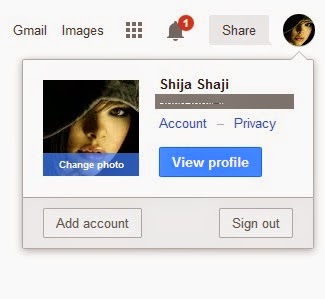
Step 1: Sign in to your Google account as usual and then click on the profile icon which is at the top right corner. Then a small window will pop up with some options to sign out, manage privacy and accounts settings. Select the Account option.

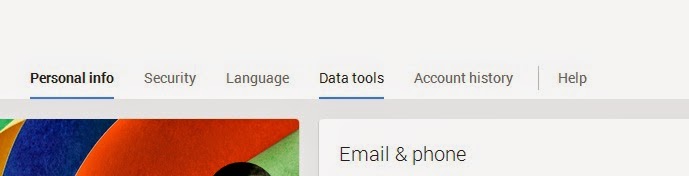
Step 2: The accounts settings page will contain many options and some settings related to your Google profile. Inorder to remove Google+ from your Google account you have to click the Data tools option.


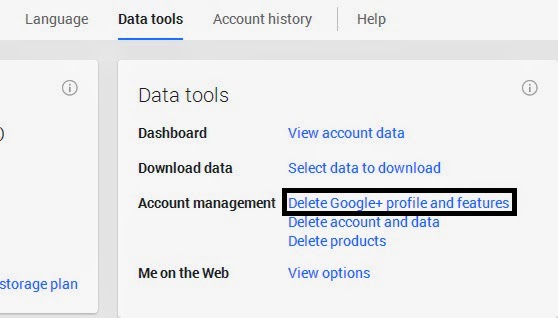
Step 3: The Data tools tab contain many different options related to your account settings. Find the Account management section and select the Delete Google+ profile and features link.


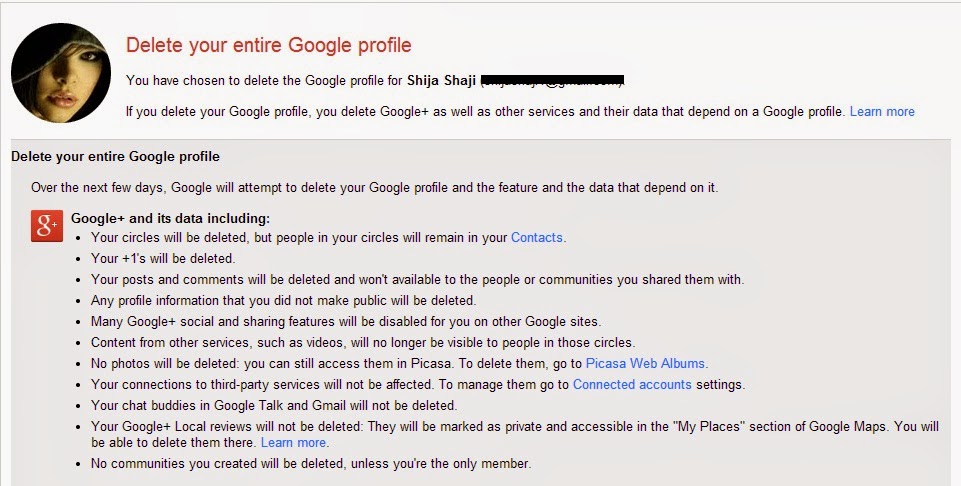
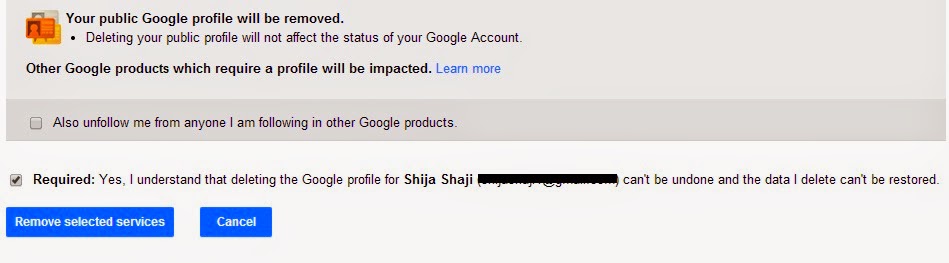
Step 4: Delete confirmation page opens up and give options to remove your Google profile. Before you proceed to delete your Google+ account, make sure to read the page for information regarding what type of data will be affected and so on. Even though it does not affect your Gmail account, it may affect some other account information. For example, if you comment on YouTube videos, then deleting your Google+ may affect your account since YouTube uses your Google+ profile to post comments.


Step 5: Scroll down after reading all the information and then put a checkmark on Required. You can also put a checkmark on the option Also unfollow me from anyone I am following in other Google products if needed. Click Remove Selected Services to remove your Google+ profile.


Go to link Download

Read more »

Wednesday, September 7, 2016

HOW TO REMOVE YOURSELF FROM CONVERSATION INBOX ON FACEBOOK

HOW TO REMOVE YOURSELF FROM CONVERSATION INBOX ON FACEBOOK


Its quite Frustrating having  Multiple Users(Facebook Users)  Inboxing You [Inbox Conversation].
 You might just wake up one morning to find yourself among 400+ Other Facebook Users in a Group Conversation that you did not Request for! Every Minute you see New Inbox Notification, only to find out its still from that same Message you just Finish Reading! OMG....


-->
I am always angry anytime i experience such Problem and Infact More Angry when i Remember Facebook has no Solution to that Problem, Now the Problem is Over. Lets Go!


HOW CAN I REMOVE MYSELF FROM SUCH CONVERSATION?
 
1. You must be Logged in to Facebook on PC or Bolt Browser on Phone to Remove yourself.
2. Open that Particular Conversation Message from your Inbox.
3. Click on the Action button at the top right corner of the Page and Click the Leave Conversation option from the drop-down.


4. You are Out of the Sh!t and you can now enjoy yourself.

Go to link Download

Read more »

Sunday, September 4, 2016

How To Remove PPSync From Your Jailbroken Device And Why Is It Necessary

How To Remove PPSync From Your Jailbroken Device And Why Is It Necessary


A Chinese group of hackers so called as Pangu had released a jailbreak for iOS 7.1.X. Unfortunately, this jailbreak contains a checkbox which installs an app for downloading pirated apps and much more.


Jailbreak developers are strongly recommending the users to uncheck the box on the installer GUI. Check out this article to know why and how to remove PPSync from your device.

Click here to continue reading..


Go to link Download

Read more »

Saturday, September 3, 2016

How to remove icon BlackBerry Messenger connected On Android

How to remove icon BlackBerry Messenger connected On Android


First of all I recommend you this do not do on smartphones that have less than 512 MB ??of RAM or terminals that handle bad RAM. Ive tried with Huawei Ascend G300 with Jelly Bean Android 4.2.2 and a Huawei Ascend Y300 with Jelly Bean Android 4.3.1 and have not had any problems, that is, I have received all messages immediately without having to open the application.


You might also have the Huawei Ascend Y300 and not messages arrive in BlackBerry Messenger until you step inside the application, this may be because you have too many applications running in the foreground and background and the closure Android if they are not using.

Having clarified the matter, lets see how this icon is disabled and thus does not appear in the notification bar:

  1. We went into BBM.
  2. We go to the fifth column, ie the Settings menu and enter "Setup" .
  3. In option: "BBM connected icon" , click on it to clear.
  4. And you will receive the following message:

And thats it, if you notice that you do not get the messages, return to enable this option and shall return to receive messages instantly. If you have any questions, leave it in the comments section.


Go to link Download

Read more »

Wednesday, August 31, 2016

HOW TO CREATE A DESKTOP SHORTCUT TO SAFELY REMOVE ALL USB REMOVEABLE DEVICE

HOW TO CREATE A DESKTOP SHORTCUT TO SAFELY REMOVE ALL USB REMOVEABLE DEVICE


Most time when we Insert any Removable Device through the USB Port of our PC, it is adviceable to Remove it using the System Tools or Option on the Taskbar before Removing it from the USB Port, Most people dont see this Step as something important or they Forget to do so, thats why most USB Device get Corrupts.

You can create shortcut to safely remove hardware device on you Desktop which is more visible and can be easily used to remove the hardware devices plugged to your PC.


HOW TO CREATE A DESKTOP SHORTCUT TO SAFELY REMOVE PLUGGED IN HARDWARES
1. Right click on your Desktop and Click on New.
2. Now click on Shortcut option from the list.
3. In the browse location just Paste in the below code and click on Next button.
4. Now it will ask you to Name the shortcut. Name it something like Safety Remove USB and then click on the Finish button
5. There should be a shortcut icon on your Desktop just double click on it and your external media will be Removed Safely.

Go to link Download

Read more »