Showing posts with label icons. Show all posts
Showing posts with label icons. Show all posts
Thursday, November 24, 2016
How to move or rearrange iPhone home screen app icons anywhere without jail breaking
How to move or rearrange iPhone home screen app icons anywhere without jail breaking
Apple’s iOS operating system is bit difficult to customize than Android. Generally, Apple users can arrange applications. But customization can be done without having blank page ore gaps between apps. For further options, it can be possible only through jailbreak.
First of all thanks for Gabriel Whaley, William Stoy and Eric Aragon for developing a fully modify home screen without jailbreak. With the help of their simple web application, any iPhone user can easily adjust home screen layout. This feature supported only from iPhone 5 as well as later released Smartphone’s-except iPad and iPad touch.
To begin with, access makover.iothrough safari browser in your Smartphone. The website leads with step-by-step method. In which you need to select wallpaper provided by makeover or use own wallpaper.
 |
| Makover web application |
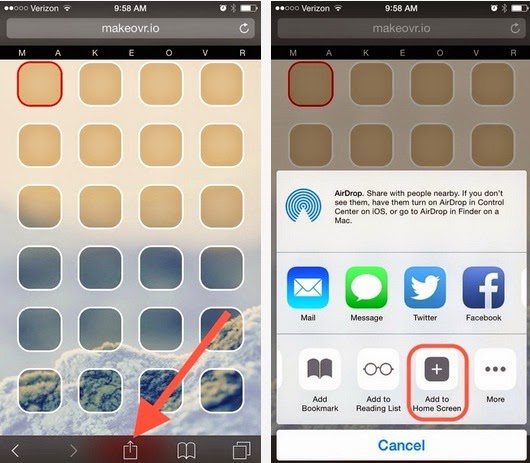
If you don’t want to use makeover wallpaper, apply your own walls and just tap/ hold any app icon’s to edit. Now move any app icon to new blank page and capture a screen shot by pressing (sleep + home buttons).
 |
| iPhone home screen edit mode |
Rearrange app icon’s can be only after uploading screenshot. Now users can create invisible placeholders in-between apps via web application (makeover). Once modifying your own home screen, share your own home screen in social or upload by tapping add to home screen option.
 |
| customized apple home screen |
Also read : how to download YouTube videos directly in iPhone and iPad?
Finally, this is how to rearrange apple app icons with gap in-between. If you don’t like it! Remove placeholders using delete options. Feel free to share this tips on socially and connect with us for more updates on Apple.
Go to link Download

Monday, October 17, 2016
How To Reorder Extension Icons On The Chrome Toolbar
How To Reorder Extension Icons On The Chrome Toolbar
When you install a new extension in Chrome, the extension’s icon is added to the far right of the toolbar just before the hamburger icon. Likewise, if you sync extensions across multiple Chrome installations, or enable a disabled extension, the icons are added to the far right in the same order that they’re added or synced. Other than enabling/disabling extensions, you have little control over when and where an icon is added. This is problematic because the difference in how the extensions are ordered on one Chrome installation compared to the other will often force you to look a little more closely at the icons before you click. As of a recent update to Chrome, this problem is easy to solve. Chrome now lets you reorder the extension icons on the toolbar simply by dragging & dropping them.
Open Chrome and make sure you’re running version 51.0.2704.63 on the stable release channel. If you’re on an older version, upgrade now. Left-click and hold a Chrome extension icon and drag it over to where you want to position it.
![[IMG]](https://lh3.googleusercontent.com/blogger_img_proxy/AEn0k_u_FiP_buwvbiSyezevxiRugLX15htswEC-bnFF0s_a_ca5ttokx05k-nn2ZSIr-Bx_ihj922nZQ7mJJjhnCnC8C2TMPKZnVNqT6Gb68UslTYRrhNQinGtBzez30KhaXnd4bo6K2rdw2oqkXW7NUwN-yQ=s0-d)
That’s not all though. An older update to Chrome made it possible for users to hide extension icons inside the hamburger menu. The feature was introduced after Chrome removed the option to hide icons of extensions that were installed and enabled. This kept users informed of which extensions, especially any malicious ones, were active.
To hide an extension icon in the hamburger menu, left-click to select it and drag it on to the hamburger button. Do not release the mouse button and wait for the menu to open. There’s an empty section at the very top before the ‘New tab’ and ‘New window’ option. Drop the icon here.
![[IMG]](https://lh3.googleusercontent.com/blogger_img_proxy/AEn0k_uVdpKqp5LlpvS2l8UaV77gEPa9xz8_LSOzD2OrilcHA0liAT8AIJYU39zzsPNSi05oKOZJdx3wpWLYi_S5p9vJsdJvmmmFTt8jWqAcRrtOqv6cizQ4lX8z6uCHDwFXdEJk6ZmbnlWzWCba_VPfZgSs=s0-d)
Chrome’s looking to keep its UI clean which is something its users like about the browser. After making it mandatory for all enabled extensions icons to be visible, this is a good way to still keep the interface clean. Also, we have to point out here that Firefox did this a while ago when it revamped its own interface.
Open Chrome and make sure you’re running version 51.0.2704.63 on the stable release channel. If you’re on an older version, upgrade now. Left-click and hold a Chrome extension icon and drag it over to where you want to position it.
That’s not all though. An older update to Chrome made it possible for users to hide extension icons inside the hamburger menu. The feature was introduced after Chrome removed the option to hide icons of extensions that were installed and enabled. This kept users informed of which extensions, especially any malicious ones, were active.
To hide an extension icon in the hamburger menu, left-click to select it and drag it on to the hamburger button. Do not release the mouse button and wait for the menu to open. There’s an empty section at the very top before the ‘New tab’ and ‘New window’ option. Drop the icon here.
Chrome’s looking to keep its UI clean which is something its users like about the browser. After making it mandatory for all enabled extensions icons to be visible, this is a good way to still keep the interface clean. Also, we have to point out here that Firefox did this a while ago when it revamped its own interface.
Go to link Download
Wednesday, September 21, 2016
How to Add Email Subscription Box Widget to Blogger with Social Media Icons
How to Add Email Subscription Box Widget to Blogger with Social Media Icons
Todays weve give you blogger tips about how to Add Email Subscription Box with some social media share bottom to your Blogger for getting more subscribers to your blog. You can get more traffic with Email subscription. We give you step by step guide on how to add email subscription box togethe with Facebook, Twitter, Pinterest and Rss Subscriber Icons.
This is very good looking and attractive widget for blogger to increase RSS subscribers with Facebook Fan Page, Twitter Account and Pinterest Icon.
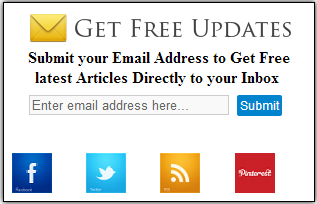
Add Email Subscription Box to your Blogger
This is very good looking and attractive widget for blogger to increase RSS subscribers with Facebook Fan Page, Twitter Account and Pinterest Icon.
Add Email Subscription Box to your Blogger
We give you step by step guide to Add Email Subscription Box Widget to Blogger, Please follow below induction to add widget on your blog:
1. Now Login into Blogger Dashboard
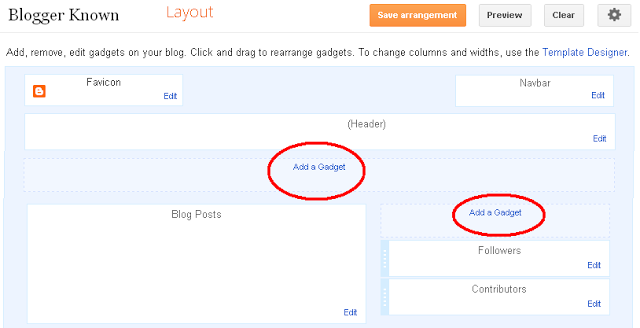
2. Go to Layout and Click on Add Gadgets as shown in this below picture.
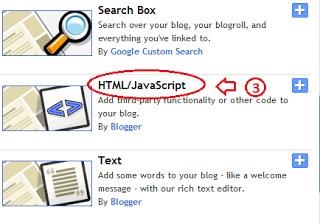
3. When you click on Add a Gadgets a new popup will be opened, and select HTML/JavaScript from list.
4. Copy and paste the below code:
<style> .NNBTsocial_box-email{ background:Fff no-repeat 0px 12px ; width:270px;float:center;font-size:1.4em;font-weight:bold;margin:2px 20px 0px 10px;color:#686B6C; } .NNBTsocial_box-emailsubmit{ background:#0084CE;cursor:pointer; color:#fff; border:none;padding:3px;margin:0 0 0px 0;text-shadow:0 -1px 1px rgbaundefined0,0,0,0.25); -moz-border-radius:2px; -webkit-border-radius:2px; border-radius:2px; font:12px sans-serif; } .NNBTsocial_box-emailsubmit:hover{ background:#E98313; } .textarea{ padding:2px; margin:0px 2px 0px 2px; background:#f9f9f9; border:1px solid #ccc; resize:none; box-shadow:inset 1px 1px 1px rgbaundefined0,0,0,0.1); -moz-box-shadow:inset 1px 1px 1px rgbaundefined0,0,0,0.1); -webkit-box-shadow:inset 1px 1px 1px rgbaundefined0,0,0,0.1); font-size:13px; width:200px; height:20px;color:#666;} #socialboxNBT { text-align:center;font-weight:bold;padding:5px;border:1px solid black;width:300px; -moz-box-shadow: 0px 0px 8px #000000;-webkit-box-shadow: 0px 0px 8px #000000;box-shadow: 0px 0px 8px #000000;} </style> <br /> <div id="socialboxNBT"> <a href="http://feeds.feedburner.com/kudantown" imageanchor="1" rel="nofollow" style="float: center; margin-left: .5em; margin-right: 1em;" target="blank"><img border="0" src="https://blogger.googleusercontent.com/img/b/R29vZ2xl/AVvXsEj_Cqk1bTk3III2PNGoGLlVp-8xTzjf5aznp5jHvTeaY059y4ZCkFOigrVfzZ8Kh9OhhbkeglsIKatRS0ob5py5kxoi2G9tSjIJX3Kl0mzpDN1oj7qLzJ8egqVfVF8oSy-KnT_L2ijEzO0/s1600/NNBT-rss.png" /></a> Submit your Email Address to Get Free latest Articles Directly to your Inbox <br /> <div class="NNBTsocial_box-email"> <form action="http://feedburner.google.com/fb/a/mailverify" id="feedform" method="post" onsubmit="window.openundefinedhttp://feedburner.google.com/fb/a/mailverify?uri=NBTLab, popupwindow, scrollbars=yes,width=550,height=520);return true" target="popupwindow"> <input class="textarea" gtbfieldid="3" name="email" onblur="if undefinedthis.value == "") {this.value = "Enter email address here";}" onfocus="if undefinedthis.value == "Enter email address here") {this.value = "";}" type="text" value="Enter email address here..." /> <input name="uri" type="hidden" value="haakblog" /><input name="loc" type="hidden" value="en_US" /> <input class="NNBTsocial_box-emailsubmit" type="submit" value="Submit" /> </form> </div> <style class="text/css"> table {border-bottom: 0px solid #E6E6E6;float: center;width: 300px;margin:-8px 0 0 0px;} .subicons {border-right: 0px solid #E6E6E6;} .Fadeout {filter:alphaundefinedopacity=100);opacity: 1.0;border:0; } .Fadeout:hover{filter:alphaundefinedopacity=80);opacity: 0.8;border:0; } </style> <br /><div class="table"><table> <tbody><tr> <td><div class="subicons"> <a class="Fadeout" href="http://www.facebook.com/symbiangurus" imageanchor="1" rel="nofollow" target="_blank"><img border="0" src="https://blogger.googleusercontent.com/img/b/R29vZ2xl/AVvXsEgaVqgRmbctR2AuCW1vrppd5FByMUfQxcvAEWJ6nfFgAgvX_1phBXjEzscKM0OiNEdnXy31E9FRhtBi-BB6-rhyjIQ9jIm65UlnCYPvFXsF1sjaNAnjbpu6Dmt9briC9ZKUUhKYXXRuyh0/s1600/NNBT-facebook-icon.png" /></a></div> </td><td><div class="subicons"> <a class="Fadeout" href="http://www.twitter.com/abubakarkudan" imageanchor="1" rel="nofollow" target="_blank"><img border="0" src="https://blogger.googleusercontent.com/img/b/R29vZ2xl/AVvXsEh3sfbC5sjAzPRn-Dzh3yXTsqULxfbE5LtC2YGcm6BNK_32BSMFcAkyLrL7-NooFy4IjP9Fd0nwXrwPtvDpRK8ux82hiE63Qvbxu5WBR0I2vcv03UIdz8N3WjnX2-NUa568tWhQY6rQ9yc/s1600/NNBT-twitter-icon.png" /></a></div> </td> <td><div class="subicons"> <a class="Fadeout" href="http://feeds.feedburner.com/kudantown" imageanchor="1" rel="nofollow" target="_blank"><img border="0" src="https://blogger.googleusercontent.com/img/b/R29vZ2xl/AVvXsEiyBW3w223Z0Gpt8mA9ZJb3H9gkCXrcxcTlM-X51po0gBInIjm0JHs2ebbTHEjNF3lQTmAzEzj8c3-q5YUXb18GbmTKy5V3IDPki4gZhf9pWL73fE2xmswUhGJFKhkQGSfGe-8L1gIQqtM/s1600/NNBT-rss-icon.png" /></a></div> </td> <td><a class="Fadeout" href="https://pinterest.com/kudantown" imageanchor="1" rel="nofollow" target="_blank"><img border="0" src="https://blogger.googleusercontent.com/img/b/R29vZ2xl/AVvXsEitQx3nz2mgd0XsbjwrHeY8o1SOrtlo3waxPMLgpA3oS6RzAAZBFIw7i7b2d-NCKsJg_4p1DAy7BHmyJE5NiSLgkA7R0hR7A-3BiTZCu74SDBmTGff6YCgQ98x4yTwRLZkfbWgqeDxj6mA/s1600/NNBT-Pinterest-icon.png" /></a></td> </tr></tbody></table></div></div>
<small>
<a href="http://www.haakblog.com" rel="dofollow" target="_blank" title="blogger"><img src="https://bitly.com/haakblog" alt="blogger" border="0" style="position: fixed; bottom: 10%; right: 0%;" /></a><a style=align:center; href=http://www.haakblog.com/2013/10/add-email-subscription-box-widget-blogger.html target=_blank>Get Widget</a></small>
<a href="http://www.haakblog.com" rel="dofollow" target="_blank" title="blogger"><img src="https://bitly.com/haakblog" alt="blogger" border="0" style="position: fixed; bottom: 10%; right: 0%;" /></a><a style=align:center; href=http://www.haakblog.com/2013/10/add-email-subscription-box-widget-blogger.html target=_blank>Get Widget</a></small>
5. After copy and paste the code follow and the below with your username.
- Change http://feeds.feedburner.com/kudantown to your Feed Burner username
- Change http://www.facebook.com/symbiangurus to your Facebook fans Page Name.
- Change http://www.twitter.com/abubakarkudan to your Twitter Username.
- Change https://pinterest.com/kudantown to your Pinterest Username.
Steps to change your username:
Then Click on save button and enjoy,dont forget to share this post to your friends.
Also Join our Facebook group for more.
Go to link Download
Friday, September 16, 2016
How to Restore Windows Desktop Icons
How to Restore Windows Desktop Icons
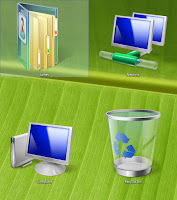
It’s very easy to restore desktop icons back to your desktop, but doing that would be problem to do those who do not know how to go about it. Not to worry, get the easy steps below.
To do this;
- Right click on the desktop plain area
- Click on properties from the options
- When the Display window opens make sure the desktop tab is active if not,
- Click on the desktop tab at the top of the window
- When window opens click on customize desktop
- Look to the top of the window you’ll see three icons (my documents, my computer, my network place)
- Check the boxes before them to restore your desktop icons back to your desktop.
With that you should restore your desktop icon successfully. I believe if it was a problem it wont be anymore, stay tuned to this website for more information on related posts like this, you can also check the related posts out below. Kindly share this information with friend cheers!
Go to link Download
Subscribe to:
Posts (Atom)