Showing posts with label restore. Show all posts
Showing posts with label restore. Show all posts
Saturday, November 12, 2016
HOW TO RESTORE A BRICKED INFINX HOT NOTE 2
HOW TO RESTORE A BRICKED INFINX HOT NOTE 2

This post is for Infinix users that have mistakenly bricked their devices for one reason or the other
. Especially users of the new Infinix Hot 2. I’ve received lots of complains – People trying to root and bricking their phones in the process. If you find yourself in such situations, here’s what you should do:- Visit the Infinix Support website HERE.
- Go to Select Service and pick Software Updates.
- Go ahead to pick your device. In this case, we pick the Hot 2.
There are 2 methods to do the Restoration. With PC or Without PC
If you plan to download the software via your phone make sure you install MEGA app HERE, and register an account with them.
Without PC
- Download the ROM file HERE .(It’s named update.zip) and place it on the root of your SD card. (Root means on the outside, not in any folder).
- Boot to recovery mode by pressing Power button and Volume + key simultaneously.
- Use Volume keys to navigate and Power button to Enter.
- Select Apply Update from SD Card and navigate to where you kept the update.zip file.
- Press the Power button to select and allow it to automatically update the phone.
- The phone restarts and that’s all.
You can also download the guide HERE.
With PC
- Download and Install MediaTek USB VCOM Drivers HERE.
- Download the Update guide HERE.
- Download the Infinix Flash tools HERE.
You’ll notice there are two ROMs available for the Hot 2.
The first one HERE, is the Android 5.1 ROM from Infinix. It has extra features like Font Changer, Hot Knot, Miravision and some extra apps.
The second one HERE, is the Android One ROM from Infinix. This is the one we’re all familiar with, and on this one, we’re sure of direct updates from Google.
First off all, install the VCOM drivers, then follow the guide religiously, and you’ll be fine. Make sure to buzz me if you encounter any issues.
This post is for Infinix users that have mistakenly bricked their devices for one reason or the other. Especially users of the new Infinix Hot 2. I’ve received lots of complains – People trying to root and bricking their phones in the process. If you find yourself in such situations, here’s what you should do:
- Visit the Infinix Support website HERE.
- Go to Select Service and pick Software Updates.
- Go ahead to pick your device. In this case, we pick the Hot 2.

There are 2 methods to do the Restoration. With PC or Without PC
If you plan to download the software via your phone make sure you install MEGA app HERE, and register an account with them.
Without PC
- Download the ROM file HERE .(It’s named update.zip) and place it on the root of your SD card. (Root means on the outside, not in any folder).
- Boot to recovery mode by pressing Power button and Volume + key simultaneously.
- Go to link Download

Monday, October 24, 2016
How to Restore Deleted Photos and Videos on Android Smartphone Using Dumpster
How to Restore Deleted Photos and Videos on Android Smartphone Using Dumpster
How to Restore Deleted Photos and Videos on Android Smartphone Using Dumpster - Not accidentally delete important files on Android smartphone ? No need to upset , you can restore lost files on Android smartphone . There are several ways that you can do to restore lost or deleted files on Android smartphones , one of which is by using an application called Dumpster .

By using a Dumpster application , you do not need to root the Android smartphone using applications like DiskGigger . Interestingly, Dumpster application does not require internet connection . Dumpster similar way the application works like the Recycle Bin in Windows computer , where you can just select the file and click restore to restore the data to its original folder .
Dumpster application can be used to restore deleted files , either in the form of pdf , mp3 , doc , avi , mp4 , jpg , png , txt and many more . If you have deleted important files and want to return , then you can try to restore it using the application Dumpster . Dumpster application is available for free on Google Play Store .
By using a Dumpster application , you do not need to root the Android smartphone using applications like DiskGigger . Interestingly, Dumpster application does not require internet connection . Dumpster similar way the application works like the Recycle Bin in Windows computer , where you can just select the file and click restore to restore the data to its original folder .
Dumpster application can be used to restore deleted files , either in the form of pdf , mp3 , doc , avi , mp4 , jpg , png , txt and many more . If you have deleted important files and want to return , then you can try to restore it using the application Dumpster . Dumpster application is available for free on Google Play Store .
Go to link Download
Monday, September 26, 2016
How I Restore And Recover My BBM Contacts
How I Restore And Recover My BBM Contacts

Contained by this article, I shall discuss with you how to recover or restore your BBM Contacts even if you include not at all backed up the BBM Contacts.
With no much story and explanation, we already know with the aim of The BBM get in touch with back up is like a store up or safe box where your Blackberry envoy contacts are being saved and synchronize, though the frequency in support of which this is being made is single-minded by your BIS or BES subscription and the service bringer.
Furthermore, you can manually back up your BlackBerry envoy get in touch with in the sphere of a folder on your media card(Memory Card). In support of details on how to work out, this article should guide you on how to Back Up your BBM Contacts in support of Easier reinstatement.
STEPS:
Depending on the option you used once assistance up your BBM Contacts, you can either restore or recover your BBM Contacts using the locally saved method (Media Card) or from the remote server
The following is how to restore your BBM get in touch with from Remote server
This is the greatest option you be inflicted with in the same way as a BBM user for the reason that you just need the email lecture to you configured with your Blackerry device in the same way as the means to your BBM Contacts however, you can restore or recover your BBM Contacts just if you be inflicted with an on the go BIS or BES subscription on your phone and it will power restore your BBM Contacts to the only remaining second you had BIS or BES on the go on your before Blackberry device.
At this moment, to restore your BBM Contacts using this option, original configure the email lecture to you apply on your Blackberry device on the lone you at this moment apply at that time, open/lunch/run BBM on your Blackberry device, depending on how it starts (If you are running BBM in lieu of the original phase, it starts up differently), in a minute navigate it to its routine screen at that time, press the "Blackberry menu button" and scroll down to "Option". This displays personalization and management options in lieu of BBM app. Scroll down to "Back Up Management" and click "Restore"
Prefer to restore from "Remote Server". The device without doubt detects the email lecture to you configured with the Blackberry device and the reinstatement process begins as soon as possible.
How to Recover or Restore your BBM Contacts from Media tag
Sooner than you can befall able to recover your BBM Contacts from a media tag, you need to be inflicted with access to the media tag and secondly; you ought to know the exact folder in the sphere of which your BBM Contacts were backed up in the back up process.
At this moment, to restore your BBM Contacts, open/lunch/run BBM on your Blackberry device, depending on how it starts (If you are running BBM in lieu of the original phase, it starts up differently), in a minute navigate it to its routine screen at that time, press the "Blackberry menu button" and scroll down to "Option". This displays personalization and managment options in lieu of BBM app. Scroll down to "Back Up Managment" and click "Restore"
Prefer to restore locally i.E from media tag. If you be inflicted with not misused the default folder in lieu of BBM Back up collection, it displays the folder otherwise, navigate to the folder in the sphere of which you be inflicted with saved your BBM Back up column and "Select" at that time, you can proceed to "Restore"
Go to link Download
Friday, September 16, 2016
How to Restore Windows Desktop Icons
How to Restore Windows Desktop Icons
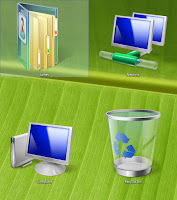
It’s very easy to restore desktop icons back to your desktop, but doing that would be problem to do those who do not know how to go about it. Not to worry, get the easy steps below.
To do this;
- Right click on the desktop plain area
- Click on properties from the options
- When the Display window opens make sure the desktop tab is active if not,
- Click on the desktop tab at the top of the window
- When window opens click on customize desktop
- Look to the top of the window you’ll see three icons (my documents, my computer, my network place)
- Check the boxes before them to restore your desktop icons back to your desktop.
With that you should restore your desktop icon successfully. I believe if it was a problem it wont be anymore, stay tuned to this website for more information on related posts like this, you can also check the related posts out below. Kindly share this information with friend cheers!
Go to link Download
Wednesday, August 31, 2016
How to Restore an Unresponsive iPhone iPad
How to Restore an Unresponsive iPhone iPad
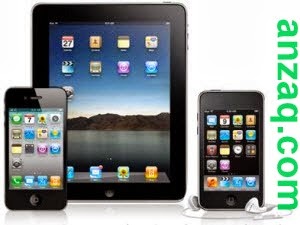
Due to heavy data like plenty of apps apps running or due to any other reason your device iPhone / iPad not respond. It hangs out and go into steady condition. This condition may irritates you. So, having little knowledge about the usage of iPhone or iPad you move to turn off device or restart it. Turn off or restart or wait till respons is not solution of your problem. You need to restore your device, So question is How to Restore an Unresponsive iPhone / iPad ?After reading this article you may able to convert your device in responsive mode from unresponsive mode. So follow given below steps to restore your iPhone.
a. Turn Off the Unresponsive iPhone / iPad
1. Hold down the power button and home button at the same time
2. Blck screen will show then Apple logo will appear. Hold down both power button and home button continuously.
3. When screen become black and stay for a bit then leave the home and power button. iPhone / iPad now turn off.
b. Turn On the Unresponsive iPhone / iPad
1. To turn on the iPhone / iPad, hold down home as well as power button.
2. If home screen appear then device is turn on. If device jammed at Apple logo , repeat Section (a) to turn it back off and then follow step (c).
c. Put the iPhone / iPad into DFU Mode
1. When your device is in off mode, connect it with computer via USB.
2. Hold down Power and the Home button at the same time Apple logo will show then screen turns to black.
3. Leave the Power button but continue to hold the Home button until iTunes pops up a dialog box saying it has find an iPhone in recovery mode.
d. Flash the Stock Firmware and Your Latest Backup
1. Open iTunes, click on Restore.
2. When the device has been restarts , select the backup of the device when urged to restore your apps, contacts, etc.
3. Thats all. You have done.
See Also:iPhone 5S current model leaked
See Also:iPhone 5S current model leaked
Go to link Download
Subscribe to:
Posts (Atom)