Showing posts with label lollipop. Show all posts
Showing posts with label lollipop. Show all posts
Monday, October 31, 2016
How To Fixed Invalid Imei on Tecno C8 Android Lollipop
How To Fixed Invalid Imei on Tecno C8 Android Lollipop
I flash my tecno C8 android lollipop 5.1, After successful flash then i reboot the device and i notice invalid imei which mean the phone miss it imei number and it will not work properly with networks providers.
As we all knows imei is an identity to any device, so without imei your device can not be recognize or detected by any of the network service providers, and due to that you can no longer make calls, access internet service and any thing that required network. But you can only access network via WIFI.
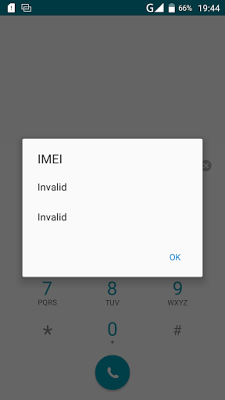
The only way out to this issue is to fixed the invalid imei by replacing it with a valid imei. A lot of people says you have to root the device before you can able to fixed the imei which is not true because i fixed the invalid within a minute without rooting my device.
Fixed Invalid Imei On You Tecno Device
1. Download and Installed Mtk Engineering Mod on your device.
2. Open/Lunch the MTK Engineering Mode on your phone.
3. Click/Select MTK Settings.
4. Navigate left to Connectivity
5. On the connectivity panel, select CDS Information.
6. On the CDS Information, select Radio Information.
7. Now, select either the Phone1 or Phone2, to proceed to replacing of missing IMEI.
8. On this page, click on the AT+. About four (4) options should be presented to you, just choose either of this options below: Make sure you give one space between AT and Plus (+)
Now type your imei as shown below with the same format
AT+ EGMR=1,7,"" for phone 1
AT+ EGMR=1,10,"" for phone 2
9. Now, tap/click the Send AT Command option
Then reboot your phone and dial *#06# to check your IMEI number.
Now your imei has sucessful written without rooting your phone, please share this to your friends via our share bottom.
If you need any help about this you can contact on whatsapp messenger via +2348067611897.
Go to link Download

Tuesday, October 25, 2016
How to Run Install Android OS Kitkat Lollipop Marshmallow on Computer Easiest way
How to Run Install Android OS Kitkat Lollipop Marshmallow on Computer Easiest way
Install full Android OS on your PC or Laptop easy and simple: Android Lollipop: Android KitKat: Android Marshmallow:
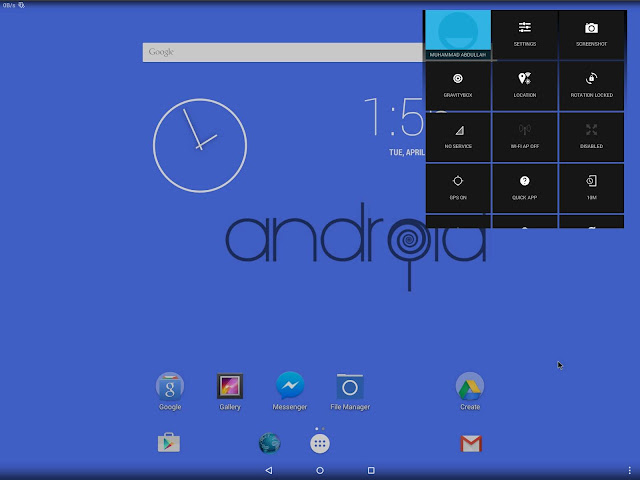
To make this happen you will need:
- Formatted USB of 4GB or Higher (depends upon Android version)
- A PC or a laptop that should meet the requirements of Installation
- An Internet connection to download files
- And this blog to help you out :)
Make sure that your USBs data is saved because its going to Format
Now download .iso format files from the link given below:
Always choose the latest and bug-free iso files.
Always choose the latest and bug-free iso files.
Android x86 (Google Code)
Other Android Versions
Android Lollipop ISO Files
Android 6.0 Marshmallow iso Files
Now you have to download USB Installer toolWhich you can get from the post below:
Download Universal USB Installer
Now follow the link to make your USB bootable to install or run Android:
How to make a Bootable USB
How to run Mozilla FireFox OS on PC Step by step guide:http://techgangfacebook.blogspot.com/2015/03/how-to-run-mozilla-firefox-os-on.html
Posted by Tech Notes on Thursday, 26 March 2015
Now after successfully making your USB bootable insert USB in PC and restart your PC or Laptop
After restarting your PC, you will see following screens.
Follow these screens step by step to Install or Run an OS.
Personally, I would recommend you to not install OS.
Simply run it directly from USB. This is because after installation both OS (Android and Windows) will run on your Computer or laptop and after a short time it will make your device slower and then you have to reinstall windows to remove Android.
Follow these screens step by step to Install or Run an OS.
Personally, I would recommend you to not install OS.
Simply run it directly from USB. This is because after installation both OS (Android and Windows) will run on your Computer or laptop and after a short time it will make your device slower and then you have to reinstall windows to remove Android.
You can see the first option in Step 1 to run Android with USB. This option will not Install Android on your PC. You can run android any time on your device.
 |
| Step 1 |
You can Install on any drive but it is recommended that if you want to remove OS after Installation chooses an Empty disk. Dont install on C where windows are installed.
 |
| Step 2 |
This is because GRUB allows you to boot any OS by prompting you to choose which OS you want to run.
 |
| Step 3 |
This is like giving internal storage to android. If you want to install too many apps then choose more internal storage. 2GB is the maximum option in this.
 |
| Step 4 |
 |
| Step 5 |
WELCOME TO THE WORLD OF ANDROID ON PC
Now choose which you want to do either you want to reboot or run android. A reboot will prompt you choosing between Windows and Android.
 |
| Step 6 |
Also See:
Download all One Plus 2 Stock HD Wallpapers
Posted by TechNotes on Wednesday, 5 August 2015
Cautions:
- There might be bugs in Android versions. So choose latest iso files
- All android apps will not be available to run. e.g those apps that use portrait screens.
It is like Android running on a tablet.
These versions of android are already rooted and you can customize them on PC too.
What you can do more?
- Install Xposed Installer on your android OS
- Install Gravity box
- You can install and run any Root app on this OS and you can customize it too.
If you have any suggestions about this blog or tutorial then comment below, I will appreciate your feedback :)
Link to Facebook and other social platforms are on the top action bar and on the bottom too.
Follow this blog for more and Tech updates.
#TechNotes #TechGang +Tech Notes #AndroidOnPC #BestTutorialForAndroidOnPCOrLaptop
Android OS Gallery
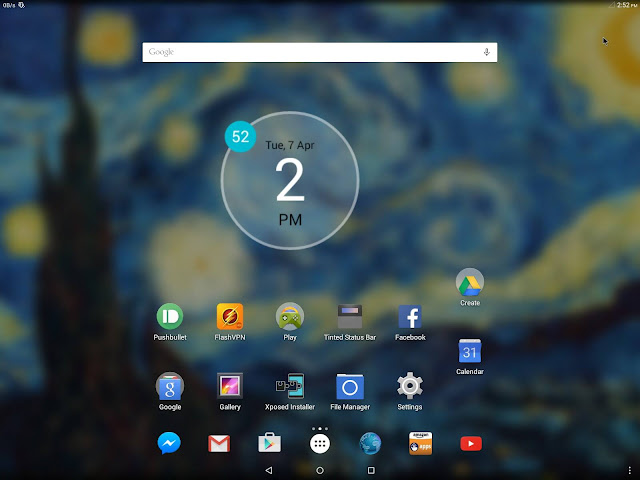
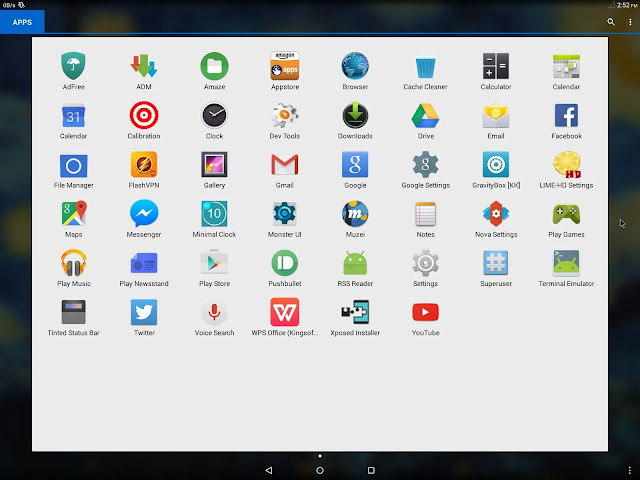
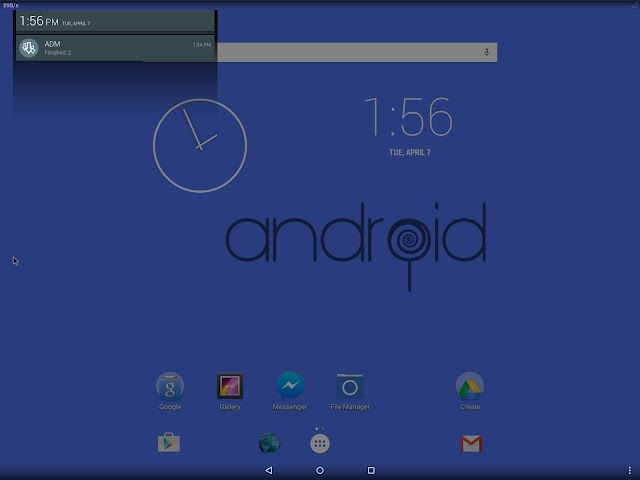
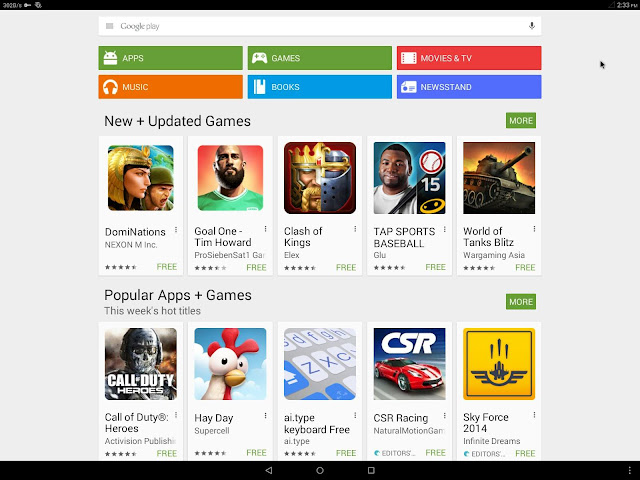
Also See:
Download Microsofts Arrow launcher secret beta for Android
Posted by TechNotes on Monday, 10 August 2015
Go to link Download
Thursday, September 29, 2016
How to fix Wi Fi Connectivity bugs in Android 5 0 Lollipop
How to fix Wi Fi Connectivity bugs in Android 5 0 Lollipop
Android recently roll-out Lollipop update for supported device. Some Users reporting, Wi-Fi Connection drops in between while some users don’t shows online connections. And device like Nexus 5 and Nexus 10 facing battery issues, lagging and crashing and a lot of other issues. Google has working on to unlock software update which fixes all the bugs inside Android 5.0. Meanwhile you can use this tricks to fix WI-Fi Connectivity bugs.
 |
| Wi-Fi bugs in Android 5.0 |
This tricks works on some Smartphone or tablet. Those who face Wi-Fi disconnection of Wi-Fi network in between should long press on Wi-Fi network list. Then need to reconnect with a network seem to works for some people.
Due to outdated version of some application can also cause Wi-Fi compatibility. For that case, update all third party application for latest version and reboot your device. And in some other website also added one more tricks to troubleshooting Wi-Fi connectivity. That is changing the Wi-Fi channel helps to fix Wi-Fi issues, which can be done under advance setting in Wi-Fi menu options. If you finds and new solutions, let us know through comment and don’t forget to share this on socially. Feel free connected with us on social network.
Go to link Download
Subscribe to:
Posts (Atom)