Showing posts with label infinix. Show all posts
Showing posts with label infinix. Show all posts
Saturday, October 29, 2016
HOT List UPDATED How To Root Tecno L3 F5 M6 H5 H6 P5 L6 R5 F6 P9 Infinix Hot Hot Note
HOT List UPDATED How To Root Tecno L3 F5 M6 H5 H6 P5 L6 R5 F6 P9 Infinix Hot Hot Note

Ok. So i made this list as a guideline to help you whenever you want to Root any of the listed below phones... Ill try as much as possible to keep it updated so Keep This Page on Your Bookmarks!
ROOT
Tecno F5 - iRoot Pc
Tecno M6 - KingRoot apk
Tecno H5 - com.mgyun.shua.su7 apk
Tecno H6 - KingRoot apk
Infinix Hot X506 + Hot Note - iRoot Pc
Tecno P5 - Framaroot apk
Tecno L6 - KingRoot apk
Tecno R5 - KingRoot apk
Tecno F6 - KingRoot apk
iTel it501 - iRoot PC
(UPDATE)
Tecno L3 - Shaume PC
Tecno P9 - FramaRoot Apk
Thanks. And Dont Forget to Leave Your Comments, We Love Comments!
Go to link Download

Friday, October 28, 2016
How To Root Infinix Hot 2 x510 Without PC
How To Root Infinix Hot 2 x510 Without PC

How To Root Infinix Hot 2 x510 Without PC
==>1. Download and Install KingRoot.apk Here
==>2. After download and installation, make sure you are having a strong 3G network on your Hot 2
==>3. Open KingRoot and wait for all checks to be completed, then tap the Center button with Root written in Chinese language to begin rooting.
==>4. Once kingroot is done rooting your infinix hot 2, a green button indicating "success" will show up. Just Tab the other blue button under it written in Chinese. And thats all.
==>5. You can get Root Checker from play store to check if youve actually gotten root access.
Read Also: How To Quickly Root Infinix Hot X507 + Other Android Devices
Since this phone is a new device, and majority buying it might just be using an Android, or hearing about rooting for the first time. And be wondering if rooting of infinix hot 2 will cause any damage to the device. So i stand to clarify that this has been tested and trusted. Using this method is damn easy and will not brick, harm your phone in anyway.
Go to link Download
Thursday, October 27, 2016
How to root your Infinix android smartphone without a computer
How to root your Infinix android smartphone without a computer


Check if your android smartphone is rooted or rooted here
Go to link Download
Thursday, September 22, 2016
How to configure hotspot for your infinix android smartphone
How to configure hotspot for your infinix android smartphone
 Infinix smartphone is actually making wave in the Nigerian market of smartphones, if you want an affordable smartphone that you can compare with the likes of HTC and Samsung android smartphones then you need an infinix smartphone.
 For those that doesnt know what hotspot means, A hotspot allows you to use your android smartphone to offer Internet access over a wireless local area network (WLAN) through the use of a router connected to a link to an Internet service provider. You can use your device to power up to 5 devices simultaneously. In some android smartphones you are not allowed to use hotspot unless you root your android phone. Infinix smartphones you can use hotspot without rooting it.
So how do i configure WI-fi hotspot?
1. Hold the upper screen of your infinix smartphone and scroll down.2. Turn "On" hotspot from the menu.
3. You will see a notification requesting you to touch to configure hotspot, just touch the notification.
4. Change the name to any name of your choice, the default name is usually "AndroidAp"
5. You can change the security option, to any of your choice, such as, "Open" which allows any WI-fi enabled device to connect to your smartphone without requesting for a password. While WPA PSK and WPA2 PSK allows you to put your preferred password. Turn on your Infinix WLAN hotspot and your laptop WLAN and search for available networks and connect. Thats all you need to configure your WLAN Hotspot. And start using your infinix smartphone to power your laptops and smartphones up to 5 devices simultaneously.
Go to link Download
Friday, September 16, 2016
How to Root and Change Imei of Infinix HotNote X551
How to Root and Change Imei of Infinix HotNote X551
Hi readers,Today we are going to talk about a tutorial on how to root and also change the imei of infinix hot note X551. The last time we wrote a post a on infinix hot note, we posted the specification of the infinix hot note.
How to Root Infinix HotNote X551
1. First of all, you need to allowed third party installations in your device, if you want this app to install on your device. You can enable this option on your device setting. Go to Setting => Security => and there you can tick the “Unknown sources” box.2. Run and install KingRoot app on your device. Though its written in half Chinese Language but don’t worry, I will help you to learn a bit of Chinese language.
3. After successful installation, start the app and wait for KingRoot to fully analyze your device.
4. After a few seconds you will see the main window, the Chinese language
4. After a few seconds you will see the main window, the Chinese language
5. Click on the Big Green Circle on your device that says Root and wait for a few minutes (Your phone must be connected to the internet).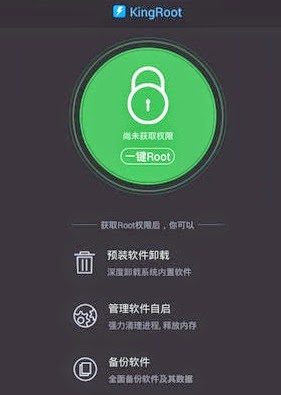
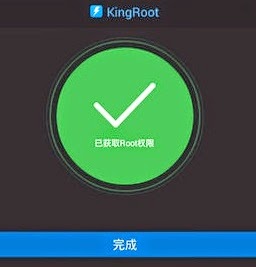
6. After a few minutes, you should see a tick mark in a green circle and the blue horizontal bar below the green circle, which means that your device has been successfully rooted! with the help of KingRoot.
The KingUser app will be installed for SuperUser access.
7. Download Root Checker from Play Store to verify your root privileges. After downloading, simply Install Root Checker, run it and you should get a success message after then.
Go to link Download
Monday, September 5, 2016
How to Root Infinix Zero 3 X552 and Install TWRP Recovery
How to Root Infinix Zero 3 X552 and Install TWRP Recovery
Infinix Zero 3 is the latest flagship device from Infinix Mobility, and comes with premium features and well-grounded specs. To mention a few, the device is endowned with a 20.7MP rear camera, 3GB RAM, Android 5.1 Lollipop operating system (out of the box), 2.2GHz Octa-core processor and 4G LTE capabilities.

Previously, I published a guide on how to change the IMEI of Infinix Zero 3 X552, and I know that most of you’ve already tweaked your IMEI to enjoy some certain features. Today, I’m happy to inform you guys that the TWRP recovery file for Infinix Zero 3 has been ported by Team Hovatek, and root is now possible via recovery mode.
In this guide, I would brief you guys on how to install TWRP Recovery on Infinix Zero 3 X552 using SP flash tools and then rooting follows.
Requirements:
Previously, I published a guide on how to change the IMEI of Infinix Zero 3 X552, and I know that most of you’ve already tweaked your IMEI to enjoy some certain features. Today, I’m happy to inform you guys that the TWRP recovery file for Infinix Zero 3 has been ported by Team Hovatek, and root is now possible via recovery mode.
In this guide, I would brief you guys on how to install TWRP Recovery on Infinix Zero 3 X552 using SP flash tools and then rooting follows.
Requirements:
- - SP Flash tools (Download)
- - VCOM drivers (Read installation guide)
- - Recovery Image (Download)
- - USB cable for communicating the device with your PC.
How to Install TWRP Recovery on Infinix Zero 3 X552
Step 1: First download the recovery zip file from here, and then extract the “Recovery.img” and “MT6795_Android_Scatter.txt” file to the desktop screen of your computer or create a folder and extract to it, as seen in the image below.

Step 2: Now, power off your device, and remove the battery if possible.
Step 3: Next, download the SP Flash tool, and extract the files to your computer. You should get the following files as seen below, after extraction.

Step 5: Once the flash tool is launched, then click on the download/upgrade tab and click on scatter loading button
Step 6: Now, locate the “MT6795_Android_Scatter.txt” file, which is on your desktop.

Step 8: Immediately, connect your device (without battery if possible) to your computer via USB cable, and press Volume Down or up key, so it would be detected easily by your computer.
Step 9: The Flashing process would be in progress, and a Green button would appear once the process is completed.
That’s it. TWRP Recovery is now installed on your Infinix Zero 3 X552, to boot to recovery mode, simply press and hold Volume Down button + press Power button.
Step 2: Now, switch off your device and boot to recovery mode (press and hold Volume Down button + press Power button).
Step 3: After that, go to the recover main menu, and then choose install, and then select the SuperSU Zip file and flash immediately.
Step 4: Once the installation process is completed, simply go back main recovery menu and tap on Reboot system, and your device would be rebooted.

That’s it. Your Infinix Zero 3 X552 would be rooted successfully. To verify root access, simply download root checker and confirm if your device has gained root access.
Step 2: Now, power off your device, and remove the battery if possible.
Step 3: Next, download the SP Flash tool, and extract the files to your computer. You should get the following files as seen below, after extraction.
Step 4: From the extracted files, open Flash_tool.exe
Step 5: Once the flash tool is launched, then click on the download/upgrade tab and click on scatter loading button
Step 6: Now, locate the “MT6795_Android_Scatter.txt” file, which is on your desktop.
Step 7: After that, click download to begin flashing process.
Step 8: Immediately, connect your device (without battery if possible) to your computer via USB cable, and press Volume Down or up key, so it would be detected easily by your computer.
Step 9: The Flashing process would be in progress, and a Green button would appear once the process is completed.
That’s it. TWRP Recovery is now installed on your Infinix Zero 3 X552, to boot to recovery mode, simply press and hold Volume Down button + press Power button.
How to Root Infinix Zero 3 X552
Step 1: Firstly, download the SuperSU file from here, and move the downloaded files to the internal storage of your Infinix Zero 3 X552 devices.
Step 2: Now, switch off your device and boot to recovery mode (press and hold Volume Down button + press Power button).
Step 3: After that, go to the recover main menu, and then choose install, and then select the SuperSU Zip file and flash immediately.
Step 4: Once the installation process is completed, simply go back main recovery menu and tap on Reboot system, and your device would be rebooted.
That’s it. Your Infinix Zero 3 X552 would be rooted successfully. To verify root access, simply download root checker and confirm if your device has gained root access.
Credits: Team Hovatek
Go to link Download
Tuesday, August 30, 2016
How To Root Infinix Zero X506 In Less Than 5 mins With Root Genius
How To Root Infinix Zero X506 In Less Than 5 mins With Root Genius
Hi dear reader, Want to know how you can root your infinix zero x506 ? Fellow my simple steps and in less than 5 mins your inifinix X506 should be rooted...
Requirements??
A Windows PC/Laptop
An Inifinix Zero X506
Battery % at 100%
Lets Begin...
Root Genius is One click root tool designed to work on Windows Computer. It helps user to root their Android Smartphone in a single click. Here, i am going to guide you through on how to use Root Genius to root the latest infinix zero x506.
Step 1: Enable USB Debuggin on your Android Smartphone. To enable USB debugging, openSettings>> Developers option>>> USB Debugging >> Tick to Enable
Tip: for Android 4.2.2 or above, to show this option Go to Settings>> About Phone >>Built Number (Tap on it for 5-8 times).
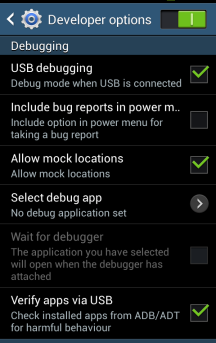
Step 2: Download Root Genius Application on your PC here and open it
Step 3: connect your Android device to the computer (with USB Debugging enabled).
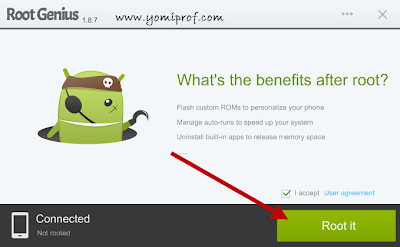
--Once your Infinix zero is connected successfully to the computer, Root Genius will automatically detect your Device.
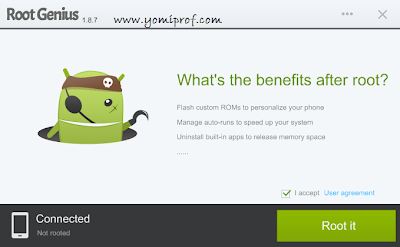
Step 4: Click on the “Root It” button to begin the rooting process
-- Root Genius will automatically “Root” your Android Device and also install the KingUser Application On your device
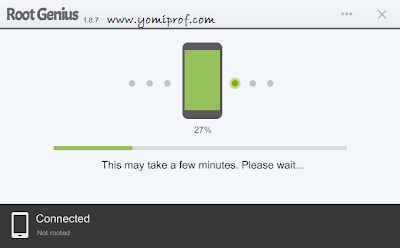
Step 5: Your Infinix Zero X506 is rooted. :0 ;)
To check if your Infinix Zero is rooted correctly, open any app that requires root access if the app works flawlessly, it means your device has been successfully rooted.
Alternatively, you can head over to Google play store and download RootChecker app to verify root access.
Photo Credits to: YomiProf
DISCLAIMER:
i shall not be held responsible for what ever that may happen during your root process...
If you have anything to say or ask, Kindly make use of the comment form below. If you also want me to post a short review of your company or product, on this blog, do not hesitate to contact me.
Please, do not forget to SUBSCRIBE to this blog, so that you can be receiving future articles, freebies DIRECTLY into your email inbox, even when you are not online.
CLICK HERE TO SUBSCRIBE NOW!
Cheers!
Go to link Download
Subscribe to:
Posts (Atom)