Showing posts with label buttons. Show all posts
Showing posts with label buttons. Show all posts
Friday, November 18, 2016
How to ADD Sharing Buttons in Blogger Blogspot Horizontal Vertical Buttons
How to ADD Sharing Buttons in Blogger Blogspot Horizontal Vertical Buttons

ADD Sharing Buttons in Blog
Is social media is helpful for blogger in sense of getting traffic.Answer is yes.Its really helpful scenario to get traffic from social media.But question is How to use social media to get traffic on your blog.Simply by post sharing on social media like facebook,twitter,linkedin,stumble upon etc.Its my own personal experience that facebook ,stumbleupon and pinterest are those social media which boost your blog traffic in real sense.Sharing post in Google+ communities boost your blog in UK,USA etc.Next question is how we can share our blog post.It seem too much time consuming.Yeah its all right,but I am sharing with you social sharing widget instead, which provide you quick way to share your post.Todays tutorial is realed to add floating social sharing buttons widgets on blogs.This widget provide you 800+ social sharing buttons to embed on your blog.So,without any delay lets move to learn how to add marvellous social sharing buttons widgets for blogger.How to add social sharing buttons?
It is very simple and easy to add this widget like others widget, We have posted in blogger tutorial category.There are many methods you will find but all are not work.I am sharing with you most active method to add 800+ sharing buttons which will work definitely.So,follow given below steps.Steps:
1. Sign into blogger.com2. Go to >>blogger dashboard>>Layout.
3. In layout tab go to >> add a gadget.
4. A drop down menu bar will appear.Click on HTML Java script.
.png "Marvellous Social Sharing Buttons Widgets For Blogger")
5. Copy below code and paste it in HTML Java script box.
.png "Marvellous Social Sharing Buttons Widgets For Blogger")
<div class="addthis_toolbox addthis_floating_style addthis_counter_style" style="left:120px;top:200px;">
<a class="addthis_button_facebook_like" fb:like:layout="box_count"></a>
<a class="addthis_button_tweet" tw_count="vertical"></a>
<a class="addthis_button_google_plusone" g:plusone:size="tall"></a>
<a class="addthis_counter"></a>
<a href=http://www.anzaq.com/2013/12/sharing-buttons-blogger.htmll rel=nofollow target=_blank style=color:#cbc6c9;>Widgets</a>
</div>
<script type="text/javascript">var addthis_config = {"data_track_addressbar":true};</script>
<script type="text/javascript" src="//s7.addthis.com/js/300/addthis_widget.js#pubid=ra-516ff8e04b04378b"></script>
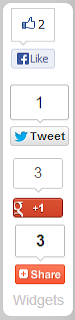
6. Click on save.You have done.Now view your blog.You will find floating social sharing buttons widget on your blog as like below.
By Editorial Desk:
Social sharing buttons amazingly helps to get traffic on blog in real sense.So,do not more delay to add this marvellous blogger widget on blog and enjoy its benefits.If you have any problem regarding social sharing widgets you may ask by leaving your precious comments.Stay update by our new tutorial.
Go to link Download

Saturday, September 24, 2016
How to Configure the Windows 10 Action Panel With Your Own Customized Buttons
How to Configure the Windows 10 Action Panel With Your Own Customized Buttons

Loaded with a variety of supportive instruments that can make overcoming your day that much less difficult, utilizing the Quick Action catches at the base of the warning focus is an extraordinary approach to associate with your VPN, bring down a note, or dispatch the Settings application with a solitary snap. In any case, did you know you can likewise redo these catches to your particular tastes?
In spite of the fact that the tech group is still somewhat isolated on the last decision over Windows 10, theres one piece of the working framework that Microsoft inarguably nailed under control: the patched up notice focus and its a wide range of Quick Action catches.
Heres the means by which to arrange it to fit your own needs best.
Open the Settings App
To get to the customization choices for the Quick Action bar, you can either discover the Settings application in the Start Menu, or even utilize the bar itself, as the Settings application is connected to dispatch it naturally.

Once youre in Settings, explore to the System symbol.

Once here, select the "Warnings and Actions" tab to get to your Quick activities alternatives.

Snappy Actions Configuration
At default, every catch in the Settings window will relate to its consequent position in the Action Bar.
So for instance; for the first catch in the four-catch line, whichever alternative you pick, that will be what shows up in the line after you revive in the Quick Action board.
Whenever chose, youll have the capacity to browse a drop-down menu containing the alternatives for each, including settings like Location, the choice to turn on Tablet Mode, or unite with an accessible Bluetooth gadget in the zone.
Fast activities, for example, putting the PC into calm mode, or logging a note can be selected from the full exhibit of choices, and after that swapped into the bar for simple access.
In the event that you are running Windows 10 on a portable workstation, this will likewise reach out to decisions like setting the screens splendor, turning on Airplane Mode, or demonstrating to you the amount of a charge is still left on the inside battery.
Growing the menu will showcase whatever remains of the choices which werent at that point hotswapped to the first bar.
Any secure you dont end selecting for the hotbar will consequently be pushed down to the full menu, which can be extended in the activity focus by tapping the "Grow" catch, highlighted previously.
Windows 10 may even now be a negative affair for the individuals who have had some an opportunity to take a seat and utilize it over the previous week, yet its great to realize that for pretty much the same number of botches the OS unearths, there are still some saving graces like the Quick Access bar to keep the fantasy of a flawless Windows working framework alive.
Go to link Download
Subscribe to:
Posts (Atom)