Showing posts with label ipod. Show all posts
Showing posts with label ipod. Show all posts
Tuesday, November 1, 2016
How To Jailbreak Your iPhone iPad And iPod Touch On iOS 9 iOS 9 0 2 Using Pangu Jailbreak
How To Jailbreak Your iPhone iPad And iPod Touch On iOS 9 iOS 9 0 2 Using Pangu Jailbreak
Pangu has released the first jailbreak for iOS 9 as well as for iPhone 6s and iPhone 6 plus. Pangu9 is an untethered jailbreak. It is a free jailbreak tool.

In this article you are going to get a simple step-by-step guide on how to jailbreak your iOS device using Pangu9. All you need to do is just follow these steps. Ensure to Backup your device using iTunes or iClouds. Even though the jailbreak is reported to work well in most of the cases, it is always better to backup your data and personal information. Click here to continue reading..
In this article you are going to get a simple step-by-step guide on how to jailbreak your iOS device using Pangu9. All you need to do is just follow these steps. Ensure to Backup your device using iTunes or iClouds. Even though the jailbreak is reported to work well in most of the cases, it is always better to backup your data and personal information. Click here to continue reading..
Go to link Download

Saturday, October 8, 2016
How To Download Music Video On Your iPhone iPod iPad
How To Download Music Video On Your iPhone iPod iPad
Downloading to your iPhone, iPod touch or iPad should be as easy as it is on your computer. That is why iDownloader App was Created.
Now you don’t have to go to your Computer to Update your Music Library whenever you need a new Music or Video, You can just connect to the Internet and Download like every other Device owner does using iDownloader on your Apple device.
Now you can easily download anything from the web to your i-Device and then view/play the downloaded files or transfer them to your computer.
iDownloader Pro Key Features:-
Web Browser
– Built in Browser, This App come with a Browser that allow you Download to your iPhone, iPad & iPod [The Only browser in the World that can Download on Apple Devices]
– Ability to Download easily.
– Password Management Features
Download Manager
– Ultra fast downloading speed
– Up to 50 simultaneous downloads
– Download in background mode (10 min max due to iOS restrictions)
– Supports resumption of interrupted downloads
– Download Files over 3G

Music and Video Player Features
– Music playback of mp3, wav and m4a formats
– Repeat and shuffle songs
– Background / Lock Screen playing mode
– Save the Audio play position. [You can Resume Songs or Continue from where you stop]
– Album covers
– Lyrics
– Background Video Playback
– Video playback of mp4, m4v, mov, 3gp & m3u8 videos
– Thumbnails view
– Export videos to Camera Roll
– AirPlay support (iOS 4.2 or above)
– Video Playlists
– Save the Video play position [You can Resume Songs or Continue from where you stop]
File Manager
– AUTOMATICALLY rename downloaded songs by Artist and Song Title.
– Move, rename and delete files
– Sorting by name, type, size, date
– Extract zip & rar archives
– USB & Wi-Fi Transfer to/from PC
Download iDownloader From iTunes Here
Now you don’t have to go to your Computer to Update your Music Library whenever you need a new Music or Video, You can just connect to the Internet and Download like every other Device owner does using iDownloader on your Apple device.
Now you can easily download anything from the web to your i-Device and then view/play the downloaded files or transfer them to your computer.
iDownloader Pro Key Features:-
Web Browser
– Built in Browser, This App come with a Browser that allow you Download to your iPhone, iPad & iPod [The Only browser in the World that can Download on Apple Devices]
– Ability to Download easily.
– Password Management Features
Download Manager
– Ultra fast downloading speed
– Up to 50 simultaneous downloads
– Download in background mode (10 min max due to iOS restrictions)
– Supports resumption of interrupted downloads
– Download Files over 3G
Music and Video Player Features
– Music playback of mp3, wav and m4a formats
– Repeat and shuffle songs
– Background / Lock Screen playing mode
– Save the Audio play position. [You can Resume Songs or Continue from where you stop]
– Album covers
– Lyrics
– Background Video Playback
– Video playback of mp4, m4v, mov, 3gp & m3u8 videos
– Thumbnails view
– Export videos to Camera Roll
– AirPlay support (iOS 4.2 or above)
– Video Playlists
– Save the Video play position [You can Resume Songs or Continue from where you stop]
File Manager
– AUTOMATICALLY rename downloaded songs by Artist and Song Title.
– Move, rename and delete files
– Sorting by name, type, size, date
– Extract zip & rar archives
– USB & Wi-Fi Transfer to/from PC
Download iDownloader From iTunes Here
Dont Forget To Add your View, Comments on this Post.00
Always Like and Share Posts, You can Make use of the Share Buttons below.....
Always Like and Share Posts, You can Make use of the Share Buttons below.....
Go to link Download
Thursday, October 6, 2016
How To Fix Recovery Mode Loop OR iTunes Logo on iPhone iPad and iPod Touch
How To Fix Recovery Mode Loop OR iTunes Logo on iPhone iPad and iPod Touch

You can put your iOS device into recovery mode, then restore it using iTunes.
Use recovery mode:
You might need to use recovery mode to restore your device in these cases:
iTunes doesnt recognize your device or says its in recovery mode. You see the Apple logo onscreen
for several minutes with no progress bar.
You see the Connect to iTunes screen. Learn what to do if you see the progress bar onscreen for several minutes. To put your device into recovery mode,
When this occurs, the progress bar might be moving very slowly or seem like it isnt moving. Let the device complete the update, restore, or erase process. The progress bar shows installation progress. The amount of time depends on the number of files on the device and whether youre erasing, updating, or upgrading your iOS. This process can take as little as a minute if your device has little or no data or if youre erasing the device. If your device contains a large number of files, the process can take from several minutes to an hour.

follow these steps:
- Turn off your device and leave it off.
- in your devices USB cable to a computer with iTunes.
- Hold down the Home button on your device as you connect the USB cable.
- Keep holding down the Home button until you see the Connect to iTunes screen.
Go to link Download
Friday, September 30, 2016
How to Change the iPhone Become Lawas iPod Touch
How to Change the iPhone Become Lawas iPod Touch
Sell ??old iPhone when you want to upgrade to a new model of iPhone is probably the most easy solution that you can take . But did you know that your old iPhone does not need to be sold because you can make it as an iPod touch , although without a data plan .
How to Change the iPhone Become Lawas iPod Touch
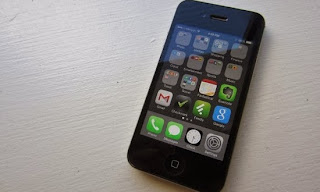
There are a number of steps that you need to do before making an old iPhone as an iPod touch , without a data plan . What is it ?
1 . SIM Card
Youll need a SIM card is the first card that you used to use to turn your old iPhone . You can use any SIM card with a note card is the card that was used to activate an old iPhone . Its a little complicated if you are no longer using the SIM card , but you still have the choice to look at eBay .
After getting a SIM card in question , please lakukang the steps below :
- Insert the SIM card into the slot your old iPhone .
- Connect your iPhone to the computer and launch iTunes .
- ITunes will recognize it as a new device and will activate it . Once activated , you can simply use it as an iPod touch !
You can use your old iPhone without SIM card but later on you will continue interrupted by a pop - up every time after reboot . Moreover , without a SIM card , you will not be able to restore your iPhone . For that you need to install the SIM card and not have to worry about data plan monthly pulses truncated unused alias .
2 . Turn off Cellular , Turn on WiFi
Because iPod Touch that you just created does not possess a data service plan or subscription internet data and also can not be used to send messages and call , you certainly do not need to activate the cellular radio feature . Instead , your iPod touch will depend on WiFi so make sure the WiFi feature is active . Perform the following ways :
- Open the Settings app , tap Cellular option .
- There is a toggle on the upper side to turn off the cellular radio . Tap on the toggle until the color turns gray .
- Go back to the Settings screen , tap WiFi .
- WiFi toggle Navigate towards ON
- Select the home network from the list and enter the password .
In this way , your old iPhone has turned into an iPod touch . You can use it to listen to thousands of songs , download and install apps and games , and even to see the maps when connected to WiFi . In short, the iPod touch is an iPhone that has no phone function .
In addition , you made ??the iPod touch can be used as a backup phone if your primary iPhone damaged or faulty . That is, by not selling the old iPhone then you can use it at any time without having confusion immediately buy a new iPhone . Good luck ;)
Go to link Download
Friday, September 9, 2016
How To Prepare For iOS 7 For iPhone iPod Touch And iPad
How To Prepare For iOS 7 For iPhone iPod Touch And iPad
How To Get Ready For iOS 7
1. Determine Whether You Want To Update

Sounds obvious right? But make sure you actually want to update to iOS 7 because it is a radical change from previous firmware generations. Some people actually hate the look and feel of iOS 7 and will be staying on iOS 6, so make sure you don’t fit into this category. You can watch our hands-on demo of iOS 7 to determine this.
2. Check Device Compatibility

Unfortunately not all devices will be getting iOS 7. When it comes to iPhones only handsets with a Retina display will be compatible, so the iPhone 4, 4s, 5, 5c and 5s. As for iPads only the second generation iPad and above will be supported. This includes the iPad 2, 3, 4 and iPad Mini. The 5th generation iPod Touch will also support iOS 7.
3. Back Your Device Up
Seems pretty obvious, no? But you would be surprised how many people just bypass this 5-minute task only to risk losing their data. Before you update your iPhone, iPod Touch or iPad to iOS 7 make sure that you not only back your device up through iTunes (or iCloud), but also import any media through iPhoto (or whatever application you use to manage the media on your iOS Device).
4. Clean The Clutter
Do you really need all those flashlight apps? Delete as many apps, pictures and other media as you can before updating to iOS 7. This isn’t necessarily even required, but trust me your iPhone, iPod Touch or iPad is probably due for a little Spring cleaning and now is the perfect time.
5. Get The Latest Version Of iTunes
You would be surprised how fast iTunes can get out of date. Before you update to iOS 7 make sure you are running the latest version of iTunes. You can download it here or run Apple’s Software Update. Even if you aren’t going to update through a cabled connection, it will be required for syncing iOS 7 devices.
6. Update Apps And Your Current iOS Version
If you are not Jailbroken then there is no excuse to not be running the latest version of iOS. Although in theory you can update to iOS 7 from any firmware version, there are more variables involved that could lead to problems. It is always better to just be running the latest firmware version. While we are talking updates it is also recommended you update all of your apps because developers are already submitting updates to take advantage of iOS 7?s new look.
7. Jailbreakers Beware

In regards to Jailbreakers you have a choice to make. An iOS 7 Jailbreak will likely not be released for months. In fact right now there is no ETA of a public iOS 7 Untethered Jailbreak at all. So updating to iOS 7 means risking your Jailbreak, possibly forever. If you are ok with this then just keep in mind that you will need to Restore to iOS 7 directly through iTunes and not just update because this will cause issues. Those that do not want to lose their Jailbreak will just have to stay put for the time being.
Via
1. Determine Whether You Want To Update
Sounds obvious right? But make sure you actually want to update to iOS 7 because it is a radical change from previous firmware generations. Some people actually hate the look and feel of iOS 7 and will be staying on iOS 6, so make sure you don’t fit into this category. You can watch our hands-on demo of iOS 7 to determine this.
2. Check Device Compatibility
Unfortunately not all devices will be getting iOS 7. When it comes to iPhones only handsets with a Retina display will be compatible, so the iPhone 4, 4s, 5, 5c and 5s. As for iPads only the second generation iPad and above will be supported. This includes the iPad 2, 3, 4 and iPad Mini. The 5th generation iPod Touch will also support iOS 7.
3. Back Your Device Up
Seems pretty obvious, no? But you would be surprised how many people just bypass this 5-minute task only to risk losing their data. Before you update your iPhone, iPod Touch or iPad to iOS 7 make sure that you not only back your device up through iTunes (or iCloud), but also import any media through iPhoto (or whatever application you use to manage the media on your iOS Device).
4. Clean The Clutter
Do you really need all those flashlight apps? Delete as many apps, pictures and other media as you can before updating to iOS 7. This isn’t necessarily even required, but trust me your iPhone, iPod Touch or iPad is probably due for a little Spring cleaning and now is the perfect time.
5. Get The Latest Version Of iTunes
You would be surprised how fast iTunes can get out of date. Before you update to iOS 7 make sure you are running the latest version of iTunes. You can download it here or run Apple’s Software Update. Even if you aren’t going to update through a cabled connection, it will be required for syncing iOS 7 devices.
6. Update Apps And Your Current iOS Version
If you are not Jailbroken then there is no excuse to not be running the latest version of iOS. Although in theory you can update to iOS 7 from any firmware version, there are more variables involved that could lead to problems. It is always better to just be running the latest firmware version. While we are talking updates it is also recommended you update all of your apps because developers are already submitting updates to take advantage of iOS 7?s new look.
7. Jailbreakers Beware
In regards to Jailbreakers you have a choice to make. An iOS 7 Jailbreak will likely not be released for months. In fact right now there is no ETA of a public iOS 7 Untethered Jailbreak at all. So updating to iOS 7 means risking your Jailbreak, possibly forever. If you are ok with this then just keep in mind that you will need to Restore to iOS 7 directly through iTunes and not just update because this will cause issues. Those that do not want to lose their Jailbreak will just have to stay put for the time being.
Via
Go to link Download
Subscribe to:
Posts (Atom)