Showing posts with label tablet. Show all posts
Showing posts with label tablet. Show all posts
Sunday, November 20, 2016
How To Install Android APK Files On A Kindle Fire Tablet
How To Install Android APK Files On A Kindle Fire Tablet
Have you been looking to install APK files on Kindle Fire? That’s not an issue that’s peculiar to you, alot other persons have found themselves in similar situation.
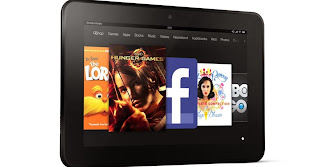
Here are easy steps to install APK files on Kindle Fire. The entire process should work like a charm for you, if you adhere strictly to the steps listed below.
Install APK File On Kindle Fire – Best Approach
- Locate Apps on Your Kindle Fire
- Access Settings >Applications
- Select Apps From Unknown Sources
- Download APK file of your choice from your Kindle Fire web browser [You can also transfer APK files from PC to Kindle Fire]
- After Downloading, SimplyInstall the APK file
Hint: The Install APK File can be found in Apps > Device
Warning: Ensure you download APK files from trusted vendors. Installing a malicious APK file can corrupt your Kindle Fire.
Hope this info helps? Feel free to share this post with your friends using the Share/Like buttons. Never miss any of my future post CLICK HERE TO SUBSCRIBE Once entered, you will have to check your inbox for a confirmation email containing a confirmation link. Once you VERIFY your email by clicking on the confirmation link in the message, you will never miss any future articles.Dont Forget To Add your View, Comments on this Post.
Always Like and Share Posts, You can Make use of the Share Buttons below.....
Go to link Download

Monday, October 17, 2016
How To Browse With MTN Bis Plan On PC Tablet With SandwishVPN
How To Browse With MTN Bis Plan On PC Tablet With SandwishVPN

Good day my dear friends, without wasting your time, lets get started.
How Can I Use It To Connect With My MTN Bis Plan?
Click Here to register and get a demo account, then proceed to Download
 Go to link Download
Sunday, October 2, 2016
How to Connect BlackBerry PlayBook tablet
How to Connect BlackBerry PlayBook tablet

With a BlackBerry PlayBook tablet, you’ll of course be able to connect to Wi-Fi® networks where available, but with the innovative BlackBerry® Bridge™ application, you can also amplify your BlackBerry smartphone experience and access your messages, calendar, contacts, memopad, tasks and BlackBerry® Messenger (BBM™).
Plus, the Bridge Browser allows you to take advantage of your BlackBerry smartphone’s network connection when you’re out of Wi-Fi range! bX-ulf59e kode galat
Today, I’d like to provide an overview of the various ways you can connect your BlackBerry PlayBook tablet and where you can learn more about them.
Wi-Fi

The BlackBerry PlayBook tablet uses Wi-Fi technology to connect to the Internet or your organization’s intranet. You can connect through a personal network at home, or through a wireless network at your office, favorite coffee shop or other public venue (which is referred to as Wireless HotSpot).
With a Wi-Fi network connection, the BlackBerry PlayBook will also allow you to copy files such as music and videos wirelessly using Wi-Fi Sharing. In addition to browsing, a Wi-Fi network connection will also allow other apps on your BlackBerry PlayBook tablet to access the Internet or intranet.
To learn more about the Wi-Fi functionality of the BlackBerry PlayBook tablet, such as how to set up a Wi-Fi connection, click here for an interactive demonstration. I would also recommend checking out this post for an overview of how to copy files to and from a BlackBerry PlayBook tablet wirelessly using Wi-Fi Sharing.
BlackBerry Bridge

One of the reasons I love my BlackBerry PlayBook tablet is because I can connect my BlackBerry smartphone to my BlackBerry PlayBook tablet using the BlackBerry Bridge app over a secure Bluetooth® connection. When you set up the BlackBerry Bridge app, you’ll notice that you have a new view on your BlackBerry PlayBook tablet home screen called BlackBerry Bridge. Within this view, you’ll see several icons which will allow you to access messages, contacts, calendar, BBM, the BlackBerry Bridge Browser and more.

One of the great features with the BlackBerry® PlayBook™ tablet is the variety of connections you can use to browse the Internet, access your email and stay connected with friends and colleagues while on the go!
If your BlackBerry smartphone is activated on a BlackBerry® Enterprise Server and corporate intranet browsing has been enabled by your IT administrator, you can also browse your organization’s intranet.
NOTE: Bridge Browser functionality may require a BlackBerry service plan that includes tethering. Please contact your wireless service provider for more information.
To learn more about the BlackBerry Bridge app, including how to set it up, click here. If you’ve already set up BlackBerry Bridge, click here to take a look at some tips I put together
Internet Tethering

On top of being able to use a Wi-Fi connection and the BlackBerry Bridge app, you also have the option of tethering your BlackBerry PlayBook tablet with a BlackBerry smartphone or another Bluetooth® enabled phone. After doing this, you’ll be able to setup Internet Tethering, which will allow your BlackBerry PlayBook tablet to leverage the Internet connection offered by the wireless device that is paired.
To learn more about Internet Tethering and how to set it up, click here for a video tutorial.
Go to link Download
Read more »
Thursday, September 29, 2016
How To Recover Deleted Files From Android Tablet
How To Recover Deleted Files From Android Tablet

Currently keep many files on our devices, such as photos, videos, documents, etc.. Were so confident that these devices may accidentally erase any valid file and need to recover it later.
In this tutorial we will teach you how to recover files that have been removed from our tablet.
For this we will use a program called Hexamob Recovery. This program has two versions, a free one called "lite" and a payment called "Pro". Both versions can download them from the Play Store.
- Hexamob Recovery Lite (free)
- Hexamob Recovery Pro (1.59 €)
Hexamob Recovery requires root privileges to run.
It is not always possible to recover files, depends on many factors such as fragmentation of the system, the status of deleted files, if the sector was overwritten, etc.. To avoid this it is recommended not to write anything in memory until the files have been recovered. It is also recommended that the recovered data is stored in another memory than the source, for example, we want to save the data recovered from the internal memory to the SD card.
1.The first thing download the application and install from the Play Store.
2.After downloading the application, we will create an icon in the application menu, press on it will open the program on your home screen. Then press on "Selective Recovery" and will display a warning that indicates that the destination folder must be different from the original.
3.We close the message and access the recovery screen.
4.In the "Search" we enter the scanning device, in our case is / mnt / sdcard, or, what is the same, the internal memory of the device.
5.In the "Save" and select the destination where you want to save the files, to be different from the origin. In our case, / mnt / extSdCard corresponding to the devices microSD card.
6.Then press on "Next" and the device starts to search deleted files. This process takes several minutes to complete, depending on the size of the partition to search, and the status of deleted files.
7.Then press on "Next" and the device starts to search deleted files. This process takes several minutes to complete, depending on the size of the partition to search, and the status of deleted files.
8.After a while (can take up to half an hour or more) we will see the following files that can be recovered. In this screen we have the files sorted by tabs at the top in "Images", "Videos", "Audio" and "Other" depending on the type of file you want to recover.
9.To retrieve the files we have only to select on the right side of the screen we want to save and press the button to "recover" at the bottom right of the screen.
10.Then the program will attempt to recover the selected files. This process may take several minutes, depending on the integrity of the file, the size and number of files you want to recover.
11.Once the process back to the main screen, but the data we stored in the folder you specified above as a destination within a folder called "recovered".
12.If we could not get our file, we can try another option that appeared on the screen was "full recovery". This option is not recommended to use the first time as it looks absolutely all deleted files and restores them, being able to fully recovered files to the device. Only use as a last option.
Go to link Download
Sunday, September 25, 2016
How to Charge Battery Smartphone or Tablet Quickly and Effectively
How to Charge Battery Smartphone or Tablet Quickly and Effectively
How to Charge Battery Smartphone or Tablet Quickly and Effectively - You may have experienced a less pleasant events related to the smartphone battery life, for example, at that time you had a shower then wear neat and ready to go out with friends or family. But you just realized that the battery life of your smartphone running out after you pick it up.
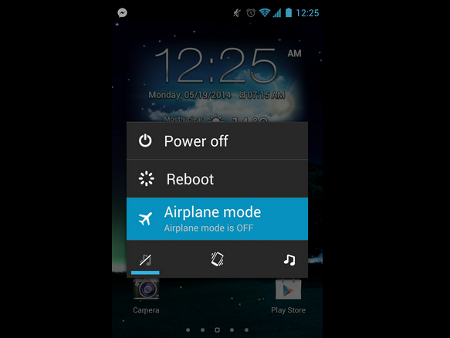
If youve experienced it, you are certainly not the only person who has experienced the unpleasant incident. Well, if one day youre in a situation like that again, then there are several ways that you can use to charge your smartphone or tablet battery quickly and effectively.
1. Switching to Airplane mode or Turn off the smartphone
One way that this may not be a new way. What is clear, in stand-by condition smartphones or tablets still consumes battery power even a little. But by switching to Airplane mode, battery power consumption will be reduced so that more can be faster charging. But charging will be faster if you turn off the smartphone or tablet.
2. Do not charge through the USB port of computer
Smartphone or tablet is equipped with a charger. The charger can charge the battery faster than the USB port on the computer. That is because the USB port has an output (0.5 to 0.9 Amperes) with much less power than using the original charger (2 Ampere).
3. Use the USB port on a Mac (for iPhone and iPad)
If there is no power outlet (electrical socket), then you can use the USB port on a Mac computer to charge your iPhone or iPad. Latest Mac computers can instantly recognize the iDevice is connected and will increase up to 1.1 Amperes putput.
4. Use software to Improves USB output port
Again, most of the computers USB port has an output of 0.5 to 0.9 Amperes, but there are some exceptions. For example, ASUS has named Ai Charger application that is designed to increase output on a compatible motherboard. Gygabite also has a similar tool called On / Off Charge.
5. Use ChargerDr
ChargerDr a USB charge booster that can increase the power output of the USB port. ChargerDr only priced at $ 20.
6. How to Charge Battery Smartphone or Tablet Quickly and Effectively
The final way that you can do to speed up battery charging using a smartphone or tablet is a micro USB cable forked. The USB cable can charge your smartphone or tablet two times faster than alkaline.
Go to link Download
Tuesday, September 20, 2016
How to make phone calls from your Android Tablet
How to make phone calls from your Android Tablet
In todays article Ill teach you how to make calls from your Android tablet . If you want to perform online work much better when we have a WiFi connection. The same from this connection work very well, the only drawback is that you do not always want to turn the computer on and here come the tablets to save, with a Google Voice application.

To start closing I want to leave a warning, to call other country need to put before the country code for calls to forward and American numbers mark the number and go. Also from IP Grove lite can contact our contact Google but we must ensure that the phones are stored with full number with international code, we will do that faster. If we call 3G will have to use the implementation of IP Grove by 3.85 euros which gives extraordinary results too.
How do to install this in our tablet?
Before explaining I would tell you that this is also true for smartphone and is a free solution if you use WiFi only. Failure to do so and use 3G should pay extra.Steps to follow:
First we check the rates of Google Voice to see if we are interested in and then open an account but if you already have an account with Google is a matter of linking and ready. To continue we need to download the application IP Lite Groove which we can download for free on Google Play . After installing the application, the open and we link our Google Voice account, if you have already associated your Gmail account to any Google application will recognize it and will almost automatically. When we call we need balance and add it from Gmail or from within Google Voice.To start closing I want to leave a warning, to call other country need to put before the country code for calls to forward and American numbers mark the number and go. Also from IP Grove lite can contact our contact Google but we must ensure that the phones are stored with full number with international code, we will do that faster. If we call 3G will have to use the implementation of IP Grove by 3.85 euros which gives extraordinary results too.
Go to link Download
Subscribe to:
Posts (Atom)