Showing posts with label browser. Show all posts
Showing posts with label browser. Show all posts
Saturday, November 19, 2016
How To Automatically Close The Edge Browser When Windows 10 Opens It
How To Automatically Close The Edge Browser When Windows 10 Opens It
Microsoft is aggressively pushing the Edge browser on to users. With the present preview builds, it’s undone the little hacks users had in place to route Cortana’s searches through Google and their browser of choice. It’s more or less a tug of war at present with Windows 10 insisting that anything that Cortana searches for be routed through Edge and users consistently saying No to it. For many Cortana is just a fast way to look search for an app but it will often turn a query into a web search and if you accidentally click it, Edge will open. Edge Blocker is a portable app that will automatically close Edge whenever it opens either by accident or by Windows.
Download Edge blocker and run the app. Click the ‘Block’ button and minimize the app. Any time Edge opens, Edge Blocker will close it.

To be fair, Edge Blocker is not without its faults. When you minimize the app, it continues to appear on the Taskbar instead of minimizing to the system tray. It’s also a bit slow at closing Edge. The browser window will open and you will see the big blue loading screen before Edge Blocker closes it.
There’s room for improvement but if Microsoft is going to persistently push the unwanted browser on to users, these little apps are going to become popular fairly fast despite their shortcomings. The current state of Edge on the preview builds is not too encouraging. Granted the browser is going to be a half-baked version on a preview build, it’s still disappointing. In the Preview Build 14342, it’s almost impossible to use and for a browser that’s been around for almost a year now that isn’t encouraging in any way.
Download Edge Blocker For Windows
Download Edge blocker and run the app. Click the ‘Block’ button and minimize the app. Any time Edge opens, Edge Blocker will close it.
To be fair, Edge Blocker is not without its faults. When you minimize the app, it continues to appear on the Taskbar instead of minimizing to the system tray. It’s also a bit slow at closing Edge. The browser window will open and you will see the big blue loading screen before Edge Blocker closes it.
There’s room for improvement but if Microsoft is going to persistently push the unwanted browser on to users, these little apps are going to become popular fairly fast despite their shortcomings. The current state of Edge on the preview builds is not too encouraging. Granted the browser is going to be a half-baked version on a preview build, it’s still disappointing. In the Preview Build 14342, it’s almost impossible to use and for a browser that’s been around for almost a year now that isn’t encouraging in any way.
Download Edge Blocker For Windows
Go to link Download

Thursday, October 20, 2016
How to Easily Master Browser BlackBerry 10 OS
How to Easily Master Browser BlackBerry 10 OS
How to Easily Master Browser BlackBerry 10 OS - For those users who have brand-new BlackBerry phones running OS 10.2.1, there are some important tips that you can use to master browser. What is it? Please refer to the following tips.
Change the default search engine
Depending on what youre looking for, it could be a while you have to change the default search engine in your browser . To do so on a BlackBerry smartphone , please lakungan two easy steps:
1. Open the browser on your BlackBerry and enter keywords of content you want to search .
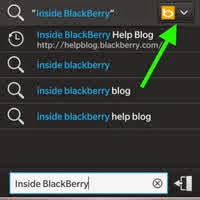
2. Once an icon that represents the default search engin appear in the upper right - hand corner , tap the icon , then from the drop - down list , please click your desired search engine ( google , yahoo , bing , etc ) .
Adding a new search engine
If your favorite search Engin , such as Wikipedia , are not in the browser on the BlackBerry 10 , do not worry because you always have the option to add it . You do this as follows :
1. Go to a website that has a search feature
2. Perform a search using the search feature in the website is
3. Tap the icon 3- point , select Add Search
4. It will pop up a dialog box with the complete details of the search engine you want, tap Add .
Saving webpage
To read a website offline , you can perform the storage option in HTML format . You can also send it as an attachment
1. In an open webpage and want to save, tap the 3 dots icon , select the paper icon with a checkmark , Save Page
2. Select a location / folder to save the file webpage
At other times when you want to display a webpage offline and you have saved , open the file manager , find the folder where you saved it , and then tap an existing HTML file .
Enabling Desktop mode
Depending on the websites you visit , you can enable Desktop Mode so that the browser can display the same web but in the desktop version , not the mobile version .
1. Open the browser , tap the icon 3- point
2. Tap Settings , tap Developer Tools
3. Set Desktop Mode option to ON
Private browsing
As in the computer browser, Private Browsing feature you can use on BlackBerry phones to avoid cell phone store browsing information that you have done . With Private Mode , the history , cached files , cookies and the like will not be stored on your BlackBerry phone .
1. Open the browser , tap the icon 3- point , tap Settings
2. Tap Privacy and Security and set Private Browsing to the ON position .
Those are some important tips that you can practice on BlackBerry phones 10. By understanding the above tips , you are expected to master the BlackBerry browser 10 so browsing activities can be done easily and efficiently , as well as safe . Good luck :)
Change the default search engine
Depending on what youre looking for, it could be a while you have to change the default search engine in your browser . To do so on a BlackBerry smartphone , please lakungan two easy steps:
1. Open the browser on your BlackBerry and enter keywords of content you want to search .
2. Once an icon that represents the default search engin appear in the upper right - hand corner , tap the icon , then from the drop - down list , please click your desired search engine ( google , yahoo , bing , etc ) .
Adding a new search engine
If your favorite search Engin , such as Wikipedia , are not in the browser on the BlackBerry 10 , do not worry because you always have the option to add it . You do this as follows :
1. Go to a website that has a search feature
2. Perform a search using the search feature in the website is
3. Tap the icon 3- point , select Add Search
4. It will pop up a dialog box with the complete details of the search engine you want, tap Add .
Saving webpage
To read a website offline , you can perform the storage option in HTML format . You can also send it as an attachment
1. In an open webpage and want to save, tap the 3 dots icon , select the paper icon with a checkmark , Save Page
2. Select a location / folder to save the file webpage
At other times when you want to display a webpage offline and you have saved , open the file manager , find the folder where you saved it , and then tap an existing HTML file .
Enabling Desktop mode
Depending on the websites you visit , you can enable Desktop Mode so that the browser can display the same web but in the desktop version , not the mobile version .
1. Open the browser , tap the icon 3- point
2. Tap Settings , tap Developer Tools
3. Set Desktop Mode option to ON
Private browsing
As in the computer browser, Private Browsing feature you can use on BlackBerry phones to avoid cell phone store browsing information that you have done . With Private Mode , the history , cached files , cookies and the like will not be stored on your BlackBerry phone .
1. Open the browser , tap the icon 3- point , tap Settings
2. Tap Privacy and Security and set Private Browsing to the ON position .
Those are some important tips that you can practice on BlackBerry phones 10. By understanding the above tips , you are expected to master the BlackBerry browser 10 so browsing activities can be done easily and efficiently , as well as safe . Good luck :)
Go to link Download
Subscribe to:
Posts (Atom)