Showing posts with label document. Show all posts
Showing posts with label document. Show all posts
Monday, November 28, 2016
HOW TO HIDE A FILE OR A DOCUMENT WITHOUT USING ANY APP IN AN ANDROID SMARTPHONE
HOW TO HIDE A FILE OR A DOCUMENT WITHOUT USING ANY APP IN AN ANDROID SMARTPHONE
1. CREATE A FOLDER USING YOUR DEFAULT FILE EXPLORER
Create a folder with a name youd like, and add "." before other characters along the file name and save.
example
file name is Document, then itd now become .Document
Your smartphone should notify you that the folder will be hidden
2. CLICK OPTION TO HIDE OR UNHIDE THE FOLDER
;
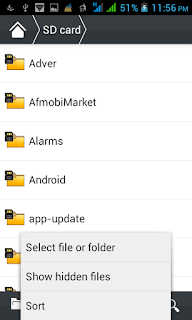
3.COPY THE FILES TO THE FOLDER YOUR CREATED
Copy the files youd want to hide to the folder you created and it will be hidden, take for instance pictures or videos you wouldnt like to be displayed in your gallery once they are moved to this folder you created it wont display there again
4. GO BACK TO STEP THREE IN ORDER NOT TO ALLOW PEOPLE ACCESS THOSE FILES FROM YOUR FILE EXPLORER
THATS ALL!!!!!!!!!!!!!!!!!!
Create a folder with a name youd like, and add "." before other characters along the file name and save.
example
file name is Document, then itd now become .Document
Your smartphone should notify you that the folder will be hidden
2. CLICK OPTION TO HIDE OR UNHIDE THE FOLDER
;
3.COPY THE FILES TO THE FOLDER YOUR CREATED
Copy the files youd want to hide to the folder you created and it will be hidden, take for instance pictures or videos you wouldnt like to be displayed in your gallery once they are moved to this folder you created it wont display there again
4. GO BACK TO STEP THREE IN ORDER NOT TO ALLOW PEOPLE ACCESS THOSE FILES FROM YOUR FILE EXPLORER
THATS ALL!!!!!!!!!!!!!!!!!!
Go to link Download

Thursday, September 1, 2016
How To Insert Clock Face in MicroSoft Word Document Easy Step
How To Insert Clock Face in MicroSoft Word Document Easy Step
Hello Pals, today i will be showing you an easy way to find a clock face with numbers and with roman numerals on it not just with signs like the one in Microsoft word using wingdings. Here is a whole new and easy step on how you can insert a clock face in a Microsoft document without stress. You can also add the image to the art clip image to easily insert the image to ms word.
- Download the clock faces numbers.rar
- Download the clock faces roman numeral.rar
- Open the file and when you need a cock face use the search dialog box
- Then copy the image and paste it on your Microsoft document
- Click on page layout -- text wrap (to move the image freely)
- That it, it is the most easiest way to insert the clock face that has numbers on it.

**INSTRUCTION**
- When you download the file you can save it in a folder it should look like that image up.
- To quickly search for the face of the clock just the search box up to search for the name of the image
- Copy it and paste it in Microsoft word or add the folder or image(s) to art clip organizer.
****HOW TO ADD IMAGE TO MICROSOFT ART CLIP****
To add the image to the art clip you must have the microsoft office tools folder is normally in the start menu under Microsoft office. When you have installed Microsoft word. In that folder (Microsoft office) on the start menu. In the folder you will see microsoft clip organizer open the application then click on file >> Add clip to organizer >> Click on my own >> then you can select the image you want to add then add it.You can also modify the the image to be search according to the name you want. Right click on the image select edit key word. There you are good to add the image to Microsoft word by using the search bar on art clip.
>>>>>DOWNLOAD NOW CLOCK FACE NUMBER<<<<<
>>>>>DOWNLOAD NOW CLOCK FACE ROMAN NUMERALS<<<<<<
Go to link Download
Subscribe to:
Posts (Atom)