Thursday, November 24, 2016
How To Hard Reset The Kindle Fire HD HDX Devices
How To Hard Reset The Kindle Fire HD HDX Devices
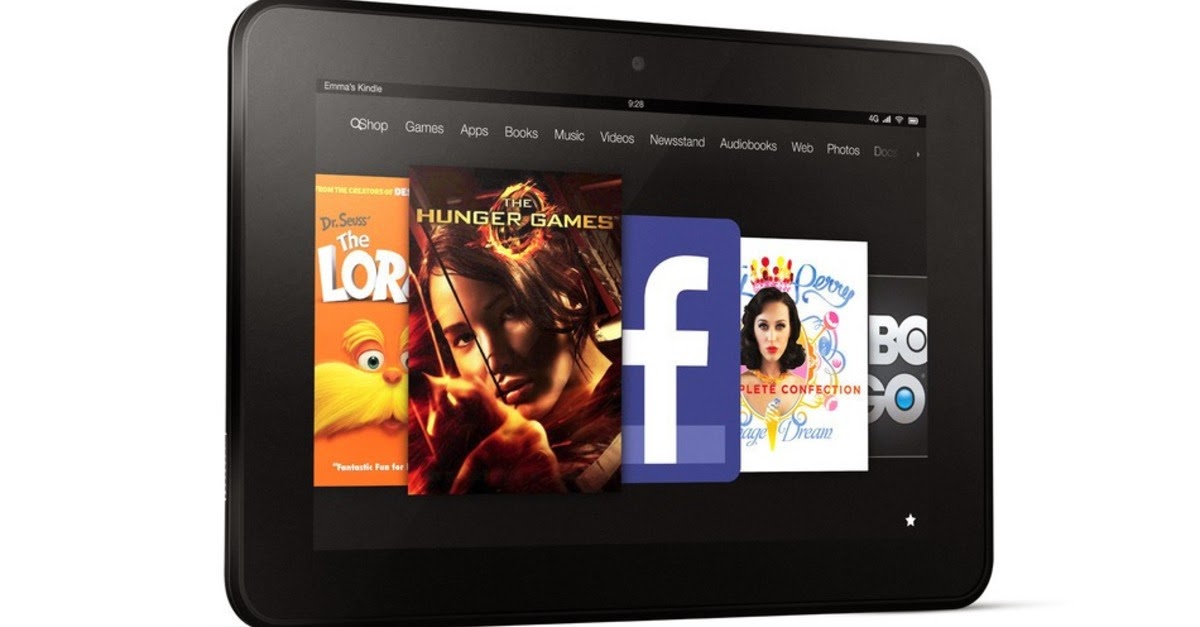
Hard Reset Kindle Fire – Best Approach
- Tap Settings on the upper-right corner of your screen
- Select Device
- Tap Reset to Factory Defaults
- Tap Erase Everything
Always(Try) Add(ing) your View, Questions, Comments and Information on this Post.
Also, feel free to Like and Share this post with Friends, You can Make use of the Like, Comment, and Share Buttons below.....
Go to link Download

Thursday, November 17, 2016
How To Hard Reset Your LG G4 Phone
How To Hard Reset Your LG G4 Phone

Hard Reset LG G4 To Factory Settings
Hard Reset LG G4: Method one
- Tap Settings
- Tap select Back up and reset options
- Quickly locate factory data reset and tap it
- Relax while phone is rebooted
Hard Reset LG G4: Method Two
- Turn off your LG G4
- Press together volume up + home button + power button
- Once LG logo is displayed, release your hands
- Use volume buttons to navigate to “Wipe data/Factory reset”
- Use the Power button to select your option
- Select “Yes” with your volume buttons and select it with power button
- Select Reboot System Now
Dont Forget To Add your View, Comments on this Post.
Always Like and Share Posts, You can Make use of the Share Buttons below.....
Go to link Download
Tuesday, November 1, 2016
How to Hard Reset Samsung Galaxy S4 and Galaxy S5 Pattern Problem
How to Hard Reset Samsung Galaxy S4 and Galaxy S5 Pattern Problem

How to Hard Reset Samsung Galaxy S4 with Hardware key button
1. Make sure the battery of Samsung Galaxy S4 charge properly
2. Turn off Samsung Galaxy S4. Press and hold together : Power Button + Volume Up + Home Button.
3. If the button at number 3 not work, you can try with press and hold together Power Button + Volume Up Button until the phone vibrate and release only Power Button (do not release Volume Up + Home button).
- How to install PES 2012 on your Android phone
5. If we see the menu at LCD screen, choose Wipe Data/Factory Reset with Volume Button to select and use Power Button to ok or enter, You can Download New OperaMini v7.6.apk.
6. The Samsung Galaxy S4 will doing the process of restoring to factory default. See the below picture it also guide you on how to do it successfully.

You Can Also Hard Reset Samsung Galaxy S4 with Secret Key Code Security:
- How to speed up your android phone
2 . Make sure the battery of Samsung Galaxy S4 not empty.
3. dial or press number to call: *2767*3855#.
RELATED POST:
- How to hard reset Nokia X, X+ and XL android
- How to format and reset sony Xperia
You can Watch the on Youtube now
Is this tutorials helpul for you if yes, share it to your friends.
Enjoy.
Go to link Download
How To Format Hard Reset Sony Xperia Z Android phone
How To Format Hard Reset Sony Xperia Z Android phone
Hard-reset is equivalent to formatting a device i.e you delete all the data that is inside the phone memory (also known as inbuilt memory) and the handset comes back to its original factory settings.

- When some of the apps do not function and you cannot remove them.
- When your handset is pattern locked. You have forgotten the pattern aswell as the gmail accountID/password associated with that device.
- When your handset becomes too slow.
- When some of the apps do not function and you cannot remove them.
First method: This is the most simple method and is possible only if you are able to access the menu options.
1. Go to the settings option in the menu.
2. Search for the ‘BackupAd Restore’ option and select it.
3. Now select the option ‘Factory Data Reset’
4. Now select the option ‘Reset Phone’.
5. The device may ask for the confirmation from your end by the message ‘Erase Everything’. Confirm and your gadget will start the process. It will restart now and you are done!
Related Post:
- Are you Forgot Your Android Pattern lock
- How to watch Live Match, football,Movies on your Android phone
- Easy ways to block unexpected advertise on your android device
- Best way to unlcked yourTecno Q1 Android Phone
1. Switch off your Xperia Z. Its better if you remove your battery and insert it again.
2. Keeping the device being switched off, press and hold the Volume Up and Volume Down buttons. Keep these two buttons pressed and then press and hold the Power button.
3. Keeping these three buttons pressed will bring a menu on the screen. Navigate to the recovery option with Volume Up and Down buttons. Select the recovery option with the power button.
4. Now you will see an Android logo on the screen. Press and hold the volume up and volume down buttons, which will bring your device to the recovery menu.
5. The recovery menu will have many options in it. You will need to search for an option like Wipe data/ Factory reset. Now press power button to select it.

If this is help for you, share and drop your own method of doing this hard reset in the comment box enjoy.
For more help you can also:
- Add Me on Facebook
- Follow Me on Twitter
- Join Me on Google Plus
Go to link Download
Saturday, October 22, 2016
How To Hard Reset Your Windows Phone
How To Hard Reset Your Windows Phone

If you ever need to hard reset your Windows Phone smartphone, here is a quick guide. note that a hard reset wipes out all your files stored on the device, your installed apps and your settings. be sure that is what you want to do before proceeding.
The Procedure:
You have a clean device all over again.
Source - MobilityArena
Go to link Download
Saturday, October 15, 2016
How To Hard Reset Android Phone With Software
How To Hard Reset Android Phone With Software
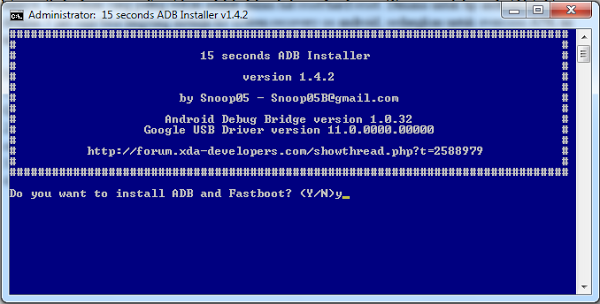
Hard reset android phone with tools or software is doing, if the previous method didnt work, please see my post at How To Unlock Android Phone With 2 Keys. This method is very simple, with 2 keys your phone is back to normal.
For example in this case, we have tried to reset evercoss A5k with 2 buttons method but failed, so using another method, namely by using the tool.
Here we provide a way to me-hardreset evercoss A5K android phone.
1. use ADB Installer, I use ADB 1.4.2 - you can search in google and Driver Fastboot Xiaomi Gadgets = I use the USB Driver.
2. Run the ADB Installer, see existing orders, until the installation is completed. (in this case you simply press Y and Enter several times).
3. Xiaomi used when driver usb in your computer unknown.
4. run cmd.exe. type fastboot -w
5. Will perform waiting writing device.
6. Create evercoss A5K into fastboot by the way, press the power button along with the volume minus (-), wait until the writing fastboot appears at the top.
7. Immediately connect phone to the computer using a USB cable (remember phone existing fastboot mode).
8. If phone usb recognized, waiting process devices, will immediately disappear and finish the reset process, but if the evercoss A5K phone, unknown then you need to install the gadget using Xiaomi fastboot usb driver.
Go to link Download
Saturday, October 1, 2016
How A 5MB Hard Disk Looked Like In 1956
How A 5MB Hard Disk Looked Like In 1956
It’s amazing how far the world has gone with tech and most especially with miniaturization of gadgets. The pictures below are pictures of a 5 MB hard drive being shipped out by IBM in 1956.

In September 1956, IBM launched the 305 RAMAC, dubbed as the world’s first SUPER computer with a hard disk drive (HDD). The HDD weighed over a ton and stored 5 MB of data. You can see how many men it’s taking to load it unto a vehicle.


Go to link Download
Monday, September 19, 2016
How to Fix Nokia Lumia unboot after hard reset or update
How to Fix Nokia Lumia unboot after hard reset or update
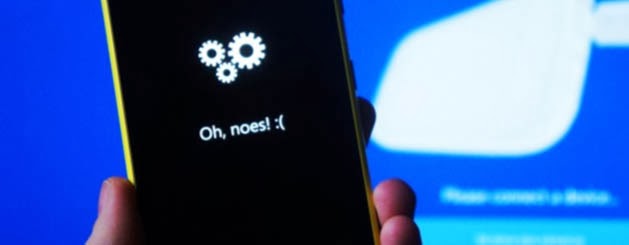
The good news is that, before taking the Nokia device to what will try to recover, you can now attempt a first terminal recovery at home, and try to fix it yourself.
Step 1: Install Nokia Software Updater for Retail
The first step is to download the software from Nokia that lets you install the firmware on our phone. If you had already, just open it and tell you that there is an update.Step 2: Connect the phone to your computer
The next step is simply to connect the phone to the computer with the USB cable. Of course, the device will light if it was not, but will not be recognized by any application (you may receive a message that a USB device is not recognized.) We start the Nokia Software Update for Retail application and see the image indicates that we connect the phone.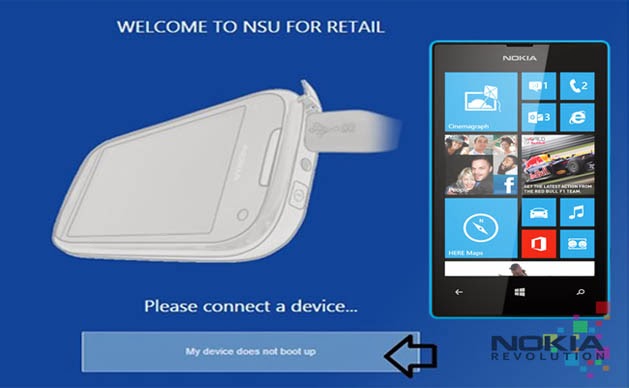
we see a button that tells us: "my device does not boot" . Its what we choose to enter will use in the next step wizard.
Step 3: software reset
In this step, you click Continue, the program tries to find the phone, and then you apply a soft reset . To do this, we pressed the buttons on and volume down until we noticed a vibration. When the phone starts to boot you again, you should see that is recognized by the program.Step 4: Installing the firmware
In this step, download the firmware needed Nokia server, and then proceed with the installation if necessary. By installing a complete firmware, is how to perform a clean installation of the software on the terminal, so if there is no hardware problem should be solved and recover your phone. The process is the same as mentioned for upgrade to Lumia Amber .We hope the tutorial will serve as a support and allows you to recover those devices that are giving you headaches after the hard reset.
Go to link Download
Sunday, September 18, 2016
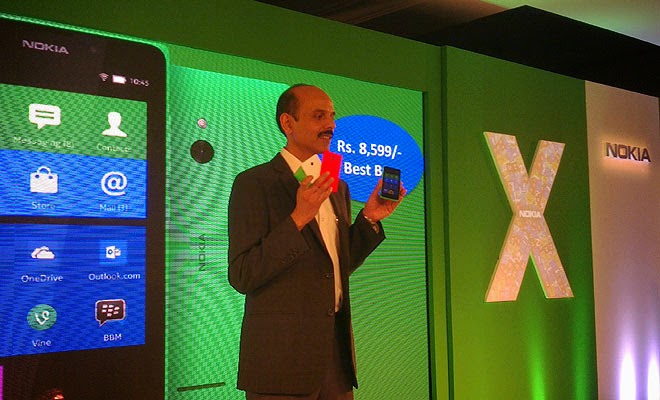
How To Format Hard Reset Nokia X X and Nokia XL Android Phone
How To Format Hard Reset Nokia X X and Nokia XL Android Phone
How To Remove Pattern Lock From Nokia X android, Hard Reset Nokia X Android Hard Reset Solution If You Forgot Your Screen Lock Combination Or Password.
 Follow These Simple Steps
Warning! All Data that is on your phone Will Be Lost.
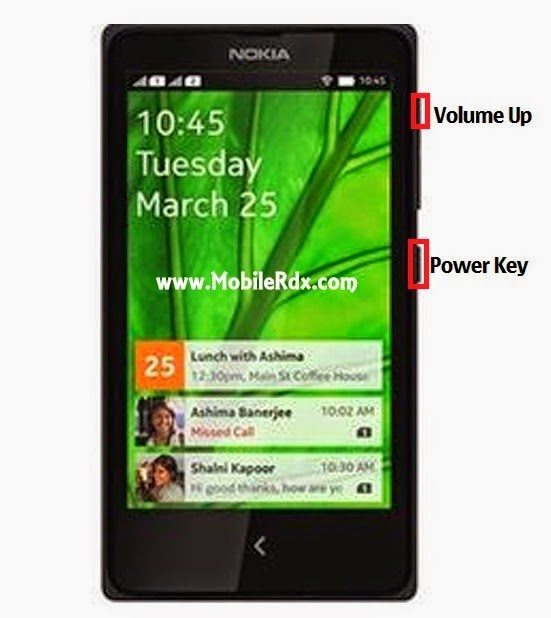
- Press Together Volume Up + Power Button.
- Release Your Fingers Of The Phone When Nokia Logo Appear And Keep Pressing Volume Up.
- Choose With Volume Buutons "wipe Data/factory Reset" And Select It With Power Button of the phone.
- Choose "yes" With Volume Buttons And Select It With Power Button
- Wait Untiil Format Is Complete. Check the below image practically.
Go to link Download