Showing posts with label kitkat. Show all posts
Showing posts with label kitkat. Show all posts
Tuesday, November 29, 2016
How to install Android 4 4 KitKat apps in other Android phones
How to install Android 4 4 KitKat apps in other Android phones
KitKat, the latest version of Android, brings great news to Nexus 5 , the first device with Android 4.4 KitKat , but this does not mean you can not enjoy another phone.

Google brought a new experience to Android with the new Launcher for Android 4.4. KitKat , providing improvements over previous versions, new colors, new icons and the ability to open Google Now with just a gesture on the home screen ( Home ).
Another major Android News KitKat was the integration of your text messages with instant messaging Hangouts. In addition to integrating these messages in one place, now also supports GIFs and lets you easily share your location.
The Android keyboard has also been updated and now brings a large number of Emoji more deeply integrated into the operating system.
First you can install these applications, you need to have enabled the option that allows you to install applications outside of Google Play. To do this go to Settings, Security and then enable Unknown Sources box.
Second, download the applications (APKs) of the application you want to install on your Android phone. If you download it to your computer, transfer it to your phone via USB, microSD card, cloud storage or other method you prefer. If you downloaded to your phone, just go to the Downloads folder.
» Watch
» Gallery
» Camera
» Hangouts
» Keyboard
» Google Search
» KitKat Android Home (Launcher)
Now install the applications to open and follow the instructions.

After installing the application, you need to put this new launcher to start by default. Just tap the home key (Home), select "Chooser" with with blue icon and then select Always.
Finally you can enjoy the l auncher like the other new apps you installed without need for Android KitKat. I
Google brought a new experience to Android with the new Launcher for Android 4.4. KitKat , providing improvements over previous versions, new colors, new icons and the ability to open Google Now with just a gesture on the home screen ( Home ).
Another major Android News KitKat was the integration of your text messages with instant messaging Hangouts. In addition to integrating these messages in one place, now also supports GIFs and lets you easily share your location.
The Android keyboard has also been updated and now brings a large number of Emoji more deeply integrated into the operating system.
First you can install these applications, you need to have enabled the option that allows you to install applications outside of Google Play. To do this go to Settings, Security and then enable Unknown Sources box.
Second, download the applications (APKs) of the application you want to install on your Android phone. If you download it to your computer, transfer it to your phone via USB, microSD card, cloud storage or other method you prefer. If you downloaded to your phone, just go to the Downloads folder.
KitKat Android applications (APKs):
» Google Play Services» Watch
» Gallery
» Camera
» Hangouts
» Keyboard
» Google Search
» KitKat Android Home (Launcher)
Now install the applications to open and follow the instructions.
After installing the application, you need to put this new launcher to start by default. Just tap the home key (Home), select "Chooser" with with blue icon and then select Always.
Finally you can enjoy the l auncher like the other new apps you installed without need for Android KitKat. I
Go to link Download

Saturday, November 19, 2016
How to save battery Android KitKat 4 4
How to save battery Android KitKat 4 4
Five tips to help you take advantage of all the new features of the new Android operating system without draining the battery of your phone.

The version 4.4 of Android, or KitKat , comes with a host of new features to explore, but so will leave you load new breeze.
Follow these five tips to get the most out of KitKat without killing your battery so fast.
To not leave you too exhausted battery, go to "Settings", "Location", Mode and activate the option for "Battery Saver".
If you are looking for directions somewhere with small alleys and confusing, you can activate the option "High Accuracy" to more accurately locate you on the map.
To save battery sync your photos wait until youre connected to a Wi-Fi network. Go to the application of "Gallery", click the three dots, select "settings" and active "Sync only Wi-Fi".
And since were in this menu disables Bluetooth when youre not using. The phone is always connected when youre looking on and this wastes energy.
These tips are basic, but you can get out of trouble the next time youre desperate to conserve battery.
The version 4.4 of Android, or KitKat , comes with a host of new features to explore, but so will leave you load new breeze.
Follow these five tips to get the most out of KitKat without killing your battery so fast.
1. GPS
The GPS function consumes the battery of your device even when youre not in the Maps application. Each time you register a visit on Facebook ( check-in ) or take a picture even when the GPS is active.To not leave you too exhausted battery, go to "Settings", "Location", Mode and activate the option for "Battery Saver".
If you are looking for directions somewhere with small alleys and confusing, you can activate the option "High Accuracy" to more accurately locate you on the map.
2. Sync photos
KitKat automatically synchronized to your account many of the things you do on your device, but make sure you are synchronizing only the things you need.To save battery sync your photos wait until youre connected to a Wi-Fi network. Go to the application of "Gallery", click the three dots, select "settings" and active "Sync only Wi-Fi".
3. Brightness and Bluetooth
Many already know this, but one of the things that drain the battery faster your device is the screen brightness. To adjust the brightness slide your finger down on the screen, go to the box in the upper right corner, click "brightness" and select "auto". The automatic option adjusts to ambient light and better preserves your battery.And since were in this menu disables Bluetooth when youre not using. The phone is always connected when youre looking on and this wastes energy.
4. NFC
If you have near field communication (NFC for its acronym in English) on, be sure to have it checked only when you need it. Go to "Settings", "More" (under data usage) and disable it.5. Tool Battery
Finally, remember that you have the battery tool which lets you monitor your applications are those that are using more load. Slide your finger downward from the Home screen, press the upper right box and go to the little picture of the battery. If you notice any of your applications are using heavily loaded, close it.These tips are basic, but you can get out of trouble the next time youre desperate to conserve battery.
Go to link Download
Sunday, November 13, 2016
How to install Android 4 4 KitKat Emoji keyboard
How to install Android 4 4 KitKat Emoji keyboard
Adding emoticons to your conversations is a way to express your emotions in messaging today, whether in the SMS or another application you use. They are used to give a little life and color to the text so it is not so boring. Well Emojis is a Japanese word and keyboard Android 4.4 KitKat has these emojis on board.

If youre using the iOS keyboard, they can be a little hard to find. You want to go to Settings> General, scroll down and tap on the keyboard. Then tap "Add New Keyboard". There, sandwiched between the keyboards will see Emojis. Now you should have two keyboards installed. When you go to write a message, an email or status update on social networks, now the world will see an icon loaded in the bottom left of the keyboard of iOS.
Download the Android 4.4 APK directly on the device or on your computer and then transfer it later. You can use this link also.
After installation, follow installation tutorial Google.
If you own an Android device and do not want to go through the previous installation, the only option is to continue with an application like Whatsapp that supports its own emojis keyboard, or install a keyboard emojis third. Results vary by phone model.
If youre using the iOS keyboard, they can be a little hard to find. You want to go to Settings> General, scroll down and tap on the keyboard. Then tap "Add New Keyboard". There, sandwiched between the keyboards will see Emojis. Now you should have two keyboards installed. When you go to write a message, an email or status update on social networks, now the world will see an icon loaded in the bottom left of the keyboard of iOS.
For users of Android have to follow these steps:
Go to Settings, Security and check "Unknown sources" to have the ability to install software from sources other than Google PlayDownload the Android 4.4 APK directly on the device or on your computer and then transfer it later. You can use this link also.
After installation, follow installation tutorial Google.
If you own an Android device and do not want to go through the previous installation, the only option is to continue with an application like Whatsapp that supports its own emojis keyboard, or install a keyboard emojis third. Results vary by phone model.
Go to link Download
Friday, November 4, 2016
How to Install Google Experience Launcher 5 on Android Nexus Owned Devices KitKat
How to Install Google Experience Launcher 5 on Android Nexus Owned Devices KitKat
Google Experience Launcher is in KitKat reportedly awarded exclusive to Nexus 5. While Google is spreading the Android 4.4 update for the KitKat Nexus tablet Nexus 7 and 10 , it seems increasingly clear that the two tablets are not going to get a Google Experience Launcher like the one in the Nexus 5 .
How to Install Google Experience Launcher 5 on Android Nexus Owned Devices KitKat

Although the Nexus 7 and 10 get improved performance and user interface design through a KitKat but it looks that characterize Google Experience launcher can not be found in the update . In other words , large changes in Android such as presence status and navigation bars transparent , app icons with larger sizes as well as Google Now in the home screen , only available on the Nexus 5 .
If you are the owner of Nexus 7 or Nexus 10 and has been manually install Android 4.4 KitKat and did not find a Google Experience Launcher in it , do not be too disappointed . You could try to install Laucher owned the Nexus 5 after install KitKat .
Not only for the Nexus 7/10 , will each have a device that runs Android KitKat you can install Google Experience launcher separately .
1 . Please download the APK file from the launcher Google Experience Android Police website .
2 . Copy the file to your Android device and then install.
3 . Run Google Experience Launcher as your other running Android launcher ( Settings app > Home )
In this way the KitKat Android phone you have, any make or model , will be able to get Google Experience Launcher experience , complete with the integration of Google Now on the homescreen , and vavigaiton status bar transparent , etc. . Good luck
Go to link Download
Tuesday, October 25, 2016
How to Run Install Android OS Kitkat Lollipop Marshmallow on Computer Easiest way
How to Run Install Android OS Kitkat Lollipop Marshmallow on Computer Easiest way
Install full Android OS on your PC or Laptop easy and simple: Android Lollipop: Android KitKat: Android Marshmallow:
To make this happen you will need:
- Formatted USB of 4GB or Higher (depends upon Android version)
- A PC or a laptop that should meet the requirements of Installation
- An Internet connection to download files
- And this blog to help you out :)
Make sure that your USBs data is saved because its going to Format
Now download .iso format files from the link given below:
Always choose the latest and bug-free iso files.
Always choose the latest and bug-free iso files.
Android x86 (Google Code)
Other Android Versions
Android Lollipop ISO Files
Android 6.0 Marshmallow iso Files
Now you have to download USB Installer toolWhich you can get from the post below:
Download Universal USB Installer
Now follow the link to make your USB bootable to install or run Android:
How to make a Bootable USB
How to run Mozilla FireFox OS on PC Step by step guide:http://techgangfacebook.blogspot.com/2015/03/how-to-run-mozilla-firefox-os-on.html
Posted by Tech Notes on Thursday, 26 March 2015
Now after successfully making your USB bootable insert USB in PC and restart your PC or Laptop
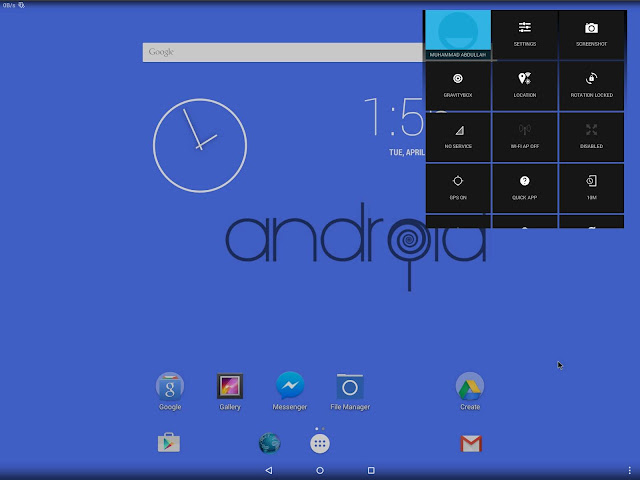
After restarting your PC, you will see following screens.
Follow these screens step by step to Install or Run an OS.
Personally, I would recommend you to not install OS.
Simply run it directly from USB. This is because after installation both OS (Android and Windows) will run on your Computer or laptop and after a short time it will make your device slower and then you have to reinstall windows to remove Android.
Follow these screens step by step to Install or Run an OS.
Personally, I would recommend you to not install OS.
Simply run it directly from USB. This is because after installation both OS (Android and Windows) will run on your Computer or laptop and after a short time it will make your device slower and then you have to reinstall windows to remove Android.
You can see the first option in Step 1 to run Android with USB. This option will not Install Android on your PC. You can run android any time on your device.
 |
| Step 1 |
You can Install on any drive but it is recommended that if you want to remove OS after Installation chooses an Empty disk. Dont install on C where windows are installed.
 |
| Step 2 |
This is because GRUB allows you to boot any OS by prompting you to choose which OS you want to run.
 |
| Step 3 |
This is like giving internal storage to android. If you want to install too many apps then choose more internal storage. 2GB is the maximum option in this.
 |
| Step 4 |
 |
| Step 5 |
WELCOME TO THE WORLD OF ANDROID ON PC
Now choose which you want to do either you want to reboot or run android. A reboot will prompt you choosing between Windows and Android.
 |
| Step 6 |
Also See:
Download all One Plus 2 Stock HD Wallpapers
Posted by TechNotes on Wednesday, 5 August 2015
Cautions:
- There might be bugs in Android versions. So choose latest iso files
- All android apps will not be available to run. e.g those apps that use portrait screens.
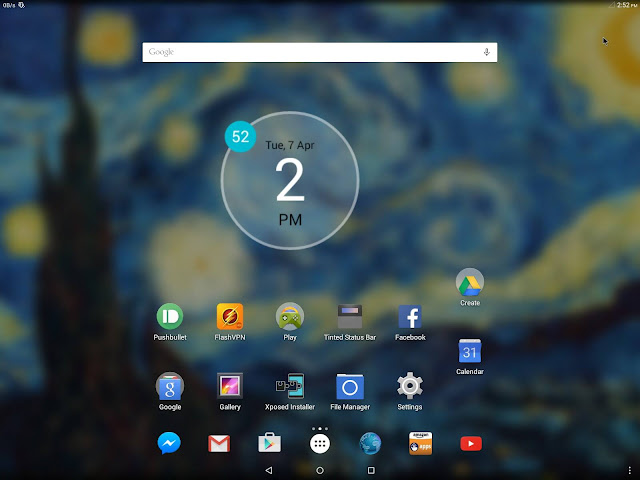
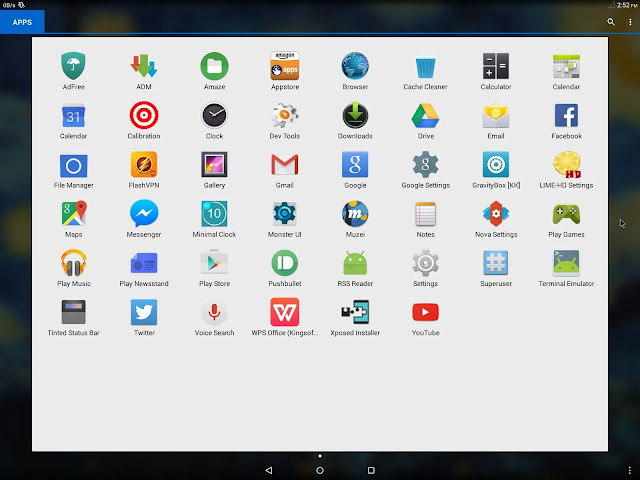
It is like Android running on a tablet.
These versions of android are already rooted and you can customize them on PC too.
What you can do more?
- Install Xposed Installer on your android OS
- Install Gravity box
- You can install and run any Root app on this OS and you can customize it too.
If you have any suggestions about this blog or tutorial then comment below, I will appreciate your feedback :)
Link to Facebook and other social platforms are on the top action bar and on the bottom too.
Follow this blog for more and Tech updates.
#TechNotes #TechGang +Tech Notes #AndroidOnPC #BestTutorialForAndroidOnPCOrLaptop
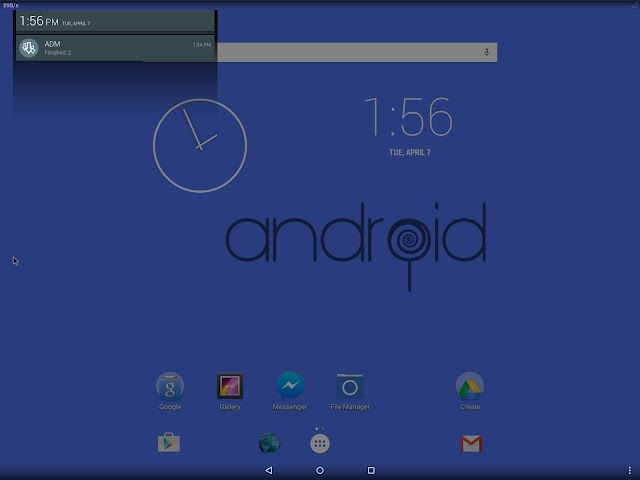
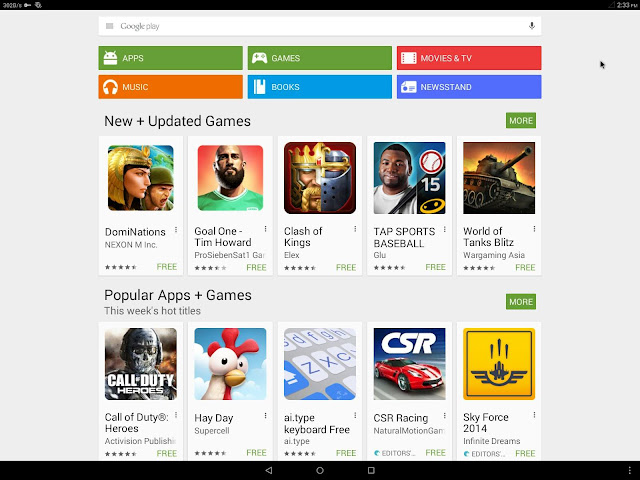
Android OS Gallery
Also See:
Download Microsofts Arrow launcher secret beta for Android
Posted by TechNotes on Monday, 10 August 2015
Go to link Download
Saturday, October 15, 2016
How to install Android 4 4 KitKat Launcher and new apps
How to install Android 4 4 KitKat Launcher and new apps
I have the good news that we find some key applications that can be installed for the new experience of Android 4.4 KitKat Launcher running on your device.

Now I show you what you need to install:
After that, to enjoy away! Let us know if you are running on your device, or if your phone or tablet exploded by doing these steps (well, that really did not happen, do not panic!). Important: Current Technology is not responsible for any damage you may cause to your phone . By now, everyone has worked.
Update: Google Search Force Close : How to fix this problem.
Hold down the Home screen, select Settings. Select Voice. Select Language to change the default. Change to another language, select English - United Kingdom. Press Start. Do a search on Google. Repeat the first three steps. Switch back to English - U.S. and ready.
Update 2: We have seen that some users are having problems with the steps. Download Velvet , PreBuiltGmsCore and GoogleHome . That is all that you need. To get the latest Google Hangouts, you need this app apk here . Make sure the "Unknown Sources" is checked. Enjoy!
If the 3 files above are giving problems, please try with these.
Now I show you what you need to install:
- PreBuiltGmsCore (Google Play Services 4.0)
- Velvet (Google Search)
- GoogleHome (Google Launcher)
After that, to enjoy away! Let us know if you are running on your device, or if your phone or tablet exploded by doing these steps (well, that really did not happen, do not panic!). Important: Current Technology is not responsible for any damage you may cause to your phone . By now, everyone has worked.
Update: Google Search Force Close : How to fix this problem.
Hold down the Home screen, select Settings. Select Voice. Select Language to change the default. Change to another language, select English - United Kingdom. Press Start. Do a search on Google. Repeat the first three steps. Switch back to English - U.S. and ready.
Update 2: We have seen that some users are having problems with the steps. Download Velvet , PreBuiltGmsCore and GoogleHome . That is all that you need. To get the latest Google Hangouts, you need this app apk here . Make sure the "Unknown Sources" is checked. Enjoy!
If the 3 files above are giving problems, please try with these.
- GMS Core prebuilt.
- Google Playservices 4.0.
- Google Experience Launcher
Go to link Download
Subscribe to:
Posts (Atom)