Showing posts with label apps. Show all posts
Showing posts with label apps. Show all posts
Tuesday, November 29, 2016
How to install Android 4 4 KitKat apps in other Android phones
How to install Android 4 4 KitKat apps in other Android phones
KitKat, the latest version of Android, brings great news to Nexus 5 , the first device with Android 4.4 KitKat , but this does not mean you can not enjoy another phone.

Google brought a new experience to Android with the new Launcher for Android 4.4. KitKat , providing improvements over previous versions, new colors, new icons and the ability to open Google Now with just a gesture on the home screen ( Home ).
Another major Android News KitKat was the integration of your text messages with instant messaging Hangouts. In addition to integrating these messages in one place, now also supports GIFs and lets you easily share your location.
The Android keyboard has also been updated and now brings a large number of Emoji more deeply integrated into the operating system.
First you can install these applications, you need to have enabled the option that allows you to install applications outside of Google Play. To do this go to Settings, Security and then enable Unknown Sources box.
Second, download the applications (APKs) of the application you want to install on your Android phone. If you download it to your computer, transfer it to your phone via USB, microSD card, cloud storage or other method you prefer. If you downloaded to your phone, just go to the Downloads folder.
» Watch
» Gallery
» Camera
» Hangouts
» Keyboard
» Google Search
» KitKat Android Home (Launcher)
Now install the applications to open and follow the instructions.

After installing the application, you need to put this new launcher to start by default. Just tap the home key (Home), select "Chooser" with with blue icon and then select Always.
Finally you can enjoy the l auncher like the other new apps you installed without need for Android KitKat. I
Google brought a new experience to Android with the new Launcher for Android 4.4. KitKat , providing improvements over previous versions, new colors, new icons and the ability to open Google Now with just a gesture on the home screen ( Home ).
Another major Android News KitKat was the integration of your text messages with instant messaging Hangouts. In addition to integrating these messages in one place, now also supports GIFs and lets you easily share your location.
The Android keyboard has also been updated and now brings a large number of Emoji more deeply integrated into the operating system.
First you can install these applications, you need to have enabled the option that allows you to install applications outside of Google Play. To do this go to Settings, Security and then enable Unknown Sources box.
Second, download the applications (APKs) of the application you want to install on your Android phone. If you download it to your computer, transfer it to your phone via USB, microSD card, cloud storage or other method you prefer. If you downloaded to your phone, just go to the Downloads folder.
KitKat Android applications (APKs):
» Google Play Services» Watch
» Gallery
» Camera
» Hangouts
» Keyboard
» Google Search
» KitKat Android Home (Launcher)
Now install the applications to open and follow the instructions.
After installing the application, you need to put this new launcher to start by default. Just tap the home key (Home), select "Chooser" with with blue icon and then select Always.
Finally you can enjoy the l auncher like the other new apps you installed without need for Android KitKat. I
Go to link Download

Friday, November 18, 2016
how to run andriod apps games on pc chat with whatsapp on pc easily
how to run andriod apps games on pc chat with whatsapp on pc easily
If you have been limited to use some mobile phone app simply because you dont have a smart phone or because you dont want to spend too much on phone bills, this short tutorial will show you how you can easily install and use any mobile phone application on your PC/Mac so you can access it anytime you are on your internet connected PC/Mac.

Now you can Run any Adriod Apps on your PC without any Issues using Bluestacks , To Run any Andriod Apps or WhatsApp on your Steps, Then Follow this Short Steps:-1. Download and install Bluestacks App player. Get the latest bluestacks App Player from www.bluestacks.com. Make sure you install after downloading it.
2. Run the bluestacks App player and install Whatsapp (or any other App you want)
After the bluestacks app player completely load on your PC/Mac, you will need to search for Whatsapp or any other app you want. Click the search button (on top right hand corner) and search for Whatsapp.
You will see Whatsapp on the list. Click on "Install".
3. After that the bluestacks app player will search for Amazon app store, Google Play and some other markets for Whatsapp availability and it will let you choose which market that you want to complete the download.
Ill advise you to download from Google Play. Click on "Whatsapp" on the list under Google Play. You will need to sign in with your Google account to finally install Whatsapp. If you dont have a Google account, you will need to create one.
The installation will be completed after you log in with your Google account. After which you can then run the Whatsapp by following the normal procedure on creating a account on Whatsapp. Enter your phone number, get a code sent to your mobile phone, wait for the 5 minutes countdown to enter the code and you are good to go.
That’s it.
If you need any help with this installation, please fill free to ask using the comment box further below.
If you find this useful, Please hit the Like/Share Button.
Source:- Ogbongeblog
how to run andriod apps + games on pc - chat with whatsapp on pc easily
If you have been limited to use some mobile phone app simply because you dont have a smart phone or because you dont want to spend too much on phone bills, this short tutorial will show you how you can easily install and use any mobile phone application on your PC/Mac so you can access it anytime you are on your internet connected PC/Mac.

Now you can Run any Adriod Apps on your PC without any Issues using Bluestacks , To Run any Andriod Apps or WhatsApp on your Steps, Then Follow this Short Steps:-
1. Download and install Bluestacks App player. Get the latest bluestacks App Player from www.bluestacks.com. Make sure you install after downloading it.
2. Run the bluestacks App player and install Whatsapp (or any other App you want)
After the bluestacks app player completely load on your PC/Mac, you will need to search for Whatsapp or any other app you want. Click the search button (on top right hand corner) and search for Whatsapp.
You will see Whatsapp on the list. Click on "Install".
3. After that the bluestacks app player will search for Amazon app store, Google Play and some other markets for Whatsapp availability and it will let you choose which market that you want to complete the download.
Ill advise you to download from Google Play. Click on "Whatsapp" on the list under Google Play. You will need to sign in with your Google account to finally install Whatsapp. If you dont have a Google account, you will need to create one.
The installation will be completed after you log in with your Google account. After which you can then run the Whatsapp by following the normal procedure on creating a account on Whatsapp. Enter your phone number, get a code sent to your mobile phone, wait for the 5 minutes countdown to enter the code and you are good to go.
That’s it.
If you need any help with this installation, please fill free to ask using the comment box further below.
If you find this useful, Please hit the Like/Share Button.
Source:- Ogbongeblog
Go to link Download
Thursday, November 17, 2016
How to install any Games Apps on Chinese Mobiles
How to install any Games Apps on Chinese Mobiles
Hello everyone, this is already our third post hacerca Chinese mobile games or games like putting on a Chinese Mobile . Certainly you must have someone serve our previous post, but some not.

In the discussion that was generated in the post games for chinese phone, I found a very good contribution made by Kike RIOS, a visitor to our blog who gave us a solution that apparently it has worked for many of our users. Below step detail, the moment I do not own any catch since I have not a Chinese mobile to capture (if someone does please feel free to send screenshots to rinse the post), the steps are as follows :
1. Download the following ZIP file and unzip
 2. The SD OF CHINA FOR MOBILE folder contains the following folders, as shown in the following image:

3. Replace these folders on the SD Chinese cell, its SD memory had these folders, simply Let them create.
4. Restart the phone and type the following code: * # 66 * # , wait for a window, in that window you head out to where it says ECHO LOOP OR CYCLE ECO pressed key or turn ON (green button).
5. Out of the Ca pressing the logout button or cancel call.
6. Enter the following code: * # 220807 #. Done.
If the Chinese phone supports NES games, rest assured that the NES games appear in the SD. The games folder on the SD memory Mytrhoad / NES.
We hope this new tutorial serve them, are all supposed to learn from all this is a community, seek to have it be so, lets go! try all the tutorials, if they work do not forget to comment here so that everyone has the experience, if it did not work, lets discuss it like make and model of mobile to find out which makes you and which are not.
We expect them to behave when commenting, if I see any comments that do not benefit anyone will be deleted immediately, suffice to say that all comments have a huge folder, so are spent not writing swearing or insults, which never appear.
Remember that if this article helped you, help sharing it with friends on social networks, thanks.
In the discussion that was generated in the post games for chinese phone, I found a very good contribution made by Kike RIOS, a visitor to our blog who gave us a solution that apparently it has worked for many of our users. Below step detail, the moment I do not own any catch since I have not a Chinese mobile to capture (if someone does please feel free to send screenshots to rinse the post), the steps are as follows :
1. Download the following ZIP file and unzip
3. Replace these folders on the SD Chinese cell, its SD memory had these folders, simply Let them create.
4. Restart the phone and type the following code: * # 66 * # , wait for a window, in that window you head out to where it says ECHO LOOP OR CYCLE ECO pressed key or turn ON (green button).
5. Out of the Ca pressing the logout button or cancel call.
6. Enter the following code: * # 220807 #. Done.
If the Chinese phone supports NES games, rest assured that the NES games appear in the SD. The games folder on the SD memory Mytrhoad / NES.
We hope this new tutorial serve them, are all supposed to learn from all this is a community, seek to have it be so, lets go! try all the tutorials, if they work do not forget to comment here so that everyone has the experience, if it did not work, lets discuss it like make and model of mobile to find out which makes you and which are not.
We expect them to behave when commenting, if I see any comments that do not benefit anyone will be deleted immediately, suffice to say that all comments have a huge folder, so are spent not writing swearing or insults, which never appear.
Remember that if this article helped you, help sharing it with friends on social networks, thanks.
Go to link Download
Tuesday, November 15, 2016
How To Sideload Android Apps Onto Your BlackBerry 10 Device
How To Sideload Android Apps Onto Your BlackBerry 10 Device

With the launch of OS 10.2.1, BlackBerry brought the ability to install Android apps straight from the device. However, many in the community wanted to go a step further with access to Google Play — enter Snap. Snap is a native BlackBerry 10 application which allows you to download free and previously purchased apps from Google Play. Unfortunately, it can’t be downloaded from BlackBerry World, but we’ll show you how to sideload it from your computer.In order to do this, you’ll need to make sure you have a number of things ready:- A BlackBerry 10 device running OS 10.2.1.1055 or above.
- The latest Snap .BAR file, which can be obtained from the developer’s website here.
- A tool for sideloading. Option 1 is the Google Chrome BB10/PlayBook App Manager extension (requires Chrome 18.0+, a WiFi network that both your computer and phone are connected to). Option 2 is the DDPB application (PC-only, requires a USB connection, .NET Framework 2.0 or above, and Java Runtime Environment 6).
Once you have everything set, start by putting your device into Development Mode. Both methods of sideloading will require this, so it’s best to get it out of the way before we continue. In order to do this, go into the Settings app and find the Security and Privacy section. Once you’re in the appropriate section, you’ll find the Development Mode at the bottom of the page, so go ahead and enter that page.
 On the Development Mode page, you’ll see a toggle. We want this toggle enabled, so go ahead and turn it on. If your device has a password, it will request that you enter it. If not, it’ll ask you to set a password, which you’ll need to remember for later.
 If you’ve done everything correctly, you should get a notification telling you that Development Mode has been enabled on the device. Now we can go ahead and proceed with the actual process of sideloading.Option 1: Google Chrome extensionIf you haven’t already done so, start by downloading the extension here. A small BlackBerry logo should show up in your toolbar once it’s installed, which you can hit to access the extension options. If the logo doesn’t show up, just go to the Settings menu of Google Chrome and look for it under the Extensions tab on the left.
 Once you’re in the Extensions menu, look for the BB10/PlayBook App Manager, and select Options.
 After that, you’ll be taken to the options screen for the extension. Here, you’ll need to entire your device’s IP address in the Hostnames/IPs field.
 This can be found in the Settings app, on the About page.
 In the About page, hit the Category dropdown and switch to Network.
 Once you’re in the Network category, look for your IPv4 address under the Wi-Fi heading. If there is a forward-slash followed by some numbers after the address, ignore those and only use the numbers prior to the slash. As mentioned earlier, both your computer and your BlackBerry 10 device must be connected to the same WiFi network for this to work, as this extension will send the app over your WiFi network to the phone.
 Once you have the address, make sure to input it into the Hostnames/IPs field in the extension options and hit the Save button. IPs for other devices in the future can be added by separating them with a comma. When you’ve saved the IP, a link will be generated at the bottom of the page.
 If you’ve followed this tutorial correctly, then you should already have Development Mode enabled. If not, you’ll need to enable it now before you can click on the generated link. Once you click on the link, it will request the device password set when Development Mode was enabled. Go ahead and input that password, then hit Log In.
 Once you’ve logged in and the extension has loaded, the process is straightforward. Go find the Snap .BAR file you downloaded at the beginning, then drap and drop it underneath the Install Apps heading.
 And there you have it, after a short while the app should show up on the last screen of your device’s app drawer. For security purposes, it might be best to disable Development Mode at this point. A quick rundown of how to use the app can be found at the end of this How-To, after the text for Option 2.Option 2: DDPB (PC-only)Though DDPB’s developer has long abandoned the application, it still serves as a good method of sideloading for anyone who doesn’t wish to use Google Chrome or doesn’t have a Wi-Fi network to use. As mentioned at the beginning, you’ll need to download and install DDPB HERE, then make sure your device is hooked up to your computer via USB with Development Mode enabled. If DDPB doesn’t work when starting it, make sure your PC has .NET Framework 2.0 or above and Java Runtime Environment 6 installed.
 Once you have DDPB working, you should see a screen like the one above. It requires an IP address and password just like the Google Chrome extension, but the IP address here is different since this is a USB connection. To find the IP address for this, go back to the Development Mode screen we accessed at the beginning (Settings>Security and Privacy>Development Mode).
 As you can see, this screen has a different IP address listed — this is the address you need. So, go ahead and input that IP address into DDPB along with the password you set when enabling Development Mode. Once you’ve done that, hit the Connect button. Your OS version and PIN number should show up underneath if you’ve done everything correctly.
 With that done, now you want to hit the Add button near the top of the application. This will open a separate screen, where you’ll need to navigate to the directory where you’ve saved the Snap .BAR file. Select the file and press Open. This should add the app to the list, as seen above. Now you need to tick off the checkbox next to the app, and hit the Install button at the bottom. A pop-up will show you how far the sideloading process has progressed — give it a bit of time. Once it’s done, another pop-up will alert you to the fact.
 The app should now appear on the last page of your device’s app drawer, as seen above. Now that you’re done, it might be a good time to disable Development Mode for security purposes. If you want a quick tutorial on how to use Snap, keep on reading.Using Snap
 In order to use Snap, you’re going to need a Google Account. If you don’t already have one, you can make one quite easily here. Accounts with two-step verification enabled will need to create an application-specific password, which can be done here by hitting the Settings button for App passwords. All other accounts can just enter their regular username and password into the fields provided, then hit Sign In.
 Once you’re in the app, you can go ahead and browse whatever apps you like and install them. A few things to keep in mind however:
- Not all apps will work. Some will require Google Play services, which are not available in the Android Runtime for BlackBerry 10.
- If you want to download a paid app, you must first buy it through Google Play on your computer or on another Android device.
- Every time an app is downloaded, by default the installation file (also known as the APK file) is kept on your device, unless it is a paid app. If you want to avoid cluttering your device storage, swipe-down from the top of the screen to access the app settings, then scroll to the bottom and switch Post-Install Behavior to Delete APK. You can also clear the cache on this screen to further save storage space in the future.
And that’s everything you need to know to get Snap working on your BlackBerry 10 device. Now you can enjoy access to hundreds of thousands of additional apps on your phone. If you have any questions on the process just drop a comment below and we will be glad to assist you!
Go to link Download
Monday, October 31, 2016
How to run Mozilla Firefox Mobile OS on Computer With Apps and Store
How to run Mozilla Firefox Mobile OS on Computer With Apps and Store
How to Run FireFox OS Mobile on PC
Easy method for running FireFox OS on a PC
Things you should have is just a Firefox Browser, which you can get from the link below if you dont have:
Download Firefox Browser
After Downloading Firefox Browser from Official website and setting up the browser follow the link to download the add-on simulator for Firefox OS from the Mozilla Firefox browser:
Download Firefox OS add-on Simulator
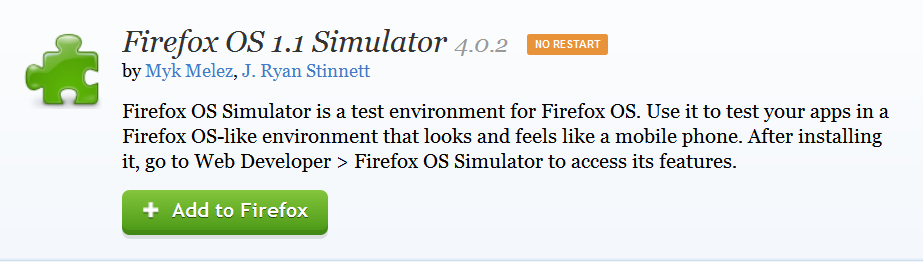
Press + Add to Firefox button and download. Now after downloading 45+ MB add-on from Firefox, there will be an option of Install in a new pop-up window. Click install now and wait for installation. After the installation is done there will be a new window like:
If page not found click here

Or there will be a black screen first showing info about daemon tools. Close that daemon tool window and Use above the window to turn on Simulator. See the option Simulator and in green Running.
You would see Stopped when OS is not running. Like that:

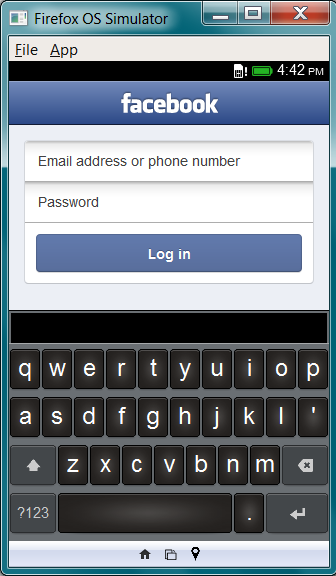
After enabling simulator you will see a new window like this:
Also See:
How to Run/Install Android on Computer (Easiest way):
Posted by Tech Notes on Saturday, 15 August 2015
 |
| App Store |
 |
| Home Screen |
 |
| Browser |
 |
| Mozilla Tech |
 |
| Status Bar |
 |
| Phone app |
 |
| Facebook app and Keyboard |
This is the Firefox OS window. You can download apps, run them and browse from the browser. You can also use this simulator to develop apps for Firefox OS if you are a developer.
If you like that please Hit likes, share on twitter and hit 1+ button for Google+. :) ;)
You can find me on Facebook:
TechGang on Facebook
On Google+:
TechGang Google+
Go to link Download
Sunday, October 23, 2016
How To Get Android Paid Apps From Google Play Store On BlackBerry 10
How To Get Android Paid Apps From Google Play Store On BlackBerry 10

BlackBerry OS 10.2.1 was recently released with the ability to install Android apps (APKs) straight from your BlackBerry device. There are also third party clients such as Snap which act as a Google Play Store client. Snap recently updated to v2.0 with the ability to download previously purchased Android apps, the tricky part is how to purchase these paid apps from the Google Play Store without an Android device and download them to your BlackBerry 10 device, this how-to will show you how to do just that.
In order to accomplish this you must have:
A BlackBerry 10 device running OS 10.2.1.1055 or above
- The latest Snap .BAR file, which can be obtained from the developer’s website here (if you need help sideloading this onto your BlackBerry 10 device follow this incredible guide)
- BlueStacks (App Player that lets you run mobile apps fast and fullscreen on Windows and Mac.) – Windows version could be downloaded here, Mac version here
- Google Account
Once you have Snap sideloaded to your BlackBerry 10 device and BlueStacks installed on your Mac or PC you will then startup the BlueStacks program. Will look something like this:

This is the Google Play Store client on my PC, next step is to search for a paid up. I will be purchasing an app then downloading it to my BlackBerry 10 device using Snap.
I searched for Tapatalk, I will buy purchasing Tapatalk Pro:

 To purchase click on the dollar amount as shown on the image above.
 After clicking on buy it will ask you to enter your Google Account information, along with payment info. Once purchase has completed open up Snap on your BlackBerry 10 device and search for the app you purchased, in this case I will search for Tapatalk Pro:

 There you have it you can now download your already purchased paid app onto your BlackBerry 10 device through Snap, if you try to download a paid app from Snap that you have not yet paid for using the above method through BlueStacks you will get hit with a message like this:
 If you have any questions feel free to drop a comment below and we would be glad to walk you through purchasing apps. You can always purchase directly from Google Play Store website and testing your luck then downloading your paid apps using Snap, but without an App Player like BlueStacks you may run into problems
Go to link Download
Thursday, October 20, 2016
Hot apps 2016 Hill Climb Racing Game
Hot apps 2016 Hill Climb Racing Game

you are a frequent user of smart phone, you may find out that most popular games on mobile market are designed to be simple, easy-to-play but easily keeps people obsessed in. Thats because mobile games, unlike the PC ones, target on fragmented time which means that game must be simple enough to be learnt.
The basic scenario of the game is climbing as much unique hills as you can by tackling upcoming obstacles. You can get points and bonuses via various of ways. With coins you get, you can upgrade you car to a better one and reach higher distances. You also need to pay attention to the fuel in case it runs out. Sounds easy? Thats the point to keep players running again and again. Also the process designed is outstanding in leading players, which prevent them being probably confused.

Lastly lets see what it is said to be some of the key monetization strategies that have made Hill Climb Racing successful include:
1. Easy game play, anyone can play it and don¡¯t need to spend time learning the game
2. Rock solid, no crashes, excellent user reviews
3. Realistic and fluid physics engine
4. Constant advancement through the use of coins, and clear goals on ¡®what do I buy next¡¯?
hat do I buy next¡¯?

It is obvious that Hill Climb Racing features easiness, fluent playing experience(which might be the most significant factor for a game), close to real life and a great design in game economic system. These are main elements that help Hill Climb Racing stand out and gain popularity.
No matter you are a game lover or not, you should never miss Hill Climb Racing. You dont need to afraid the complecated operation or the large story within in common RPG on PC, all you need to do is to download it from any apps store like 9apps and start racing
Go to link Download
Saturday, October 15, 2016
How to install Android 4 4 KitKat Launcher and new apps
How to install Android 4 4 KitKat Launcher and new apps
I have the good news that we find some key applications that can be installed for the new experience of Android 4.4 KitKat Launcher running on your device.

Now I show you what you need to install:
After that, to enjoy away! Let us know if you are running on your device, or if your phone or tablet exploded by doing these steps (well, that really did not happen, do not panic!). Important: Current Technology is not responsible for any damage you may cause to your phone . By now, everyone has worked.
Update: Google Search Force Close : How to fix this problem.
Hold down the Home screen, select Settings. Select Voice. Select Language to change the default. Change to another language, select English - United Kingdom. Press Start. Do a search on Google. Repeat the first three steps. Switch back to English - U.S. and ready.
Update 2: We have seen that some users are having problems with the steps. Download Velvet , PreBuiltGmsCore and GoogleHome . That is all that you need. To get the latest Google Hangouts, you need this app apk here . Make sure the "Unknown Sources" is checked. Enjoy!
If the 3 files above are giving problems, please try with these.
Now I show you what you need to install:
- PreBuiltGmsCore (Google Play Services 4.0)
- Velvet (Google Search)
- GoogleHome (Google Launcher)
After that, to enjoy away! Let us know if you are running on your device, or if your phone or tablet exploded by doing these steps (well, that really did not happen, do not panic!). Important: Current Technology is not responsible for any damage you may cause to your phone . By now, everyone has worked.
Update: Google Search Force Close : How to fix this problem.
Hold down the Home screen, select Settings. Select Voice. Select Language to change the default. Change to another language, select English - United Kingdom. Press Start. Do a search on Google. Repeat the first three steps. Switch back to English - U.S. and ready.
Update 2: We have seen that some users are having problems with the steps. Download Velvet , PreBuiltGmsCore and GoogleHome . That is all that you need. To get the latest Google Hangouts, you need this app apk here . Make sure the "Unknown Sources" is checked. Enjoy!
If the 3 files above are giving problems, please try with these.
- GMS Core prebuilt.
- Google Playservices 4.0.
- Google Experience Launcher
Go to link Download
Subscribe to:
Posts (Atom)