Showing posts with label save. Show all posts
Showing posts with label save. Show all posts
Wednesday, November 23, 2016
How to auto save passwords in Firefox without confirmation
How to auto save passwords in Firefox without confirmation
It would be a lot of fun if you are able to auto save passwords in Firefox. Consider a situation: One of your friends uses your computer for checking his Facebook. He enters his login email and password on Facebook login page. After hitting on Enter, Firefox does not show him any password saving confirmation prompt. Instead, his email and password is automatically saved by Firefox! Interesting, isn’t it? Yeah, you guessed it right. Today, we will learn how to auto save passwords in Firefox without any confirmation prompt. So, let us give it a go!
Let us get into the procedure of saving passwords in Firefox.
1. Download PowerArchiver and install it on your computer. This is used to open and edit Firefox files. Make sure that Firefox is not running while following the further procedure. Exit Firefox, if running and move to next step.
2. Go to C:Program FilesMozilla Firefox and look for omni.ja file.
Note: Before moving to next step, make sure you have a backup of omni.ja file. If you want to restore your original Firefox settings, you need this default omni.ja file.
3. Open this file using PowerArchiver. You will see all the files present inside omni.ja. Go to jsloader esourcesgrecomponents and delete nsLoginManagerPrompter.js file.

4. Go back to the root folder of omni.ja file and navigate to components folder. In that folder, open nsLoginManagerPrompter.js file using Notepad++. In Notepad++, search for _showSaveLoginNotification function. Now, you have to edit this function as shown in the screenshot below:

Replace all the function contents with this:
Save the file and allow PowerArchiver to overwrite the file in omni.ja.
5. That’s it! Your Firefox is completely configured to auto save passwords without confirmation.
Run your Firefox and login to any online account. Firefox will save passsword without asking any for permission. To view saved passwords in Firefox, go to Tools -> Options and hit on Security tab. Then click on Saved Passwords button. In the prompt, click on Show Passwords and you will be able to see saved passwords like this:

If you are not comfortable with editing files, here is the edited omni.ja file. Download it and copy(overwrite) it in your C:Program FilesMozilla Firefox folder.
I hope now you are able to automatically save passwords in Firefox using the above trick. You can easily capture your friends’ passwords using this beautiful Firefox trick. Cheers!
Auto Save passwords in Firefox:
You have to edit core files of Firefox for auto saving passwords. Please note that this article is for educational purpose only. I am not responsible for any act done by you.Let us get into the procedure of saving passwords in Firefox.
1. Download PowerArchiver and install it on your computer. This is used to open and edit Firefox files. Make sure that Firefox is not running while following the further procedure. Exit Firefox, if running and move to next step.
2. Go to C:Program FilesMozilla Firefox and look for omni.ja file.
Note: Before moving to next step, make sure you have a backup of omni.ja file. If you want to restore your original Firefox settings, you need this default omni.ja file.
3. Open this file using PowerArchiver. You will see all the files present inside omni.ja. Go to jsloader esourcesgrecomponents and delete nsLoginManagerPrompter.js file.
4. Go back to the root folder of omni.ja file and navigate to components folder. In that folder, open nsLoginManagerPrompter.js file using Notepad++. In Notepad++, search for _showSaveLoginNotification function. Now, you have to edit this function as shown in the screenshot below:
Replace all the function contents with this:
var pwmgr = this._pwmgr;
pwmgr.addLogin(aLogin);
Save the file and allow PowerArchiver to overwrite the file in omni.ja.
5. That’s it! Your Firefox is completely configured to auto save passwords without confirmation.
Run your Firefox and login to any online account. Firefox will save passsword without asking any for permission. To view saved passwords in Firefox, go to Tools -> Options and hit on Security tab. Then click on Saved Passwords button. In the prompt, click on Show Passwords and you will be able to see saved passwords like this:
If you are not comfortable with editing files, here is the edited omni.ja file. Download it and copy(overwrite) it in your C:Program FilesMozilla Firefox folder.
How to restore original Firefox settings:
If you want to restore your original Firefox settings, first of all, exit Firefox. Then, simply delete your current edited omni.ja files and copy the backup copy of omni.ja in C:Program FilesMozilla Firefox.I hope now you are able to automatically save passwords in Firefox using the above trick. You can easily capture your friends’ passwords using this beautiful Firefox trick. Cheers!
Go to link Download

Saturday, November 19, 2016
How to save battery Android KitKat 4 4
How to save battery Android KitKat 4 4
Five tips to help you take advantage of all the new features of the new Android operating system without draining the battery of your phone.

The version 4.4 of Android, or KitKat , comes with a host of new features to explore, but so will leave you load new breeze.
Follow these five tips to get the most out of KitKat without killing your battery so fast.
To not leave you too exhausted battery, go to "Settings", "Location", Mode and activate the option for "Battery Saver".
If you are looking for directions somewhere with small alleys and confusing, you can activate the option "High Accuracy" to more accurately locate you on the map.
To save battery sync your photos wait until youre connected to a Wi-Fi network. Go to the application of "Gallery", click the three dots, select "settings" and active "Sync only Wi-Fi".
And since were in this menu disables Bluetooth when youre not using. The phone is always connected when youre looking on and this wastes energy.
These tips are basic, but you can get out of trouble the next time youre desperate to conserve battery.
The version 4.4 of Android, or KitKat , comes with a host of new features to explore, but so will leave you load new breeze.
Follow these five tips to get the most out of KitKat without killing your battery so fast.
1. GPS
The GPS function consumes the battery of your device even when youre not in the Maps application. Each time you register a visit on Facebook ( check-in ) or take a picture even when the GPS is active.To not leave you too exhausted battery, go to "Settings", "Location", Mode and activate the option for "Battery Saver".
If you are looking for directions somewhere with small alleys and confusing, you can activate the option "High Accuracy" to more accurately locate you on the map.
2. Sync photos
KitKat automatically synchronized to your account many of the things you do on your device, but make sure you are synchronizing only the things you need.To save battery sync your photos wait until youre connected to a Wi-Fi network. Go to the application of "Gallery", click the three dots, select "settings" and active "Sync only Wi-Fi".
3. Brightness and Bluetooth
Many already know this, but one of the things that drain the battery faster your device is the screen brightness. To adjust the brightness slide your finger down on the screen, go to the box in the upper right corner, click "brightness" and select "auto". The automatic option adjusts to ambient light and better preserves your battery.And since were in this menu disables Bluetooth when youre not using. The phone is always connected when youre looking on and this wastes energy.
4. NFC
If you have near field communication (NFC for its acronym in English) on, be sure to have it checked only when you need it. Go to "Settings", "More" (under data usage) and disable it.5. Tool Battery
Finally, remember that you have the battery tool which lets you monitor your applications are those that are using more load. Slide your finger downward from the Home screen, press the upper right box and go to the little picture of the battery. If you notice any of your applications are using heavily loaded, close it.These tips are basic, but you can get out of trouble the next time youre desperate to conserve battery.
Go to link Download
Sunday, October 9, 2016
How to save and screenshot Snapchat on Android
How to save and screenshot Snapchat on Android
Snapchat is currently one of the hottest messaging apps and a hugely popular photo and video sharing service that allows users to send pictures and videos to friends and family that expire after a maximum of 10 seconds. The whole point behind Snapchat is that anything sent between users is not considered permanent, unless of course the recipient decides to take a screenshot of that Snapchat. But when someone takes a screenshot of a snap, the sender is notified alongside the number of screenshots taken. If you take a screenshot like you normally do on your device by pressing the “Power” + “Volume down/Home” buttons, the sender gets a notification that you have took a screenshot of his /her Snap. This is built-in system that you can’t do anything about it. Right now Snapchat doesn’t support saving received messages (photos and videos), however there exists many possible ways to screenshot Snapchat.
so heres how to capture and save your snap without having to screenshot yourself. Read also How to Use Photo Face Swap Snapchat Lens

A prompt will appear at the bottom of the screen letting you know that your video or picture has been saved to your Android phones gallery.

That’s it. Hope you guys enjoyed our Guide and how to Screenshot Snapchat on android device.
so heres how to capture and save your snap without having to screenshot yourself. Read also How to Use Photo Face Swap Snapchat Lens
How to save your Snapchats on Android
- Launch Snapchat from your home screen or the app drawer.
- Either take a new Snap, or open one youve already done.
- Tap the download button on the bottom left of your screen. It looks like an open box with a downward-facing arrow.
A prompt will appear at the bottom of the screen letting you know that your video or picture has been saved to your Android phones gallery.
How to save other peoples Snapchats on Android
- Launch Snapchat from your home screen or from the app drawer.
- Swipe right to your chat page. [post_ad]
- Tap on the snap to open it.
- Take a screenshot of the image or video. The way you take a screenshot will depend on your phone, but its usually a combination of the power and volume buttons.
That’s it. Hope you guys enjoyed our Guide and how to Screenshot Snapchat on android device.
Go to link Download
Monday, October 3, 2016
How to save Windows Store apps to external storage in Windows 10
How to save Windows Store apps to external storage in Windows 10

Once the area of a registry hack in Windows 8, the Windows 10 November redesign at long last adds the local capacity to spare Windows Store applications to outside capacity as an inherent element. Any individual who wouldnt like to take up valuable inward storage room with Windows Store applications can now keep them on a thumb drive or a bigger outer hard drive left at home.
Outer application recoveries should take off amid the huge dispatch of Windows 10 in July, however Microsoft chose to keep down the element at just about the latest possible time.
That is the past, notwithstanding, and now the new component is accessible once you download and introduce the November upgrade. On the off chance that you havent got the redesign yet, you can introduce it physically by doing a set up introduce with the Windows 10 media creation apparatus.
In case youre as of now shaking the November upgrade, heres the means by which to spare your applications to outer stockpiling.
savetousborsdcard
Windows 10s November upgrade adds the capacity to spare Windows Store applications to outer stockpiling.
Before you do anything, unite your outside capacity to your PC. At that point go to Start > Settings > System > Storage. There youll see your joined stockpiling drives recorded. Under Save areas tap the drop down menu under "New applications will spare to" and select the outer stockpiling drive you need to utilize.
applications
Snap Apply to finish the procedure.
Next, snap Apply and youre finished.
Note: If you are on a PC and this component doesnt work with a SD card, have a go at utilizing a USB SD card peruser.
At the point when your favored outer stockpiling isnt joined with your PC, Windows 10 will naturally default back to inward stockpiling. When you reconnect your outside capacity, in any case, the working framework returns back to it for application spares.
Go to link Download
Friday, September 23, 2016
How to Save Instagram Photos to PC and Smartphone
How to Save Instagram Photos to PC and Smartphone
How to save Instagram Photos to Android smartphone using InstaSave
To save Instagram photos to Android smartphone, you will first of all have to install the InstaSave app on your device.
Login to the InstaSave app using your Instagram account.
How to Instagram Photos to PC and Smartphone
Authorize the app to your Instagram basic information.
Then you can the photos on your Instagram timeline, click on any and click the save icon to save to your smartphone.
How to Save Instagram Photos to PC and Smartphone
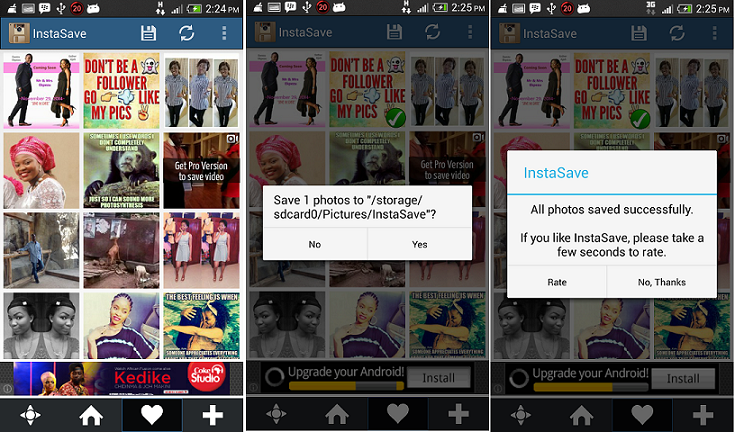
I hope you find this tutorial simple and useful to save Instagram photos easily on both your PC and Android smartphone. Let me hear other means you use to save Instagram photos to either your PC or smartphone. Share with me using the comment section below.
To save Instagram photos to Android smartphone, you will first of all have to install the InstaSave app on your device.
Login to the InstaSave app using your Instagram account.
How to Instagram Photos to PC and Smartphone
Authorize the app to your Instagram basic information.
Then you can the photos on your Instagram timeline, click on any and click the save icon to save to your smartphone.
How to Save Instagram Photos to PC and Smartphone
I hope you find this tutorial simple and useful to save Instagram photos easily on both your PC and Android smartphone. Let me hear other means you use to save Instagram photos to either your PC or smartphone. Share with me using the comment section below.
Go to link Download
Wednesday, September 14, 2016
How do I download or save a YouTube video to my computer
How do I download or save a YouTube video to my computer
How do I download or save a YouTube video to my computer?
 YouTube has been designed to only allow users to watch and view videos on their website. Many users want to save their favorite videos to their computer so they can watch them without being connected to the Internet or so they can watch them on other devices. Below are the steps required for downloading and watching YouTube videos on your computer for free.
Note: These steps are for saving a YouTube video and not saving only the audio of a YouTube video to an MP3 file.
Saving YouTube video as a video file on your computer
Today, there are many websites that allow you to enter the URL of the video you want to save to your computer and get a link to download the file. Below is a simple three-step process to download any YouTube video.
Note: If you are at a school or job that is blocking YouTube, these steps may not work.
1. First, go to the YouTube pagecontaining the video you want to save. When youve found the page, pressCtrl + L on your keyboard to highlight the text in the address bar, and thenCtrl + C to copy the Internet address.
2. Once this address has been copied,paste that URL into the text field below by clicking inside the box and pressingCtrl + V on your keyboard. Then, click the Download Video button.
3. If done properly, a new window will appear displaying a preview of the video, (as shown below) along with the Download links. For most users, we suggest downloading the MP4 format. Other available formats may include FLV, 3GP, and WebM. Once you have selected your format, click the appropriate download link.
Go to link Download
Friday, September 9, 2016
How to save your battery while playing Pokémon Go
How to save your battery while playing Pokémon Go
This guide explains how you can save your smartphones battery power while playing Pokémon GO. Saving your battery power makes it easier to go on longer trips to catch Pokémon, plus theres less danger of having your phone quit on you during a battle! Pokémon Go is taking over the world, and while its a lot of fun to go out and capture Pokémon, the app is a big drain on battery life, as many Pokémon Go players are finding out.
If youre getting frustrated by your smartphone dying while playing Pokémon Go, then read on to find out how you can save the battery life of your phone while hunting for Pokémon.
which in more general terms, means that it can eat through your battery faster than you would think. So weve spent some time finding the best ways to save, and extend your battery life to get you the most time out there hunting Pokemon. Keep scrolling for the nitty gritty details.
While this seems like a no-brainer, the first thing that you can do to help with the battery drain is take a look at your screen brightness. By turning it down you can grab yourself up some more time for gameplay. The big problem with this is if you are playing outside in a super sunny area. Turning the brightness down can make it much harder to see your screen much, much harder to see. Depending on the weather though, turning down that brightness can ensure that you can play for much longer
This game has a special Battery Saver baked right in! Its designed to dim your screen and slow the refresh rate while youre walking, and it works really well as long as you remember to use it. When this mode is enabled, all you have to do is point the top of your phone towards the ground, like you would do when holding the phone down at your side while walking. By doing this instead of just turning your phone screen off while walking between Stops and Gyms, you will still get vibration notifications when a Pokemon pops up on screen for you to catch.
To enable Battery Saver, all you need to do is:
1. Tap your Poké Ball
2. Tap Settings
3. Tap the empty circle next to Battery Saver

Want to know what drains your battery faster than having the screen on the whole time? Using your camera the whole time. Within Pokémon Go you have a choice between turning your camera on or off. If it is on, then when its time to capture a Pokémon your camera will open up. Youll see your intended Pokémon in front of you in AR while your actual surroundings are just behind it. While this is awesome, and leads to some fantastic photos, youre bleeding battery in this mode, especially during a Gym battle. However, if you turn the camera off you can ensure that your battery will last at least a bit longer.
All you need to do in order to disable this feature is flip the little switch with AR next to it the next time you go to catch a Pokemon. Youll see a new background and your battery will thank you.
This trick is obviously only applicable if youre not too concerned about your phones data plan. When Wi-Fi is enabled on a smartphones, it constantly sniffs for Wi-Fi hotspots. That puts a drain on your battery, so switching off your Wi-Fi can save you a small chunk of battery life.
Pokémon Go uses Google Maps to pull the world data to your smartphone, and while youre out and about this uses your data connection, which in turn drain your battery while playing Pokémon Go.
However, you can download Google Maps for offline use, which will improve the performance of Pokémon Go.
To do this, open up the Google Maps app, select the Settings menu (shown by an icon with three horizontal lines) and tap on Offline areas.
Press the + icon then use the map to drawn a square of the area you want to download, then tap on Download.
If youre really gung ho about going out and hunting down Pokémon for hours, then investing in a portable battery pack might be your best bet. You can find these just about everywhere, and they can make sure that your phone doesnt die just as you are about to capture the Pokémon youve been hunting for hours. All battery packs are not made equal, so be sure to do your homework before purchasing one. This may be the easiest way to ensure that you can get hours of fun out of the app before being forced to head back to home and recharge your phone.
You can see my another post about How to boost up your 3G connection. Have you still any question suggestion about the article or about the blog please feel free to contact us.
If youre getting frustrated by your smartphone dying while playing Pokémon Go, then read on to find out how you can save the battery life of your phone while hunting for Pokémon.
Pokemon Go is a high battery use application
which in more general terms, means that it can eat through your battery faster than you would think. So weve spent some time finding the best ways to save, and extend your battery life to get you the most time out there hunting Pokemon. Keep scrolling for the nitty gritty details.
Check your brightness
While this seems like a no-brainer, the first thing that you can do to help with the battery drain is take a look at your screen brightness. By turning it down you can grab yourself up some more time for gameplay. The big problem with this is if you are playing outside in a super sunny area. Turning the brightness down can make it much harder to see your screen much, much harder to see. Depending on the weather though, turning down that brightness can ensure that you can play for much longer
How to Enable Battery Saver Mode
This game has a special Battery Saver baked right in! Its designed to dim your screen and slow the refresh rate while youre walking, and it works really well as long as you remember to use it. When this mode is enabled, all you have to do is point the top of your phone towards the ground, like you would do when holding the phone down at your side while walking. By doing this instead of just turning your phone screen off while walking between Stops and Gyms, you will still get vibration notifications when a Pokemon pops up on screen for you to catch.
To enable Battery Saver, all you need to do is:
1. Tap your Poké Ball
2. Tap Settings
3. Tap the empty circle next to Battery Saver
Turn off Augmented Reality features
Want to know what drains your battery faster than having the screen on the whole time? Using your camera the whole time. Within Pokémon Go you have a choice between turning your camera on or off. If it is on, then when its time to capture a Pokémon your camera will open up. Youll see your intended Pokémon in front of you in AR while your actual surroundings are just behind it. While this is awesome, and leads to some fantastic photos, youre bleeding battery in this mode, especially during a Gym battle. However, if you turn the camera off you can ensure that your battery will last at least a bit longer.
All you need to do in order to disable this feature is flip the little switch with AR next to it the next time you go to catch a Pokemon. Youll see a new background and your battery will thank you.
Turn off your phones Wi-Fi : while playing Pokémon Go
This trick is obviously only applicable if youre not too concerned about your phones data plan. When Wi-Fi is enabled on a smartphones, it constantly sniffs for Wi-Fi hotspots. That puts a drain on your battery, so switching off your Wi-Fi can save you a small chunk of battery life.
Use offline maps in Pokémon Go
Pokémon Go uses Google Maps to pull the world data to your smartphone, and while youre out and about this uses your data connection, which in turn drain your battery while playing Pokémon Go.
However, you can download Google Maps for offline use, which will improve the performance of Pokémon Go.
To do this, open up the Google Maps app, select the Settings menu (shown by an icon with three horizontal lines) and tap on Offline areas.
Press the + icon then use the map to drawn a square of the area you want to download, then tap on Download.
Invest in a battery pack
If youre really gung ho about going out and hunting down Pokémon for hours, then investing in a portable battery pack might be your best bet. You can find these just about everywhere, and they can make sure that your phone doesnt die just as you are about to capture the Pokémon youve been hunting for hours. All battery packs are not made equal, so be sure to do your homework before purchasing one. This may be the easiest way to ensure that you can get hours of fun out of the app before being forced to head back to home and recharge your phone.
> How to remove the Google Search bar from Android Phone
You can see my another post about How to boost up your 3G connection. Have you still any question suggestion about the article or about the blog please feel free to contact us.
Go to link Download
Subscribe to:
Posts (Atom)