Showing posts with label auto. Show all posts
Showing posts with label auto. Show all posts
Wednesday, November 23, 2016
How to auto save passwords in Firefox without confirmation
How to auto save passwords in Firefox without confirmation
It would be a lot of fun if you are able to auto save passwords in Firefox. Consider a situation: One of your friends uses your computer for checking his Facebook. He enters his login email and password on Facebook login page. After hitting on Enter, Firefox does not show him any password saving confirmation prompt. Instead, his email and password is automatically saved by Firefox! Interesting, isn’t it? Yeah, you guessed it right. Today, we will learn how to auto save passwords in Firefox without any confirmation prompt. So, let us give it a go!
Let us get into the procedure of saving passwords in Firefox.
1. Download PowerArchiver and install it on your computer. This is used to open and edit Firefox files. Make sure that Firefox is not running while following the further procedure. Exit Firefox, if running and move to next step.
2. Go to C:Program FilesMozilla Firefox and look for omni.ja file.
Note: Before moving to next step, make sure you have a backup of omni.ja file. If you want to restore your original Firefox settings, you need this default omni.ja file.
3. Open this file using PowerArchiver. You will see all the files present inside omni.ja. Go to jsloader esourcesgrecomponents and delete nsLoginManagerPrompter.js file.

4. Go back to the root folder of omni.ja file and navigate to components folder. In that folder, open nsLoginManagerPrompter.js file using Notepad++. In Notepad++, search for _showSaveLoginNotification function. Now, you have to edit this function as shown in the screenshot below:

Replace all the function contents with this:
Save the file and allow PowerArchiver to overwrite the file in omni.ja.
5. That’s it! Your Firefox is completely configured to auto save passwords without confirmation.
Run your Firefox and login to any online account. Firefox will save passsword without asking any for permission. To view saved passwords in Firefox, go to Tools -> Options and hit on Security tab. Then click on Saved Passwords button. In the prompt, click on Show Passwords and you will be able to see saved passwords like this:

If you are not comfortable with editing files, here is the edited omni.ja file. Download it and copy(overwrite) it in your C:Program FilesMozilla Firefox folder.
I hope now you are able to automatically save passwords in Firefox using the above trick. You can easily capture your friends’ passwords using this beautiful Firefox trick. Cheers!
Auto Save passwords in Firefox:
You have to edit core files of Firefox for auto saving passwords. Please note that this article is for educational purpose only. I am not responsible for any act done by you.Let us get into the procedure of saving passwords in Firefox.
1. Download PowerArchiver and install it on your computer. This is used to open and edit Firefox files. Make sure that Firefox is not running while following the further procedure. Exit Firefox, if running and move to next step.
2. Go to C:Program FilesMozilla Firefox and look for omni.ja file.
Note: Before moving to next step, make sure you have a backup of omni.ja file. If you want to restore your original Firefox settings, you need this default omni.ja file.
3. Open this file using PowerArchiver. You will see all the files present inside omni.ja. Go to jsloader esourcesgrecomponents and delete nsLoginManagerPrompter.js file.
4. Go back to the root folder of omni.ja file and navigate to components folder. In that folder, open nsLoginManagerPrompter.js file using Notepad++. In Notepad++, search for _showSaveLoginNotification function. Now, you have to edit this function as shown in the screenshot below:
Replace all the function contents with this:
var pwmgr = this._pwmgr;
pwmgr.addLogin(aLogin);
Save the file and allow PowerArchiver to overwrite the file in omni.ja.
5. That’s it! Your Firefox is completely configured to auto save passwords without confirmation.
Run your Firefox and login to any online account. Firefox will save passsword without asking any for permission. To view saved passwords in Firefox, go to Tools -> Options and hit on Security tab. Then click on Saved Passwords button. In the prompt, click on Show Passwords and you will be able to see saved passwords like this:
If you are not comfortable with editing files, here is the edited omni.ja file. Download it and copy(overwrite) it in your C:Program FilesMozilla Firefox folder.
How to restore original Firefox settings:
If you want to restore your original Firefox settings, first of all, exit Firefox. Then, simply delete your current edited omni.ja files and copy the backup copy of omni.ja in C:Program FilesMozilla Firefox.I hope now you are able to automatically save passwords in Firefox using the above trick. You can easily capture your friends’ passwords using this beautiful Firefox trick. Cheers!
Go to link Download

Thursday, November 3, 2016
How to Auto Publish Blogger Posts to Twitter
How to Auto Publish Blogger Posts to Twitter
Do you want to auto-publish your blogger posts to Twitter? Twitter is s a free online social networking platform which can also bring lot traffic to your Blogger site. In this article, we will show you how to Auto-Publish Blogger Posts to Twitter

Auto Publish Blogger Posts to Twitter using IFTTT
IFTTT better known as IF This Then That. It is a free web service that allows you to connect and organize your different accounts at just one place.Step#1 Creating a Free Account at IFTTT
The very first thing you need to do is to sign up for IFTTT account.
After creating a account at IFTTT, it will show you how it works. It will ask you to follow few instructions before you can access your IFTTT dashboard.
For example, take a look at the screenshot below:

After following a couple of instructions, it will ask you to select channels that interests you. Since, we are working for Twitter, we will go on to choose it as our channel. But, you need to select two more channels to move on to the next step so select as per your liking and press "Continue".

STEP#2 Creating a New Recipe
Now we need to create a process that IFTTT calls "Recipe", Click on the "My Recipes" link present at the top of the dashboard.

Now click on "Create a Recipe" button and proceed to the next step.

Step#3: Creating the "This" Trigger:
A recipe consists of two things "This" and "That", in the first portion of creating our recipe we will work on "This". It is like if you have a new blog post then it will be published on twitter, or any other social site. So, simply click on the blue "this" link as it is shown in the screenshot below:

Now IFTTT will show you a list of channels that you can connect. It will act as the trigger like if your Blogger blog has a new post then [do something]. So, select Blogger from the list or search it in the search box.

IFTTT will now ask you to connect to your Blogger account, simply click on the "Connect" button to continue.

A window will pop on your screen asking you to verify your Blogger account, follow the instructions and verify your account.
You must be logged in to your Gmail Blogger account before you can verify it. So, make sure you are logged in to the correct account. After logging in, press the "Allow" button to proceed to the next step.

After pressing the "Allow" button, it will show you the list of your Blogger blogs. Select a blog that you would like to use and press "Update".

IFTTT, will not try to connect to Blogger and once it is done it will show you a message that "Blogger is connected successfully". Now, click on Continue to next step’ button.
Now IFTTT will provide you a list or triggers that you can use. You can choose a trigger that fires whenever you publish a new post on your Blogger blog or when you publish a post on Blogger in a specific Label.
Since, we want to publish our all posts so we will choose "Any New Posts" and proceed to the next step.

Step#3: Creating the "That" Trigger:
Now we have completely setup the "This" statement now we need to work on "That" statement, so click on "Create Trigger".

Click on "That" link, in which we will basically define the type of actions that our recipe will perform after you publish a new post on your Blogger account.

Now you will see a huge list of services that you can auto-publish your blogger posts. Since, we are working for Twitter we will choose twitter. However, you can also choose any other social channel as well like Facebook, Google+, Linkden and etc.

Now you need to connect your twitter account so whenever a new post is published on your Blogger Blog, it can also get auto-publish on your connected twitter account.

You just need to authorize the IFTTT App to access your twitter account and publish tweets on your behalf. Simply, press the "Authorize" button.
IFTTT, will not try to connect to Twitter and once it is done it will show you a message that "Twitter is connected successfully. Now, click on Continue to next step’ button.

Now IFTTT, will provide you the number of actions that it can perform whenever a new post is made to your blogger site, either post a tweet, post a tweet with image and etc.
For now, we will choose "Post a Tweet", and move to the next step.

From here you can decided how your tweet will look like. It can hold your Blogger post title, post URL, Image URL, and etc. But tweets are happen to be short so we will go with just post title and post URL. After customizing how your tweet will appear, press "Create Action".

Now we are coming towards ending of our recipe for auto-publish Blogger posts on twitter. Simply, name your recipe and press the "Create Recipe" button to complete the process.

Finally, your recipe is created. Now whenever you will publish a new post on your Blogger blog, it will automatically publish a tweet on your twitter account with the title and URL of that particular post.

You can visit "My recipes" page to see your all list of recipes. You can always edit, stop, or resume any recipe as per your liking.
We hope this tutorial have helped you in learning how to auto-publish Blogger posts to twitter. In coming days, we will teach you to create more recipes for different social networking websites. Till then, feel free to subscribe to us on Facebook, Twitter or Google+.

 About the Editorial Team
The Editorial Team of MyBloggerLab consists of a group of Professional Blogger geeks Led by Syed Faizan Ali (Founder of MyBloggerLab).


Recommended Guides For You::

How to Fix Mixed Content Errors in ...

How to Enable Free HTTPS SSL Certif...

How to Test your Robots.txt File wi...
Comment With:

OR

Choose Wisely!
Newer Articles
Older Articles
JOIN OVER 55,000 BLOGGER USERS
Who get latest updates from MyBloggerLabGo to link Download
Wednesday, October 19, 2016
How To Auto Publish Your Blog Posts To Facebook Timeline And Twitter Using Twitterfeed
How To Auto Publish Your Blog Posts To Facebook Timeline And Twitter Using Twitterfeed
In this post we are going to show you how to share the blog post automatically to facebook page timeline or how to import the blog into the facebook fan page using twitterfeed.
twitterfeed : is a free app on Facebook that allows automatic posting of blog posts to your Facebook Fan Pages timeline and your profile timeline through RSS Feeds. twitterfeed is also very handy for the sharing of Tweets, YouTube videos, Google+ posts, etc.
2.click signup

3.After signup,sign in into your account
4.click creater new feed, enter the new feed name like "extremetipz"

5.enter your blog url or rss feed
6.after that click step 2,Now you will have to select the platform you want to autopublish to eg twitter,facebook,app.net .

7.after selecting then autheticate your account with them and all done

thats all
twitterfeed : is a free app on Facebook that allows automatic posting of blog posts to your Facebook Fan Pages timeline and your profile timeline through RSS Feeds. twitterfeed is also very handy for the sharing of Tweets, YouTube videos, Google+ posts, etc.
How To Set up twitterfeed For Facebook Pages:
1. Go to http://twitterfeed.com2.click signup
3.After signup,sign in into your account
4.click creater new feed, enter the new feed name like "extremetipz"
5.enter your blog url or rss feed
6.after that click step 2,Now you will have to select the platform you want to autopublish to eg twitter,facebook,app.net .
7.after selecting then autheticate your account with them and all done
thats all
Go to link Download
Thursday, September 22, 2016
How does Hootsuite Auto Schedule Work
How does Hootsuite Auto Schedule Work
One of the more powerful options within HootSuite is AutoSchedule. Instead of you manually selecting what time you want to schedule or post your social media messages using the hootsuite scheduling feature, you can opt to use the AutoSchedule option, to optimize and automate the scheduling process.
AutoSchedule simply chooses an optimal time for you to post, thereby relieving you of the stress of worrying about the best time of the day to share your posts.
Hootsuite claims that the algorithm uses a combination of your activity and your followers activity by looking at your personal history to determine sharing patterns from your past and post content accordingly whilst also looking at your followers feedback.
According to hootsuite, the best practice currently is to use the autoscheduling feature frequently, as it gets more "intelligent" at learning your patterns the more you use it. Ive also read somewere that manually scheduling messages also helps to improve the autoscheduling algorithm.
AutoSchedule is activated by clicking on the Scheduler icon and turning AutoSchedule on.
Before using the feature, I recommend you set your time zone via "Settings" > "Account". Hence, if you are in Nigeria, you can set it to(GMT+1) Africa/Lagos.
I also recommend you configure your Autoschedule settings via "Settings" > "Autoschedule". Right there, you can set the number of posts to schedule within a time interval daily as well as select the days you want messages to be scheduled on.
AutoSchedule simply chooses an optimal time for you to post, thereby relieving you of the stress of worrying about the best time of the day to share your posts.
Hootsuite claims that the algorithm uses a combination of your activity and your followers activity by looking at your personal history to determine sharing patterns from your past and post content accordingly whilst also looking at your followers feedback.
According to hootsuite, the best practice currently is to use the autoscheduling feature frequently, as it gets more "intelligent" at learning your patterns the more you use it. Ive also read somewere that manually scheduling messages also helps to improve the autoscheduling algorithm.
AutoSchedule is activated by clicking on the Scheduler icon and turning AutoSchedule on.
Before using the feature, I recommend you set your time zone via "Settings" > "Account". Hence, if you are in Nigeria, you can set it to(GMT+1) Africa/Lagos.
I also recommend you configure your Autoschedule settings via "Settings" > "Autoschedule". Right there, you can set the number of posts to schedule within a time interval daily as well as select the days you want messages to be scheduled on.
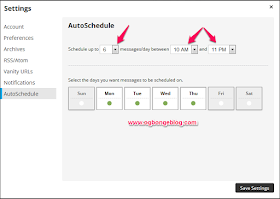
For example, the settings above simply means 6 Auto Scheduled posts will only go out on Monday, Tuesday, Wednesday, and Thursday between 10am and 11pm for the time zone I have my Dashboard set to. If you compose 25 messages in one sitting, only 6 of them will be AutoScheduled for that particular day and then they will be moved on to the next day in your settings.

Rest assured, like regular scheduled messages AutoSchedule messages can be viewed and rescheduled at any time. These messages will appear with a Clock Icon next to them inPublisher and can be rescheduled the same way as regular messages. After rescheduling, the Clock Icon will disappear confirming your new scheduled time.
If you are looking to set up multiple messages for specific times and repeat messaging I suggest hootsuite Bulk Scheduling. With Bulk Scheduling you can post up to 350 messages at once. These messages will go out at the time and frequency that you input.
How To Auto-schedule Updates Using Hootsuite

==> Just like scheduling your messages as explained here, select networks and type your message.
==> In the drop down menu, turn the AutoSchedule feature ON.
==> Click AutoSchedule and you’re done!
To ensure that your messages are sent at the exact date and time that you want, the best alternative would be to set your AutoSchedule toOFF. When you compose a message, simply click on the schedule icon, change AutoSchedule to OFF, then manually select the date and time for the post to go out.
I hope this helps.
Do you use the Hootsuite AutoScheduler? Kindly share your experience via comments.
Go to link Download
Thursday, September 15, 2016
How to Stop Auto Downloading and Saving of Photos
How to Stop Auto Downloading and Saving of Photos
WhatsApp is the worlds most popular messaging app, with over 600 million active users. One of the most common annoyances with the app is that it automatically downloads media files (photos and audio) by default. WhatsApp says this is optimised for best performance, but when friends decide to send a dozen pictures of their dinner to everyone they know, it is optimised for maximum annoyance instead. Heres how you can stop WhatsApp from automatically saving photos and audio on your phone.
How to Stop Auto Downloading and Saving of Photos

How to Stop Auto Downloading and Saving of Photos :Android
WhatsApp for Android has a switch that lets you stop images and videos from downloading. Heres how you can do it:
1. Open WhatsApp, make sure you are seeing the main window - where all your chats are displayed. Tap the three vertical dots on the top right > Settings.
2. Now tap Chat settings > Media auto-download. Youll see three options: When using cellular data, When connected on Wi-Fi and When roaming. Tap each one and disable auto-downloads by unchecking all three options - Images, Audio and Video.
To view photos, you will have to download them. When you do, WhatsApp saves them in a folder, and you can get inundated with stupid memes and other unwanted content, which is visible to anyone who opens your phones Gallery App. However, it is possible to stop these photos from appearing in the Gallery app. Heres how:
1. Download Quickpic and open the app.
2. Navigate to the WhatsApp media folders. The location of the WhatsApp folder varies across devices but it should typically be the following: Internal Storage (sometimes labelled sdcard0) > WhatsApp > Media > WhatsApp Images, > WhatsApp > Media > WhatsApp Audio, and WhatsApp > Media > WhatsApp Videos.
3. Long-press the WhatsApp Images folder and make sure that it is selected. Do the same with the WhatsApp Video and WhatsApp Audio folders.
4. After selecting the three folders, tap the three dots icon on the top-right > Hide. This will ensure that the Gallery app doesnt show them. You can still view these images and videos within WhatsApp and through any apps that let you view hidden folders. But if you pass your phone to someone, you no longer need worry about them seeing the WhatsApp photos and videos through the Gallery app.

How to Stop Auto Downloading and Saving of Photos :iPhone
WhatsApp for iPhone has an easy way to stop automatically saving photos to the Camera Roll. Heres what you can do:
1. Open WhatsApp and tap the Settings button at the bottom-right.
2. Go to Chat settings > Save incoming media > Off.
This stops the pictures people are sending from showing up in the camera roll, and taking over your synced Photo Stream. Unfortunately, theres no way to stop WhatsApp from auto-downloading photos on your iPhone. It will ask you whether you want to download videos, but photos are saved automatically.

How to Stop Auto Downloading and Saving of Photos :BlackBerry
Whether you are using BlackBerry 7 or BlackBerry 10, disabling auto-downloads needs to be done through the Settings app. Follow these steps if you are using WhatsApp on any BlackBerry device:
1. Head to Settings > Media settings > Media auto-download.
2. Now select When using cellular data and uncheck all three options - Images, Audio and Video. Go back and follow the same steps with "When connected on Wi-Fi" and "When roaming".
3. In Media Settings, you can also tap "Save media on" to decide if the media is saved on your phones internal memory, or on your microSD card (if present).
How to Stop Auto Downloading and Saving of Photos :Windows Phone
Windows Phone users need to follow these steps:
1. Open WhatsApp and tap the three horizontal dots at the bottom of the main window (recent chats). Now tap settings > chat settings > media auto-download.
2. Now tap Images and select Never. Do the same for Video and Audio. Other options include auto-download on WiFi, cellular and roaming. But if you select Never, you will be able to download media only when you want to.
How to Stop Auto Downloading and Saving of Photos :Nokia S40 and S60
If you use WhatsApp on Nokia S40 feature phones, you can enable or disable media downloads through this setting:
1. Open Options > Settings > Network > Auto-download images. Here you can disable auto-downloads.
It is almost exactly the same on Nokia S60 phones as well:
1. Open Options > Settings > Network > Media auto-download. Now select Cellular and disable auto-downloads for media. Do the same with WiFi and Roaming.
[post_ad]
Not saving images automatically has its advantages, but it also means that you will have to download each photo manually. If you end up downloading each and every image anyway, then its probably best to leave this feature active. Let us know if this tutorial helped you via the comments.
Don’t forget to Share it with your friends via Facebook & Google+ and Twitter, And if you like the article How to Stop Auto Downloading and Saving of Photos and you may even Subscribe for New post, to get directly in your mail inbox.
Go to link Download
Thursday, September 8, 2016
How to Disable Auto Updates on Android Smartphone
How to Disable Auto Updates on Android Smartphone
How to Disable Auto Updates on Android Smartphone - Often, the auto update ? Many or few applications that you use on Android smartphones , but you may want to choose which application you want to update rather than let auto update do its work . Of course, disable auto update on Android smartphones can be done easily , but for a beginner it may still not know how take it.

How to disable auto update on Android smartphones can be done via Google Play Store application . The following are the steps you need to do if you want to disable the auto update on Android smartphones :
- Open Play Store application .
- Open the menu on the top left corner . You can also access the Play Store menu by sliding from the left side of the screen to the right .
- Open the Settings tab , then select Auto - update apps .
- After you press the Auto - update apps , and will display a pop - up windows .
- Select " Do not auto - update apps " .
Easy , is not it? If you want to update the application , then you can go back to the previous settings . These tips KitKat tested on Android 4.4.4 , but the Android version ever before also has a similar way to disable auto - update apps .
Go to link Download
Subscribe to:
Posts (Atom)
Post a Comment