Showing posts with label jb. Show all posts
Showing posts with label jb. Show all posts
Sunday, October 30, 2016
How i Rooted my Tecno N7 Root any Chinese Android running Android 4 0 ICS 4 1 JB
How i Rooted my Tecno N7 Root any Chinese Android running Android 4 0 ICS 4 1 JB
Here’s an easy to follow tutorial on how to root any Chinese Android device you got there. It uses the rooting script Root_with_Restore_by_Bin4ry, which you can find at XDA. This is confirmed working for any MediaTek MT6577 devices running Android 4.0 or up, even devices with the dual core Qualcomm S4 procie can be rooted by this as long as it is on Android 4.x.
I first tested it on rooting a Cherry Mobile Titan, and it works. On this tutorial, I had used the method on my HDC Galaxy Note 2.
First, you need to properly install the ADB drivers. To do that, you must download and install first an app called Moborobo. Link here.
After installing the app, on your phone, enable USB Debugging by going to Settings > Development.
Connect your device and open the Moborobo app. Moborobo will attempt to install the necessary drivers. Just allow it to do the changes on your computer and if it succeed, you’ll see something like this:

Moborobo can read your connected Android device
You can now exit Moborbo. Be sure to close it completely and not just minimize it on the system tray.
Download this file. Root_with_Restore_by_Bin4ry_v18_2.7z
It is the rooting script. Extract it anywhere. You’ll something like this:
 Root_with_Restore_by_Bin4ry_v18_2.7z
Execute the RunMe.bat file if you are on Windows. A command prompt will open.

Root with Restore by Bin4ry
Just enter 1 as your option. It will now do its task. You’ll now see something like this on your device. Click restore and wait for the process to finish.

Restore data, ignore that encryption password thing
While on the command prompt window, you’ll see this:

rooting….
Your device will restart, and if you see the SUPER SU icon on your apps drawer it means that you had successfully rooted the phone.

SUPER SU
Checking root access with the Root Checker App:

Rooted HDC Galaxy Note 2 PRO
It is really easy on these Android 4.x devices now. I just posted this so I can just use this as reference for the queries on how to root such Chinese-made Android smartphones. While on lower version of Android, such as 2.3.6 Gingerbread, its a bit tricky as it needs some hacking with the boot.img if the SuperOneClick or UnlockRoot doesnt works. We’ll cover that up on the next update.
As they say, rooting voids the warranty but it depends on where did you buy your Android phone. Root only when you think you really have to and already know why you need to do that. On the other note, this process isnt risky and there is nothing to fear in case you messed up with the steps. Still, do this at your own risk.
If you dont want to miss anything on Stalyfblog, please like us on Facebook. and follow us on Twitter
You can also Subscribe to our updates by email or with your favorite browser. This way, you wont miss any updates from stalyfblog. If you subscribe by email, make sure to check your email to confirm your subscription.
Posted By: Oke David Umurhohwo.
Follow me on Google+, Twitter.
Cheers!
Go to link Download

Saturday, October 1, 2016
How to hide iPhone Dock No JB Required
How to hide iPhone Dock No JB Required
Have you ever wanted to hide the dock that appears at the bottom of your iPhones home screen ? The trick is so simple and doesnt need from you to have a jailbroken iOS device. The trick takes advantage of a wallpaper rendering bug in various versions of iOS — including iOS 9.3 — and here’s how you use it.
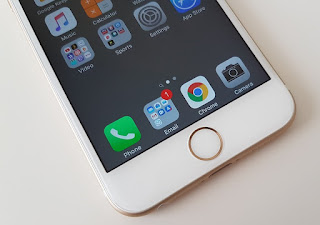 The trick is available on all versions of iOS 9.3, according to RedmondPie, and some older firmwares, too — such as iOS 9.1 — but not all have been tested. Here are the steps you need to follow:
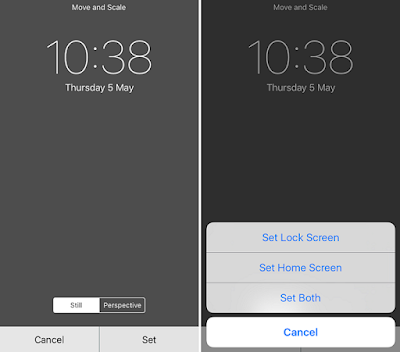
6. Choose “Set Home Screen” and note that you can use any wallpaper for your lock screen
7. Return to the home screen.
- Visit the following URL to find the wallpaper you need to make this possible: 98.246.187.61:47224/hide_the_dock.html
- Tap and hold on the wallpaper, then select “Save Image”
- Go into the Photos app, find the wallpaper you just saved, then tap the share button
- Tap “Use as Wallpaper”
- Tap “Still,” then tap “Set”
6. Choose “Set Home Screen” and note that you can use any wallpaper for your lock screen
7. Return to the home screen.
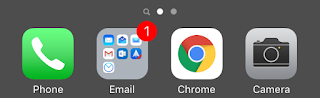
When your home screen reappears, the dock should have vanished — like in the photos above and below — leaving you with a cleaner look. To bring the dock back, simply select another wallpaper.
So did the trick works with you or not ? Share your thoughts in our comment section below.
Go to link Download
Subscribe to:
Posts (Atom)