Showing posts with label chrome. Show all posts
Showing posts with label chrome. Show all posts
Monday, November 28, 2016
How To Adf ly Bypass With Chrome Extension
How To Adf ly Bypass With Chrome Extension
How To Adf.ly Bypass With Chrome Extension ?
Adf.ly is the Most Rated Link shorten Service that can pay you 5$ for 1000 Clicks and Many of People can make Decent Money from It. So am Not Show you How to make money with It But Todays Agenda is Change that for Some of People Adf.ly Ads are Very Anonying So they not Want to Skip thise Adf.ly Ads So They Search Solution on Google and We Have a Very Simple Method to Bypass these Adf.ly, Adfdoc.us and Linkbucks Like Link Shorten Services by Google Chrome Extension. We Can Demonstrate a Video Tutorial from Where you can Learn How you can Adf.ly Byapss with Chrome Extension.How To Adf.ly Bypass With Chrome Extension ?
Go to link Download

Monday, November 7, 2016
How To Change Your Default Search Engine In Chrome
How To Change Your Default Search Engine In Chrome

1. Tap on the Overflow menu button in the top-right corner of the app, which will automatically drop down a menu. Depending on if you have any tabs open or not, the menu will list different choices

2. Tap on the settings button, which will launch you into the main settings menu.
3. Under the basics section, just tap on the Search Engine button. The search engine that is currently selected as the default is written in a smaller font under the button text.

4. Now you will be in the selection menu, and you will be able to select from 5 different search providers. You can choose from Google, Yahoo, Bing, Ask and Aol. Google is set as default search engine in Chrome.
And if case if you are using the Chrome beta version there will slight changes when compared to the images shown above.
Go to link Download
Tuesday, November 1, 2016
How to speed up Chrome on Android
How to speed up Chrome on Android
If youre looking for ways to speed up Chrome on Android, Six tips that are sure to give your browsing a performance boost.
Chrome is one of the best browsers available for Android, mostly because it is so highly customizable through the many tricks you can use to improve your experience. Did you know that you can save on your data plan with Chrome or play a hidden game when you’re offline? Find out how to do these things and more by using our tips and tricks list to improve your Chrome for Android experience. read also How To Clear cache in Chrome Broswer
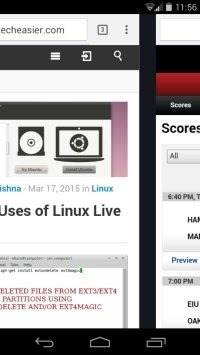
A lot of folks don’t know it, but Chrome comes with a sweet little shortcut for switching between tabs. All you have to do is swipe right or left on the toolbar when your browser is open to access any of the other tabs you have open.
You can also swipe the toolbar down to see the tabs you have open in a stacked list. Swiping makes for a smoother and sexier Chrome experience than tapping on everything all the time.
This is a cool little trick for those days when you’re too tired to even lift a finger. If you want to navigate to the Chrome menu just tap and hold the menu icon and slide your finger down to whichever option you’re looking for. It’s that easy.
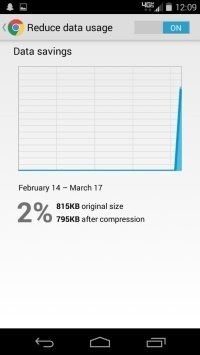
One of the most overlooked and useful features of Chrome for Android is the option to reduce how much data you use when you’re browsing. To enable this feature, just tap Menu -> Chrome -> Settings -> scroll to the bottom and tap Reduce Data Usage -> turn the data saver on.
You’ll even get a monthly graph to show how much data you’ve saved. As you can see, I don’t really use a lot of data, but for people who do this it is a real lifesaver.
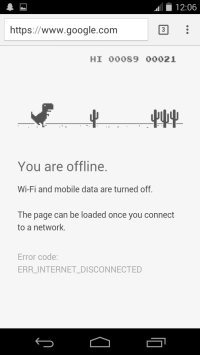
For those moments when you get disconnected from the Web (and may they be few and far between), Google has created an addictive game to its Chrome browser for Android devices.
The little T-Rex that appears with the “You are offline” message is there for more than just good looks. Tapping him will start the endless runner game. Tapping the T-Rex when he gets close to a cactus will make him hop over the obstacle. It’s a lot harder than it looks …
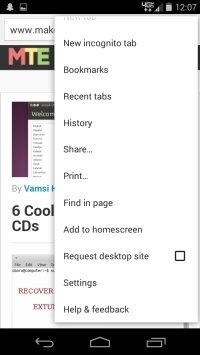
We all love a good shortcut, and if there’s a way to access your favorite websites without fiddling around in Chrome, I’d be willing to bet money you’re going to jump on it. All you have to do to make icons that will direct you to your favorite sites on your phone’s homescreen is go to your favorite site in Chrome -> Menu -> Add to Homescreen. That’s it.
By default, 64 MB of RAM is dedicated to Chrome. By tapping the URL bar and typing
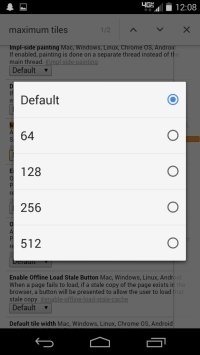
Once you’re in, tap Menu -> Find in Page -> type “maximum tiles.” Tap the drop-down menu you see below “Maximum files for interest,” and select whichever amount of RAM you want Chrome to utilize and tap “Relaunch.”
What are some of your favorite tips and tricks for improving the Chrome for Android experience?
you can see my another post about best Camera android application. Have you still any question suggestion about the article or about the blog please feel free to contact us.
Chrome is one of the best browsers available for Android, mostly because it is so highly customizable through the many tricks you can use to improve your experience. Did you know that you can save on your data plan with Chrome or play a hidden game when you’re offline? Find out how to do these things and more by using our tips and tricks list to improve your Chrome for Android experience. read also How To Clear cache in Chrome Broswer
Smoothly Switch Between Tabs
A lot of folks don’t know it, but Chrome comes with a sweet little shortcut for switching between tabs. All you have to do is swipe right or left on the toolbar when your browser is open to access any of the other tabs you have open.
You can also swipe the toolbar down to see the tabs you have open in a stacked list. Swiping makes for a smoother and sexier Chrome experience than tapping on everything all the time.
Gesture Your Way Directly to Menu Options
This is a cool little trick for those days when you’re too tired to even lift a finger. If you want to navigate to the Chrome menu just tap and hold the menu icon and slide your finger down to whichever option you’re looking for. It’s that easy.
Use Chrome to Save Data
One of the most overlooked and useful features of Chrome for Android is the option to reduce how much data you use when you’re browsing. To enable this feature, just tap Menu -> Chrome -> Settings -> scroll to the bottom and tap Reduce Data Usage -> turn the data saver on.
You’ll even get a monthly graph to show how much data you’ve saved. As you can see, I don’t really use a lot of data, but for people who do this it is a real lifesaver.
Play the Offline Endless Runner Game
For those moments when you get disconnected from the Web (and may they be few and far between), Google has created an addictive game to its Chrome browser for Android devices.
The little T-Rex that appears with the “You are offline” message is there for more than just good looks. Tapping him will start the endless runner game. Tapping the T-Rex when he gets close to a cactus will make him hop over the obstacle. It’s a lot harder than it looks …
Make Your Favorite Sites’ Homescreen Icons
We all love a good shortcut, and if there’s a way to access your favorite websites without fiddling around in Chrome, I’d be willing to bet money you’re going to jump on it. All you have to do to make icons that will direct you to your favorite sites on your phone’s homescreen is go to your favorite site in Chrome -> Menu -> Add to Homescreen. That’s it.
Dedicate More RAM to Chrome
By default, 64 MB of RAM is dedicated to Chrome. By tapping the URL bar and typing
chrome://flags you can toggle with the settings and make Chrome run faster. You don’t need to pay any attention to the warning messages when you go to chrome://flags; I’ve got your back.Once you’re in, tap Menu -> Find in Page -> type “maximum tiles.” Tap the drop-down menu you see below “Maximum files for interest,” and select whichever amount of RAM you want Chrome to utilize and tap “Relaunch.”
What are some of your favorite tips and tricks for improving the Chrome for Android experience?
you can see my another post about best Camera android application. Have you still any question suggestion about the article or about the blog please feel free to contact us.
Go to link Download
Monday, October 17, 2016
How To Reorder Extension Icons On The Chrome Toolbar
How To Reorder Extension Icons On The Chrome Toolbar
When you install a new extension in Chrome, the extension’s icon is added to the far right of the toolbar just before the hamburger icon. Likewise, if you sync extensions across multiple Chrome installations, or enable a disabled extension, the icons are added to the far right in the same order that they’re added or synced. Other than enabling/disabling extensions, you have little control over when and where an icon is added. This is problematic because the difference in how the extensions are ordered on one Chrome installation compared to the other will often force you to look a little more closely at the icons before you click. As of a recent update to Chrome, this problem is easy to solve. Chrome now lets you reorder the extension icons on the toolbar simply by dragging & dropping them.
Open Chrome and make sure you’re running version 51.0.2704.63 on the stable release channel. If you’re on an older version, upgrade now. Left-click and hold a Chrome extension icon and drag it over to where you want to position it.
![[IMG]](https://lh3.googleusercontent.com/blogger_img_proxy/AEn0k_vDGfjmr9PJvAMLV74eovHruZGolG1HIczwYzJxcxU_-lsu-IyeOqMrYitG7mzSPdr2WDnk0WpU6whvTZP2OSYcPNTOO_rl-VKuZZ9pVDTJcsUskqJY3M8LgjDZGF5gMXejMyr2SY8oLAOSxBxNej7qOw=s0-d)
That’s not all though. An older update to Chrome made it possible for users to hide extension icons inside the hamburger menu. The feature was introduced after Chrome removed the option to hide icons of extensions that were installed and enabled. This kept users informed of which extensions, especially any malicious ones, were active.
To hide an extension icon in the hamburger menu, left-click to select it and drag it on to the hamburger button. Do not release the mouse button and wait for the menu to open. There’s an empty section at the very top before the ‘New tab’ and ‘New window’ option. Drop the icon here.
![[IMG]](https://lh3.googleusercontent.com/blogger_img_proxy/AEn0k_uNVh9EYFOuN0bpMs56ESsf0SNaXARZIKqwCGcujETJL9vQ5fCQdTH5lrc9U4IbEOj4Impl941nLRWTiNj8yDbnNyIpLDfhzk1hTEFn3xk8yQwN9EX6k-KUnS3PKWP9mAwI1TnqlG1aLXCQR6MNl_Ew=s0-d)
Chrome’s looking to keep its UI clean which is something its users like about the browser. After making it mandatory for all enabled extensions icons to be visible, this is a good way to still keep the interface clean. Also, we have to point out here that Firefox did this a while ago when it revamped its own interface.
Open Chrome and make sure you’re running version 51.0.2704.63 on the stable release channel. If you’re on an older version, upgrade now. Left-click and hold a Chrome extension icon and drag it over to where you want to position it.
That’s not all though. An older update to Chrome made it possible for users to hide extension icons inside the hamburger menu. The feature was introduced after Chrome removed the option to hide icons of extensions that were installed and enabled. This kept users informed of which extensions, especially any malicious ones, were active.
To hide an extension icon in the hamburger menu, left-click to select it and drag it on to the hamburger button. Do not release the mouse button and wait for the menu to open. There’s an empty section at the very top before the ‘New tab’ and ‘New window’ option. Drop the icon here.
Chrome’s looking to keep its UI clean which is something its users like about the browser. After making it mandatory for all enabled extensions icons to be visible, this is a good way to still keep the interface clean. Also, we have to point out here that Firefox did this a while ago when it revamped its own interface.
Go to link Download
Wednesday, October 12, 2016
How to clear browsing history android chrome
How to clear browsing history android chrome
Do you want to hide all search history from others and make some privacy in browsing?
Google browser save past search results, pages as well as password which are named as browsing cache. For some privacy reason, if you really don’t want to keep search records, passwords or any kind of data in Chrome. We have easy steps to Clear Google Chrome browsing cache.
 |
| image credit Android central |
Clear browsing cache on Android:
First of all find history option under overflow button on top right corner. By scroll down at the end tap on clear browsing data option, which pop out what you want to clear? Select auto fill data, saved password, cookies, browsing history, site data then tap on clear. All done!
Similarly we can all do this on Apple iOS operating system chrome as well as in PC. But there is another way to avoid auto save browsing cache in chrome. Google also offers incognito mode for in PC browser, which doesn’t store browsing history. To launch incognito mode>hold CTRL+SHIFT+N.
Feel free to get connect through socially and like us on Facebook!
Go to link Download
Monday, October 10, 2016
How to Enable Show Button Download IDM on Mozilla and Google Chrome
How to Enable Show Button Download IDM on Mozilla and Google Chrome
How to Enable Show Button Download IDM on Mozilla and Google Chrome - Internet Download Manager is software that is very helpful in downloading a file. Effort to satisfy the user IDM IDM IDM also always carried example several times issuing the new version after version of IDM issued verinya certainly accompanied with quality.

I always had to get a friend who complained that IDMnya TS can not be used or can not get to download a file automatically. Finally I thought, after a few days thinking I have also experienced the same events as friend TS, which can not be used or can not get to download a file automatically. I started tinkering with the browser ( Mozilla Firefox and Google Chrome ), as a result I can download a file with IDM automatically in the browser Mozilla Firefox and Google Chrome . Here I will try to describe the way I have done.
Showing Button Download IDM on Mozilla Fire fox:
I always had to get a friend who complained that IDMnya TS can not be used or can not get to download a file automatically. Finally I thought, after a few days thinking I have also experienced the same events as friend TS, which can not be used or can not get to download a file automatically. I started tinkering with the browser ( Mozilla Firefox and Google Chrome ), as a result I can download a file with IDM automatically in the browser Mozilla Firefox and Google Chrome . Here I will try to describe the way I have done.
Showing Button Download IDM on Mozilla Fire fox:
- Download IDM advance if not have, click here , once downloaded and installed . those who already have IDM step is skipped.
- Open Mozilla Firefox
- Select Tools => Add -ons
- Select E??xtensions
- Find IDM CC
- Click the Enable
- Completed
- Download IDM advance if not have, click here , once downloaded and installed . those who already have IDM step is skipped.
- Open Google Chrome
- See the Minimize, Restore Down , and Close .
- Click the button below buttons Minimize, Restore Down , and Close (see picture for more details)
- Select Settings
- Select Extensions
- Find IDM Integration
- Checklist IDM Integration
- Completed
Se agan corals are able to download all the f ile with IDM automatically. No need to be rkeluh k esal. If there was a time who did DAK can be solved on the technology or software let me know, if I can help then I help you, but if I can not then I will ba ntu as much as I know.
So sa ja I can say about the Displays button on the IDM Download Mozilla and Google Chrome . I hope that this article could help you that sedag difficulty of the problems I mentioned earlier is the paragraph before this. Closed with a final word, wasalam .
So sa ja I can say about the Displays button on the IDM Download Mozilla and Google Chrome . I hope that this article could help you that sedag difficulty of the problems I mentioned earlier is the paragraph before this. Closed with a final word, wasalam .
Go to link Download
Sunday, October 2, 2016
How to Eliminate Disturbing Video Ads on Chrome Safari Mozilla Firefox
How to Eliminate Disturbing Video Ads on Chrome Safari Mozilla Firefox
How to Eliminate Disturbing Video Ads on Chrome, Safari & Mozilla Firefox - You often struck by the advertisement pop ups or ads that usually appear suddenly when you visit a web page ? Can not be denied , advertising has become an important part between content providers and readers . But like autoplaying video ads that appear suddenly and loud audio playing is certainly very annoying .

There are several steps you can take to avoid interference ads that appear suddenly on a web page . Each browser , such as Chrome , Safari and Mozilla Firefox has its own way to block annoying ads on a web page . The following are easy steps .
Chrome
How to disable autoplaying videos that appear on the Chrome browser is much easier than other browsers . All you need to do is visit the chrome://chrome/settings/content , then in the " Plug - ins " fox of " Run Automatically" to " Click to Play " . That way you ve blocked most of the ads that appear suddenly .
Safari
Unlike Chrome , Safari does not offer a quick way to automatically disable plugins running . But how to block annoying ads in Safari browser is also not difficult . Safari users need ClickToPlugin and ClickToFlash which can be downloaded here . ClickToPlugin and ClickToFlash can put different ads within the content of its own like . If desired , you can still rotate ads on the content has been singled out .
Mozilla Firefox
Such as Safari , Mozilla Firefox also offers additional content called Flashblock , which can function for setting ads that appear suddenly . You can download Flashblock here . After you install Flashblock do not forget to restart the computer . Good luck !
There are several steps you can take to avoid interference ads that appear suddenly on a web page . Each browser , such as Chrome , Safari and Mozilla Firefox has its own way to block annoying ads on a web page . The following are easy steps .
Chrome
How to disable autoplaying videos that appear on the Chrome browser is much easier than other browsers . All you need to do is visit the chrome://chrome/settings/content , then in the " Plug - ins " fox of " Run Automatically" to " Click to Play " . That way you ve blocked most of the ads that appear suddenly .
Safari
Unlike Chrome , Safari does not offer a quick way to automatically disable plugins running . But how to block annoying ads in Safari browser is also not difficult . Safari users need ClickToPlugin and ClickToFlash which can be downloaded here . ClickToPlugin and ClickToFlash can put different ads within the content of its own like . If desired , you can still rotate ads on the content has been singled out .
Mozilla Firefox
Such as Safari , Mozilla Firefox also offers additional content called Flashblock , which can function for setting ads that appear suddenly . You can download Flashblock here . After you install Flashblock do not forget to restart the computer . Good luck !
Go to link Download
Saturday, October 1, 2016
How To Download Youtube Video To Firefox Google Chrome Without Addon
How To Download Youtube Video To Firefox Google Chrome Without Addon

The Trick
To download youtube videos, click this link while the video is playing. Or to make it easier, drag the link below to your bookmark.
Download youtube video – Drag to bookmarklet to your bookmark toolbar.
When you want to download a youtube video while it’s playing, just click the bookmark link to start. The video will be downloaded as MP4. Available only on Firefox and Google Chrome. If this post has helped you, please take 5 seconds to share it below. We at Tripozia are committed in giving the best of our service.
Go to link Download
How to Change Chrome into a language tutor
How to Change Chrome into a language tutor
There are a considerable measure of activities you can do to take in another dialect, for example, listening to radio projects, perusing, and staring at the TV in your picked target dialect. In any case, to complete that you need to attempt to coordinate those sessions into your day by day life.
In case youre thinking that its difficult to contemplate, a Chrome application called Language Immersion for Chrome can kick you off or keep up practice on a dialect you definitely know.
You should simply give LI an objective dialect and rate your level of learning from beginner to familiar. At that point the augmentation will slip words or expressions from the objective dialect into the sites you visit each day. LI for Chrome uses Google Translate and is accessible for 64 of the dialects Googles Translate administration offers.
Heres the means by which it works.
Utilizing Language Immersion for Chrome
Download and introduce Language Immersion for Chrome. Once its introduced, click the symbol that appears to one side of the location bar. At that point simply pick your dialect, set your level of familiarity, and youre prepared to go.
Presently simply visit a site and youll see words or expressions that are highlighted and deciphered into the objective dialect. You must understand the made an interpretation of segment to assemble your vocabulary. In case youre having a truly extreme time, simply tap on the interpreted words and theyll return back to English. Snap again and they do a reversal to your objective dialect. The expansions settings likewise have an alternative to hear any interpreted bits talked utilizing Google Translate.
LI additionally sets the Google Translate site to consequently make an interpretation of words into your objective dialect.
At the tenderfoot level just little bits of sentences are deciphered into the dialect youre learning. It then builds the measure of deciphered segments as you physically knock up the trouble level. When you hit familiar, youll see full sections in the second dialect.
In the event that you ever need a break from LI for Chrome, simply tap the symbol again and after that hit the huge Off catch.
LIs thought is fairly strange since its a mess of English and whatever dialect youre concentrate, yet its a novel approach to get a tad bit of practice into your day.
Concerning the interpreted bits of sites, theyre about what youd anticipate from Google Translate. Theyre not generally idealize. The expansion would in some cases decipher gaming administration Steam as vapeur in French, for instance, and sentence structure and word endings for dialects that rely on upon setting can be somewhat wonky.
Its not a dialect learning framework by any methods, but rather its a convenient supplement to whatever other contemplating youre doing.
You should simply give LI an objective dialect and rate your level of learning from beginner to familiar. At that point the augmentation will slip words or expressions from the objective dialect into the sites you visit each day. LI for Chrome uses Google Translate and is accessible for 64 of the dialects Googles Translate administration offers.
Heres the means by which it works.
Utilizing Language Immersion for Chrome
Download and introduce Language Immersion for Chrome. Once its introduced, click the symbol that appears to one side of the location bar. At that point simply pick your dialect, set your level of familiarity, and youre prepared to go.
Presently simply visit a site and youll see words or expressions that are highlighted and deciphered into the objective dialect. You must understand the made an interpretation of segment to assemble your vocabulary. In case youre having a truly extreme time, simply tap on the interpreted words and theyll return back to English. Snap again and they do a reversal to your objective dialect. The expansions settings likewise have an alternative to hear any interpreted bits talked utilizing Google Translate.
LI additionally sets the Google Translate site to consequently make an interpretation of words into your objective dialect.
At the tenderfoot level just little bits of sentences are deciphered into the dialect youre learning. It then builds the measure of deciphered segments as you physically knock up the trouble level. When you hit familiar, youll see full sections in the second dialect.
In the event that you ever need a break from LI for Chrome, simply tap the symbol again and after that hit the huge Off catch.
LIs thought is fairly strange since its a mess of English and whatever dialect youre concentrate, yet its a novel approach to get a tad bit of practice into your day.
Concerning the interpreted bits of sites, theyre about what youd anticipate from Google Translate. Theyre not generally idealize. The expansion would in some cases decipher gaming administration Steam as vapeur in French, for instance, and sentence structure and word endings for dialects that rely on upon setting can be somewhat wonky.
Its not a dialect learning framework by any methods, but rather its a convenient supplement to whatever other contemplating youre doing.
Go to link Download
Wednesday, September 7, 2016
How to Stop Flash crashing in Google Chrome
How to Stop Flash crashing in Google Chrome
Google Chrome, not at all like different programs, has its own particular variant of Adobe Flash Player constructed in. When you upgrade Chrome, it likewise overhauls the variant of Flash.
Already, the arrangement was to debilitate any additional Flash plugins, however as has been pointed out in the remarks underneath, the most recent variant of Chrome shows one and only Flash plugin. As indicated by Adobe, there was a known bug in more established forms of Chrome which "fundamentally affected Flash execution". This has been altered - to the extent Adobe is concerned - in the present form of Chrome.
This means, in case despite everything youre encountering terrible Flash execution or the plugin slamming, you ought to check in the event that you are without a doubt running the most recent variant of Chrome. In the event that a redesign is accessible you ought to introduce it. To check, click on the three even bars close to the upper right corner and snap Help and about.
Another tab will open and Chrome will check for redesigns and start downloading one if pertinent. When this is done, you will see a Relaunch Chrome buttton, which you have to snap to finish the redesign.

On the off chance that despite everything you have issues after that, the reason is doubtlessly obsolete drivers, so first check you have the most recent illustrations card drivers introduced. It can likewise be created by what Adobe alludes to as "wasteful substance", so the poor execution or slamming could be brought on by the blaze content itself. On the off chance that that is the situation, theres nothing you can do to settle it - its down to the substance supplier.
Here takes after whatever remains of our unique article which may help anybody running an old form of Chrome:
To check Google Chromes arrangement, sort about:plugins into the location bar and press Enter. This will raise a page of data about all the modules as of now arranged inside of Google Chrome.
Search for any sections in the rundown, for example, Adobe Flash Player, or Shockwave Flash. In the event that you can see two or more, you have more than one Flash module introduced.
At the upper right of the modules page youll see Subtle elements. Click this connection to uncover more data about every expansion.
The filename of every module will be recorded beside Location. Take a gander at this data, and youll see that one is put away under [Your User Folder]AppDataLocalGoogleChrome. This is Chromes coordinated module. The other will start with "C:Windows.." . The way names change contingent upon your rendition of Windows. In case youre utilizing Windows 8, for instance the way for the coordinated module is something like C:Program Files (x86)GoogleChromeApplication36.0.1985.125PepperFlashpepflashplayer.dll (the adaptation number may be distinctive).
On the off chance that both these documents offer a Disable connection, both are dynamic and liable to be the reason for your program crashes.

You can now pick which player you need to hold, by clicking Disable on the other one. Chrome will now utilize whichever variant is empowered on your PC.
In the event that you choose to utilize the installable module instead of the coordinated one, its fitting to ensure you have the most recent variant introduced. Click here to get the most recent form of Adobe Flash Player.
In the event that the smashing conduct proceeds with, have a go at backpedaling to about:plugins and selecting to utilize the other Flash player.
Already, the arrangement was to debilitate any additional Flash plugins, however as has been pointed out in the remarks underneath, the most recent variant of Chrome shows one and only Flash plugin. As indicated by Adobe, there was a known bug in more established forms of Chrome which "fundamentally affected Flash execution". This has been altered - to the extent Adobe is concerned - in the present form of Chrome.
This means, in case despite everything youre encountering terrible Flash execution or the plugin slamming, you ought to check in the event that you are without a doubt running the most recent variant of Chrome. In the event that a redesign is accessible you ought to introduce it. To check, click on the three even bars close to the upper right corner and snap Help and about.
Another tab will open and Chrome will check for redesigns and start downloading one if pertinent. When this is done, you will see a Relaunch Chrome buttton, which you have to snap to finish the redesign.
On the off chance that despite everything you have issues after that, the reason is doubtlessly obsolete drivers, so first check you have the most recent illustrations card drivers introduced. It can likewise be created by what Adobe alludes to as "wasteful substance", so the poor execution or slamming could be brought on by the blaze content itself. On the off chance that that is the situation, theres nothing you can do to settle it - its down to the substance supplier.
Here takes after whatever remains of our unique article which may help anybody running an old form of Chrome:
To check Google Chromes arrangement, sort about:plugins into the location bar and press Enter. This will raise a page of data about all the modules as of now arranged inside of Google Chrome.
Search for any sections in the rundown, for example, Adobe Flash Player, or Shockwave Flash. In the event that you can see two or more, you have more than one Flash module introduced.
At the upper right of the modules page youll see Subtle elements. Click this connection to uncover more data about every expansion.
The filename of every module will be recorded beside Location. Take a gander at this data, and youll see that one is put away under [Your User Folder]AppDataLocalGoogleChrome. This is Chromes coordinated module. The other will start with "C:Windows.." . The way names change contingent upon your rendition of Windows. In case youre utilizing Windows 8, for instance the way for the coordinated module is something like C:Program Files (x86)GoogleChromeApplication36.0.1985.125PepperFlashpepflashplayer.dll (the adaptation number may be distinctive).
On the off chance that both these documents offer a Disable connection, both are dynamic and liable to be the reason for your program crashes.
You can now pick which player you need to hold, by clicking Disable on the other one. Chrome will now utilize whichever variant is empowered on your PC.
In the event that you choose to utilize the installable module instead of the coordinated one, its fitting to ensure you have the most recent variant introduced. Click here to get the most recent form of Adobe Flash Player.
In the event that the smashing conduct proceeds with, have a go at backpedaling to about:plugins and selecting to utilize the other Flash player.
Go to link Download
Subscribe to:
Posts (Atom)