Showing posts with label gmail. Show all posts
Showing posts with label gmail. Show all posts
Monday, November 28, 2016
How to delete and Recover Google or Gmail account
How to delete and Recover Google or Gmail account
A Google account gives you access to all of Google’s services, including Gmail, YouTube, Google+, Drive, and more. There’s certainly a lot of data you’ll be losing if you plan to delete your Google account. You may have a secondary account that you don’t use anymore, or have some other reason to do so, but if you want to delete your Google account permanently, it is quite easy to get done. Let’s take a look. How to delete a Google or Gmail account

If you have used your Google account for a while, you’ll probably have some important data that needs saving, such as emails, notes, photos, and other information. If there isn’t a lot, you can download them individually, but Google provides a simple way to backup all your data.
> Open your Google account settings by going to accounts.google.com.
> Under the “Personal info & privacy” option, click on “Control your content.”
> Once open, click on “Create archive.” There you can select which Google products you want the information saved from.
> You can then choose the file type of the archive and where you want to save it. You can also opt to get a download link via email, or save it to cloud services like Drive, OneDrive or Dropbox.
> Depending on how much information is being archived, the entire process could take a while.
Also, remember that you might have your Gmail address associated with other services as well, such as bank accounts, and other websites, so make sure that you keep a track of these accounts and update the information accordingly, before deleting your Google account.
Deleting your Google account
> Go to your Google account settings, and under the “Account Preferences” option, click on “Delete your account or services.” Then tap on “Delete Google account and data.”
> You will see an option to backup your data here as well, followed by a comprehensive list of all the content you will be losing access to when you delete your Google account.
[post_ad]
> At the end of the page, there are two acknowledgements you will have to accept before you can tap on the “Delete Account” button to permanently delete your Google account.
Deleting specific services only
> There you will see a list of services that you can individually remove.
> If you delete your Gmail account, you will have to add an alternate email address that will now be linked to the other Google services that you are still using.
Recover a recently deleted account
> Go to the password assistance page.
> Select “I’m having other problems signing in.”
> Then follow the instructions on the page to see if you can recover the account. Keep in mind that it might not be possible. Further, if you have deleted Gmail and have added another non-Google email address to be able to access other Google services, recovering your Gmail username will not be possible.

< How to Unlist Your Number From Truecaller Database
> How to download facebook videos on android phone
> How to stop Android apps running in the background
> How to Update Samsung Galaxy S6 marshmallow
Don’t forget to Share it with your friends via Facebook & Google+ and Twitter, And if you like the article, How to delete and Recover Google or Gmail account and you may even Subscribe for New post, to get directly in your mail inbox.
Go to link Download

Saturday, November 26, 2016
How To Secure and Protect Your Facebook Yahoo Gmail Password From Being Hacked
How To Secure and Protect Your Facebook Yahoo Gmail Password From Being Hacked
Another wonderful tutorial and helpul for you people. Youve heard cases of hacked facebook accounts, right? Anyone can be a victim due to ignorance but that is not an excuse for leaving your login unsecured. Although there may still be flaws even when proper security measures are taken, youre still guaranteed a certain degree of security when you take those basic precautions.
The internet is a big place full of good guys and lots of crazies, we all know that, but some believe the only way to have fun is to unlawfully gain access to your account and change your password, making your own account inaccessible to you. Facebook, paypal, liberty reserve, MSN, yahoo and gmail accounts can all be hacked and thats a fact you dont want to overlook.
The most common type of hack attack today is phishing. "Phishing is a way of attempting to acquire information such as usernames, passwords, and credit card details by masquerading as a trustworthy entity in an electronic communication. Communications purporting to be from popular social web sites, auction sites, online payment processors or IT administrators are commonly used to lure the unsuspecting public.
Phishing is typically carried out by e-mail spoofing or instant messaging,[1] and it often directs users to enter details at a fake website whose look and feel are almost identical to the legitimate one." That is just how phishing is described on wikipedia and you dont want to lose your facebook or paypal account to that right? There are softwares that crack passwords using bruteforce or dictionary attacks and this is why you must make your passwords extremely strong.
Now How Do I protect Myself From Getting Hack?
There are several precautions to take in order to secure your password and prevent yourself from getting hacked.
1. Using a strong password This is the most important step to take. Never use a password that can be easily guessed like your childs name, your middle name, phone number and so on. Also, never use a word that can be found in the dictionary, your password can be easily cracked using dictionary attack . A strong password consists of letters, figures and symbols all mixed up randomly and I recommend up to 10-14 characters. An example of strong password is this: ^nG=@9y5Y*%mF
Now, Im not saying the password above cant be cracked, but it reduces the chance of getting hacked to almost 80% when compared to using a password as simple as your mobile phone number.
2. Beware of links you follow : You might seen a tempting link in your email or someone just posted and interesting link on facebook. Always think twice when websites ask for your log in details.
Theres a hack method called phishing that fools you to believe youre logging in to a legitimate site whereas the site youre about to log in to is only a photocopy of the one you think it is. Yes, this method has ben used to hijack lots of facebook accounts in the past and its still being used till date to hack paypal accounts.
When you receive a link asking you to log in to your libert reserve account, for example, did you take the time to check your address bar to see that its actually libretyreserve.com and not libertyreserve.com? Can you notice the similarity in he two addresses? Once you fall victim to this hack attack, it doesnt matter anymore whether your password is strong or not, the hacker gets your login details in plain text.
3. Be careful with softwares you install : Downloading and installing every available software from questionable sources can get you into trouble. Did you know some programs contain spywares that spy on you and report everything you do on your computer to some hacker sitting somewhere in a room in another part of the world? Did you also know that keylogger programs can record every little keystroke you make on your PC and send it to a hackers email? Are you aware that cracks and keygens often contain malicious softwares embedded? Ill advise you to download only from certified sites like filehippo, brothersoft, softpedia, filehorse and others sites like these especially if you dont know much about internet security.
4. Use different passwords for your accounts : Lets assume someone gets to know your yahoo password, the person will definitely try that same password on your facebook, hotmail, gmail and even paypal accounts. You know what would happen if you happen to use the smae password all through and that is why you should try to use different passwords for your online accounts.
5. Always update your antivirus and always use the best around : Your antiviruss virus database must be regularly updated. Why? This gives it a better chance to detect malwares and spywares that may try to steall your password.
6. Do not open spam mails : Do you often receive some stupid mails alerting you of winning some lottery you never played? Such mails can be tempting and Ill advise you not to even open them. They may contain links to phising pages or attachments that contain spywares and malwares.
7. Use SSL (HTTPS) encryption where applicable : When youre using https://, you have a certain degree of protection. A secure connetion (as oppossed to http:// ) only implies that no one gets to see or know what youre doing online and your sent and receive data is encryted. This is why all email providers and some social networks offer you encrypted login. Some sites like facebook and gmail give you the option in your account settings to always use SSLwhen youre logged in and I guess you should always use this where applicable. You should also know that legitimate and certified stores and online shops ought to use https:// so as to protect your credit card details when shopping.
8. Beware of expired or invalid SSL certificate : Here is a note of caution, when youre logging in to a site and your browser reports that the certificate has expired or invalid, you should not proceed unless you know exactly what youre doing. there are bodies that issue this SSL certificate and illegitimate sites do not have valid certificates and a legitimate site can never encrypt your setting with an expired or invalid SSL certificate. In a case like this, you should know someone is tampering with your connection or trying to fool you. Although these suggestions can get you a long way in preventing your password from getting hacked, its not 100% guaranteed that youre safe but its better to do what you can to secure yourself. You definitely dont want to be a victim of a hack attack.
Join us on Facebook now for tricks.
The internet is a big place full of good guys and lots of crazies, we all know that, but some believe the only way to have fun is to unlawfully gain access to your account and change your password, making your own account inaccessible to you. Facebook, paypal, liberty reserve, MSN, yahoo and gmail accounts can all be hacked and thats a fact you dont want to overlook.
The most common type of hack attack today is phishing. "Phishing is a way of attempting to acquire information such as usernames, passwords, and credit card details by masquerading as a trustworthy entity in an electronic communication. Communications purporting to be from popular social web sites, auction sites, online payment processors or IT administrators are commonly used to lure the unsuspecting public.
Phishing is typically carried out by e-mail spoofing or instant messaging,[1] and it often directs users to enter details at a fake website whose look and feel are almost identical to the legitimate one." That is just how phishing is described on wikipedia and you dont want to lose your facebook or paypal account to that right? There are softwares that crack passwords using bruteforce or dictionary attacks and this is why you must make your passwords extremely strong.
Now How Do I protect Myself From Getting Hack?
There are several precautions to take in order to secure your password and prevent yourself from getting hacked.
1. Using a strong password This is the most important step to take. Never use a password that can be easily guessed like your childs name, your middle name, phone number and so on. Also, never use a word that can be found in the dictionary, your password can be easily cracked using dictionary attack . A strong password consists of letters, figures and symbols all mixed up randomly and I recommend up to 10-14 characters. An example of strong password is this: ^nG=@9y5Y*%mF
Now, Im not saying the password above cant be cracked, but it reduces the chance of getting hacked to almost 80% when compared to using a password as simple as your mobile phone number.
2. Beware of links you follow : You might seen a tempting link in your email or someone just posted and interesting link on facebook. Always think twice when websites ask for your log in details.
Theres a hack method called phishing that fools you to believe youre logging in to a legitimate site whereas the site youre about to log in to is only a photocopy of the one you think it is. Yes, this method has ben used to hijack lots of facebook accounts in the past and its still being used till date to hack paypal accounts.
When you receive a link asking you to log in to your libert reserve account, for example, did you take the time to check your address bar to see that its actually libretyreserve.com and not libertyreserve.com? Can you notice the similarity in he two addresses? Once you fall victim to this hack attack, it doesnt matter anymore whether your password is strong or not, the hacker gets your login details in plain text.
3. Be careful with softwares you install : Downloading and installing every available software from questionable sources can get you into trouble. Did you know some programs contain spywares that spy on you and report everything you do on your computer to some hacker sitting somewhere in a room in another part of the world? Did you also know that keylogger programs can record every little keystroke you make on your PC and send it to a hackers email? Are you aware that cracks and keygens often contain malicious softwares embedded? Ill advise you to download only from certified sites like filehippo, brothersoft, softpedia, filehorse and others sites like these especially if you dont know much about internet security.
4. Use different passwords for your accounts : Lets assume someone gets to know your yahoo password, the person will definitely try that same password on your facebook, hotmail, gmail and even paypal accounts. You know what would happen if you happen to use the smae password all through and that is why you should try to use different passwords for your online accounts.
5. Always update your antivirus and always use the best around : Your antiviruss virus database must be regularly updated. Why? This gives it a better chance to detect malwares and spywares that may try to steall your password.
6. Do not open spam mails : Do you often receive some stupid mails alerting you of winning some lottery you never played? Such mails can be tempting and Ill advise you not to even open them. They may contain links to phising pages or attachments that contain spywares and malwares.
7. Use SSL (HTTPS) encryption where applicable : When youre using https://, you have a certain degree of protection. A secure connetion (as oppossed to http:// ) only implies that no one gets to see or know what youre doing online and your sent and receive data is encryted. This is why all email providers and some social networks offer you encrypted login. Some sites like facebook and gmail give you the option in your account settings to always use SSLwhen youre logged in and I guess you should always use this where applicable. You should also know that legitimate and certified stores and online shops ought to use https:// so as to protect your credit card details when shopping.
8. Beware of expired or invalid SSL certificate : Here is a note of caution, when youre logging in to a site and your browser reports that the certificate has expired or invalid, you should not proceed unless you know exactly what youre doing. there are bodies that issue this SSL certificate and illegitimate sites do not have valid certificates and a legitimate site can never encrypt your setting with an expired or invalid SSL certificate. In a case like this, you should know someone is tampering with your connection or trying to fool you. Although these suggestions can get you a long way in preventing your password from getting hacked, its not 100% guaranteed that youre safe but its better to do what you can to secure yourself. You definitely dont want to be a victim of a hack attack.
Join us on Facebook now for tricks.
Go to link Download
Saturday, October 22, 2016
How can i clean up my gmail inbox
How can i clean up my gmail inbox
Most people have a Gmail account these days, and at least some of you might have realised - with an unpleasant shock - that the space in your inbox is getting filled up. Gmail has a pretty huge 15GB limit, but over the years, mail tends to build up, and many of us are probably reaching those limits now.
Luckily cleaning up your Gmail inbox isnt a challenge, thanks to some Gmails own tools and some third party apps as well. Weve found a few reliable ways to quickly clean your Gmail inbox. Start now and we promise it wont take more than half an hour.
How to clean up your gmail inbox fast
Gmail search filters
Gmail doesnt have the option to sort files - you cant get the inbox to display mails alphabetically, or according to the date received, or size. This might sound like a problem, but as is to be expected from a Google company, Gmail has a superb search function, which can be used to solve the problem easily. Follow these steps to clear up the emails you dont need:
1. Sign in to Gmail > go to the big search bar at the top.
2. First, lets clear out the emails taking up the most space. Type Larger:10M in the search bar > hit enter or click the magnifying glass icon.
3. This will find emails taking up more than 10MB. Now select the mails you dont want > delete (trash can icon).
4. You can experiment with different file sizes, depending on how much you need to delete.
5. The obvious next step is to clear out emails from the long ago. You can use Before:YYYY/MM/DD to specify a cutoff date, or older_than:years if you want to search for mails that are one, two or more years old. For example, if you want mails that are older than one year, you can type older_than:1y > press enter to see the list, and then select mails > delete to make space.
6. You can use combinations of commands, so if, for example, you want to delete old mails with attachments that are more than 1MB in size, then type the following into search: has:attachment larger:1M older_than:1y > press enter, then see the list, and select items > delete mails.
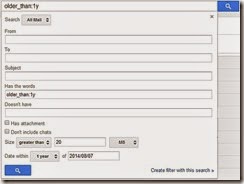
7. In case youre starting to worry about remembering all these operators, then you will be happy to know that Google has you covered. Click on the downward pointing arrow at the right corner of the search bar, and you will see the advanced search, which lets you apply all these filters in a simple menu.
Find Big Mail
Find Big Mail was the only way to - well - find big emails in Gmail, until Gmail added the filters we mentioned already. The app is still pretty useful because it automates the process of finding mails that should be deleted and also creates labels so you can find them again later without any difficulty.
Follow these steps to clean up that messy inbox:
1. Head to the Find Big Mail website > enter your Gmail address in the big form > click Find Big Mail.
2. Now Google will ask you to authorise this service. Enter your password (if you havent logged in already) > click Allow access.
3. The service will now begin scanning your inbox. It claims that it only sees the size of your emails and not the content. Once scanning is complete, you will get an email alert. Ignore the email. [post_ad]
4. On the left side, under the links for inbox, sent mail, etc., you will see new labels. If you dont see this, expand the labels menu. You will see four labels: FindBigMail - Top, FindBigMail > 1MB, FindBigMail > 5MB, FindBigMail > 10MB. Click any of these > select the emails you dont need > delete.
5. The advantage of this method is that you dont need to repeat the search later to find the worst offenders, if youre running out of space again.

Mailstrom
If youre willing to use a paid service, then we really liked Mailstrom. The app works great and you can delete up to 660 emails for free, to get an idea of how it works. Unfortunately, using it beyond this limit involves a payment of around Rs. 300 per month.
With that said, Mailstroms feature set is fairly advanced. It sorts emails by sender, lets you unsubscribe from newsletters quickly and bundles related emails so that you can delete several at once. Follow these steps:
1. Open the Mailstrom website > enter your Gmail address in the form > click Start Free Trial > click Authorize With Google > enter email and password > Sign in.
2. Now you will see your inbox through Mailstrom. It will take some time to sort all your emails. Once done, you will see all emails grouped by sender. We found surprisingly large numbers of emails from people we hadnt spoken to in years. We started by deleting these.
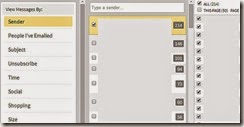
3. You can quickly clear emails using the left sidebar, which lets you view emails by size, time, emails from social networks and has a handy Unsubscribe link to help clear the clutter.
We recommend Mailstrom for those who are facing a serious email overload and have abandoned all hope of ever cleaning up their inboxes. We managed to clear over 200 emails within a minute using Mailstrom. For the average user though, the free methods we already described are probably the better choice.
These are our favourite methods for cleaning the Gmail inbox. What are yours? Tell us via the comments.
Don’t forget to Share it with your friends via Facebook & Google+ and Twitter, And if you like the article How can i clean up my gmail inbox and you may even Subscribe for New post, to get directly in your mail inbox.
Go to link Download
Monday, October 10, 2016
How to Delete Gmail Facebook Twitter Google YouTube or LinkedIn Account
How to Delete Gmail Facebook Twitter Google YouTube or LinkedIn Account

If youre not ready for that yet, you can always check out our guide to cleaning your social media accounts instead. If youve made up your mind though, heres a step-by-step guide to help you delete all your social media accounts.
Please note that while some services may let you reactivate your account where left off should you have second thoughts, at most all your data is gone once you click on that delete button - so make sure you know what you are doing before proceeding.
How to Delete Gmail Account
These days, almost everyone uses a Gmail account. In case youve decided to move on to another service though - or just want to delete an old account you no longer use - here are the steps you need to follow:
1) Head to this Google accounts page and log in.
2) Here you will see three links, one to remove Gmail without deleting your Google account, a second to remove Google Books and a third to close your Google account and delete all services. If youre sure about removing your Gmail account, click the first link. Youll see a warning page right away.
3) Now you will see a confirmation page. Click the check-box saying "Yes I would like to delete", enter a new primary email address you will use for other Google services, enter your Gmail password in the dialogue box,and click Remove Gmail. This will delete your Gmail account. Just to reiterate Googles warning, theres no coming back from this step, and all your mail will be gone forever.

How to Delete Facebook Account
Facebook makes it very difficult to delete your account. You wont find the option to delete your account permanently simply by looking through the settings. To find that page, you can either to go to Facebooks help center or you can follow these steps:
1) If youre not sure whether you want to permanently remove your Facebook account, you can deactivate it. This way, you can rejoin within 30 days without losing your data. To do that, head to Facebooks security settings page.
2) Now click Deactivate your account. This link is buried beneath "When youre logged in" and you are unlikely to see it unless youre looking for it.
[post_ad]
3) Facebook will now try to emotionally blackmail you into reversing your decision. If you ignore the photos of the people who "will miss you", you can select any reason and click Confirm
.
4) If choose to delete your account permanently, go to Facebooks account deletion page and click Delete My Account.
5) Youll see a pop-up, where youll have to enter your password and characters shown in an image (captcha). Click Okay and then click Okay again in a second pop-up. Facebook gives you a chance to change your mind - if you log in anytime in the next two weeks, Facebook will reactivate your account.

How to Delete Twitter Account
If youd rather stay away from the constant stream of tweets on this website, follow these steps to remove your account:
1) Head to Twitter settings and scroll to the bottom.
2) Now click Deactivate my account, which is a link below the Save changes button.
3) Twitter will give you a warning about what this means. If youre sure, you need to click on the Deactivate button. This will deactivate your Twitter account. If you change your mind and choose to return to the social network, you will have to log in within 30 days. After 30 days, Twitter will permanently remove your account.

How to Delete Google+ & YouTube Account
Did you accidentally sign-up for Google+ from your Gmail account? It is extremely easy to delete your Google+ profile but it can have some unwanted consequences. First, your YouTube account will be removed too. Yes, all your YouTube comments will be removed and if you have a channel, it will be disabled. Secondly, you will not be able to leave reviews on Google Play store. This is because Google has integrated all three services together. If you still want to take this step, this is what you need to do
1) Go to the Google+ Downgrade page and sign in with your Google account.
2) Now scroll down all the way to the bottom and click the check-box next to "Required: Yes I understand that...
3) Click Remove selected services. This will delete your Google+ and YouTube accounts.

How to Delete LinkedIn Account
The worlds most popular career database, LinkedIn, can be quite annoying with its constant notification emails and updates that land in your inbox. Luckily, theyve made it pretty easy to delete your account. Heres how:
1) Open LinkedIns Privacy & Settings page and sign in.
2) Click the Account tab next to the shield icon near the bottom-left of the page.
3) Under the Helpful Links section, select Close your account.
We hope this article helped you close accounts on various websites. If youd like to read more tutorials like this one, In case you have any queries or opinions regarding this tutorial, feel free to reach out using the comments section below.
Don’t forget to Share it with your friends via Facebook & Google+ and Twitter, And if you like the article How to Delete Gmail Facebook Twitter Google+ YouTube or LinkedIn and you may even Subscribe for New post, to get directly in your mail inbox.
Go to link Download
Saturday, October 8, 2016
How to change Gmail email id Hack
How to change Gmail email id Hack
I can still remember many people googling for " How to change email id in Gmail ? " . Even i googled many times and finally i have found a solution to it !
It is very easy and this hack will certainly help you :
The answer is both Yes and No !

It is not possible to change your username in gmail. The username is chosen at the time the account is created and is the permanent identifier of the account . But if you need to use a different username, it is possible. You simply need to create a new account and move your content over from the old account. For that :
Create a new account
Sign in to new account you just created and Hit the Settings link and then Accounts and Import tab.
You need to use POP3 entry. Enter the following configuration:
Username: Your old gmail email address
Password: Password for your old gmail account
POP server: gmail.com
Port: 995
Always use secure connection: check
Label incoming messages: check
This will make sure all of your old mails along with recent ones continue to land upon your new email id . You can follow the instructions
Remember that if you delete an account, you can never get it back or reuse the address.
Now , the hope for answer Yes :
If you have email id like tom@gmail and if you want to merge your surname say Clinton !
Then tell all your friends to email you @ tom+clinton@gmail but not vice versa !
Similarly you can go on like tom+clinton+is+my+name@gmail.com thus , any name you enter after your existing unchangeable gmail email id your mail will be sent on your inbox !
And if you have made tomclinton@gmail.com and want to make name and surname separate then you can go tom.clinton@gmail.com . Mail will appear in your inbox but not like plus sign where you can go tom.clinton.is.my.nam@gmail ! This wont work in this case and works only for plus symbol !
This is Because Gmail doesnt recognize dots as characters within usernames, adding or removing dots from a Gmail address wont change the actual destination address. Messages sent to yourusername@gmail.com and y.o.u.r.u.s.e.r.n.a.m.e@gmail.com are all delivered to your Inbox, and only yours.
Hope you find it useful !
Go to link Download
Saturday, October 1, 2016
How To Configure Gmail Sms To work on your Phone
How To Configure Gmail Sms To work on your Phone
If you activate GMail SMS, the service automatically forwards your e-mails as SMS text messages to your phone. You can respond to the e-mails by responding directly to the SMS. You can control the emails received by replying with commands such as MORE, PAUSE and RESUME.
Additionally, compose a new email as an SMS and send to any email address recipient â who will find your message in the right email conversation thread.â
How To Set Up/Active Gmail SMS
1. Click the small arrow beside your avatar at the top right hand corner of your Gmail web browser and click on on âAccountâ.
2. In the “Phone and SMS” section, click âOpen SMS settingsâ.
3. Enter the phone number where you would like to receive your emails
2. In the “Phone and SMS” section, click âOpen SMS settingsâ.
3. Enter the phone number where you would like to receive your emails
4. Click  the “Send Code” button. A code will be sent to your phone.
5. Enter the verification code sent to your phone as an SMS in the provided box.
6. Select to have emails forwarded to your phone.
That’s all.5. Enter the verification code sent to your phone as an SMS in the provided box.
6. Select to have emails forwarded to your phone.
Note: SMS is less secure and may be less reliable than web-based communication. All messages sent by SMS are sent via your mobile operator’s network without encryption.
=> Hit the Like, Share & Tweet Button if you like this Post.
I hope this helps.
If you have anything to say or ask, Kindly make use of the comment form below. If you also want me to post a short review of your company or product, on this blog, do not hesitate to contact me.
Please, do not forget to SUBSCRIBE to this blog, so that you can be receiving future articles, freebies DIRECTLY into your email inbox, even when you are not online.
CLICK HERE TO SUBSCRIBE NOW!
Cheers!
Go to link Download
Saturday, September 24, 2016
How To Know If Your Gmail may have been hacked
How To Know If Your Gmail may have been hacked
How To Know If Your Gmail may have been compromised ? - Gmail is an email service that is changing the way the world on the use of electronic mail . As one of the largest , of course, more interrupts are directed to Gmail as well as users. One is about five million emails burglary that had just occurred . Are you one of the victims ?
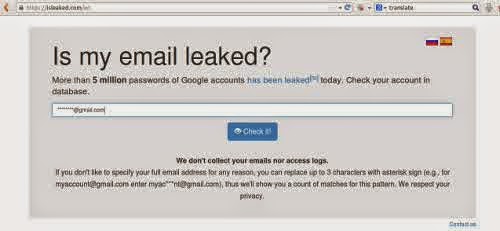
Heres how you know that your Gmail account has been hacked and the next steps to secure your email .
First and foremost , visit this website :
https://isleaked.com
Enter your Gmail address in the space provided and you will be notified when your account is hacked , including burglary while ago . As proof that your email has been compromised , this site will tell you the first two characters of your password when your account was never touched by people who are not responsible .
What if it turns out your account has been hacked ?
Immediately do a security measure to access this address :
https://www.google.com/settings/personalinfo
Click on the Security tab on this page and you will be allowed to change the password . Immediately do before its too late .
Its good , even if your Gmail account is not or has not been hacked , immediately do the two-step verification on your Google account .
The trick ? On the same page from the link above , there is a " two- step verification " on the Security tab . Click " Settings " next to it and then you will be guided to complete the process. During the process , Gmail will send a security code on your mobile phone via sms . Enter the code Google shipments consisting of a few characters into the field provided. The code will be required when you log in to your Gmail account via a mobile phone or another computer .
When you connect the smartphone to the Gmail and have verified two steps via a computer , a warning may appear on your smartphone that can not be accessed Gmail account and asks you to enter a code . Do not worry because Google will include sms containing the security code to your smartphone . Use the code to activate two- step verification on your smartphone Gmail .
Heres how you know that your Gmail account has been hacked and the next steps to secure your email .
First and foremost , visit this website :
https://isleaked.com
Enter your Gmail address in the space provided and you will be notified when your account is hacked , including burglary while ago . As proof that your email has been compromised , this site will tell you the first two characters of your password when your account was never touched by people who are not responsible .
What if it turns out your account has been hacked ?
Immediately do a security measure to access this address :
https://www.google.com/settings/personalinfo
Click on the Security tab on this page and you will be allowed to change the password . Immediately do before its too late .
Its good , even if your Gmail account is not or has not been hacked , immediately do the two-step verification on your Google account .
The trick ? On the same page from the link above , there is a " two- step verification " on the Security tab . Click " Settings " next to it and then you will be guided to complete the process. During the process , Gmail will send a security code on your mobile phone via sms . Enter the code Google shipments consisting of a few characters into the field provided. The code will be required when you log in to your Gmail account via a mobile phone or another computer .
When you connect the smartphone to the Gmail and have verified two steps via a computer , a warning may appear on your smartphone that can not be accessed Gmail account and asks you to enter a code . Do not worry because Google will include sms containing the security code to your smartphone . Use the code to activate two- step verification on your smartphone Gmail .
Go to link Download
Thursday, September 1, 2016
How To Access Gmail Account Without Internet Connection
How To Access Gmail Account Without Internet Connection

This isnt my first time expounding on this. I adventitiously lost a few posts on this online journal which i am making a decent attempt to recuperate and Id trust that am gaining ground.
Am sad in the event that i moved by saying those on the past section. Surmise i was simply been excessively honest(Oh well, its simply a portion of me!). Gmail record can be gotten to disconnected from the net by means of the utilization of a Google chrome expansion called Gmail Offline. With this expansion, absence of web association wouldnt be a purpose behind you not to peruse your messages or answer them as you can draft answers disconnected from the net and form new sends utilizing this procedure.
access gmail account logged off utilizing googlemail disconnected from the net expansion
The drawback of this is, it just works with GMail clients and Google Chrome program. It cant chip away at different programs like Mozilla Firefox, Safari and the rest. Having realized that, lets move forward.
Access Gmail Account Offline Without Internet Connection
==> Log into your Gmail account
==> Go to Chrome Web Store, Search and introduce Gmail Offline.
==> Open another tab in your program and tap on the new symbol (a blue envelope) to begin utilizing your Gmail disconnected from the net.
==> Click the radio catch on the following page and select "Permit disconnected from the net mail". This will empower your most recent email to be saved money on your PC by Gmail Offline. Snap "Proceed" to proceed onward to the following page.
==> Your inbox will have a marginally diverse interface from the Gmail application, Click on the apparatus symbol on the upper right corner to open the "Settings" page.
==> Click on "Download mail from the past" and select the time levels of how you need your messages to be downloaded onto your PC. Whenever done, Click on "Apply" to spare the change.
==> Your answers and new sends which you made when disconnected from the net will be sent to your Outbox. Likewise, you can check your outbox on Gmail logged off to see the pending messages. When you associate back to the web, Gmail will adjust the progressions made while logged off.
You can simply ahead and give it a shot. Be that as it may, hey, Please bear in mind to tell us how your experience ran with utilizing your Gmail account disconnected from the net without web association by means of posting a remark.
Go to link Download
Subscribe to:
Posts (Atom)