Showing posts with label password. Show all posts
Showing posts with label password. Show all posts
Saturday, November 26, 2016
How To Secure and Protect Your Facebook Yahoo Gmail Password From Being Hacked
How To Secure and Protect Your Facebook Yahoo Gmail Password From Being Hacked
Another wonderful tutorial and helpul for you people. Youve heard cases of hacked facebook accounts, right? Anyone can be a victim due to ignorance but that is not an excuse for leaving your login unsecured. Although there may still be flaws even when proper security measures are taken, youre still guaranteed a certain degree of security when you take those basic precautions.
The internet is a big place full of good guys and lots of crazies, we all know that, but some believe the only way to have fun is to unlawfully gain access to your account and change your password, making your own account inaccessible to you. Facebook, paypal, liberty reserve, MSN, yahoo and gmail accounts can all be hacked and thats a fact you dont want to overlook.
The most common type of hack attack today is phishing. "Phishing is a way of attempting to acquire information such as usernames, passwords, and credit card details by masquerading as a trustworthy entity in an electronic communication. Communications purporting to be from popular social web sites, auction sites, online payment processors or IT administrators are commonly used to lure the unsuspecting public.
Phishing is typically carried out by e-mail spoofing or instant messaging,[1] and it often directs users to enter details at a fake website whose look and feel are almost identical to the legitimate one." That is just how phishing is described on wikipedia and you dont want to lose your facebook or paypal account to that right? There are softwares that crack passwords using bruteforce or dictionary attacks and this is why you must make your passwords extremely strong.
Now How Do I protect Myself From Getting Hack?
There are several precautions to take in order to secure your password and prevent yourself from getting hacked.
1. Using a strong password This is the most important step to take. Never use a password that can be easily guessed like your childs name, your middle name, phone number and so on. Also, never use a word that can be found in the dictionary, your password can be easily cracked using dictionary attack . A strong password consists of letters, figures and symbols all mixed up randomly and I recommend up to 10-14 characters. An example of strong password is this: ^nG=@9y5Y*%mF
Now, Im not saying the password above cant be cracked, but it reduces the chance of getting hacked to almost 80% when compared to using a password as simple as your mobile phone number.
2. Beware of links you follow : You might seen a tempting link in your email or someone just posted and interesting link on facebook. Always think twice when websites ask for your log in details.
Theres a hack method called phishing that fools you to believe youre logging in to a legitimate site whereas the site youre about to log in to is only a photocopy of the one you think it is. Yes, this method has ben used to hijack lots of facebook accounts in the past and its still being used till date to hack paypal accounts.
When you receive a link asking you to log in to your libert reserve account, for example, did you take the time to check your address bar to see that its actually libretyreserve.com and not libertyreserve.com? Can you notice the similarity in he two addresses? Once you fall victim to this hack attack, it doesnt matter anymore whether your password is strong or not, the hacker gets your login details in plain text.
3. Be careful with softwares you install : Downloading and installing every available software from questionable sources can get you into trouble. Did you know some programs contain spywares that spy on you and report everything you do on your computer to some hacker sitting somewhere in a room in another part of the world? Did you also know that keylogger programs can record every little keystroke you make on your PC and send it to a hackers email? Are you aware that cracks and keygens often contain malicious softwares embedded? Ill advise you to download only from certified sites like filehippo, brothersoft, softpedia, filehorse and others sites like these especially if you dont know much about internet security.
4. Use different passwords for your accounts : Lets assume someone gets to know your yahoo password, the person will definitely try that same password on your facebook, hotmail, gmail and even paypal accounts. You know what would happen if you happen to use the smae password all through and that is why you should try to use different passwords for your online accounts.
5. Always update your antivirus and always use the best around : Your antiviruss virus database must be regularly updated. Why? This gives it a better chance to detect malwares and spywares that may try to steall your password.
6. Do not open spam mails : Do you often receive some stupid mails alerting you of winning some lottery you never played? Such mails can be tempting and Ill advise you not to even open them. They may contain links to phising pages or attachments that contain spywares and malwares.
7. Use SSL (HTTPS) encryption where applicable : When youre using https://, you have a certain degree of protection. A secure connetion (as oppossed to http:// ) only implies that no one gets to see or know what youre doing online and your sent and receive data is encryted. This is why all email providers and some social networks offer you encrypted login. Some sites like facebook and gmail give you the option in your account settings to always use SSLwhen youre logged in and I guess you should always use this where applicable. You should also know that legitimate and certified stores and online shops ought to use https:// so as to protect your credit card details when shopping.
8. Beware of expired or invalid SSL certificate : Here is a note of caution, when youre logging in to a site and your browser reports that the certificate has expired or invalid, you should not proceed unless you know exactly what youre doing. there are bodies that issue this SSL certificate and illegitimate sites do not have valid certificates and a legitimate site can never encrypt your setting with an expired or invalid SSL certificate. In a case like this, you should know someone is tampering with your connection or trying to fool you. Although these suggestions can get you a long way in preventing your password from getting hacked, its not 100% guaranteed that youre safe but its better to do what you can to secure yourself. You definitely dont want to be a victim of a hack attack.
Join us on Facebook now for tricks.
The internet is a big place full of good guys and lots of crazies, we all know that, but some believe the only way to have fun is to unlawfully gain access to your account and change your password, making your own account inaccessible to you. Facebook, paypal, liberty reserve, MSN, yahoo and gmail accounts can all be hacked and thats a fact you dont want to overlook.
The most common type of hack attack today is phishing. "Phishing is a way of attempting to acquire information such as usernames, passwords, and credit card details by masquerading as a trustworthy entity in an electronic communication. Communications purporting to be from popular social web sites, auction sites, online payment processors or IT administrators are commonly used to lure the unsuspecting public.
Phishing is typically carried out by e-mail spoofing or instant messaging,[1] and it often directs users to enter details at a fake website whose look and feel are almost identical to the legitimate one." That is just how phishing is described on wikipedia and you dont want to lose your facebook or paypal account to that right? There are softwares that crack passwords using bruteforce or dictionary attacks and this is why you must make your passwords extremely strong.
Now How Do I protect Myself From Getting Hack?
There are several precautions to take in order to secure your password and prevent yourself from getting hacked.
1. Using a strong password This is the most important step to take. Never use a password that can be easily guessed like your childs name, your middle name, phone number and so on. Also, never use a word that can be found in the dictionary, your password can be easily cracked using dictionary attack . A strong password consists of letters, figures and symbols all mixed up randomly and I recommend up to 10-14 characters. An example of strong password is this: ^nG=@9y5Y*%mF
Now, Im not saying the password above cant be cracked, but it reduces the chance of getting hacked to almost 80% when compared to using a password as simple as your mobile phone number.
2. Beware of links you follow : You might seen a tempting link in your email or someone just posted and interesting link on facebook. Always think twice when websites ask for your log in details.
Theres a hack method called phishing that fools you to believe youre logging in to a legitimate site whereas the site youre about to log in to is only a photocopy of the one you think it is. Yes, this method has ben used to hijack lots of facebook accounts in the past and its still being used till date to hack paypal accounts.
When you receive a link asking you to log in to your libert reserve account, for example, did you take the time to check your address bar to see that its actually libretyreserve.com and not libertyreserve.com? Can you notice the similarity in he two addresses? Once you fall victim to this hack attack, it doesnt matter anymore whether your password is strong or not, the hacker gets your login details in plain text.
3. Be careful with softwares you install : Downloading and installing every available software from questionable sources can get you into trouble. Did you know some programs contain spywares that spy on you and report everything you do on your computer to some hacker sitting somewhere in a room in another part of the world? Did you also know that keylogger programs can record every little keystroke you make on your PC and send it to a hackers email? Are you aware that cracks and keygens often contain malicious softwares embedded? Ill advise you to download only from certified sites like filehippo, brothersoft, softpedia, filehorse and others sites like these especially if you dont know much about internet security.
4. Use different passwords for your accounts : Lets assume someone gets to know your yahoo password, the person will definitely try that same password on your facebook, hotmail, gmail and even paypal accounts. You know what would happen if you happen to use the smae password all through and that is why you should try to use different passwords for your online accounts.
5. Always update your antivirus and always use the best around : Your antiviruss virus database must be regularly updated. Why? This gives it a better chance to detect malwares and spywares that may try to steall your password.
6. Do not open spam mails : Do you often receive some stupid mails alerting you of winning some lottery you never played? Such mails can be tempting and Ill advise you not to even open them. They may contain links to phising pages or attachments that contain spywares and malwares.
7. Use SSL (HTTPS) encryption where applicable : When youre using https://, you have a certain degree of protection. A secure connetion (as oppossed to http:// ) only implies that no one gets to see or know what youre doing online and your sent and receive data is encryted. This is why all email providers and some social networks offer you encrypted login. Some sites like facebook and gmail give you the option in your account settings to always use SSLwhen youre logged in and I guess you should always use this where applicable. You should also know that legitimate and certified stores and online shops ought to use https:// so as to protect your credit card details when shopping.
8. Beware of expired or invalid SSL certificate : Here is a note of caution, when youre logging in to a site and your browser reports that the certificate has expired or invalid, you should not proceed unless you know exactly what youre doing. there are bodies that issue this SSL certificate and illegitimate sites do not have valid certificates and a legitimate site can never encrypt your setting with an expired or invalid SSL certificate. In a case like this, you should know someone is tampering with your connection or trying to fool you. Although these suggestions can get you a long way in preventing your password from getting hacked, its not 100% guaranteed that youre safe but its better to do what you can to secure yourself. You definitely dont want to be a victim of a hack attack.
Join us on Facebook now for tricks.
Go to link Download

Wednesday, November 23, 2016
HOW TO GET YOUR FORGOTTEN PC PASSWORD EASILY
HOW TO GET YOUR FORGOTTEN PC PASSWORD EASILY
Active-Password Changer is a software developed for changing or resetting Computer local admin and user password in lieu of a missing Administrators password or where a password cant be recalled. So many even Format / Re-install PC to regain their system. Using
Active-Password Changer you wont have have to worry about a thing, but before we continue ill like you to also check our previous tutorial: HOW TO MAKE YOUR WINDOWS 7 GENUINE EASILY

HOW TO MAKE YOUR WINDOWS 7 GENUINE EASILY
Read more at: http://www.nairotech.com/
Copyright © Nairotech
Read more at: http://www.nairotech.com/
Copyright © Nairotech
HOW TO MAKE YOUR WINDOWS 7 GENUINE EASILY
Read more at: http://www.nairotech.com/
Copyright © Nairotech
Read more at: http://www.nairotech.com/
Copyright © Nairotech
Using Active-Password Changer one can use the login feature as user with a blank password whenever youve lostyour Computer Password.
You can Download Active@ Password Changer Here [10.4 MB]
See The Features of Active@ Password Changer :
? Helps Recovers passwords from various sections & hard diskdrives
? Help Displays and Detects all Microsoft Security Databases
? Help Displays all users
? Shows full information for all user
? Help Resets administrators /Users password
? Also Disables Smart Login Card Feature
? This software Can work on bootable floppy, USB Flash

? Windows Disk Creator lets you get bootable disks using various formats
? It aids large hard drives
? It Supports SATA ATA
Hope this helps!
Go to link Download
Sunday, October 16, 2016
How to Display Password on BlackBerry 10
How to Display Password on BlackBerry 10
How to Display Password on BlackBerry 10 - Enter a password to log into an account can be very easy for you, but not for some others. Some people even often incorrectly enter the letters / numbers right in their passwords. Of course one of the letters / numbers only, you will not be able to login to your account.

For users of BlackBerry 10 handset, no easy way to check that is given whether or not the password you enter. Just look at the eyeball icon on the right side of the password field. Stay tap on the eyeball icon then you will be able to display the passwords that you have typed before. Thus you can check each letter / number that you have typed in the password field. Easy, is not it?

For users of BlackBerry 10 handset, no easy way to check that is given whether or not the password you enter. Just look at the eyeball icon on the right side of the password field. Stay tap on the eyeball icon then you will be able to display the passwords that you have typed before. Thus you can check each letter / number that you have typed in the password field. Easy, is not it?
Go to link Download
Friday, September 30, 2016
How To Change Nimbuzz Id Password
How To Change Nimbuzz Id Password
Change Nimbuzz id password using simple and easy way. Nimbuzz is not 100% secure from hacking and you may need to use strong password to avoid being hacked. You can change the Nimbuzz id password easily by follow the below steps.
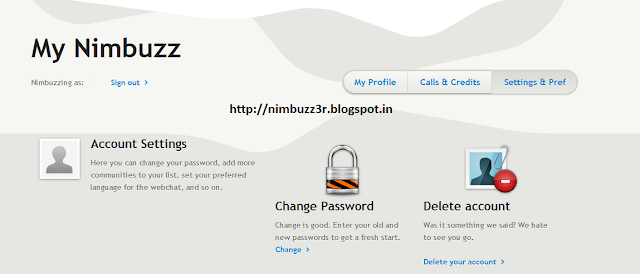
1. Goto the following website Link.
1. Goto the following website Link.
2. Write your Nimbuzz User Id and Password and login to Nimbuzz.
3. Select Setting & Pref option.
4. Click on Change Password on the page.
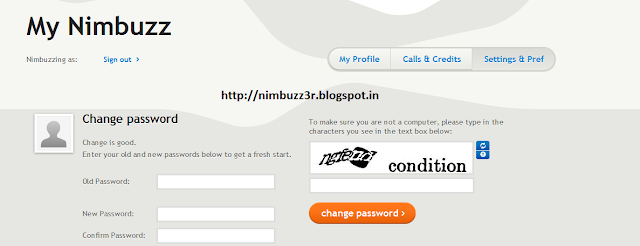
5. Write your Old Password, New Password and Confirm Password.
6. Write the Captcha and click on Change Password.
Thats it and your old Nimbuzz id password is changed to new password.
Go to link Download
How to Reset Your Forgotten Password In Windows
How to Reset Your Forgotten Password In Windows
Guys Today we will Learn How to Reset your Forgotten Password In Windows. Often People Tend To Forget their Password of Their Windows Password.
Forgetting any passoword is not fun, but luckily Here is the simple trick which i will show you to Reset your Forgotten Password.
REQUIREMENTS :
1. Windows Installation Disk.
2. A simple Command Line.
Follow Below Simple Steps :
Step 1: Insert Your windows disk And Boot Your Pc.
Step 2: Select " Repair Your Computer " From the lover Left Corner. Check the below Pic.

Step 3: Follow on Till you get the below screen , You need to click on Command Promt.

Step 4: Now The Real Trick,Type The below Command to backup the original Sticky keys File.
copy c:windowssystem32sethc.exe c:
Step 5: Now Copy The Command Prompt Executable on top of the sticky keys executable :
copy c:windowssystem32cmd.exe c:windowssystem32sethc.exe
Follow The below Pic For More Idea on It.

Step 6: Now Reboot Your PC.
Step 7: After Rebooting your pc, You will see a login Screen, All You need to do is Hit Shift Key 5 Times, You will get a Command Promt.
Step 7: After Rebooting your pc, You will see a login Screen, All You need to do is Hit Shift Key 5 Times, You will get a Command Promt.
Step 8 : Now to Reset Your Password just replace The Username and passoword with your own In Below line.
net user Freak MyNewPassword
Thats all Now you can Login.
you probably want to put the original sethc.exe file Back, Then You have to just reboot into the installation CD, Open the Command Promt Again and Copy The c:sethc.exe file back to
c:windowssystem32sethc.exe.
Go to link Download
Sunday, September 18, 2016
How to get back retrieve your 2go password free of charge when you Forget it
How to get back retrieve your 2go password free of charge when you Forget it
Don Zikk0 M????? ? BlackBerry pin » 215F5BDC
2go Username » Biz2Get
Share all of this †o ur friends!
Just follow this steps:
===> go to 2go.com.ng
===> Click on Get Help
===> After that click on "forget my my password or pin
===> You will be prompted to enter your phone number,so enter the
phone number you use to register for 2go but in an international
format.eg if your number is 08136788902,you will enter
2348136788902.
===> After that you will receive your 2go username and password on
your phone. Hope this helps
Add me on 2go: username is: Biz2Get
Go to link Download
Friday, September 16, 2016
How to Find WiFi Password Saved in Mac
How to Find WiFi Password Saved in Mac
How to Find WiFi Password Saved in Mac - Are you a Mac computer users and often visited the place to hang out to get free WiFi? If that is true then perhaps you should be aware that the WiFi that you can not completely free because you have to pay for a cup of coffee, for example.
Well, so many places to hang out WiFi hotspots that youve visited it stands to reason there will be a lot of WiFi passwords stored on your Mac computer. Thus it becomes possible to recognize any WiFi hotspot you are going to wear alias confused with other WiFi hotspots. If that is the case then of course the password that you enter will not be recognized.
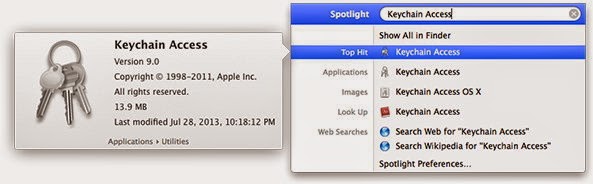
In the OS X version number, passwords are always stored in an application called Keychain Access. Thus if you are looking for a password that you do not remember, you can easily find it. Then how to set it?
1. Type Keychain Access in the Spotlight search (magnifying glass logo) on the right side of the menu bar.
2. Seek network you mean then double click.
3. Click on Show Passwords. Confirm the admin username and password.
4. You will be prompted to enter the admin name and password once again,
5. Password WiFi mean that you will appear in the text box that is next to the Show Password.
You need to know that the Keychain Access is also capable of storing all passwords for applications, the internet and the web form on the Mac. In this way you can easily find the WiFi password or other passwords that you need in a Mac, without the help of third-party apps.
Go to link Download
Thursday, September 15, 2016
How to Delete Window Login Password
How to Delete Window Login Password
here are many people who want to delete windows password and bypass Windows login. It happens many times that we want to access friend’s Windows computer anonymously. Sometimes, we even forgot Windows login password. If you are searching for a solution to one of these problems, you are at the right place. Today, I am posting the best way to bypass windows login in this article. So, let us begin.
- USB drive
- Download this file: Files to Bypass Windows Login.
Password: techotips.com
Make sure you have the above files before moving to the procedure.
Got those files? Great! So, let us get into the steps to delete Windows password.
2. Unzip your downloaded folder and from “Grub” folder, run grubinst_gui.exe as Administrator. For this, right click on file and hit on “Run As Administrator”.
Note: Do not run this file in Sandbox. The trick will not work.
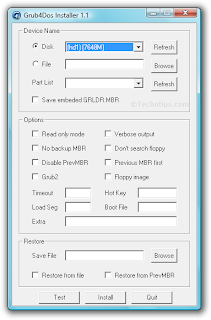
3. Click on “Disk” radio button and from dropdown box, select your USB drive.
Note: Make sure you select your USB drive and not any other drive. You can select it correctly by looking at size mentioned in the options.
4. Hit on Install and you will be shown message regarding successful installation in command prompt.
Update: If you are getting some error like: Bad partition table or so, copy this code:
5. Now, copy these 3 files in your USB root:
- grldr from “grub4dos” folder
- menu.lst and
- KON.IMG
The 3 files are present in the downloaded folder. Make sure you copy these files in USB root and not in any folder.
That’s it. You are done with the basic configuration of USB drive.
Now, when you restart your computer in a normal way (without booting from USB), you will be asked to enter a valid password. So, if you want to access friend’s computer anonymously, without his knowledge, you can do it easily using this beautiful trick.
Whenever you want to remove Windows password, simply boot using this USB drive and enjoy anonymous access to any Windows computer. I hope you will now be able to bypass Windows password using the above trick.
Recommended: You might be interested in our article: SMS Bomber to send unlimited messages to friends.
This was a short tutorial on how to bypass Windows login using USB drive. If you have any queries on how to delete Windows password, please let us know in comments.
How to Bypass Windows Login:
This Windows trick works for all Windows versions and the procedure is same for all the versions. After configuration, the only thing you have to do is to boot using your usb drive and you can easily delete Windows password. Please note that this trick will not reset Windows password. It will erase Windows password only when you boot from USB. The next time you boot computer without USB, you will be required to enter the actual password.
Requirements:
- A computer.- USB drive
- Download this file: Files to Bypass Windows Login.
Password: techotips.com
Make sure you have the above files before moving to the procedure.
Got those files? Great! So, let us get into the steps to delete Windows password.
Steps for Deleting Windows Password:
1. First of all, you have to format your USB drive. You can do that easily by right click -> Format. Also, while formatting make sure that you have selected FAT32 as File System. This is necessary for proper working of this trick.2. Unzip your downloaded folder and from “Grub” folder, run grubinst_gui.exe as Administrator. For this, right click on file and hit on “Run As Administrator”.
Note: Do not run this file in Sandbox. The trick will not work.
3. Click on “Disk” radio button and from dropdown box, select your USB drive.
Note: Make sure you select your USB drive and not any other drive. You can select it correctly by looking at size mentioned in the options.
4. Hit on Install and you will be shown message regarding successful installation in command prompt.
Update: If you are getting some error like: Bad partition table or so, copy this code:
--skip-mbr-test into Extra textbox and hit on Install. Thanks to vihari for the feedback. 5. Now, copy these 3 files in your USB root:
- grldr from “grub4dos” folder
- menu.lst and
- KON.IMG
The 3 files are present in the downloaded folder. Make sure you copy these files in USB root and not in any folder.
That’s it. You are done with the basic configuration of USB drive.
Boot from USB:
Restart your system and boot using the USB drive you just configured. On next screen, hit Enter once. Windows will start normally and you will be shown Windows login page. Don’t worry! You don’t have to enter any password. Just hit on Enter and you will be able to bypass Windows password. Cheers!Now, when you restart your computer in a normal way (without booting from USB), you will be asked to enter a valid password. So, if you want to access friend’s computer anonymously, without his knowledge, you can do it easily using this beautiful trick.
Whenever you want to remove Windows password, simply boot using this USB drive and enjoy anonymous access to any Windows computer. I hope you will now be able to bypass Windows password using the above trick.
Recommended: You might be interested in our article: SMS Bomber to send unlimited messages to friends.
This was a short tutorial on how to bypass Windows login using USB drive. If you have any queries on how to delete Windows password, please let us know in comments.
Go to link Download
Monday, September 12, 2016
How To Reset Forgotten Admin Password on OSX 10 11 El Capitan
How To Reset Forgotten Admin Password on OSX 10 11 El Capitan
The passwords for every accounts on the OSX 10.11 El Captan, OSX 10.10 Yosemite, OSX 10.9 Mavericks and OSX 10.8 Mountain Lion including admin and standard user accounts can be reset and changed when booted from the Recovery Partition on OSX.
Reset Forgotten Admin Password OSX
Step1: Boot into Recovery Partition:
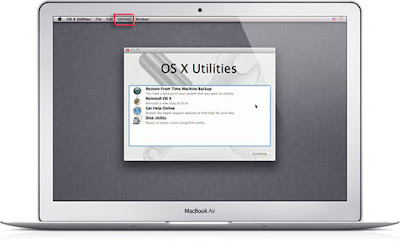
Reboot into the Recovery Driver by choosing the “Apple” menu >> Restart, hold down the “command” + “R” keys on the keyboard during the start-up process, then let go when you see the start-up screen. As soon as the machine boots, you will see the OS X Utilities screen.
Step2: Go to the Utilites menu and select Terminal
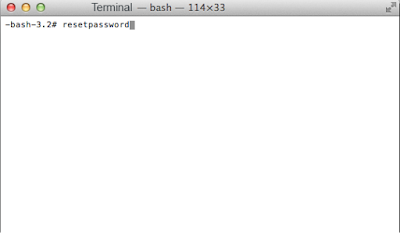
Step3: At the prompt type ‘resetpassword’ (hit enter)
_______________________________________________________
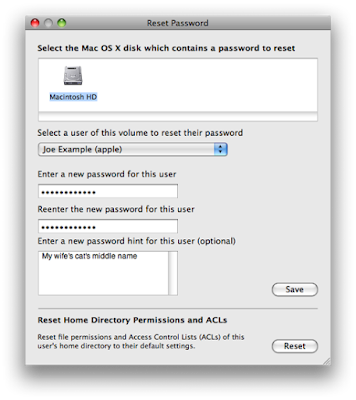
This launches the Reset Password screen, select the Volume Hard Drive in the top part of the window pane, then select the user you need to reset the user account at the lower part then add and confirm the new password and click save. You will get a confirmation screen and details concerning the keychain account.
Step4: Go to the Apple Menu and click Restart to boot back to normal hard drive and then the new password will take effect instantly.
Go to link Download
Friday, September 9, 2016
HOW TO RETRIEVE YOUR LOST 2GO PASSWORD FREE
HOW TO RETRIEVE YOUR LOST 2GO PASSWORD FREE
Most times, We forget our 2go Password due to the way it was Structured... Retriving your 2go Password cost N30 but now you can Retrieve it for Free using the new Forget password Feature on their Official website, Its Free and a Faster way of getting back your Lost Password.
SO HOW CAN I RETRIEVE MY LOST 2GO PASSWORD FOR FREE?
1. Visit 2go.com.ng on your Pc or Phone >> Select Kenya as your Country on the Country List >> Then Select English as your Language.
2. Click on the "Get Help" Link >> Then Click on the "I forget my Password/PIN" option.
3. You will be asked to Provide your Mobile Phone Number, Enter it in an International Format e.g if your Phone no is 08023456789, You will have to enter it like this2348023456789, Then click on the Proceed Button.
4. You will receive an SMS on your Phone within 10secs cont
Go to link Download
Tuesday, August 30, 2016
How to Hack Wi Fi password using Android 100 working
How to Hack Wi Fi password using Android 100 working
How to Hack Wi Fi password using Android [100% working ]
Do you want to test your network security? It used to be that you needed a desktop OS such as Windows or Linux installed on a computer with a specific wireless network card. Now, however, you can also use certain Android devices to scan and crack wireless networks. These tools are available for free as long as your device is compatible. Hacking routers without permission is illegal. These steps are provided to test the security of your own network.Steps
Method 1 of 2: WPA2 WPS Routers
1. Root a compatible device- Not every Android phone or tablet will be able to crack a WPS PIN. The device must have a Broadcom bcm4329 or bcm4330 wireless chipset, and must be rooted. The Cyanogen ROM will provide the best chance of success. Some of the known supported devices include:

- Nexus 7
- Galaxy Ace/S1/S2/S3
- Nexus One
- Desire HD
2. Download and install bcmon- This tool enables Monitor Mode on your Broadcom chipset, which is essential for being able to crack the PIN. The bcmon APK file is available for free from the bcmon page on the Google Code website.

- To install an APK file, you will need to allow installation from unknown sources in your Security menu.
3. Run bcmon- After installing the APK file, run the app. If prompted, install the firmware and tools. Tap the "Enable Monitor Mode" option. If the app crashes, open it and try again. If it fails for a third time, your device is most likely not supported.


- Your device must be rooted in order to run bcmon.
4. Download and install Reaver- Reaver is a program developed to crack the WPS PIN in order to retrieve the WPA2 passphrase. The Reaver APK can be downloaded from the developers thread on the XDA-developers forums.
5. Launch Reaver- Tap the Reaver for Android icon in your App drawer. After confirming that you are not using it for illegal purposes, Reaver will scan for available access points. Tap the access point you want to crack to continue.

- You may need to verify Monitor Mode before proceeding. If this is the case, bcmon will open again.
- The access point you select must accept WPS authentication. Not all routers support this.
7. Start the cracking process- Tap the "Start attack" button at the bottom of the Reaver Settings menu. The monitor will open and you will see the results of the ongoing crack displayed.
- Cracking WPS can take anywhere from 2-10+ hours to complete, and it is not always successful
Method 2 of 2: WEP Routers
1. Root a compatible device- Not every Android phone or tablet will be able to crack a WPS PIN. The device must have a Broadcom bcm4329 or bcm4330 wireless chipset, and must be rooted. The Cyanogen ROM will provide the best chance of success. Some of the known supported devices include:

- Nexus 7
- Galaxy S1/S2/S3/S4/S5
- Galaxy y
- Nexus One
- Desire HD
- Micromax A67
2. Download and install bcmon- This tool enables Monitor Mode on your Broadcom chipset, which is essential for being able to crack the PIN. The bcmon APK file is available for free from the bcmon page on the Google Code website.

- To install an APK file, you will need to allow installation from unknown sources in your Security menu.
3. Run bcmon- After installing the APK file, run the app. If prompted, install the firmware and tools. Tap the "Enable Monitor Mode" option. If the app crashes, open it and try again. If it fails for a third time, your device is most likely not supported.

- Your device must be rooted in order to run bcmon.
4. Tap "Run bcmon terminal"- This will launch a terminal similar to most Linux terminals.Type airodump-ng and tap the Enter button. AIrdump will load, and you will be taken to the command prompt again. Type airodump-ng wlan0 and tap the Enter button.
5. Identify the access point you want to crack- You will see a list of available access points. You must select am access point that is using WEP encryption.

6. Note the MAC address that appears- This is the MAC address for the router. Make sure that you have the right one if there are multiple routers listed. Jot this MAC address down.

- Also note the Channel that the access point is broadcasting on.
7. Start scanning the channel- You will need to collect information from the access point for several hours before you can attempt to crack the password. Type airodump-ng -c channel# --bssidMAC address -w output ath0 and tap Enter. Airodump will begin scanning. You can leave the device for a while as it scans for information. Be sure to plug it in if you are running low on battery.


- Replace channel# with the channel number the access point is broadcasting on (e.g. 6).
- Replace MAC address with the MAC address of the router (e.g 00:0a:95:9d:68:16)
- Keep scanning until you reach at least 20,000-30,000 packets.
8. Crack the password- Once you have a suitable number of packets, you can start attempting to crack the password . Return to the terminal and type aircrack-ng output*.cap and tap Enter.
9. Note the hexadecimal password when finished- After the cracking process is complete (which could take several hours), the message Key Found! will appear, followed by the key in hexadecimal form. Make sure that "Probability" is 100% or the key will not work.

- When you enter the key, enter it without the ":". For example, if the key was 12:34:56:78:90, you would enter 1234567890
Note: Please note that this tutorial is solely for educational purpose and I am not responsible for any kind of illegal usage of this tutorial.
Go to link Download
Subscribe to:
Posts (Atom)